
Here's a quick fix that often works: press and hold the Volume Down and Side buttons together for about 10 seconds. Keep holding until the Samsung logo appears. This simulates a battery pull and can clear temporary camera glitches that make the viewfinder go black or show a "Camera failed" error.
To know whether you are fixing hardware or software, try a webcam test in the browser. A working preview narrows the problem down to the app you were using.
Key Points
- Quick Force Restart: Press Volume Down + Side for 10 seconds until Samsung logo.
- Check Third-Party Apps: Boot into Safe Mode to rule out app conflicts.
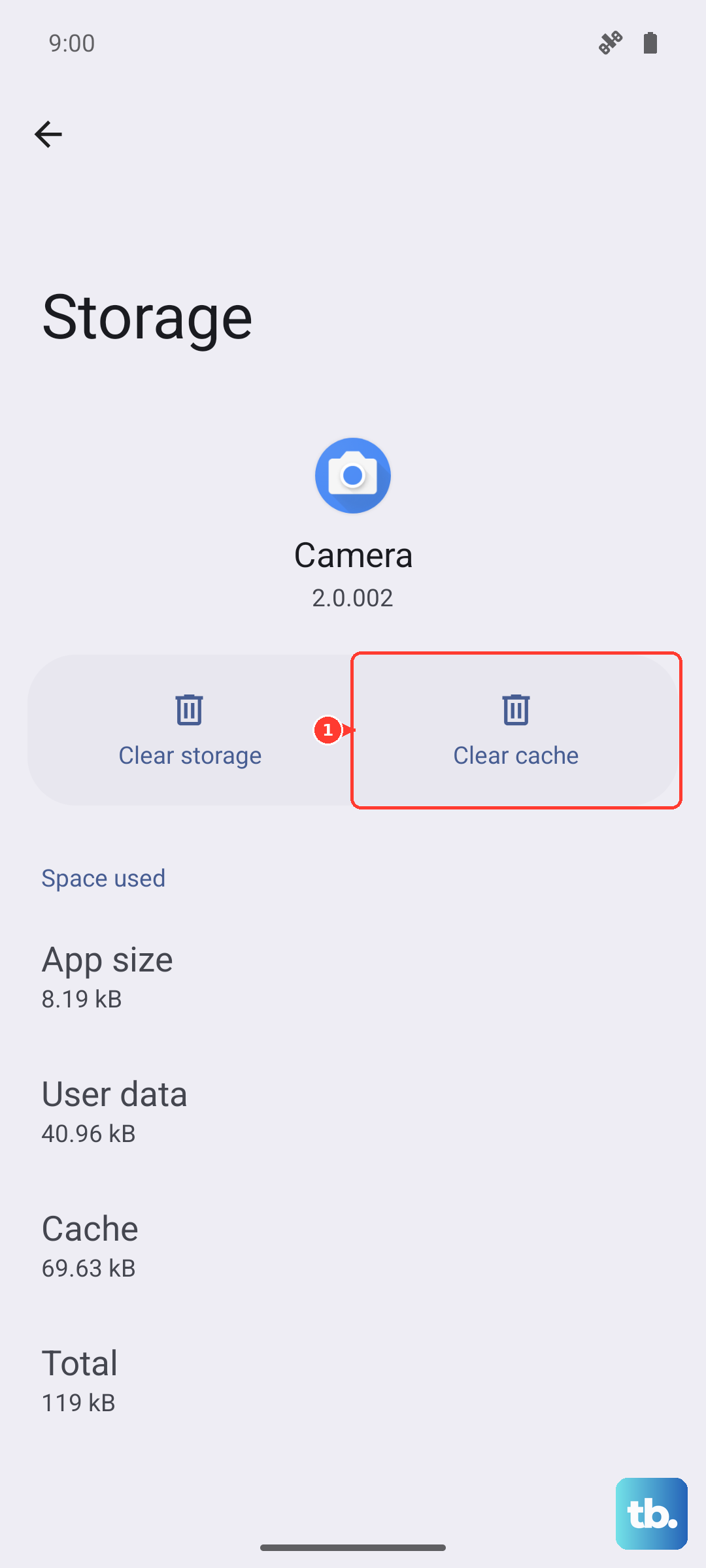
- Clear Camera Cache: Go to Settings > Apps > Camera > Storage > Clear cache.
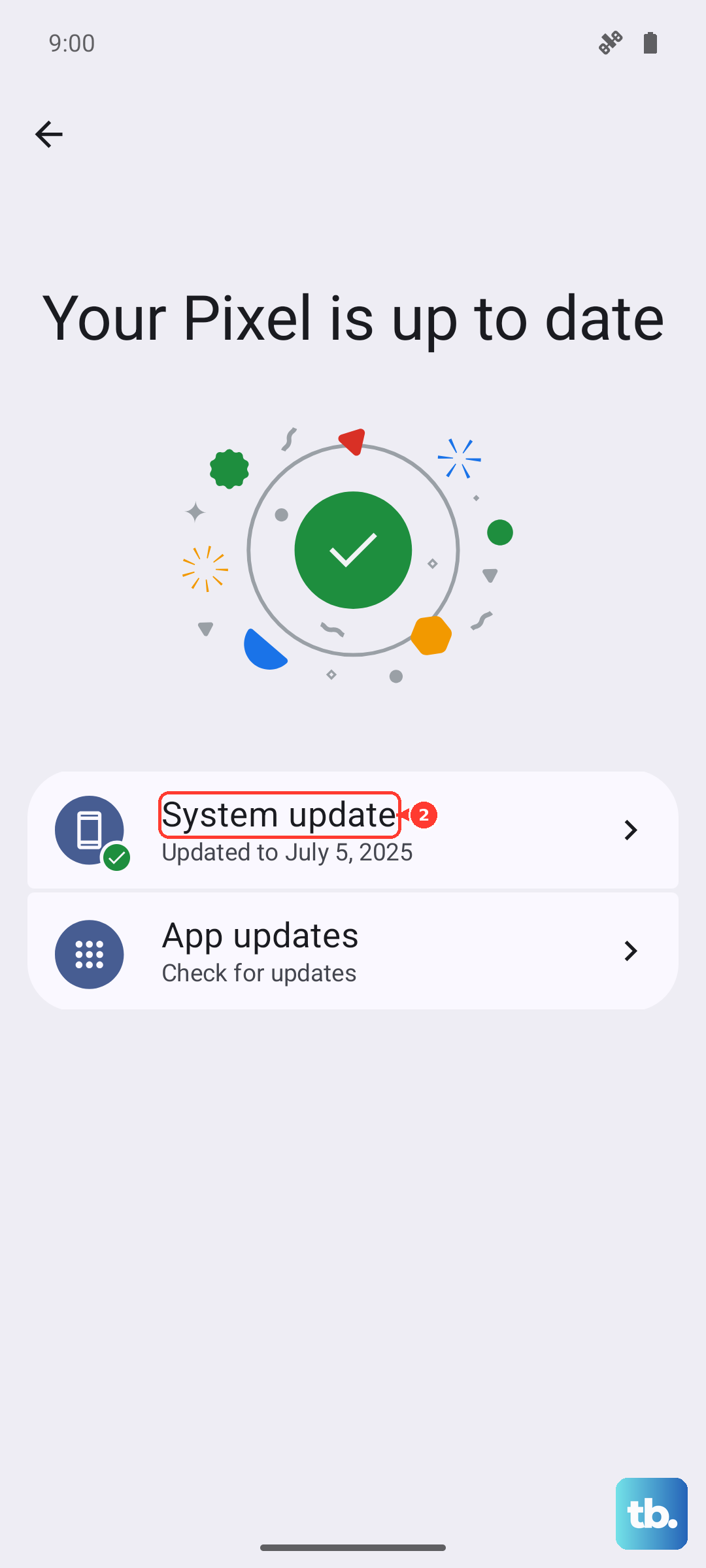
- Update Software: Check for system updates and camera app updates in Galaxy Store.
- Reset Camera Settings: Use Settings > Apps > Camera > Storage > Clear data (reset camera settings, no photo loss).
- Clean the Lens: Use microfiber cloth to remove smudges on the rear camera array.
Give your Galaxy S25 Edge about 30 seconds after the restart to fully boot, then open the Camera app. If it works now, you had a minor software hiccup.
If the camera still refuses to open or shows a warning, the next steps will help identify whether it's an app conflict, a corrupted cache, or a deeper software issue.
Boot Into Safe Mode to Check for App Conflicts
Third-party apps can interfere with the camera hardware. Safe Mode disables all downloaded apps, letting you test if the camera works without them.
Press and hold the Side button until the power menu appears. Tap and hold the Power Off option until the Safe Mode prompt shows, then tap Safe Mode. Your phone will restart with "Safe Mode" in the bottom-left corner.
Open the Camera app. If it works perfectly in Safe Mode, a recently installed app is causing the problem. Restart the phone normally to exit Safe Mode, then uninstall apps you added around the time the camera started failing. Start with any camera-related apps or recent updates from the Play Store.
Clear the Camera App Cache and Data
Over time, the Camera app accumulates temporary files that can become corrupted. Clearing the cache often fixes issues where the app crashes on launch or takes forever to focus.
Go to Settings > Apps > Camera > Storage. Tap Clear cache first. This won't delete your photos or settings. If the camera still misbehaves, tap Clear data this resets camera preferences (like resolution and grid lines), but your photos and videos stay safe.
Restart the phone before testing the camera again.
Install the Latest Software and Camera Updates
Samsung regularly pushes updates that fix camera bugs. The Galaxy S25 Edge launched with Android 15, and subsequent updates have addressed specific camera performance and stability issues.
Open Settings > Software update and tap Download and install. While you're at it, open the Galaxy Store, tap the menu (three lines), then Updates to see if a Camera app update is waiting. Install everything and restart.
I've seen phones with a "Camera failed" error go back to normal after a single system update. It's worth checking even if you think you're up to date.
Clean the Camera Lens Properly
The S25 Edge's sleek bezel can collect fingerprints and pocket lint right over the lenses. Even a tiny smudge can make photos look blurry or cause autofocus to hunt endlessly.
Use a clean microfiber cloth the kind that comes with eyeglasses and gently wipe the rear camera island. Don't use your shirt or paper towel; those can scratch the lens coating. For stubborn grease, a drop of lens cleaning solution on the cloth works fine.
After cleaning, open the Camera app and point it at a bright area. If the image snaps into focus, smudges were the issue.
Check for Physical Blockage or Damage
Although rare, a case or screen protector that's slightly misaligned can block the camera lens or the laser autofocus sensor (located near the camera module on some models). Remove the phone case entirely and try the camera.
Also inspect the lens for cracks or scratches. The S25 Edge uses Gorilla Glass Victus 3 on the front and back, but impacts can still damage the camera cover glass. If you see visible damage, the camera sensor underneath might be affected.
Reset App Preferences (If Nothing Else Works)
This is a deeper reset that restores all app defaults, including disabled apps and permissions. It won't delete personal data but will reset things like default SMS app and background data restrictions.
Go to Settings > Apps > tap the three dots (top-right) > Reset app preferences. Tap Reset to confirm. This forces all apps, including the camera, to use their default permissions and settings.
After the reset, test the camera. If it opens now, a permission or background restriction was blocking it.
Factory Reset as a Last Resort
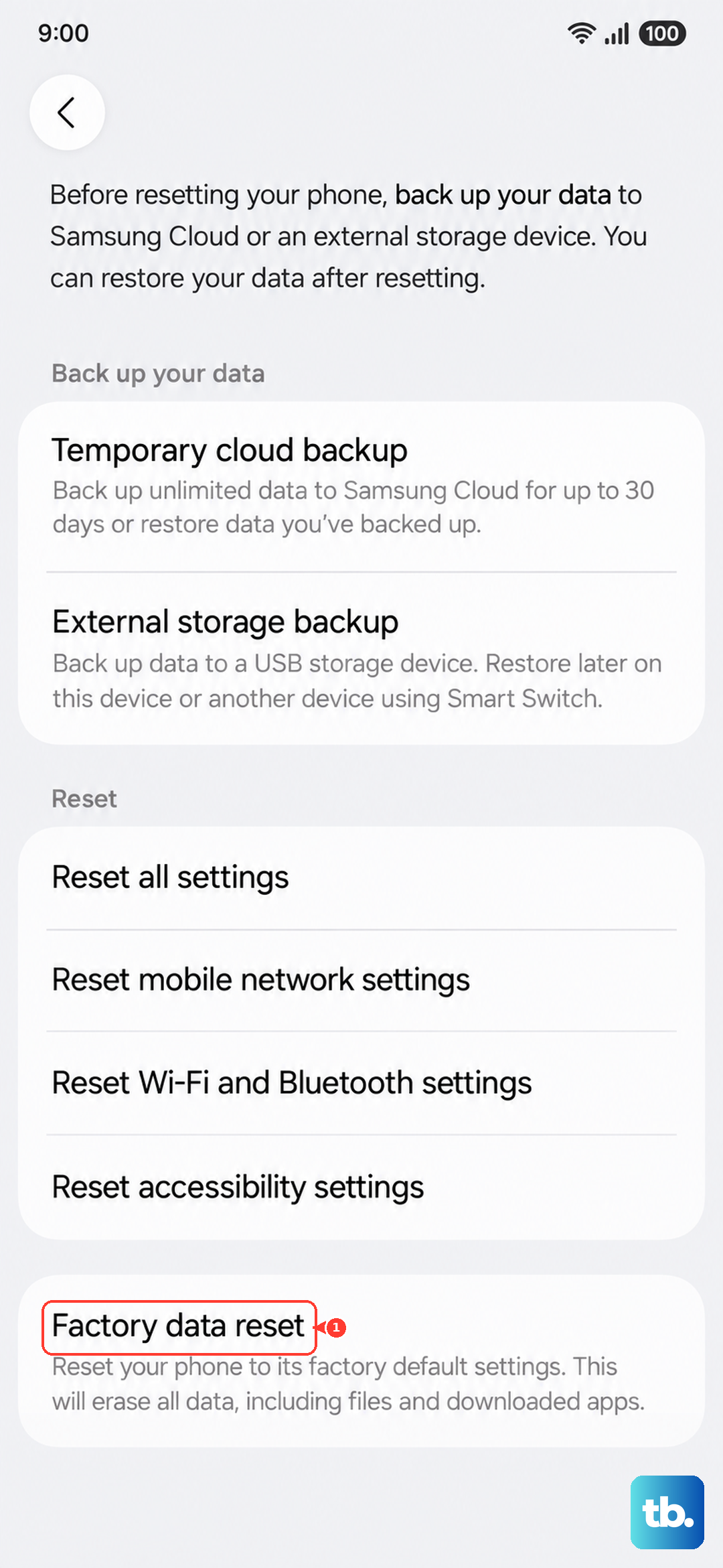
If you've tried everything and the camera still shows a black screen, "Camera failed", or won't switch between lenses, a factory reset may eliminate any lingering software corruption. This erases all your data, so back up your photos, contacts, and files first.
Go to Settings > General management > Reset > Factory data reset. Follow the prompts and enter your PIN or password when asked. The process takes about 10 minutes.
Restore your backup and test the camera. If it still doesn't work after a factory reset, the camera module itself may need hardware repair. In that case, contact Samsung Support or visit an authorized service center.