
A blurry camera on the Galaxy S25 Edge makes that 200MP sensor feel completely useless. Before you start worrying about hardware failure, try these common fixes first. Most of the time, it's something simple you can clear up in a minute.
Is the lens clean?
Give the lenses a quick wipe with a microfiber cloth. The Galaxy S25 Edge has a big camera bump with multiple lenses crammed together, so it catches smudges and dust easily. Fingerprints on the lens are the number one reason for blurry photos.
Your case might be the issue
Some cases don't align perfectly with the camera bump, especially if it's a thick protective case. Pop the case off and take a photo. If the photo is instantly clearer, the case was blocking or fogging up the lens.
Tap to focus
Open the Camera app and tap your subject on the screen. You'll see a yellow square appear where the camera is focusing. If you're shooting something close up, the camera might focus on the background instead, so tapping forces it to refocus on what you actually want to capture.
Turn off Focus Enhancer
Samsung's Focus Enhancer is designed for close-up shots, but it can sometimes make things look soft or cause the focus to hunt. You'll see a little icon (it looks like a flower) in the bottom left of the viewfinder. Tap it to turn it off when you don't need it.
Switch between lenses
The S25 Edge has multiple cameras on the back. Test the wide, ultrawide, and telephoto lenses in the Camera app. If only one lens produces blurry photos, that specific lens might be dirty or, in rare cases, damaged.
Restart the S25 Edge
A force restart clears up software hiccups without deleting anything. Press and hold the Volume Down and Side buttons together for about 10 seconds until the Samsung logo pops up. This refreshes the entire camera software stack and fixes stuck processes.
Check for moisture
Condensation on the lens makes photos look hazy or foggy. If you just came inside from the cold or took your phone out of a humid environment, give it 15-20 minutes to adjust to room temperature. Don't blow on the lens as this adds more moisture.
Update your software
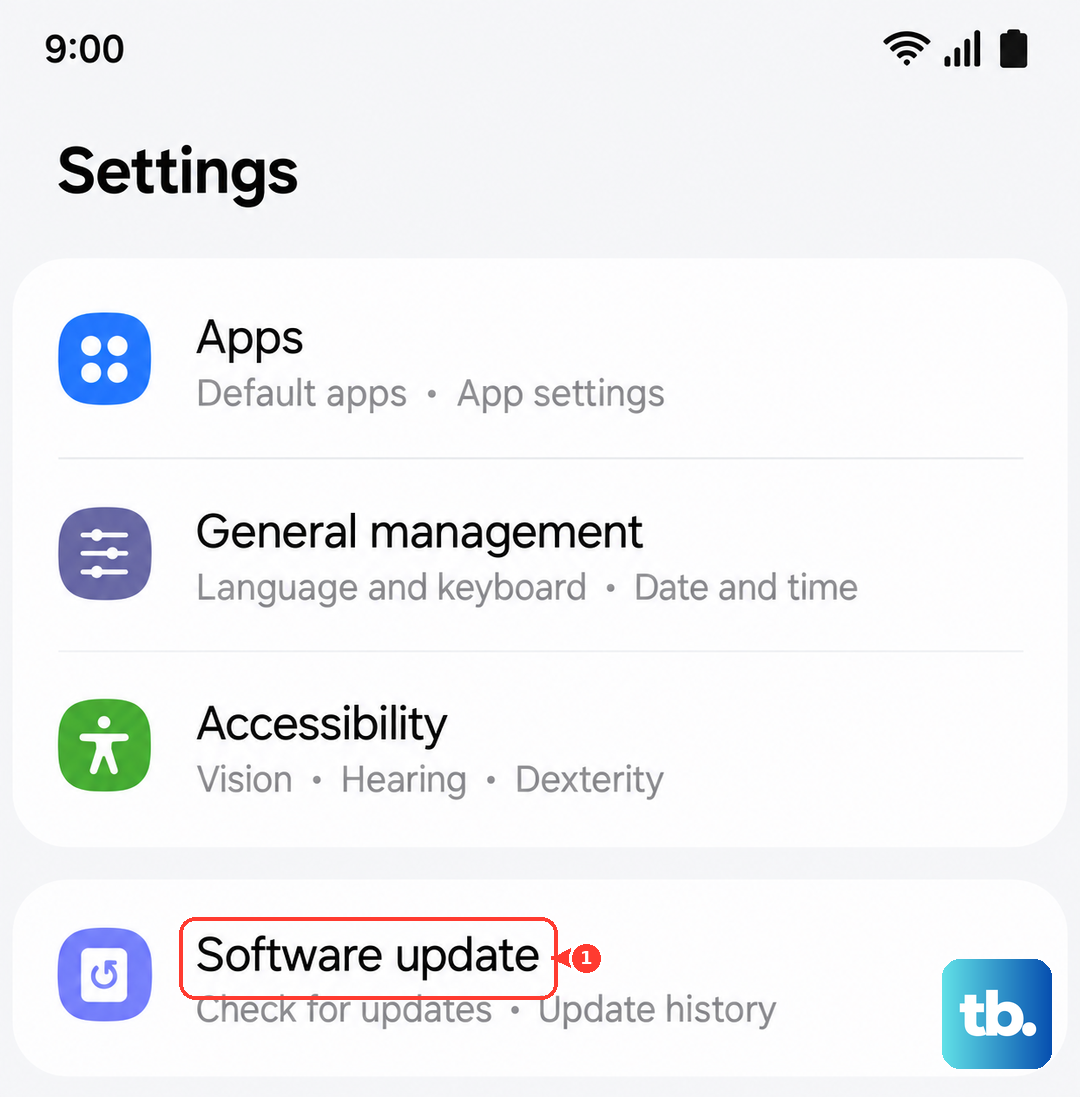
Samsung pushes camera improvements through One UI updates. Head to Settings > Software Update > Download and Install to make sure you're on the latest version. Camera processing and autofocus algorithms are often improved this way.
Reset camera settings
If you've been tinkering with the settings and something went wrong, resetting them gives you a clean slate. Open the Camera app, tap the gear icon in the top left, scroll down to the bottom, and tap Reset settings. It puts everything back to default without wiping any of your personal data.