Your Samsung Galaxy S25 Edge is a powerful device, but even the best phones hit a snag with app downloads sometimes. If the Play Store is stuck on "pending" or downloads refuse to start, these ten fixes should get you back on track.
Quick Connection Check
Before digging into settings, take a quick look at your network. Pull down the notification shade and confirm your Wi‑Fi or mobile data icon is lit up. If you see an exclamation mark next to the Wi‑Fi icon, that means the connection is weak or needs a password re‑entry. Toggle the connection off and back on and try downloading again.
Force Restart Your Galaxy S25 Edge
A force restart clears temporary glitches without wiping any data. This is especially useful if the phone feels sluggish or unresponsive. Press and hold the Volume Down and Side (power) buttons together for about 10 seconds until the Samsung logo appears. Let the phone fully reboot, then open the Play Store and retry the download.
Set Date and Time to Automatic
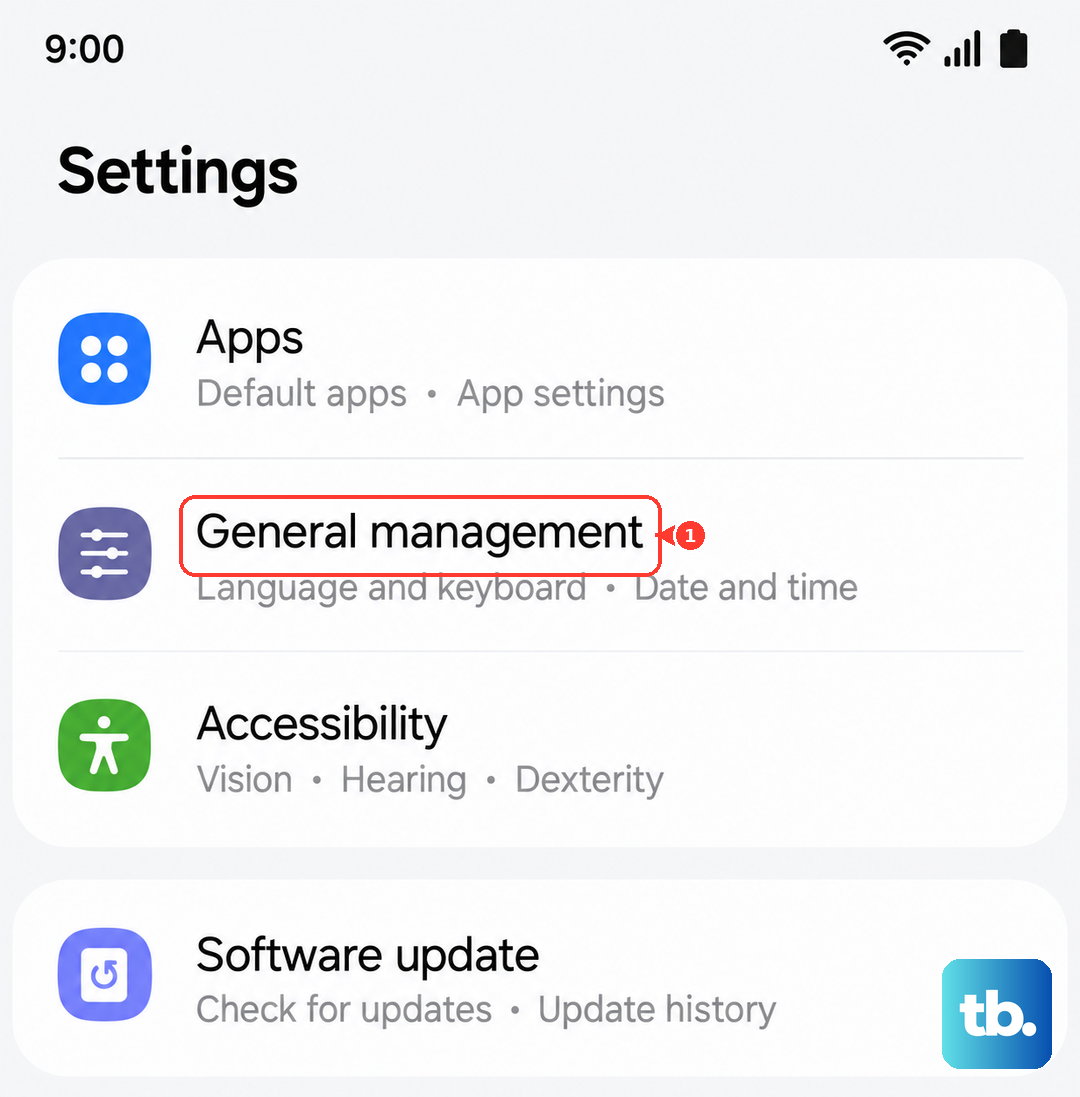
Google's servers compare your device's clock when processing downloads. If the time is off by even a few minutes, downloads can stall. Go to Settings > General Management > Date and Time and turn on Automatic Date and Time. If it's already on, switch it off, set the time manually, then turn automatic back on. This resyncs the clock with the network.
Switch Between Wi‑Fi and Mobile Data
Some Wi‑Fi networks block the port Google Play uses for downloads. If you're stuck on Wi‑Fi, turn it off in the quick settings panel and enable mobile data. Wait a few seconds, then try the download. If the app starts downloading immediately, the issue was the Wi‑Fi network. You can also try switching back to Wi‑Fi after the download begins sometimes the first few bytes need a different route.
Clear the Download Manager
The Download Manager is a system-level app that handles all file transfers. Corrupted data here can halt downloads. Go to Settings > Apps, tap the three‑dot menu, and select Show System Apps. Find Download Manager, tap Storage, then tap Clear Cache and Clear Data. Restart the phone afterward.
Clear Google Play Store Cache and Data
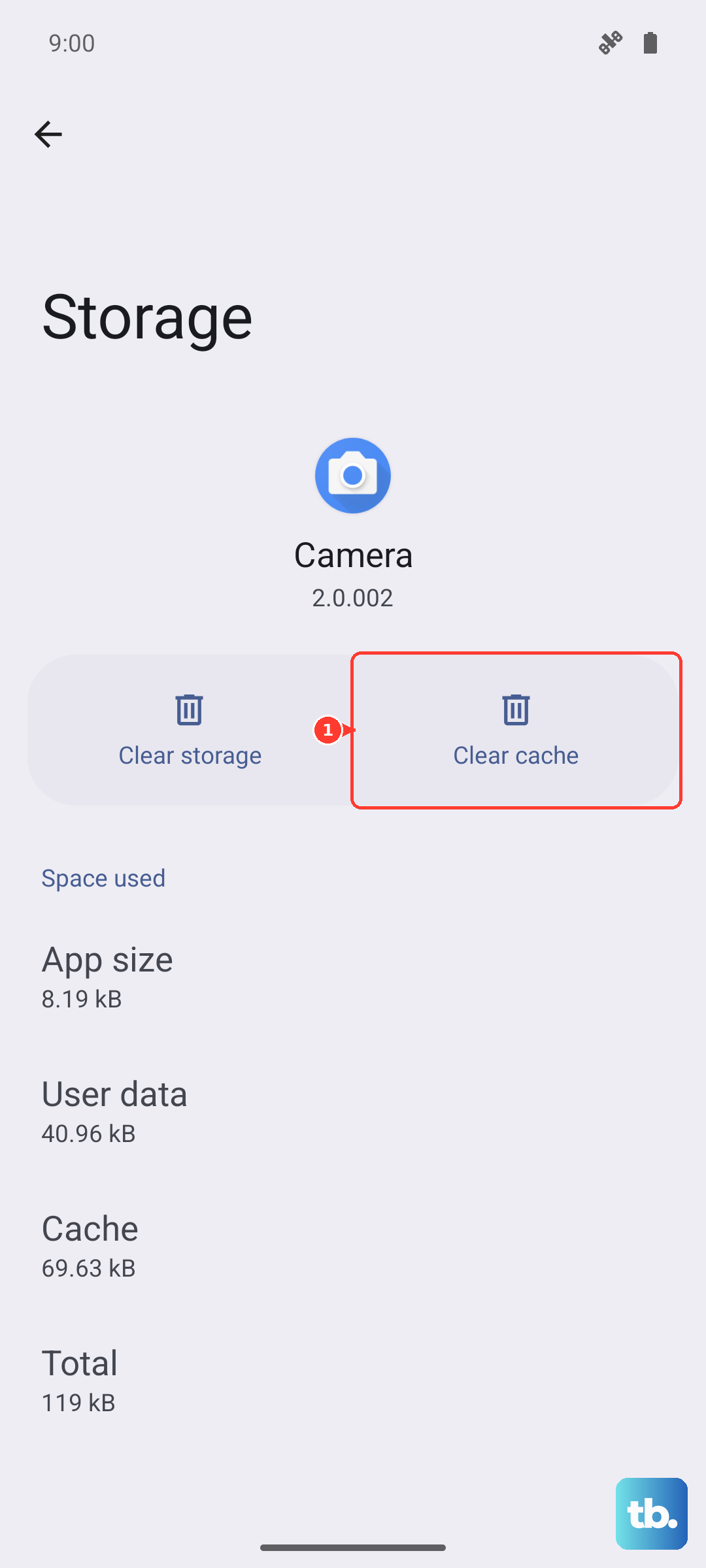
A bloated cache inside the Play Store can cause weird behavior. Head to Settings > Apps and find Google Play Store. Tap Storage and choose Clear Cache. If downloads are still stuck, go back and tap Clear Data this resets the app to its factory state. You'll need to sign into your Google account again next time you open the Play Store.
Clear Google Play Services Cache
Google Play Services acts as the bridge between apps and system functions. When it gets confused, downloads can hang. Go to Settings > Apps, find Google Play Services, and tap Storage. Tap Clear Cache first, then tap Manage Storage > Clear All Data. A restart is recommended after this step.
Refresh Your Account Sync
Your Google account sync might have stalled, which can interfere with Play Store downloads. Go to Settings > Accounts and select your Google account. Tap Sync Account, then tap the three‑dot menu and choose Cancel sync. Wait about 30 seconds, then tap the three‑dot menu again and select Sync now. This forces your account to refresh its data.
Check Google Play Services Permissions
If permissions are restricted, Play Services can't do its job. Go to Settings > Apps and find Google Play Services. Tap Permissions and make sure Storage is enabled. Also tap Change system settings inside the same app info screen and confirm Allow permission is turned on.
Update One UI and System Software
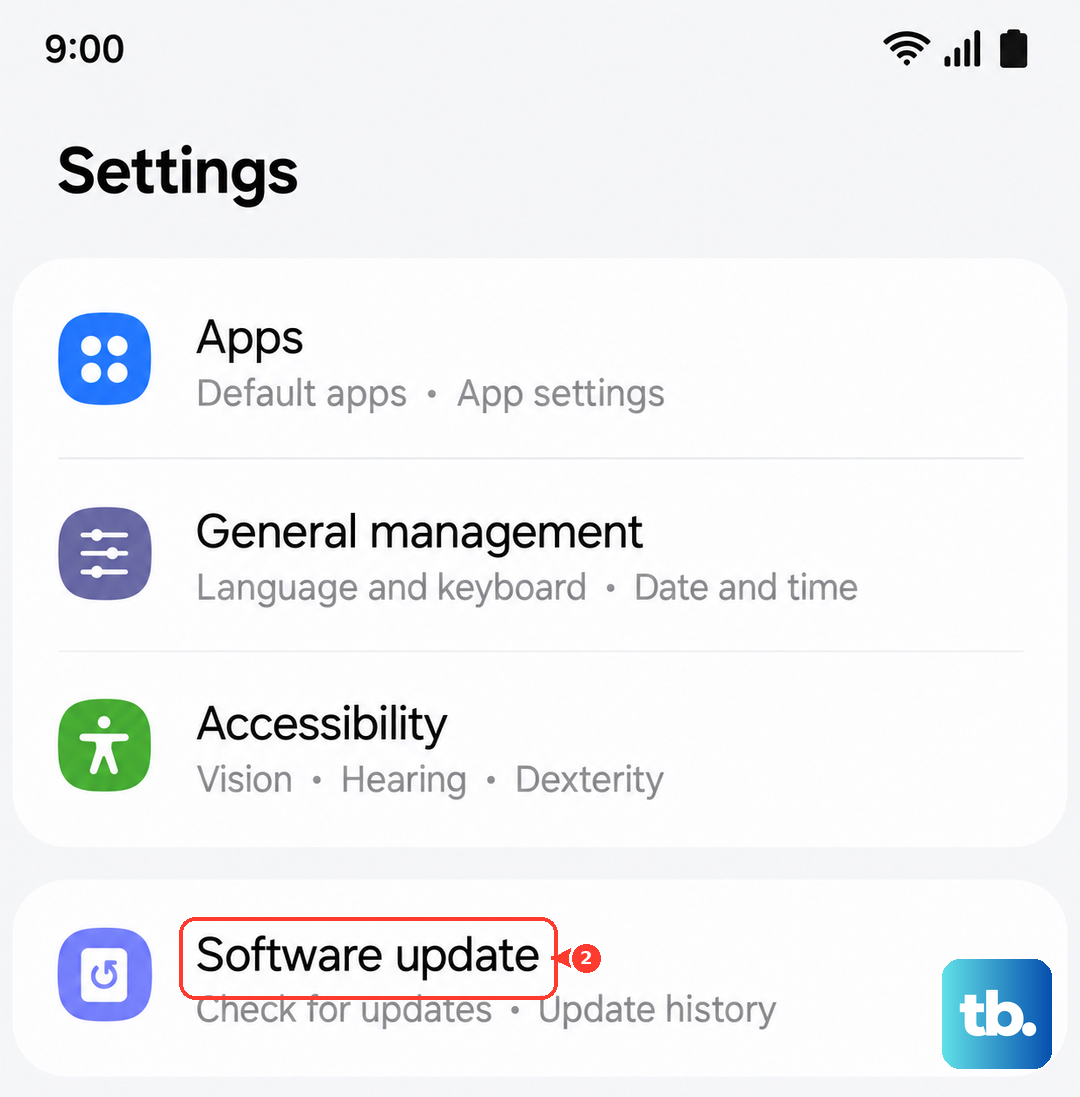
Samsung regularly pushes software updates that fix bugs and improve compatibility. Outdated firmware can cause download failures. Go to Settings > Software Update and tap Check for Updates. If an update is available, install it. Your phone will restart automatically, and after that, try downloading again in the Play Store.