
Seeing a photo get stuck on "Sending" or fail with an error on your Samsung Galaxy S24 is a common headache. The good news is it's usually a quick fix, whether you're using Samsung Messages, Google Messages, or a social app. Let's get your pictures moving again.
Check Your Mobile Data and MMS Settings
If you're trying to send a picture via text (MMS), your mobile data needs to be on. Go to Settings > Connections > Data usage and make sure "Mobile data" is enabled. While you're there, tap Mobile networks and ensure "Data roaming" is on if you're traveling.
For the messages app itself, open Samsung Messages, tap the three dots, go to Settings > More settings > Multimedia messages. Make sure "Auto-download MMS" and "Group conversation" are turned on. In Google Messages, the path is Settings > Advanced > Auto-download MMS.
Verify Your Internet Connection
A weak or unstable connection is the most common culprit. If you're on Wi-Fi, check the icon in your status bar. Try toggling Wi-Fi off and back on in your Quick Settings panel.
For cellular, look at your signal bars. If they're low, moving to a different spot can help. You can also try forcing your S24 to use 4G/LTE instead of 5G by going to Settings > Connections > Mobile networks > Network mode and selecting "LTE/3G/2G (auto connect)".
Clear the Messaging App's Cache
Corrupted temporary data in your messaging app can cause sends to fail. Go to Settings > Apps, find your messaging app (Samsung Messages or Google Messages), and select it. Tap on Storage and then hit Clear cache.
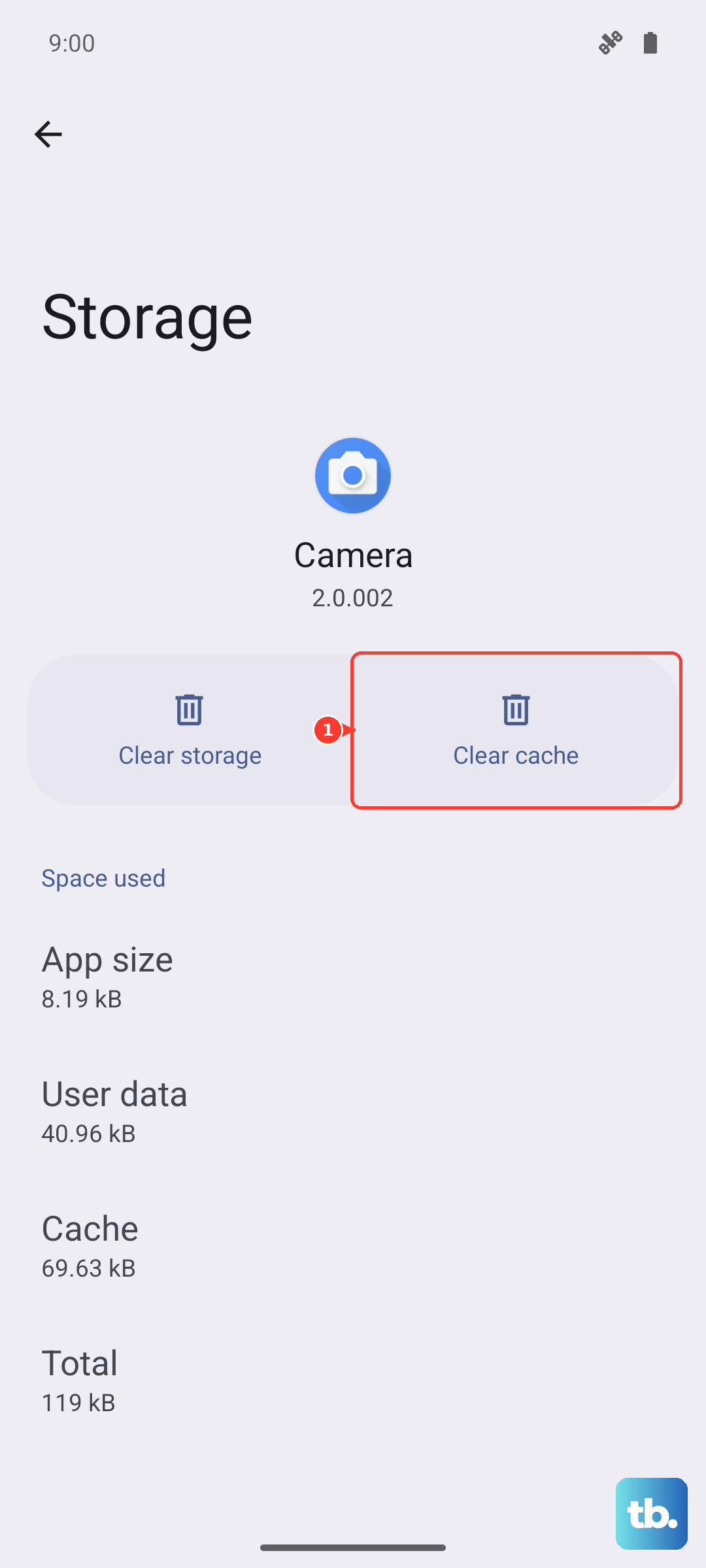
This doesn't delete your messages, just the temporary files. After clearing, force close the app by swiping it away from your recent apps screen, then open it again and try sending.
Restart Your Samsung Galaxy S24
A simple restart clears out minor software glitches that can hang up the sending process. Just press and hold the Side key and Volume Down button together for about ten seconds until you see the Samsung logo reappear.
I'd start with this one if a single photo fails. It's quick and solves a lot of transient issues.
Check for App and System Updates
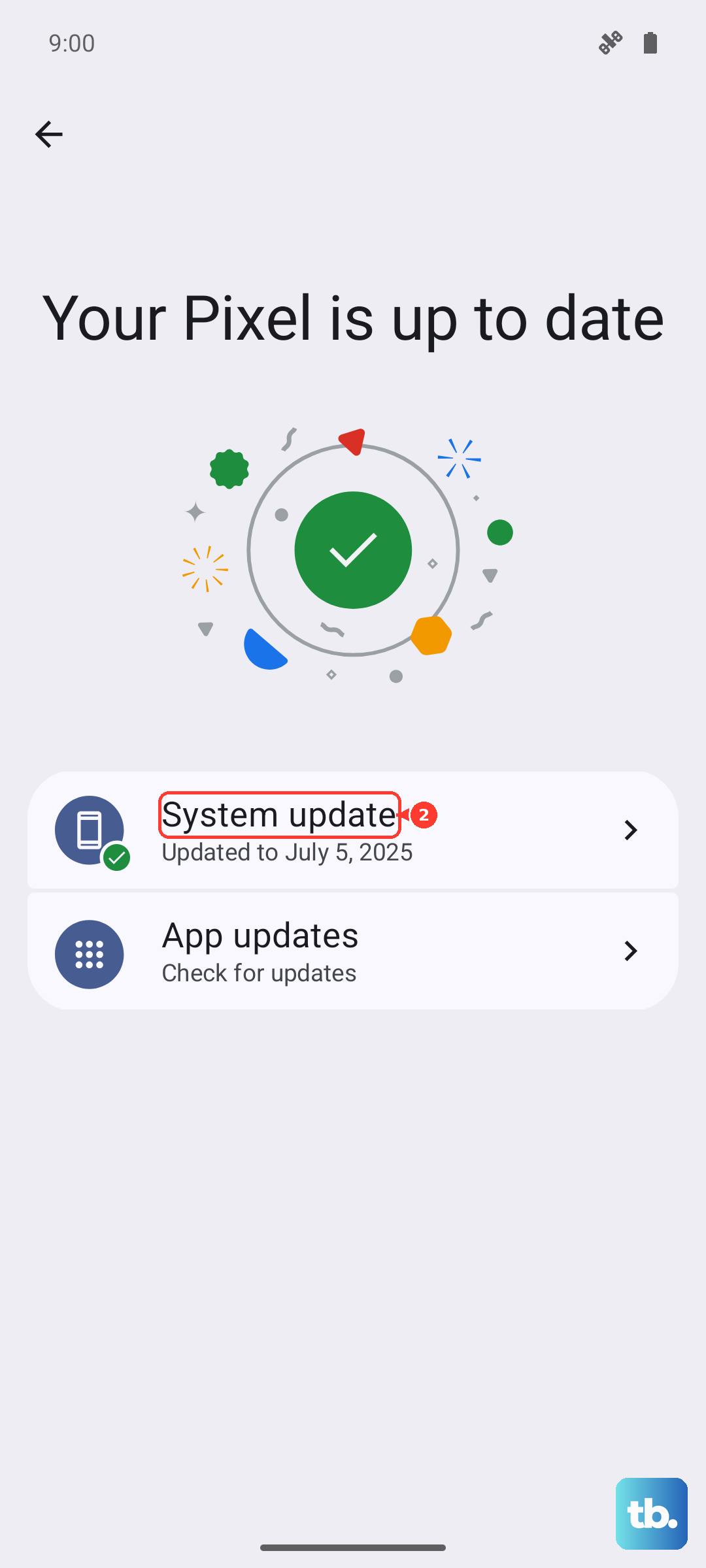
An outdated messaging app or One UI software might have a bug that's blocking photo sends. Open the Galaxy Store to update Samsung Messages and the Play Store to update Google Messages.
Then, check for a full system update by going to Settings > Software update > Download and install. Installing the latest One UI update often resolves these kinds of connectivity bugs.
Disable Data Saver or Power Saving Modes
Both Data Saver and battery protection modes restrict background data, which can stop MMS messages from going through. Pull down your notification panel twice and look for the Data Saver icon to turn it off.
Also, check Settings > Battery. If "Power saving" is on, turn it off. For a full charge without restrictions, you can also disable "Battery protection" here, which limits charging to 85%.
Try Sending with a Different App
This tells you if the problem is with a specific app or your phone's connection in general. If a photo won't send in Samsung Messages, try sending the same picture through Google Messages, WhatsApp, or Facebook Messenger.
If it sends fine in another app, the issue is isolated to your primary messaging app, and you might need to reset its preferences or reinstall it.
Reset Your Network Settings
This is a more thorough step that resets all your network connections to factory defaults. Go to Settings > General management > Reset > Reset network settings.
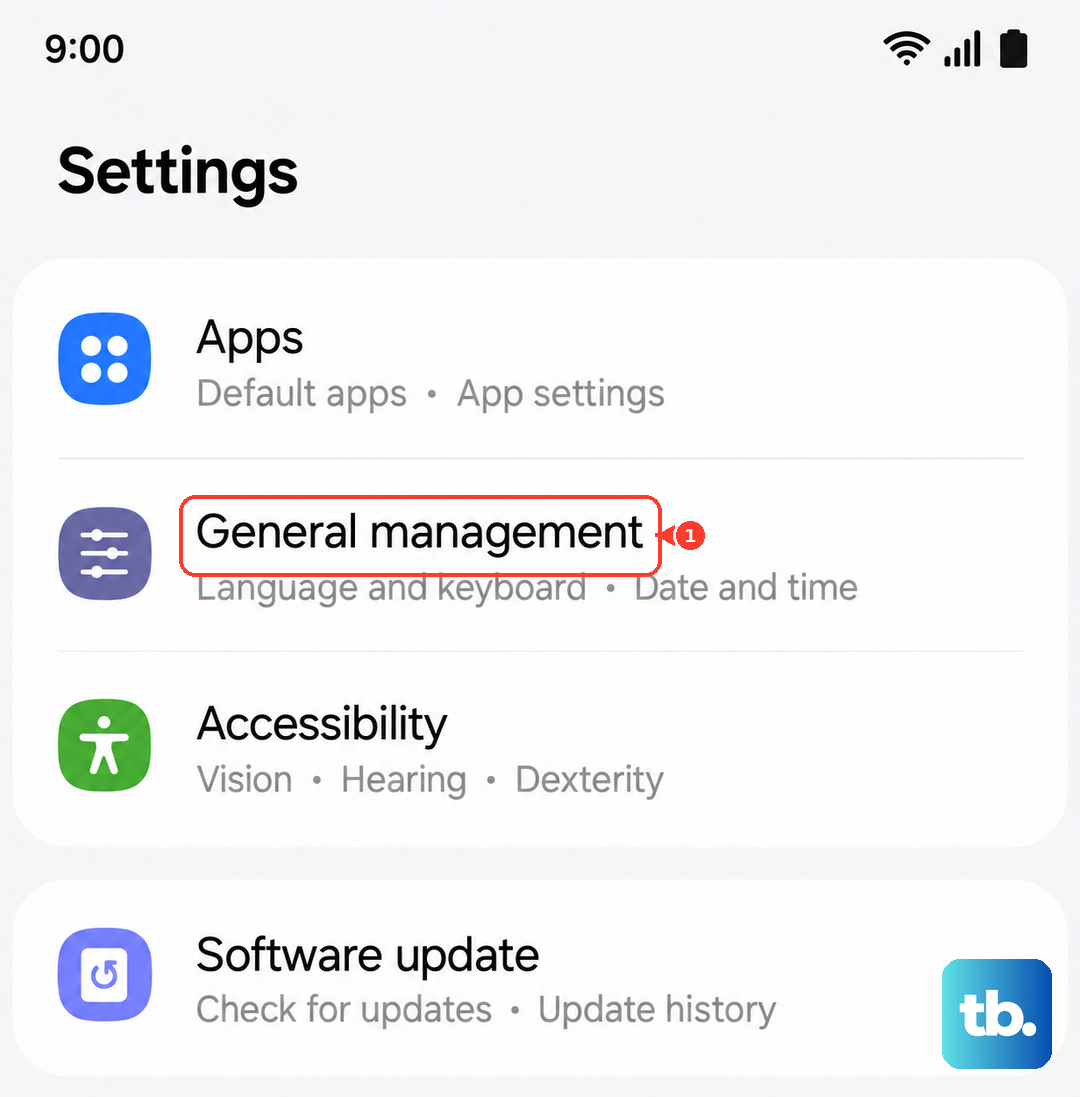
You'll need to enter your PIN. This will erase all saved Wi-Fi networks and passwords, paired Bluetooth devices, and mobile network preferences, so be ready to reconnect to your Wi-Fi afterward.
Check the File Size and Format
Most carriers have a size limit for MMS, usually between 1MB and 3MB. If your photo is a huge, high-resolution file from the S24's camera, it might be too big. Try sending a smaller image or use a sharing service like Google Photos which sends a link instead.
Also, if you're trying to send a file format that isn't a standard JPG or PNG (like a HEIC/HEIF image), some older phones may not accept it. Your S24 can convert these before sending in the Samsung Messages settings.
Contact Your Mobile Carrier
If you've tried everything else, the issue could be on your carrier's end. They can check if there's an MMS service outage in your area or if there's a problem with your specific account provisioning.
Ask them to reprovision your MMS settings. They can often send a configuration message to your phone that automatically sets everything up correctly again.