When your Samsung Galaxy S24 volume buttons stop responding, it can throw you off. You press them but nothing happens, no volume change or haptic feedback. The good news is that most of the time, this is a software hiccup or a simple obstruction that you can fix yourself without a trip to the service center.
Before you assume the worst, work through these solutions. I'd start with the force restart, as it clears up a lot of temporary glitches on One UI.
Remove Your Phone Case
Begin with the simplest check. Take your S24 out of its case. Some cases, especially rugged or ill-fitting ones, can press against the buttons and restrict their movement. With the case off, test the volume rocker to see if it clicks properly.
Perform a Force Restart
A force restart is the go-to fix for unresponsive buttons caused by a software freeze. This doesn't delete any of your data or settings, it just gives the system a fresh start.
For the Galaxy S24, press and hold the Volume Down button and the Side key (power button) together for about 10 seconds. Release both when you see the Samsung logo appear on the screen.
Check for Button Interference in Settings
While Samsung doesn't have a master toggle for the physical buttons like some brands, certain accessibility features can interfere. Go to Settings > Accessibility > Interaction and dexterity.
Look for any features like 'Assistant menu' or 'Universal switch' that are turned on. Temporarily disable them to see if your volume buttons start working again.
Use the On-Screen Volume Slider
While you're figuring this out, you can still control your volume. Pull down the Quick Settings panel twice to expand it, and you'll see a volume slider there.
You can also adjust media volume directly from the Settings menu under Sounds and vibration > Volume.
Clean the Volume Buttons
Dust, lint, or pocket debris can easily get packed around the buttons on the S24's aluminum frame. This is a very common cause of them feeling mushy or unresponsive.
Use a can of compressed air to blow gently around the button edges. For any sticky residue, a cotton swab dipped in a tiny amount of isopropyl alcohol (90% or higher) can help. Let it dry completely before testing.
Test the Buttons in Safe Mode
Booting into Safe Mode disables all third-party apps. If your volume buttons work perfectly here, you know a recently installed app is the culprit.
To enter Safe Mode, press and hold the Side key until the power menu appears. Then, tap and hold the 'Power off' option on your screen. You'll get a prompt to reboot into Safe Mode. Test the buttons, then restart normally to exit.
Check for Moisture Detection Issues
The S24 is known for a sensitive moisture detection system that can sometimes trigger falsely. While this usually affects charging, it can occasionally cause other odd behaviors.
If you see a water droplet icon in your status bar, try powering the phone off completely and letting it sit for an hour in a dry place. You can also gently dry the USB-C port with a blast of cool air from a hair dryer.
Update Your Software
Software bugs in One UI or Android can sometimes cause hardware controls to act up. Making sure you're on the latest update is crucial.
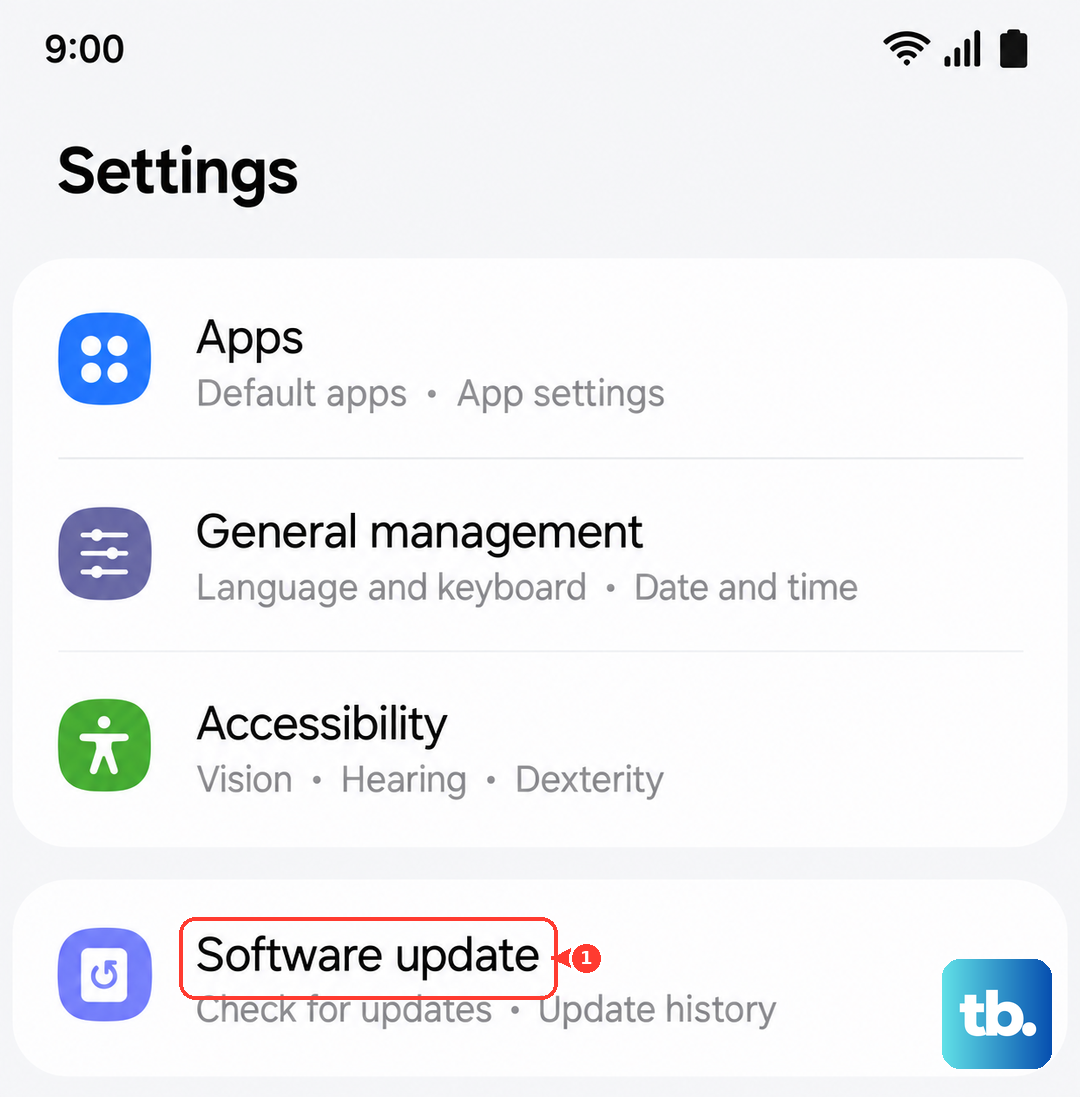
Go to Settings > Software update > Download and install. Connect to Wi-Fi and plug in your charger, as the update might require a decent amount of power and data.
Try the Samsung Members Diagnostic Tool
Your S24 has a built-in hardware test suite. Open the Samsung Members app and look for the 'Diagnostics' or 'Tests' feature. There should be an option to test the physical buttons.
This will guide you through pressing each button to confirm if the phone's hardware is registering the input correctly.
Reset All Settings (Last Resort)
If a specific setting is causing the conflict, this will revert everything back to default without touching your personal data like photos or messages. You will have to reconfigure things like Wi-Fi passwords and display settings afterward.
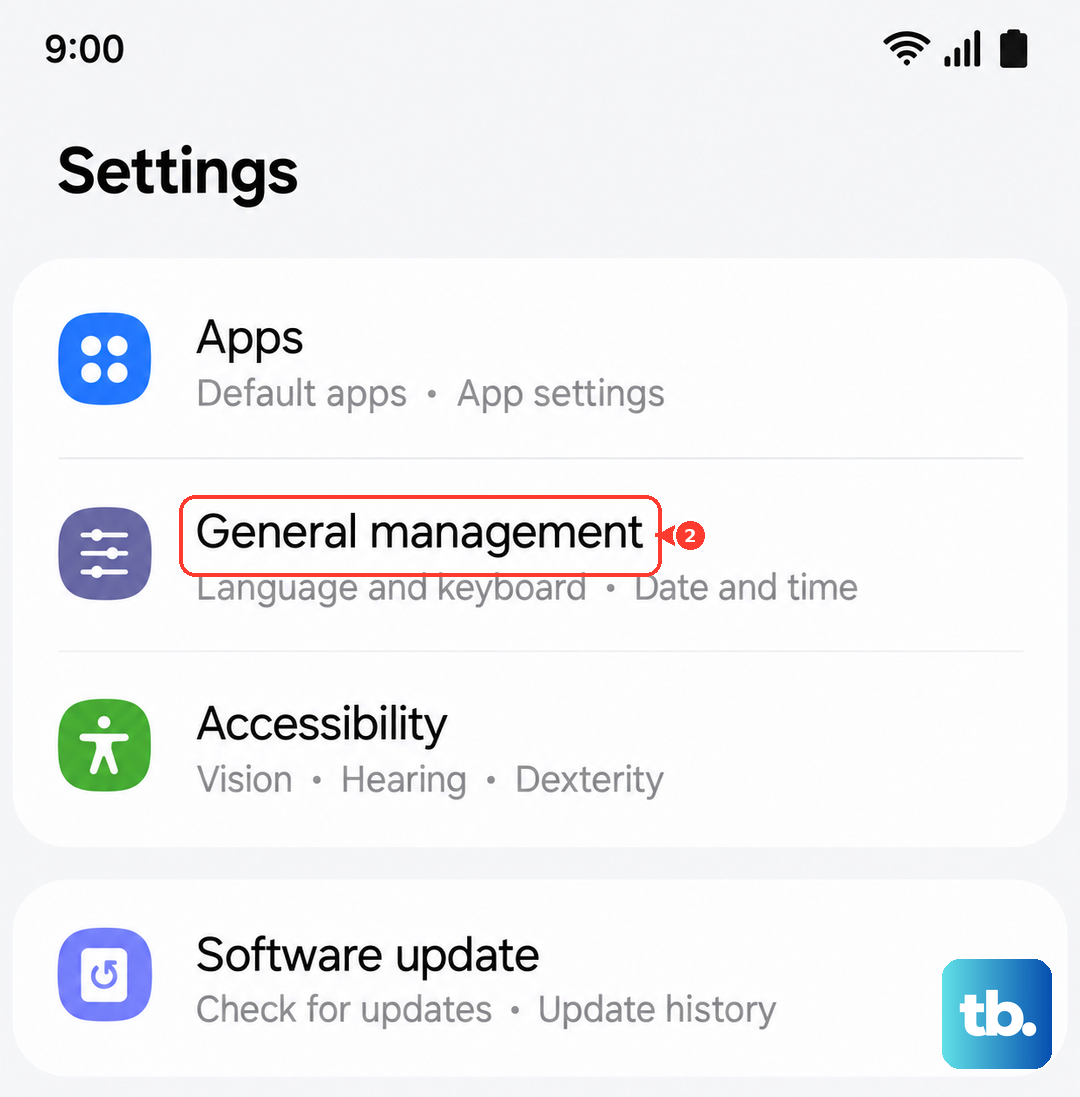
Go to Settings > General management > Reset > Reset all settings. Enter your PIN if prompted and confirm. After the phone reboots, test your volume buttons immediately.