You head to your Samsung Galaxy S23 to grab the latest One UI update, and nothing happens. Maybe the screen insists your software is already up to date, the download stalls at a few percent, or the install fails and quietly rolls back. A stuck update is frustrating because security patches and feature upgrades are exactly what keep the S23 running smoothly, and a phone that refuses them feels stranded.
The good news is that most "won't update" problems on the S23 (model SM-S911), the S23+ (SM-S916), and the S23 Ultra (SM-S918) come down to a handful of fixable causes, such as the wrong update screen, weak Wi-Fi, low storage, a low battery, or a misbehaving app. Work through the fixes below in order. They start with the safest, quickest checks and end with the official last-resort steps, so you only reach a factory reset or a support call if everything simpler has failed.
Start on the correct update screen
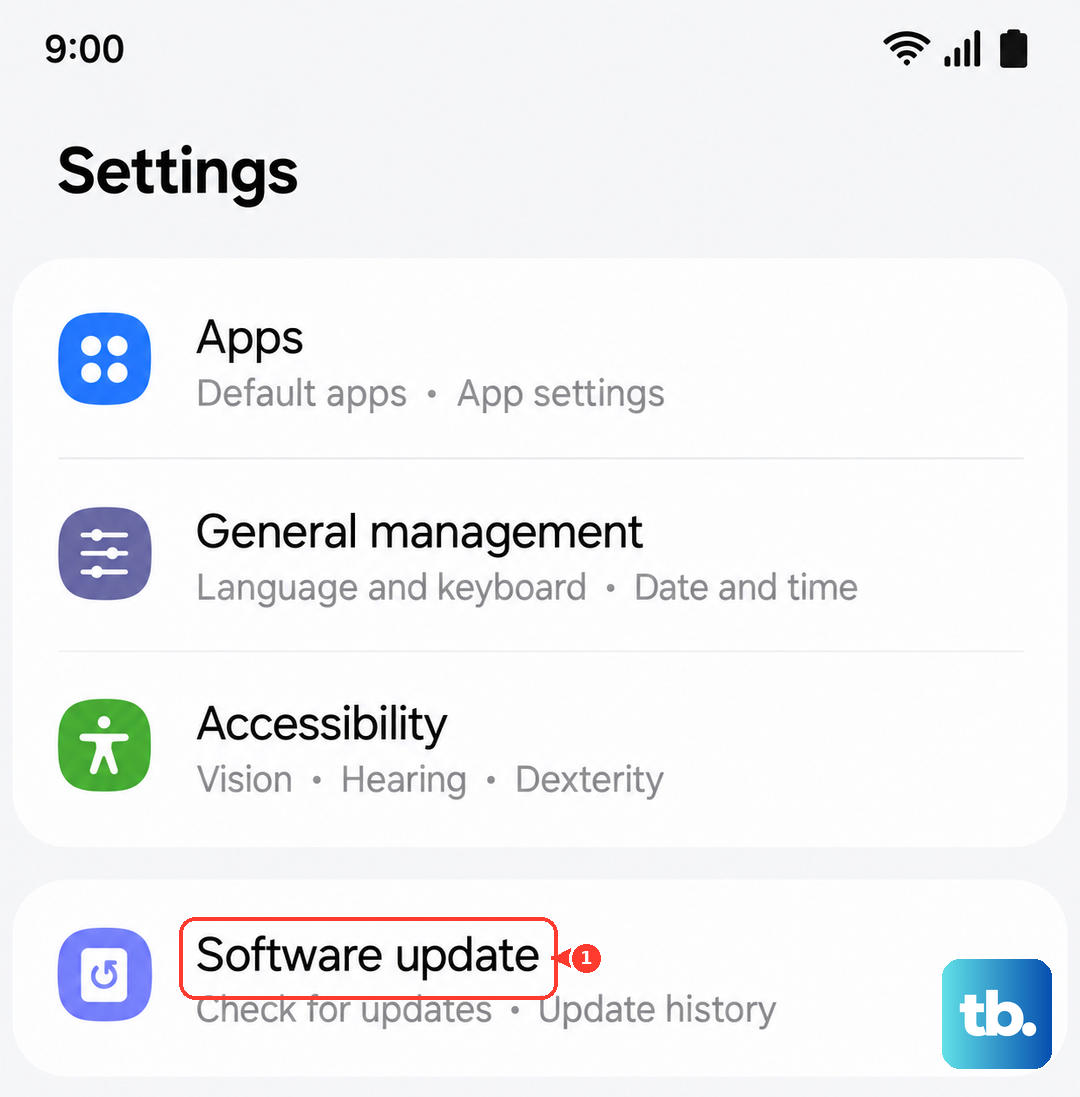
The S23 looks for new firmware in one specific place, and tapping anywhere else will not trigger a check. Make sure you are actually on the system update screen before assuming your phone is broken.
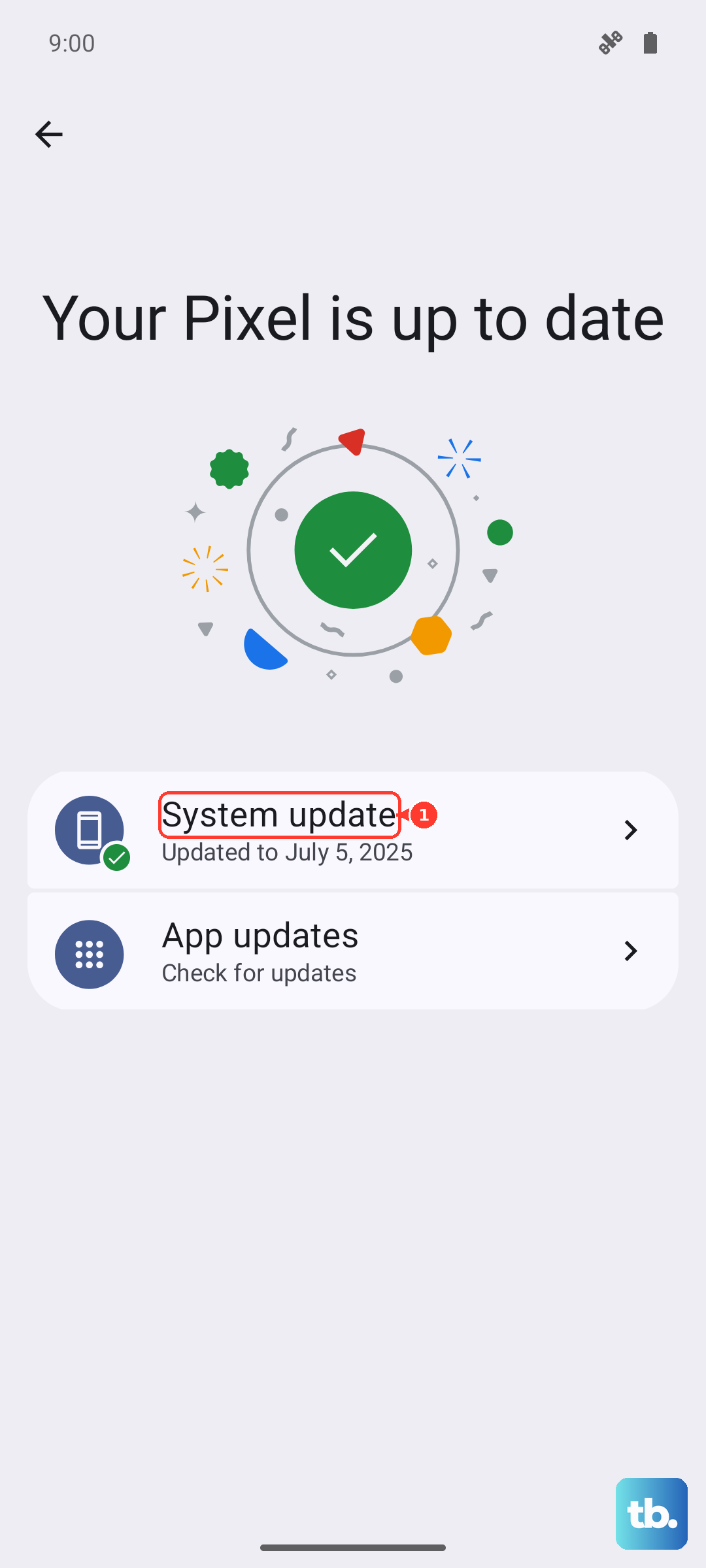
Open Settings.
Tap Software update.
Tap Download and install (depending on your carrier, this option may read "Check for system updates" or "Check for software updates").
If an update is available, it will appear here. While you are on this screen, turn on Settings > Software update > Auto download over Wi-Fi so the phone grabs future updates automatically. Staying on Wi-Fi while you check is the most reliable way to let an update download.
Give the update strong Wi-Fi and a charged battery
Samsung's guidance is direct on this point. Connect the device to a stable Wi-Fi network and charge the battery above 50 percent before you update. These two conditions prevent the most common silent failures.
A weak or unstable Wi-Fi connection can cause an update to install improperly or drag on far longer than it should. A low battery can stop the update from running at all, because the phone will not risk powering off partway through a firmware install. Plug in, confirm you are on a reliable network, and try the update again.
Free up internal storage
Updates need free space to download and unpack before they install, and the S23 will refuse to proceed if it is short on room. Check what you have available first.
Go to Settings > Device care > Storage to see your available internal storage, then remove files you no longer need so the update has room to download and unpack.
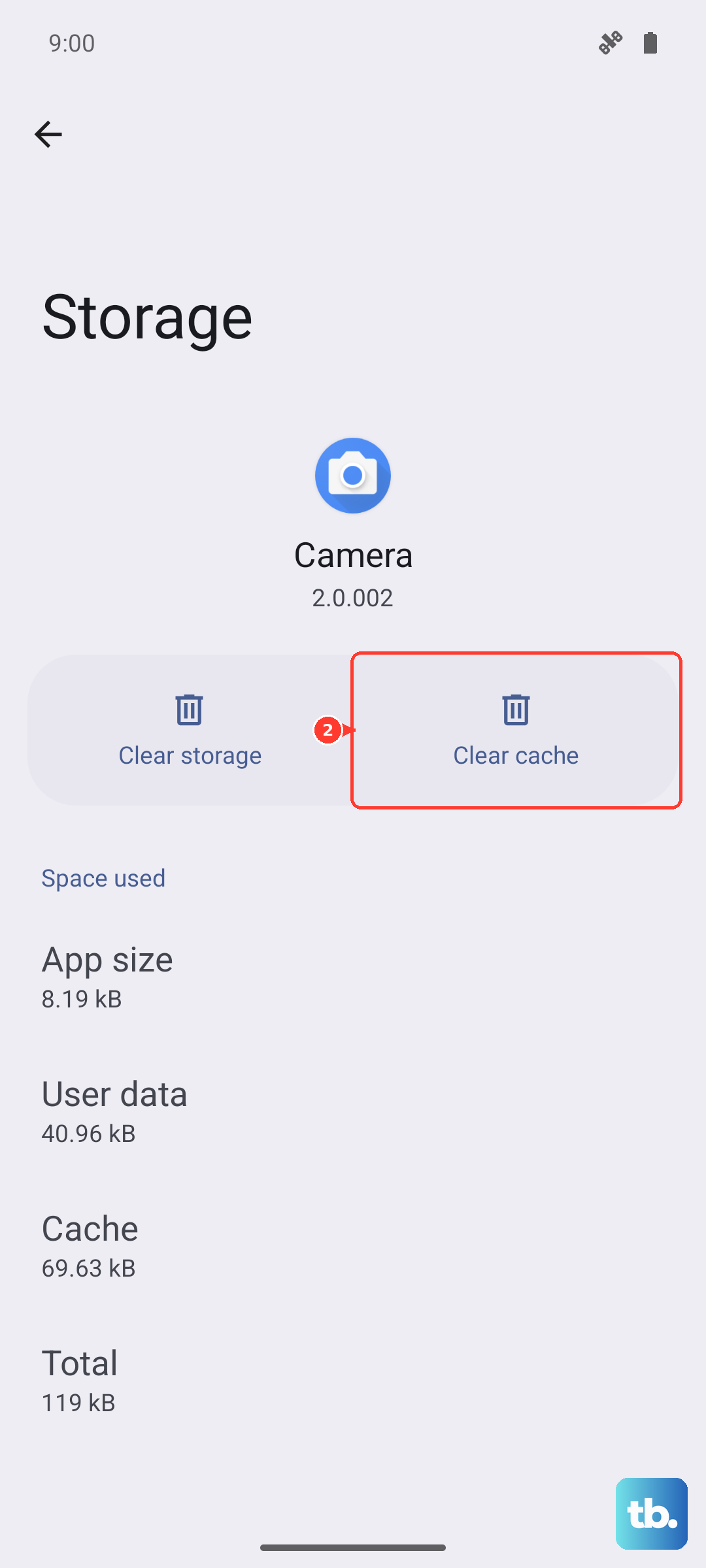
To remove an app you do not use, go to Settings > Apps, choose the app, tap Uninstall, then tap OK. You can also reclaim space without deleting an app by going to Settings > Apps, selecting the app, tapping Storage, then tapping Clear cache.
Restart the phone, then force it off
A simple restart clears temporary glitches that can block an update, so reboot the S23 and try downloading again. If the phone is frozen or unresponsive, a force restart is the next step.
To force restart, press and hold the Volume down button and the Side button at the same time for about 10 seconds, or until the device turns off and then turns back on. The screen will go black and then the Samsung logo will reappear, which means the restart worked. Once the phone is back up, head to Settings > Software update > Download and install and try once more.
Boot into Safe mode and try the update there
Safe mode starts the S23 with only its built-in software, leaving every third-party app switched off. If a misbehaving downloaded app has been quietly blocking the update, Safe mode lets you find out by getting it out of the way.
Press and hold the Volume down and Side keys.
Tap Power off.
Press and hold the keys again until the Samsung logo appears, then keep holding Volume down until "Safe mode" shows in the corner of the screen.
With the phone in Safe mode, try the update again from Settings > Software update. If it installs cleanly here, a third-party app was the culprit. To leave Safe mode, simply restart the phone normally.
Update over USB with Smart Switch on a PC or Mac
When the on-device update will not work no matter what you try, you can update the firmware directly from a computer using Samsung's official desktop tool. This bypasses the phone's own update process entirely.
Install Samsung Smart Switch on a Windows PC or a Mac (the app is available from Samsung's official website).
Connect the phone to the computer with a USB cable.
Open Smart Switch and click Update when prompted.
While the update runs, do not disconnect the cable and do not use the phone. Interrupting a firmware update over USB can leave the device in a bad state, so let it finish completely.
Confirm your model is in the current update wave
Sometimes the phone is working perfectly and the update simply has not reached it yet. Samsung distributes major updates in waves rather than to every device at once, so even an eligible phone may not see a new version immediately.
The Galaxy S23, S23+, and S23 Ultra are officially eligible for One UI 7, but that does not guarantee it appears on your unit the moment it launches. Keep checking for updates every few hours rather than assuming something is wrong. The S23 series is committed to four major One UI and Android OS upgrades plus five years of security updates, so your device is well within its support window, and an update you are waiting on may simply be at a stage that has not rolled out to your phone yet. If you want to double-check where your phone stands, you can reach Samsung support through the Samsung Members app on the phone.
Back up your data, then factory reset as a last resort
If none of the steps above work, a factory data reset clears the software conflicts that can keep an update from installing. This is a powerful fix, but it erases the phone, so treat it as a genuine last resort and back up everything first.
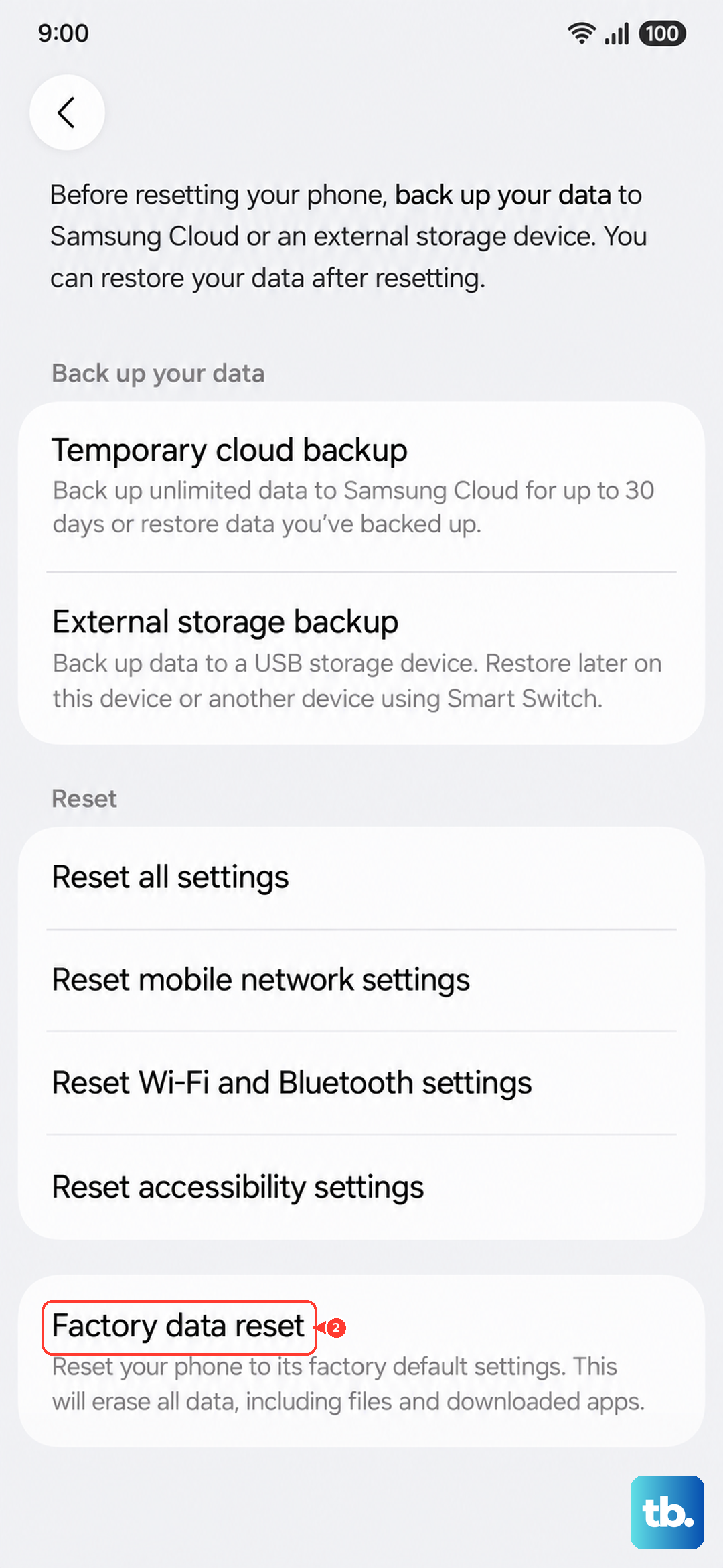
Samsung's warning is explicit: "Please save any information you need prior to the factory reset because your personal information may not be recovered." Once you have a backup, follow the official path:
- 1.Open Settings.
- 2.Tap General management.
- 3.Tap Reset.
- 4.Tap Factory data reset.
- 5.Tap Reset, then tap Delete all.
You will need your lock credentials and your Samsung account password to complete the reset, so have both ready before you begin. After the phone restarts and you sign back in, check for the update again.
Reach out to Samsung support
If the update still fails after a clean reset, the problem may need a closer look than at-home steps can provide. Samsung recommends contacting Samsung support for further assistance at that point.
You can reach support through the Samsung Members app on your phone or through Samsung's official support website. Be ready to describe what you have already tried, including which fixes you completed and at what stage the update fails, so the team can pick up where you left off.
Frequently Asked Questions
Why does my Galaxy S23 say it is up to date when I know a newer version exists?
Samsung rolls out major updates in waves rather than to every phone at once, so an eligible S23 may show "up to date" for days while the release reaches other units first. Keep checking Settings > Software update > Download and install every few hours, and stay on Wi-Fi so the update can download as soon as it reaches your phone.
How much battery do I need before installing an update?
Samsung advises charging the battery above 50 percent before you start an update. A low battery can stop the update from running entirely, so plug the phone in and connect to a stable Wi-Fi network before you begin.
Will updating my Galaxy S23 erase my data?
A normal software update through Settings > Software update does not erase your data. A factory data reset, which is only suggested as a last resort, does erase the phone, so back up first; Samsung warns that personal information may not be recoverable after a reset.
What can I do if the phone will not download the update at all?
Install Samsung Smart Switch on a PC or Mac, connect the phone with a USB cable, open the app, and click Update when prompted. This updates the firmware directly from the computer; do not disconnect the cable or use the phone while it runs.
How do I rule out a problem app blocking the update?
Boot into Safe mode, which loads the phone without third-party apps, then try the update again. Press and hold the Volume down and Side keys, tap Power off, then hold the keys again until the Samsung logo appears and keep holding Volume down until "Safe mode" shows in the corner. If the update installs in Safe mode, a downloaded app was the cause, and you can restart normally to exit.