Seeing a "Not registered on network" message on your Samsung Galaxy S23 means it can't connect to your carrier's cell towers. You'll be stuck without calls, texts, or mobile data. This error often pops up after a software update, a change in location, or sometimes for no clear reason at all.
Before you worry about anything serious, there's a quick fix that works more often than not. Pull down the notification shade twice to open the Quick Settings panel and tap the Airplane Mode icon. Wait about 15 seconds, then tap it again to turn it off. This forces your phone's modem to completely restart its connection to the network, which can clear up a temporary glitch.
Restart Your Galaxy S23
If toggling Airplane Mode didn't help, a full restart is the logical next step. This clears the phone's memory and reloads all the system processes, including the one that handles network registration. Press and hold the Side and Volume down buttons, then tap "Restart" on the screen. Wait for the phone to fully boot up and see if the signal bars return.
For a more thorough refresh, you can try a force restart. This is different from a normal restart and can clear deeper system hiccups. Press and hold the Volume Down button and the Side button together for about 10 seconds. You'll see the Samsung logo appear as the phone reboots. Release the buttons and let it start up normally.
Check Your SIM Card
A loose or dirty SIM card is a surprisingly common culprit. First, power off your S23 completely. Locate the SIM tray on the bottom edge of the phone and use the ejector tool (or a small paperclip) to pop it out. Carefully remove the SIM card and give both the gold contacts on the card and inside the tray a gentle wipe with a soft, dry cloth.
Blow lightly into the SIM slot to dislodge any pocket lint, then reseat the card firmly. Push the tray back in until it clicks. Turn your phone back on. If the network error is gone, you likely just had a poor connection between the SIM and the phone's internal reader.
Verify Your Mobile Plan is Active
It's worth a quick check to make sure the problem isn't on your carrier's end. An unpaid bill, an expired prepaid plan, or even a temporary network outage in your area can cause this error. Try logging into your carrier's account portal from a computer or another phone, or give their customer service a quick call.
Ask them to confirm your line is active and in good standing. I've seen cases where a simple plan refresh from the carrier's side instantly fixed the "not registered" message, saving a lot of unnecessary troubleshooting on the phone itself.
Update Your Phone's Software
Samsung frequently releases updates for One UI that include fixes for connectivity and modem issues. An outdated software version could have a known bug that's preventing network registration. Go to Settings > Software update and tap Download and install.
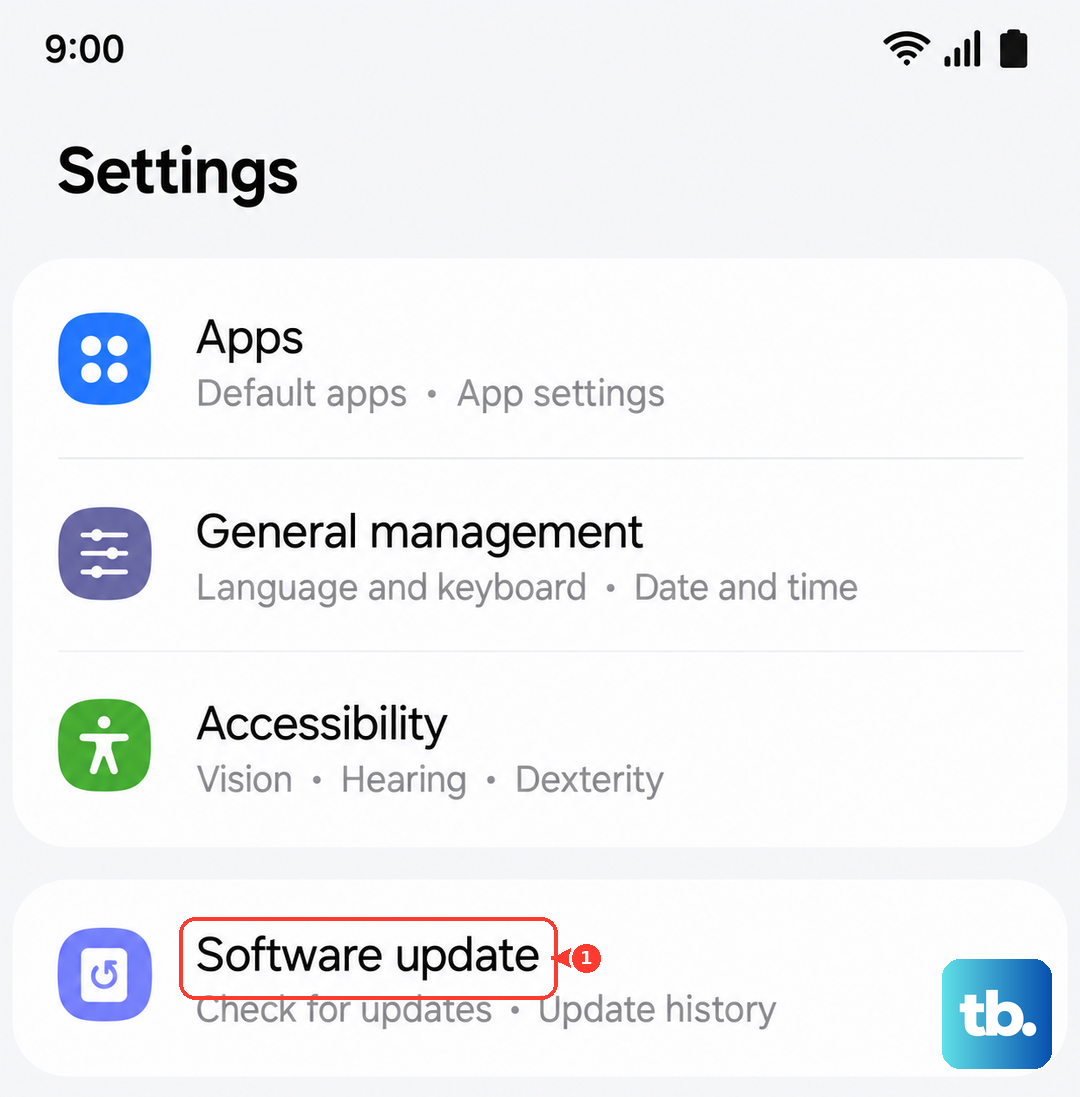
If an update is available, connect to Wi-Fi and let it install. Your phone will restart. After it boots up, check if you have service. It's a good habit to check for updates regularly, as carriers also push specific configuration updates that improve network compatibility.
Reset Your Network Settings
This step clears out all your saved network information, including Wi-Fi passwords, Bluetooth pairings, and cellular network preferences. It's very effective for clearing corrupted configuration data that's blocking the connection. You won't lose any personal files, photos, or messages.
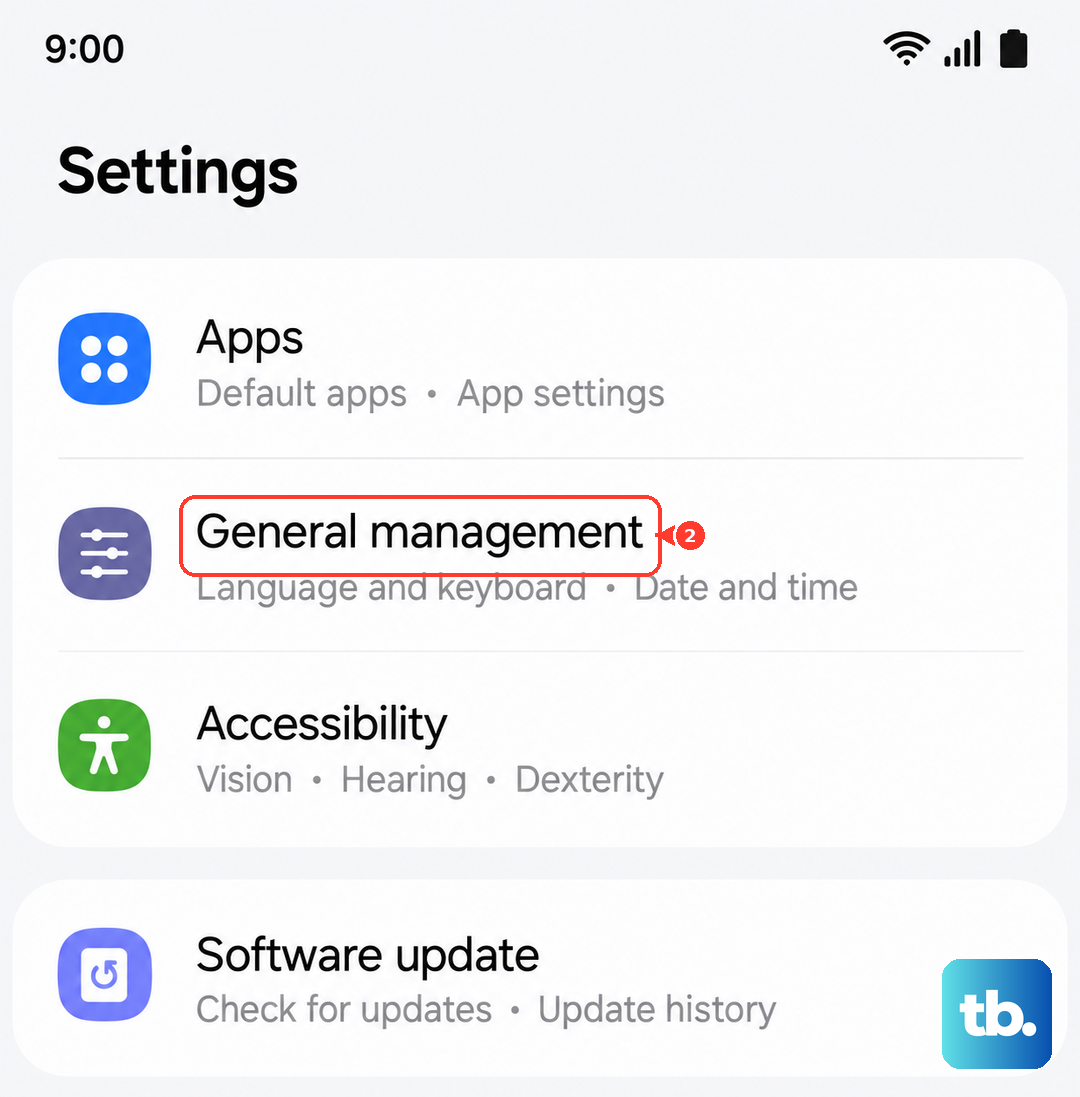
To do this, open Settings > General management > Reset. Tap on Reset network settings. You may need to enter your PIN or password. Confirm the reset and your phone will reboot. Afterward, you'll need to reconnect to Wi-Fi networks and re-pair Bluetooth devices, but your cellular connection should attempt a fresh, clean registration.
Manually Select Your Network Operator
Sometimes your phone gets stuck trying to register with a network it can't fully access, like a roaming partner. You can manually choose your home carrier to force a proper connection. Go to Settings > Connections > Mobile networks > Network operators.
Tap Search networks. After a moment, a list of available carriers will appear. Select your specific carrier from the list (e.g., "T-Mobile" instead of "T-Mobile LTE"). Your phone will attempt to register exclusively with that network. If it succeeds, you can leave it on manual selection or switch it back to automatic later.
Try a Different SIM Card
This test helps pinpoint whether the problem is with your SIM card or with the phone itself. If you can borrow a working SIM card from a friend or family member (even from a different carrier), power down your S23 and swap it in.
Turn the phone back on. If the new SIM card connects to a network without the error, then your original SIM is likely faulty or damaged. You'll need to contact your carrier for a replacement SIM card. If the borrowed SIM also shows "Not registered on network," the issue is almost certainly within your Galaxy S23.
Check the IMEI Status
The IMEI is your phone's unique identifier on cellular networks. If it becomes corrupted or is reported as invalid, registration will fail. Open your phone dialer and type *#06#. Your 15-digit IMEI number should pop up immediately.
If you see "IMEI null," "000000000000000," or the field is completely blank, there's a serious software or hardware issue with the modem. Note down the IMEI if it does show up. You can check its status for free on websites like IMEI.info to ensure it hasn't been blacklisted, which would also prevent network access.
Boot Into Safe Mode
A third-party app you installed could be interfering with the phone's radio functions. Booting into Safe Mode temporarily disables all downloaded apps, letting you see if one of them is the culprit. Press and hold the side button until the power menu appears.
Then, tap and hold the "Power off" icon on the screen. You'll see a prompt to reboot to Safe Mode. Tap it. If your cellular service returns in Safe Mode, a recently installed app is likely causing the conflict. You'll need to restart normally and uninstall apps one by one, starting with the most recent, to find the offender.
Perform a Factory Reset
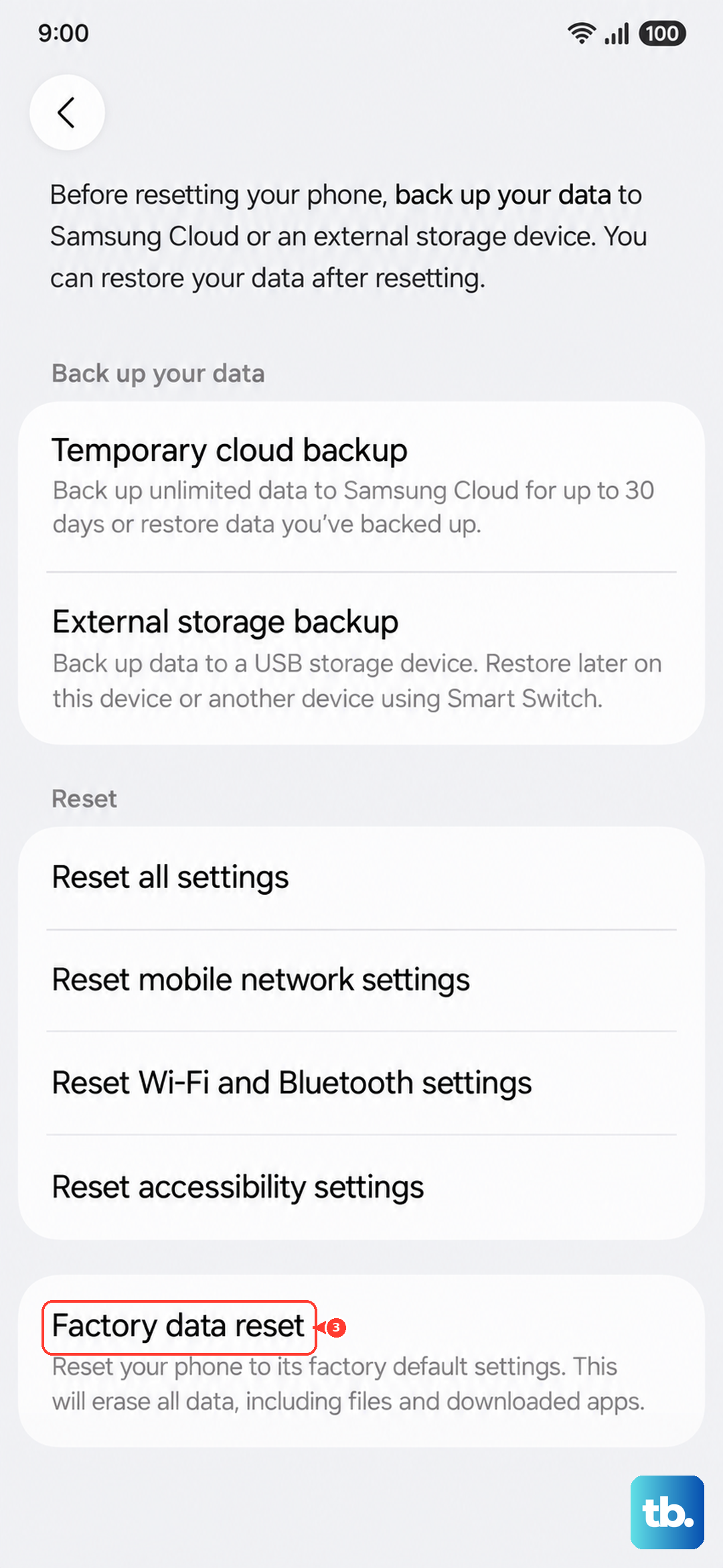
This is your last resort before considering a hardware repair. A factory reset wipes the phone back to its original out-of-the-box software state, eliminating any deep-seated software corruption. Make absolutely sure you have backed up everything important first, as this process is irreversible.
Go to Settings > General management > Reset > Factory data reset. Scroll down and tap Reset. Enter your PIN or password if prompted, and confirm. The phone will erase itself and reboot. Set it up as new initially, without restoring a backup, to test the network connection. If the error persists after a clean factory reset, the issue is likely a faulty antenna or modem component that requires professional repair.