
When your Samsung Galaxy S23 can't download a picture or video someone sent you, it's usually a quick fix. MMS messages need a mobile data connection and the right settings to work, and a few things on your phone can get in the way.
Let's start with the most common solutions that often get things moving again in just a minute or two.
Restart Your Galaxy S23
A simple restart clears out temporary glitches that can stall the messaging service. Just press and hold the Volume Down button and the Side button together for about 10 seconds until you see the Samsung logo. This force restart is a bit more thorough than a standard shutdown and often does the trick.
Check Your Mobile Data and Signal
Unlike regular texts, MMS messages require an active mobile data connection to download. First, make sure mobile data is turned on by pulling down the Quick Settings panel and tapping the mobile data icon. Also, check your signal bars. If you're in a weak area, try moving to a different spot or temporarily disabling Wi-Fi to force the phone to use the cellular network for the download.
Enable MMS Auto-Retrieve
Your phone might be set to wait for your permission before downloading MMS to save data. To change this, open the Samsung Messages app and tap the three-dot menu in the top right. Go to Settings > Multimedia messages. Here, make sure the switch for Auto download is turned on. While you're here, if you travel, you can also enable Roaming auto download.
Update Your Phone's Software
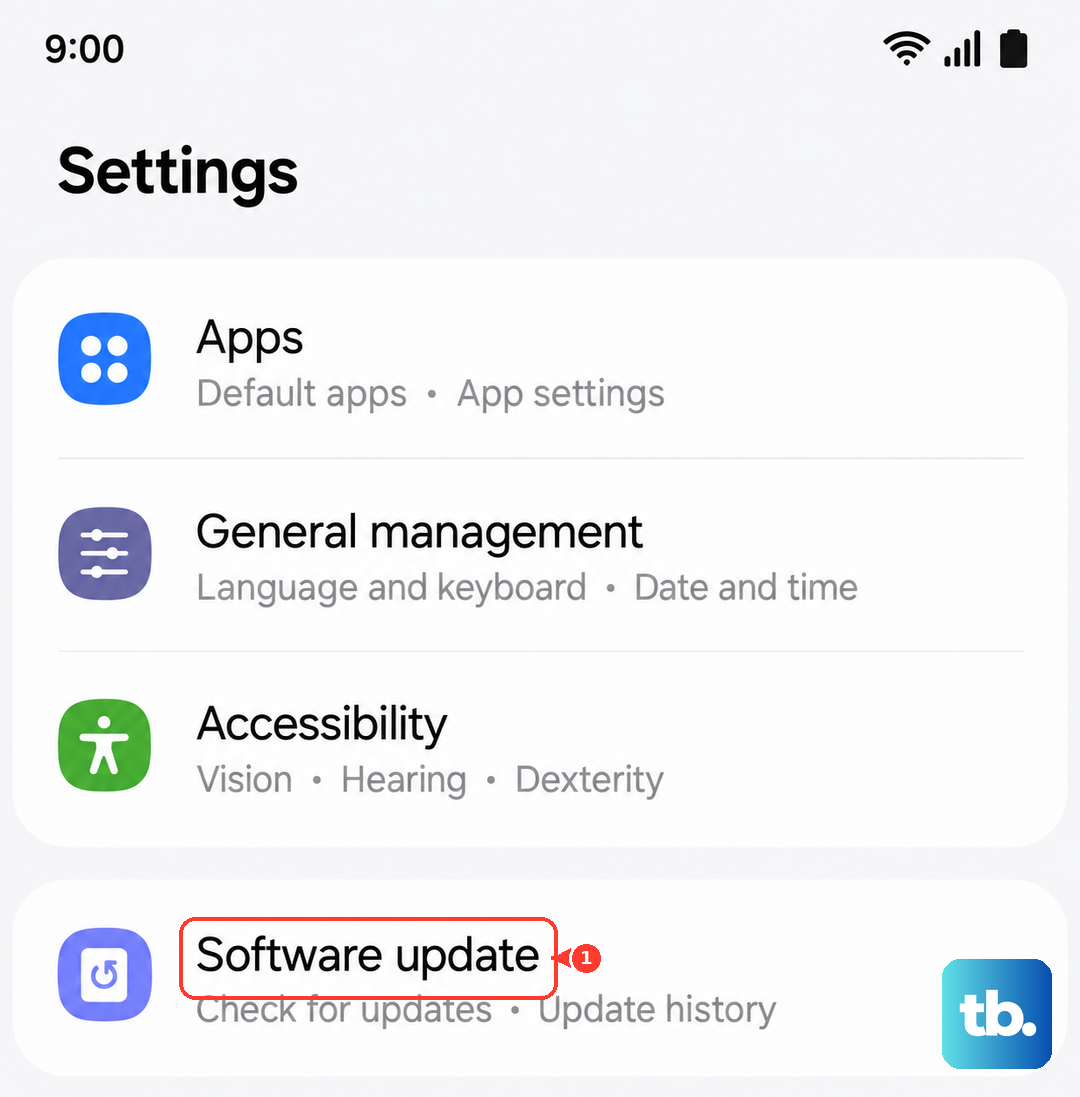
Samsung has released several updates for the Galaxy S23, especially for One UI 6 based on Android 14, that address various connectivity and performance bugs. It's a good idea to check for any pending updates. Go to Settings > Software update and tap Download and install. I've seen updates resolve quirky MMS issues that other fixes couldn't touch.
Clear the Messages App Cache
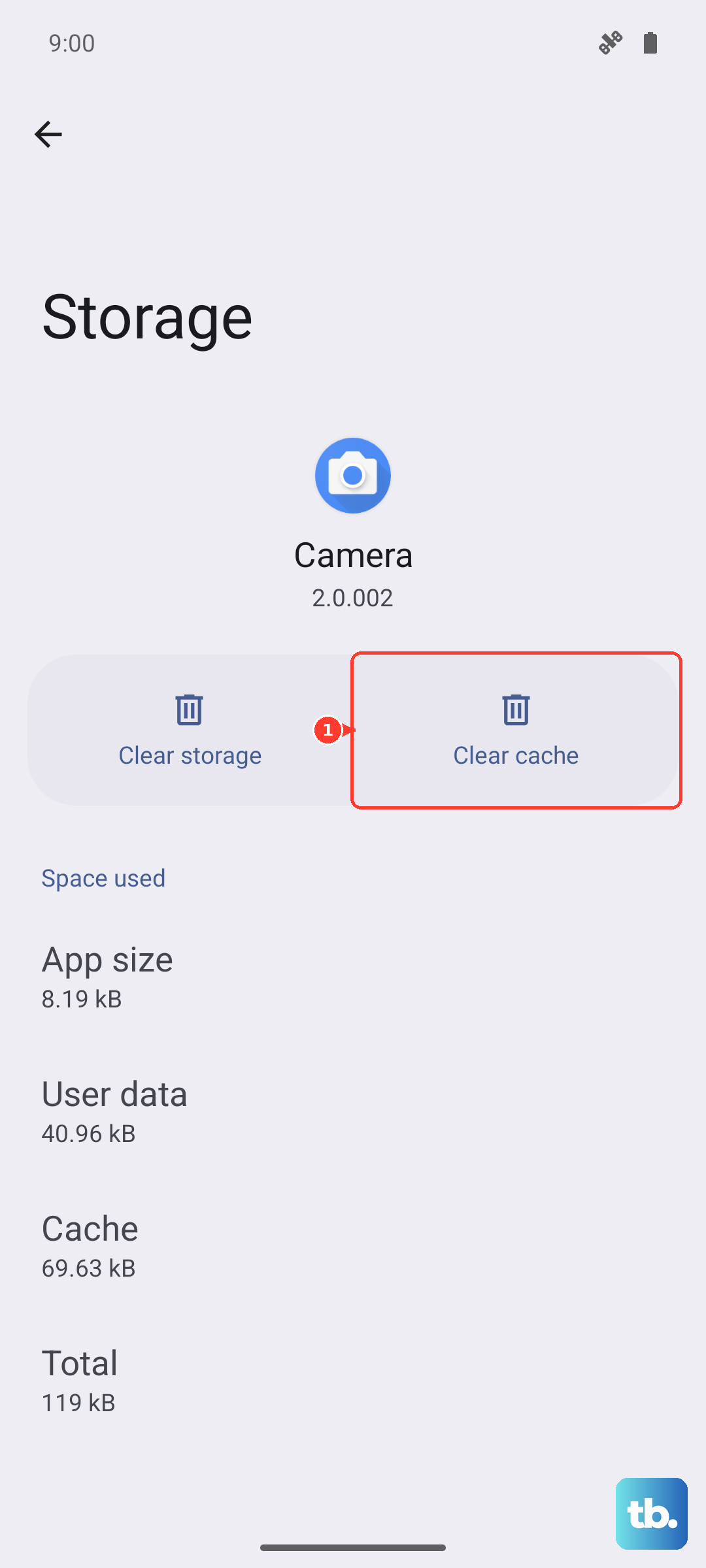
The app's temporary cache can sometimes become corrupted and prevent new messages from processing correctly. Clearing it is safe and won't delete your conversations. Go to Settings > Apps, then find and select Messages. Tap Storage and then Clear cache. After doing this, force close the app and reopen it to see if the MMS downloads.
Verify Your APN Settings
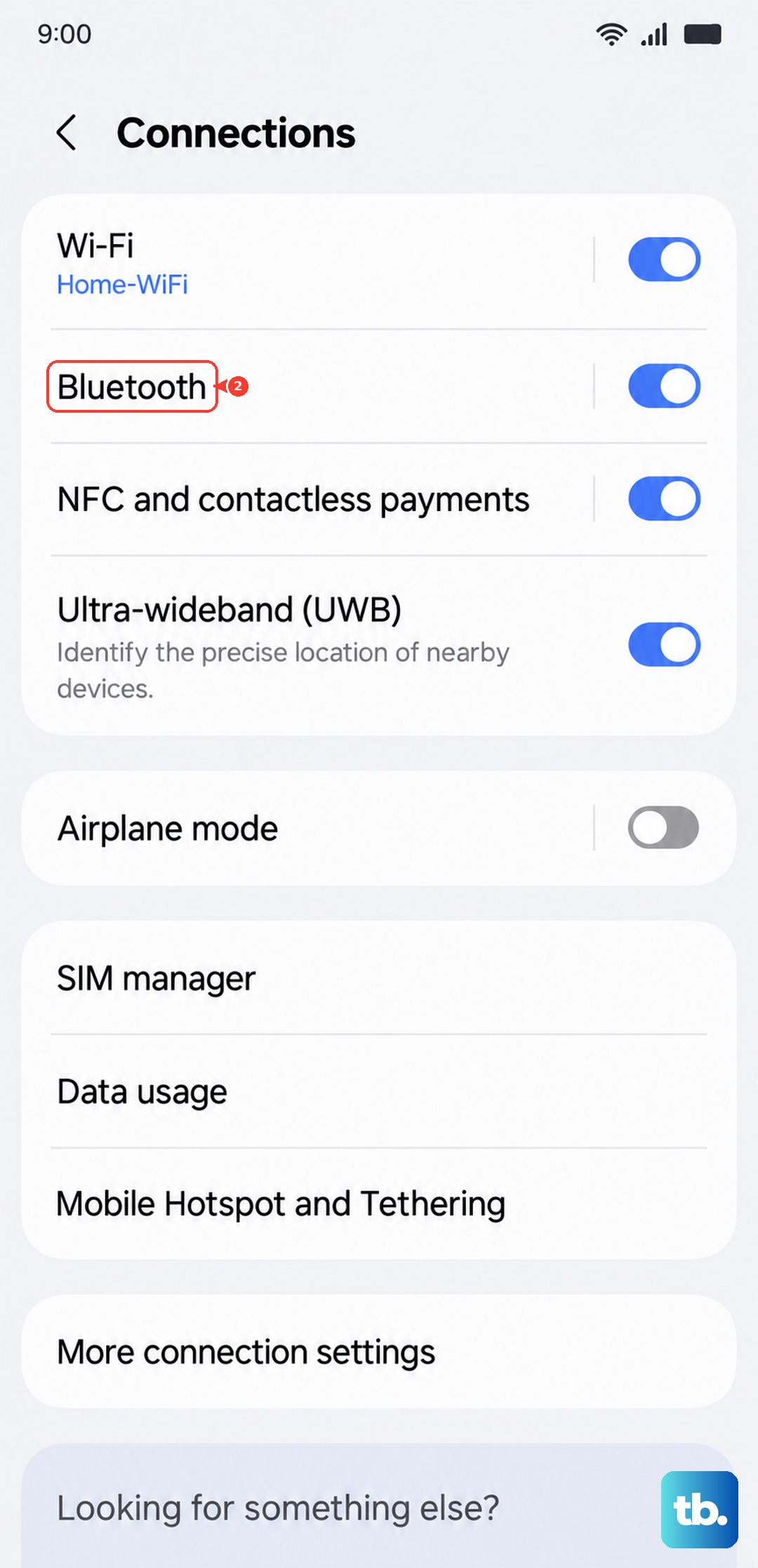
Incorrect Access Point Name (APN) settings are a common culprit for MMS failures. These settings tell your phone how to connect to your carrier's multimedia service. The good news is they are usually configured automatically. You can check them by going to Settings > Connections > Mobile networks > Access Point Names. If the settings look blank or wrong, the quickest fix is to contact your carrier's support. They can send you a configuration message that sets everything up correctly.
Reset Your Network Settings
This will wipe all your network connections, including Wi-Fi passwords and Bluetooth pairings, and restore the original carrier settings. It's a strong step that often fixes persistent MMS problems. To do it, navigate to Settings > General management > Reset > Reset network settings. Tap reset, confirm, and your phone will reboot. You'll then need to reconnect to Wi-Fi networks and re-pair Bluetooth devices.
Try Safe Mode
If a recently installed third-party app is interfering with your messaging service, booting into Safe Mode can help you find out. Press and hold the Side button until the power menu appears, then tap and hold the Power off option until you see the Safe Mode prompt. Tap to restart. If MMS downloads successfully in Safe Mode, you know a downloaded app is the cause. You can then start uninstalling recent apps one by one to find the offender.
Check for Storage Space
Your Galaxy S23 needs a little free space to process and store incoming media files. If your storage is critically full, it might block new downloads. Go to Settings > Battery and device care > Storage to see how much space you have left. If it's very low, consider cleaning out old files, photos, or apps.
Use a Different Messaging App
As a final troubleshooting step, try downloading a different messaging app from the Google Play Store, like Google Messages. Set it as your default app temporarily and see if you can receive the MMS. If you can, the issue is likely with the Samsung Messages app itself, and you may need to clear its data (which will erase your message history) or simply continue using the alternative app.