When your Galaxy S23 starts restarting on its own, it's more than just annoying. It can interrupt calls, stop downloads, and make you worry about your data. This kind of problem usually points to a software hiccup, a misbehaving app, or sometimes a deeper system issue.
Before you try anything, it's a smart move to make sure your important stuff is backed up. You can use Samsung Cloud or Google One to back up your photos, contacts, and settings. This gives you peace of mind if you need to take more serious steps later.
Perform a Force Restart
This is almost always the first thing I'd try. A force restart clears the phone's temporary memory and can stop a minor software glitch in its tracks. It's different from just turning your phone off and on.
For the Galaxy S23, press and hold the Volume Down button and the Side (power) button together. Keep holding them for more than 7 seconds, until the phone restarts. Then you can let go and let the phone boot up normally.
Boot Into Safe Mode
If the random restarts continue, the next step is to see if a third-party app is causing the trouble. Booting into Safe Mode temporarily disables all apps you've downloaded, leaving only Samsung's core software running.
To get into Safe Mode, first turn your S23 off completely. Then, press and hold the Side button to turn it back on. The moment you see the Samsung logo, release the Side button and immediately press and hold the Volume Down button. Keep holding it until the phone finishes starting up. You'll see "Safe mode" in the bottom left corner of the screen.
Use the phone normally for a while in Safe Mode. If the random restarts stop, you know one of your installed apps is the culprit. You can then restart normally to exit Safe Mode and start investigating which app it might be.
Check for Software Updates
Software updates can improve security and remove minor bugs, so checking for an available update is a useful next step. Install the latest software available for your S23, then check whether the random restarts continue once the update is complete.
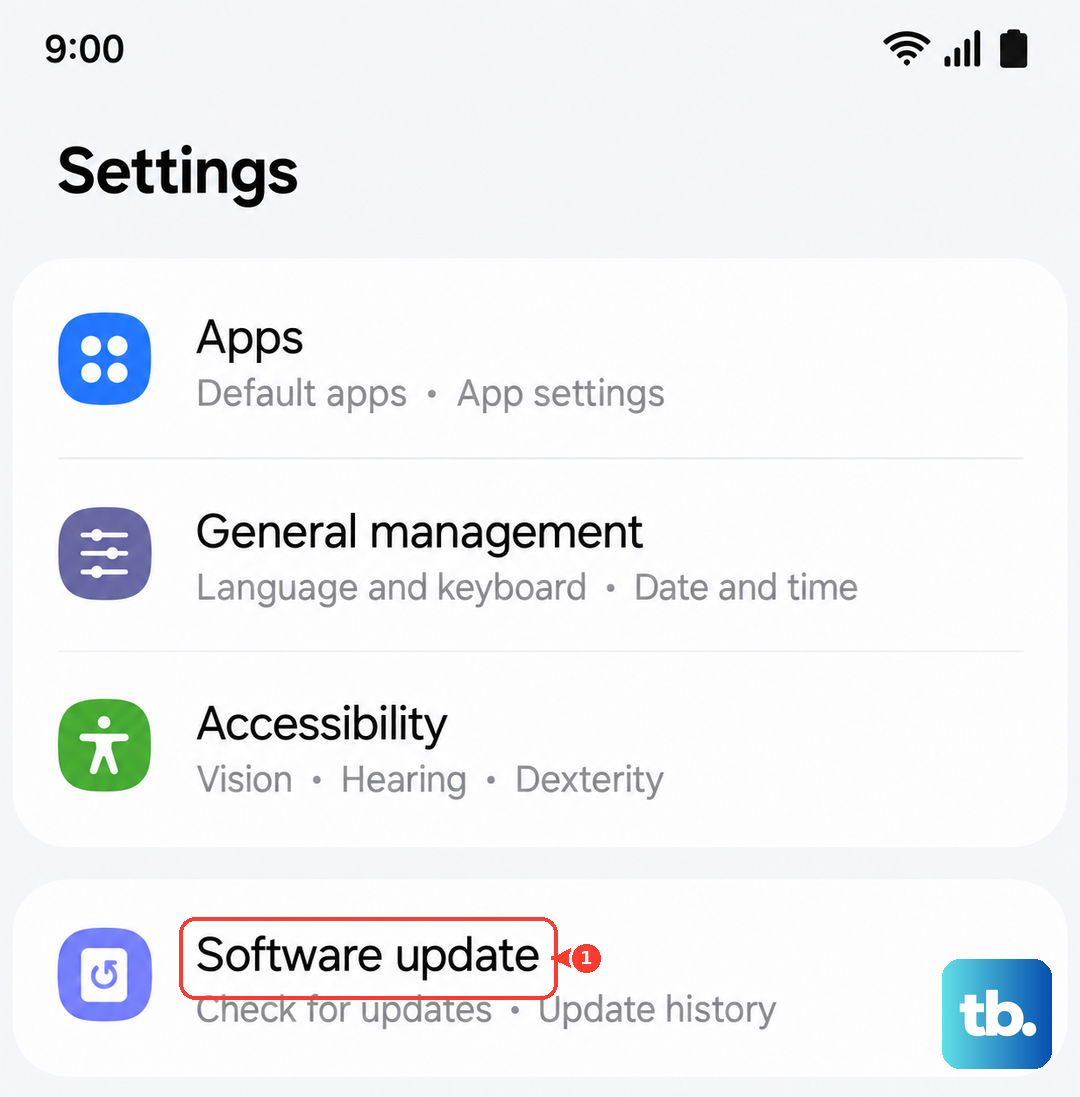
Go to Settings > Software update and tap "Download and install." If an update is available, let it install. Connect your phone to Wi-Fi if required and make sure it has enough charge before starting the update.
Update Your Apps
Just like the system software, outdated apps can have bugs that don't play nice with your phone's current operating system. An app crashing in the background can sometimes take the whole system down with it.
Open the Galaxy Store and tap the menu icon (usually three lines) in the top left. Go to "Updates" and see if any of your Samsung apps need an update. Then, open the Google Play Store, tap your profile picture, and go to "Manage apps & device." Under "Updates available," you can update everything at once.
Review Device Care and Battery Settings
One UI has a built-in maintenance tool that can give you clues. Go to Settings > Device care. Tap "Auto optimization," then "Auto restart," and turn off "Restart when needed." If "Restart on schedule" is enabled, turn it off too, then check whether the unexpected restarts continue.
Also, tap "Diagnostics" in the Device care menu, then "Phone diagnostics." You can run an individual test or tap "Test all" to check for issues. While not a definitive hardware test, it can sometimes flag an issue.
Check for Problematic Apps
If Safe Mode pointed to an app, you need to find the bad one. Think about what you installed or updated just before the restarts began. You can start by clearing the app cache for recently used apps.
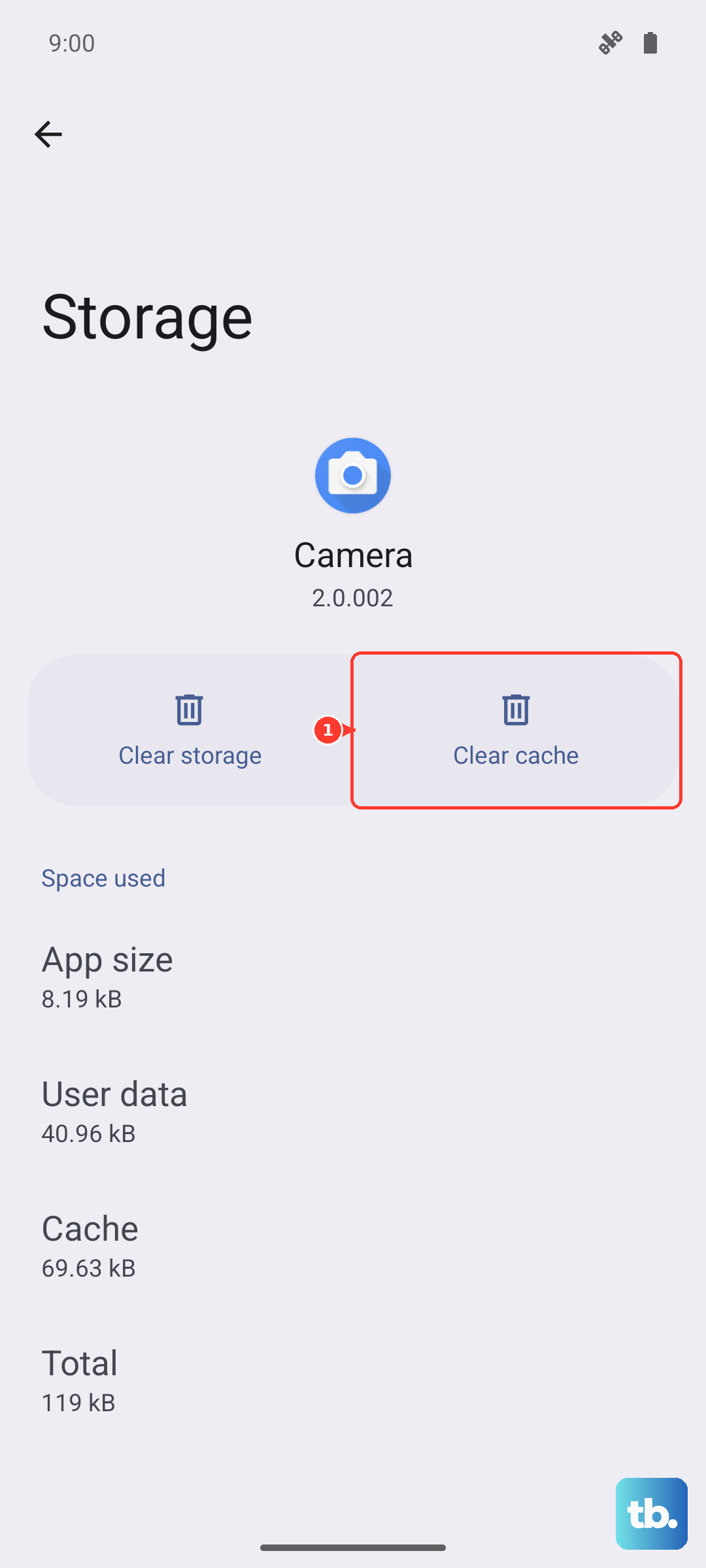
Go to Settings > Apps, select a suspicious app, tap "Storage," and then "Clear cache." This won't delete your data. If problems persist with a specific app, try clearing its data next (you'll lose saved settings), or uninstalling it completely to test.
Free Up Storage Space
When your phone's storage is critically full, the operating system doesn't have room to work properly. This can lead to all sorts of instability, including random reboots.
Head back to Settings > Device care. Tap "Storage" to see a breakdown of what's using space. The phone will often give you suggestions, like removing large files or unused apps. Review a category such as Images and move files you no longer need to Trash to free up space.
Reset All Settings
This is a more significant step, but it won't touch your personal data like photos or messages. It resets settings to their defaults while keeping security and language settings, accounts, personal data, and settings for downloaded apps. You can review an app's permissions from its App info screen.
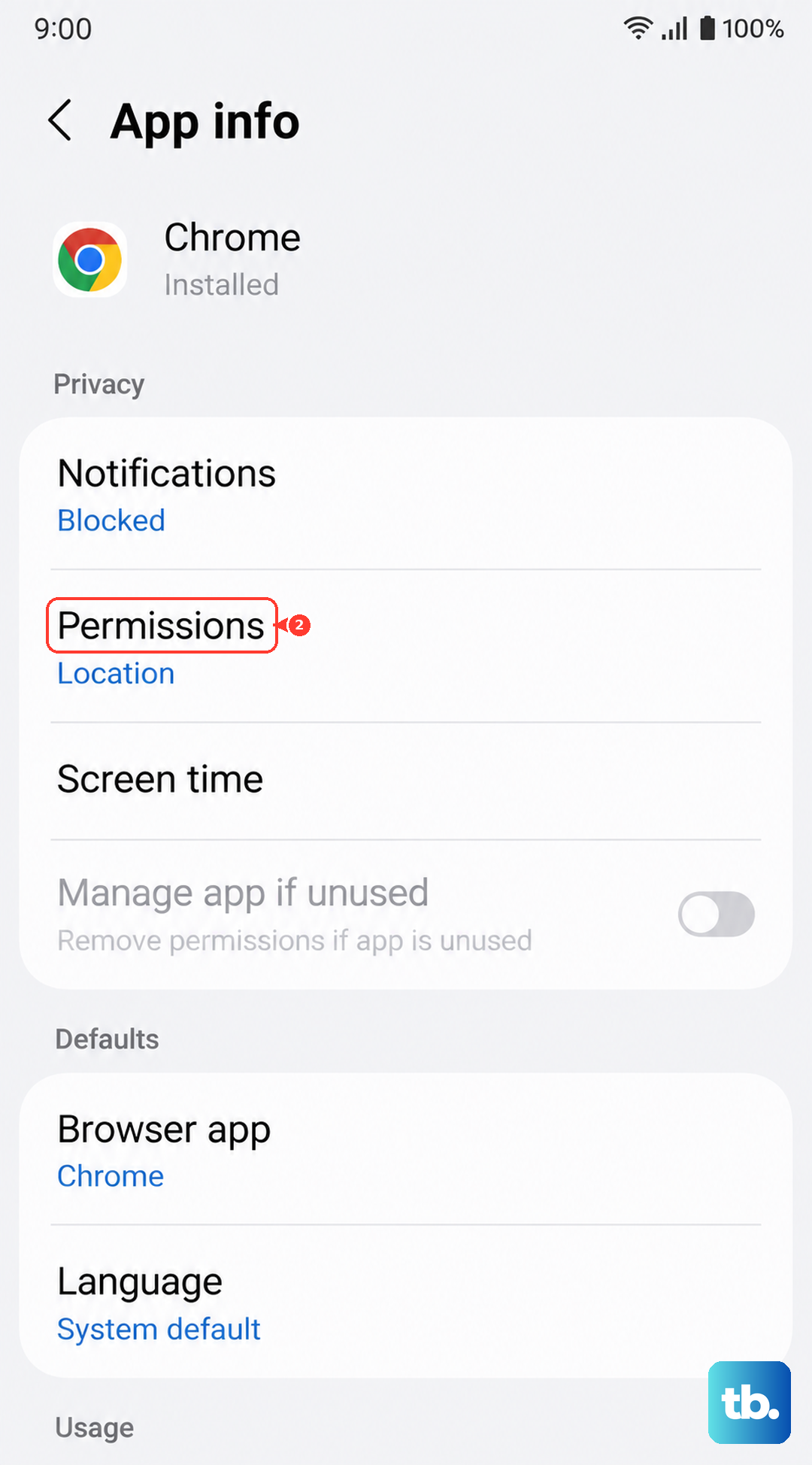
To do this, go to Settings > General management > Reset. Tap "Reset all settings," then "Reset settings," enter your PIN or password if asked, and tap "Reset" to confirm. After the phone reboots, you'll need to reconfigure your preferences, but it can resolve conflicts caused by a corrupted setting.
Consider a Factory Reset
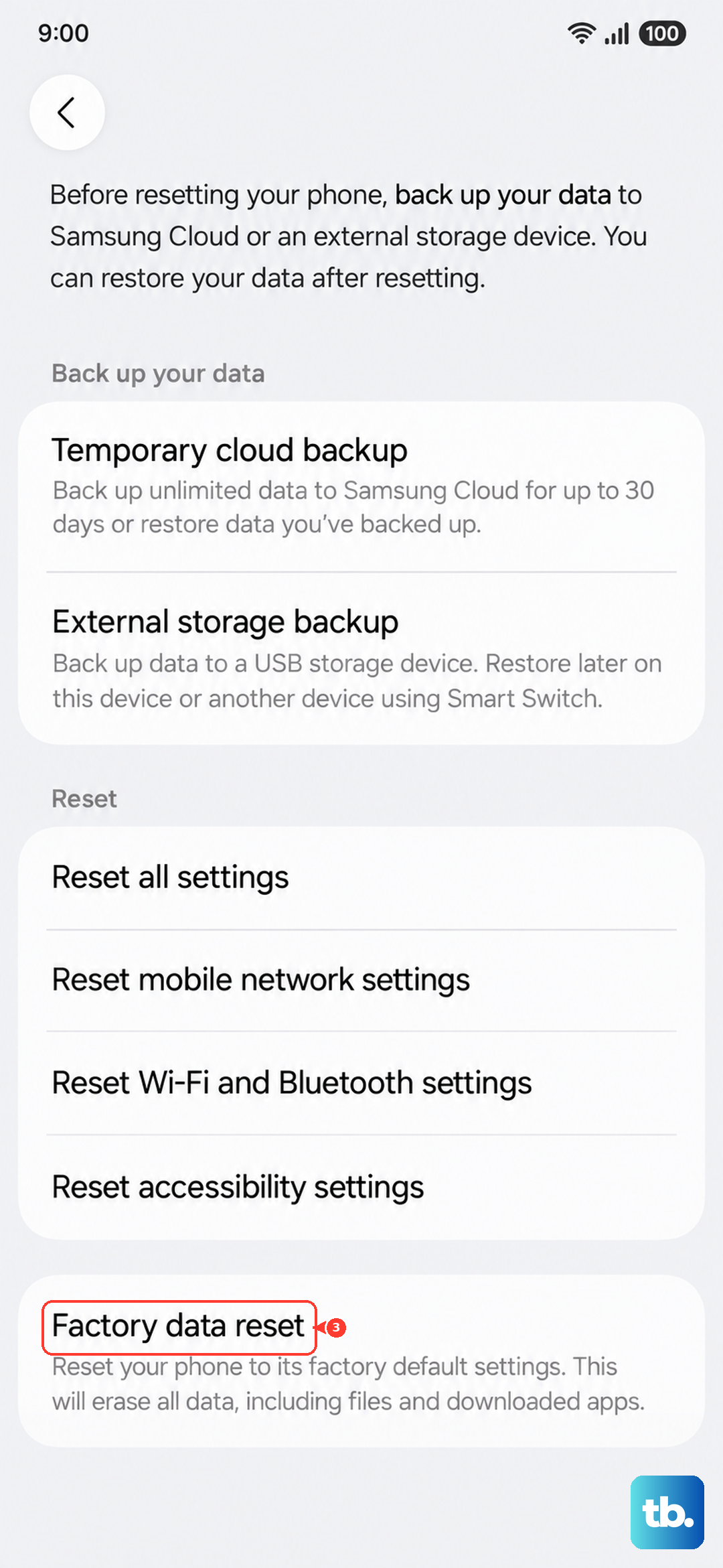
If you've tried everything else and the phone is still restarting randomly, a factory reset is the final software step. This will erase your personal data, downloaded apps, and settings, then restart the phone to the setup screen.
This will delete all your data, so double-check that your backups are complete. To proceed, go to Settings > General management > Reset > Factory data reset. Review the information, scroll down and tap "Reset," then enter your screen lock if asked.
If a Samsung account is added, enter its password when prompted, then tap "Delete all." You'll need a network connection to log out of the Samsung account. After it completes, you can set the phone up as new or restore from your backup to see if the problem is truly gone.