You plug your earbuds into your Galaxy S23, hit play, and nothing happens. The sound keeps blasting from the phone speaker, only one side works, or your Bluetooth headphones say they are connected yet stay completely silent. Before you assume the phone or the headphones are broken, it helps to know that the S23 handles audio very differently from older Samsung phones, and most "headphones not working" problems come down to a connector, a routing toggle, or a quick software step you can fix in a couple of minutes.
A browser based headphone test makes this easy to confirm. If both sides play test tones correctly there, the headphones are fine and the problem is in the device or app.
The fixes below are ordered from the easiest and safest to the most involved, with the reset and service options saved for last. Work through them in order and stop as soon as your sound comes back.
Start with the connector the S23 actually uses
The single most common cause of silent wired headphones on this phone is the wrong cable. The Galaxy S23 does not have a 3.5mm headphone jack; Samsung states that "the Galaxy S23 Series does not include a 3.5mm headset jack. Instead, it uses a USB-C port for audio output." All wired audio has to go through that USB-C port.
If you use USB-C earbuds, plug them straight into the port. If you want to use older 3.5mm headphones, the S23 "requires a USB Type-C to 3.5mm Headset Jack Convert Adapter with built in DAC." A plain passive cable will produce no sound at all, so if you choose an adapter from a different manufacturer, always ensure that it is DAC compatible.
Send the sound to your headphones in Media output
Sometimes the phone keeps playing through its own speaker even after a headset is connected. You can force the audio to the right destination from the quick panel.
Swipe down with one finger from the top right of the screen.
Tap Media output.
Tap the device you want to play sound through.
You will see the list of connected audio devices; tap the headphones you are trying to use so the sound stops coming from the phone speaker.
Raise the volume and switch on Calls and Audio routing
It sounds obvious, but a muted or very low media volume can look exactly like dead headphones. Raise the volume with the side keys and confirm the media volume is turned up rather than only the ringtone or call volume.
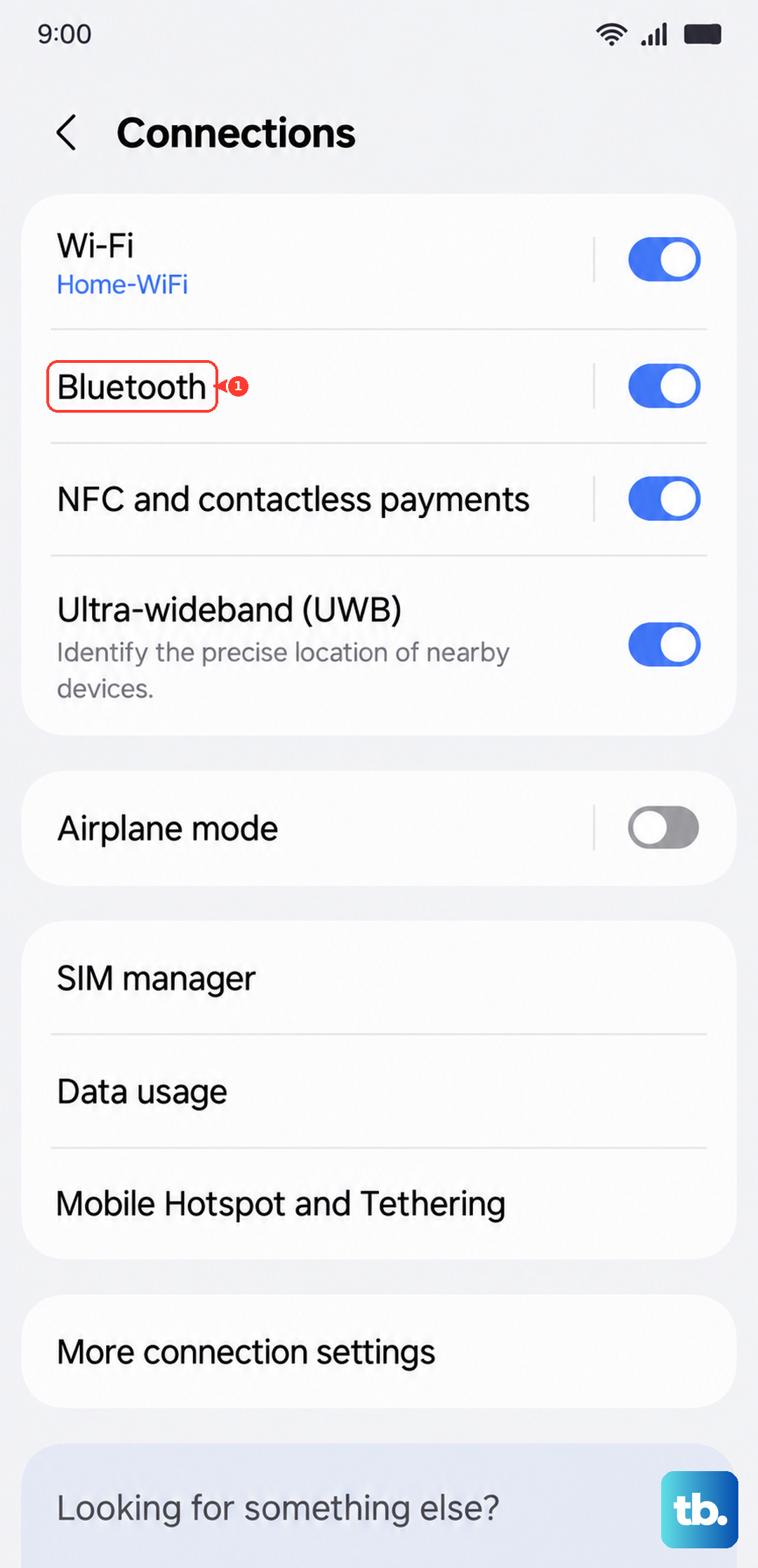
For Bluetooth headphones there is a second routing layer to check. Go to Settings > Connections > Bluetooth, tap the gear icon next to your connected headphones, and make sure the output switches next to 'Calls' and 'Audio' are turned on. If either switch is off, the phone will not route that type of sound to the headset.
Reseat the plug, remove the case, and swap in another pair
A loose or blocked connection is easy to overlook. Make sure the USB-C plug is pushed in fully, and remove any case, sticker, or charm that sits over the port and stops the plug from seating properly.
Inspect the headphones and cable for damage, dust, earwax, or bent pins, since debris in the port or on the connector can break the contact. Then test a spare set of headphones on the phone, or test your headphones on another device. This quickly tells you whether the fault is with the phone or with the headphones themselves.
Clear a moisture warning before it blocks the port
If you see a water drop (moisture detected) icon, the phone is temporarily blocking the USB-C port for safety, which stops USB-C headphones from working. This is expected protective behavior, not a defect, and you clear it by drying the port.
Unplug the device from the charger, then wipe it with a dry cloth or gently shake it 5 to 10 times with the port facing downwards to release any excess moisture. Samsung warns that excessive force or shaking may cause damage to your phone, so when shaking your device, be gentle. Afterward, place your phone on a cloth in a well-ventilated area, or dry it with a fan.
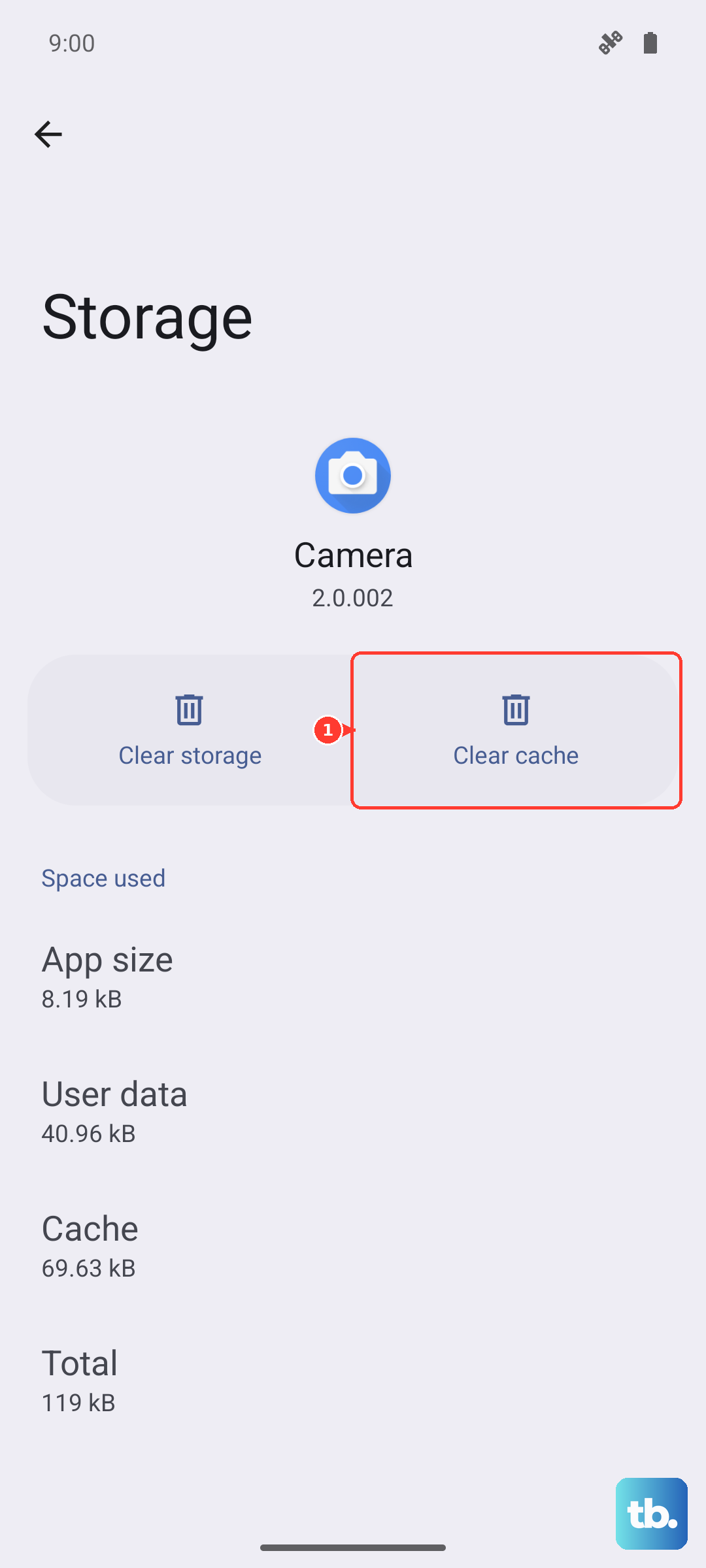
If the icon stays on even when the port is fully dry, clear the USB cache. Go to Settings > Apps > Filter and sort > enable 'Show system apps' > USB Settings > Storage > Clear cache.
Restart the phone to clear a temporary glitch
A quick restart resolves a surprising number of audio routing problems by clearing temporary software hiccups.
Press and hold the Volume down button and the Side button at the same time.
Tap Restart.
Tap Restart again.
Once the phone is back up, reconnect your headphones and test the sound again.
Forget the Bluetooth pairing and connect again
When wireless headphones connect but play no sound, or refuse to connect at all, a corrupted pairing is often to blame. Clearing it and starting fresh usually fixes it.
- 1.Go to Settings > Connections > Bluetooth.
- 2.Tap the Settings icon next to the device.
- 3.Tap Forget device.
- 4.Re-pair the headphones by selecting them from the list.
For the best chance of a clean reconnection, keep the headphones close to the phone with no obstructions, restart both the phone and the headphones, and make sure the headphones are charged and in pairing mode.
Update older Samsung USB-C earbud firmware
Some older Samsung USB-C earphones can have audio problems on the S23, such as dropouts or lag, that a firmware update resolves. If your Samsung USB-C earphones misbehave, check for an update.
Swipe down on the main screen to reveal the device notification.
Tap the firmware-version checking option.
Tap the update button.
Let it finish; the notification will change to update completed once complete.
Install the latest One UI software update
System updates often carry audio and Bluetooth fixes, so an up-to-date phone is more likely to behave. Using two fingers, swipe down from the top right and tap Settings > Software update > Download and install, then follow the on-screen prompts. Depending on your carrier the wording may read 'Check for software updates' or 'Download now'.
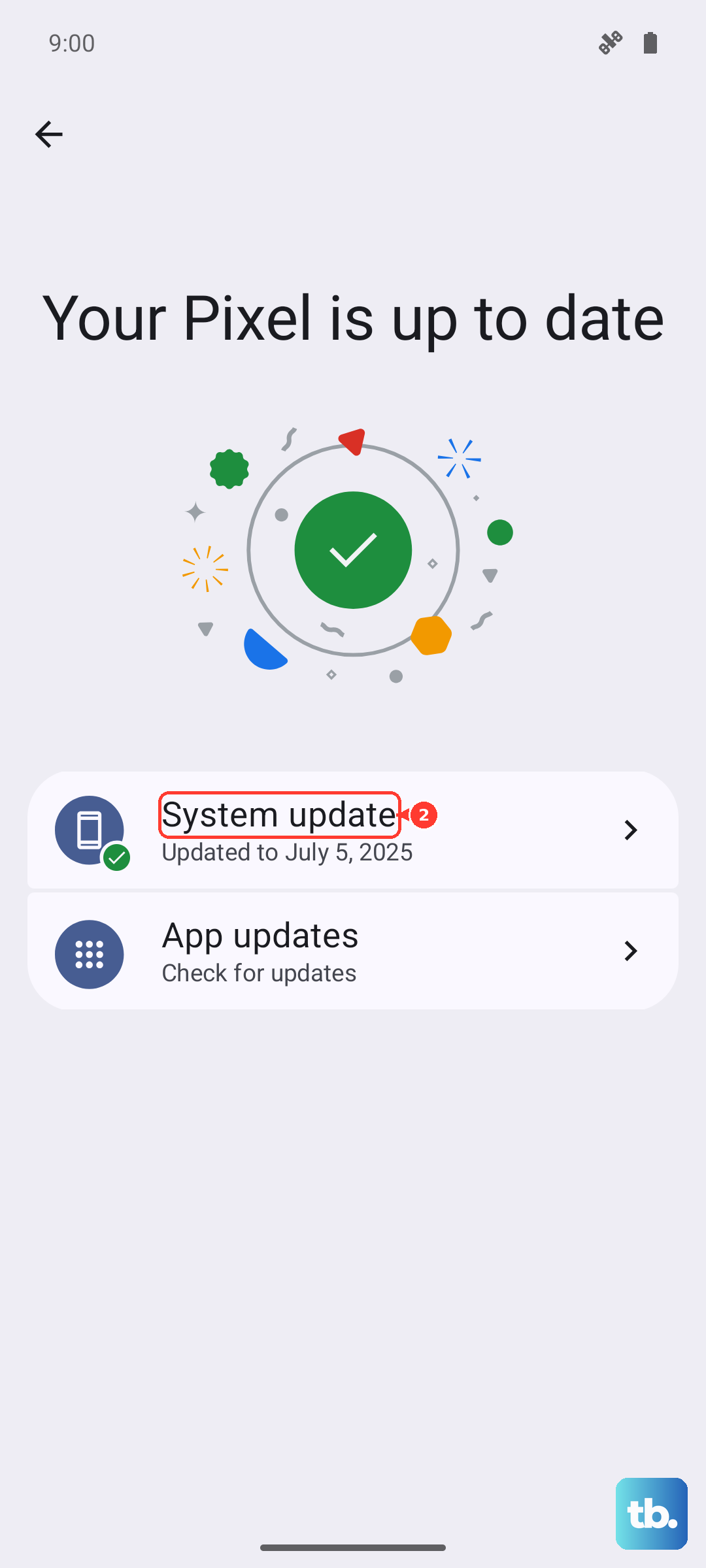
You can confirm your current build under Settings > About phone > Software information. If you prefer to update from a computer, Samsung Smart Switch on a Windows or Mac PC can also update your phone's software.
Reset Wi-Fi and Bluetooth settings or boot into Safe mode
If Bluetooth headphones still will not cooperate after re-pairing, resetting the connectivity settings wipes a tangled network and Bluetooth configuration without touching your personal data. Go to Settings > General management > Reset > Reset Wi-Fi and Bluetooth settings > Reset settings, then pair your headphones again from scratch.
It is also worth booting into Safe mode to check whether a third-party app is interfering with audio. If your headphones work normally in Safe mode, a recently installed app is the likely culprit, and you can remove suspect apps once you restart normally.
When your headphones still will not work
If the phone has become frozen or unresponsive during all this, force restart it. Press and hold the Volume down button and the Side button (or Power button) at the same time until the device turns off and turns back on.
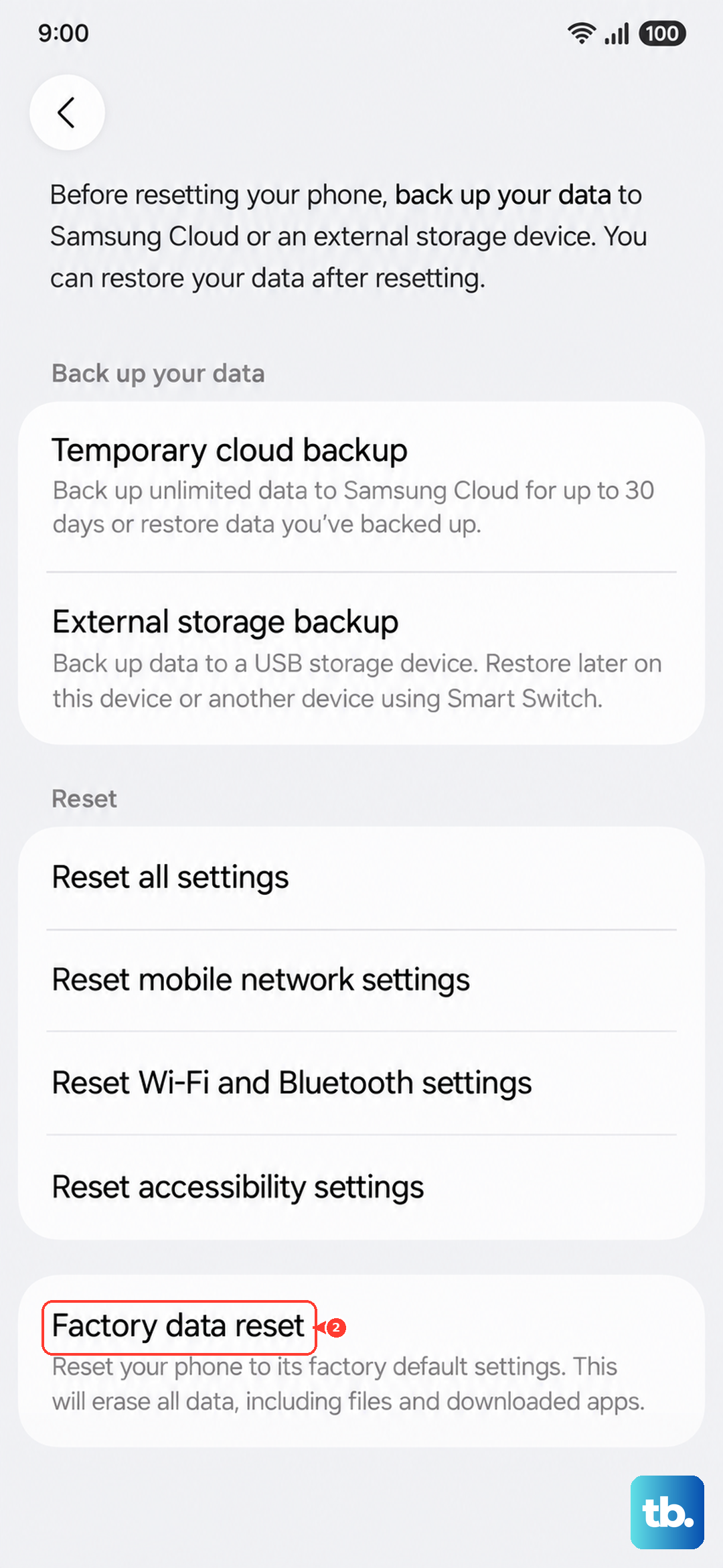
If headphones still fail after every fix above, a factory reset is the last software option. Back up everything first, because Samsung warns to "save any information you need prior to the factory reset because your personal information may not be recovered." When you are ready, go to Settings > General management > Reset > Factory data reset > Reset > Delete all.
If the problem survives even a factory reset, the USB-C port or other hardware may need service. At that point, contact Samsung Support so they can inspect the phone.
Frequently Asked Questions
Does the Galaxy S23 have a headphone jack?
No. Samsung confirms the Galaxy S23 Series does not include a 3.5mm headset jack and uses the USB-C port for audio output instead. Wired headphones must connect through USB-C, either as USB-C earbuds or through a USB Type-C to 3.5mm adapter with a built-in DAC.
Why do my 3.5mm headphones make no sound through a USB-C adapter?
A plain passive cable or adapter will not work, because the S23 needs a USB Type-C to 3.5mm adapter "with built in DAC." If you bought an adapter from a different manufacturer, make sure it is DAC compatible; a non-DAC adapter will leave you with silence.
Why does a water drop icon appear when I plug in my headphones?
That is the moisture-detection feature. When the phone senses moisture in the USB-C port it temporarily blocks the port for safety, which can stop USB-C headphones from working. Dry the port by wiping it, gently shaking the phone 5 to 10 times with the port facing down, and air-drying it; if the icon persists when dry, clear the USB cache under Settings > Apps > Show system apps > USB Settings > Storage > Clear cache.
Will a factory reset delete my files?
Yes. A factory data reset erases your personal data, and Samsung warns that your personal information may not be recovered, so save anything you need beforehand. Treat it as a last resort only after the connector, routing, restart, re-pairing, and software-update steps have failed.
How do I update my Samsung headphones?
For older Samsung USB-C earphones, swipe down on the main screen to reveal the device notification, tap to check the firmware version, tap the update button, and wait until the notification reads update completed. For Samsung Galaxy Buds, the Galaxy Wearable app handles firmware, settings, and connection.