
If your Galaxy Book 4 Pro isn't charging when you plug it in, the first thing I'd check is the Samsung Settings app. Open it and navigate to Battery > More battery settings. Look for a feature called "Battery Protection" or a charge limiter. If it's enabled, it might be capping your charge at 85% to preserve long-term battery health, which can look like it's stopped charging.
Inspect Your Charger and Cable
Take a close look at the USB-C cable and the power adapter block. Check for any fraying, kinks, or damage to the cable, especially near the connectors. The LED on the Samsung adapter should be lit when it's plugged into a working outlet.
Try plugging the charger into a different wall outlet to rule out a problem with the power source. It's also worth testing with a different, high-wattage USB-C charger if you have one available, as the original adapter can sometimes fail.
Perform a Force Restart
A simple restart can clear up temporary software glitches that interfere with power management. Hold down the power button for about 15 seconds until the laptop completely powers off and the screen goes black.
Wait a few seconds, then press the power button again to turn it back on. Do this while the charger is plugged in. This process resets the hardware power controller and can often get charging working again immediately.
Check for Software Conflicts
The Galaxy Book 4 Pro has its own Samsung Settings app that manages battery and performance. Sometimes, its settings can conflict with the standard Windows power options. Open the Windows Settings menu and go to System > Power & battery.
Make sure no unusual power-saving modes are active that could inhibit charging. Then, go back into the Samsung Settings app and ensure the battery settings there are configured as you expect, toggling any limiters off and on to refresh the system.
Update Your Drivers and BIOS
Outdated or corrupted battery drivers are a common culprit. Press the Windows key + X and select Device Manager. Expand the "Batteries" section, right-click on Microsoft ACPI-Compliant Control Method Battery, and select "Uninstall device."
Restart your laptop. Windows will automatically reinstall the fresh driver upon reboot. For deeper system fixes, a BIOS update from Samsung can resolve power delivery issues. You can check for updates through the Samsung Update app or by pressing F2 during startup to enter the BIOS and look for an update option.
Clean the USB-C Charging Port
Over time, pocket lint and dust can compact inside the USB-C port, preventing the cable from seating fully. Power off the laptop and use a can of compressed air to blow out the port gently.
For stubborn debris, you can carefully use a wooden or plastic toothpick to dislodge it. Avoid using metal objects, as they can damage the sensitive pins in the center of the port.
Run a Battery Health Report
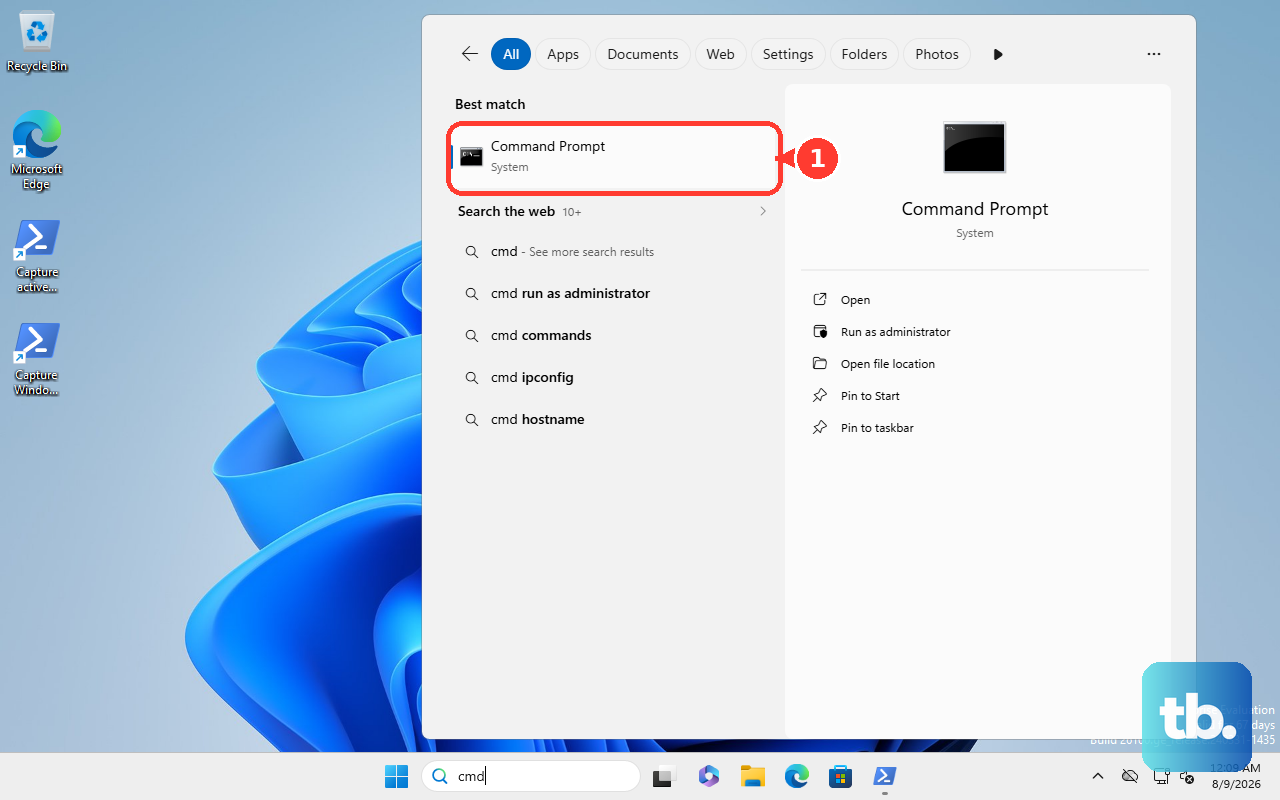
Windows has a built-in tool to check your battery's condition. Open Command Prompt as an administrator and type the command: powercfg /batteryreport. It will save an HTML file to your user folder.
Open that file and look for the "Design Capacity" versus "Full Charge Capacity." If the full charge capacity is significantly lower than the design capacity, your battery may be worn out and struggling to accept a charge, indicating it might need replacement.
Use Samsung Recovery for Major Issues
If you suspect a serious software corruption is causing the problem, you can use the Samsung Recovery solution. First, ensure your important files are backed up. Then, shut down your Galaxy Book 4 Pro completely.
Turn it back on and immediately press the F4 key repeatedly to boot into the recovery environment. From here, you can choose to reset your PC, which reinstalls Windows while keeping your files, or use other repair tools. This is a last-resort step, but it can fix deep-seated OS issues affecting power management.