
When your Galaxy Book 4 Pro goes silent, it's usually a quick software setting or a driver that needs a nudge. I'd start with the volume mixer, as Windows can sometimes mute individual apps without you realizing it.
Check the Volume Mixer First
Click the speaker icon in your taskbar and make sure the master volume is up. Then, click the little arrow next to the slider to open the volume mixer. Look at the individual sliders for apps like your browser or media player. It's common for one app to be muted while others work fine.
Run the Built-in Audio Troubleshooter
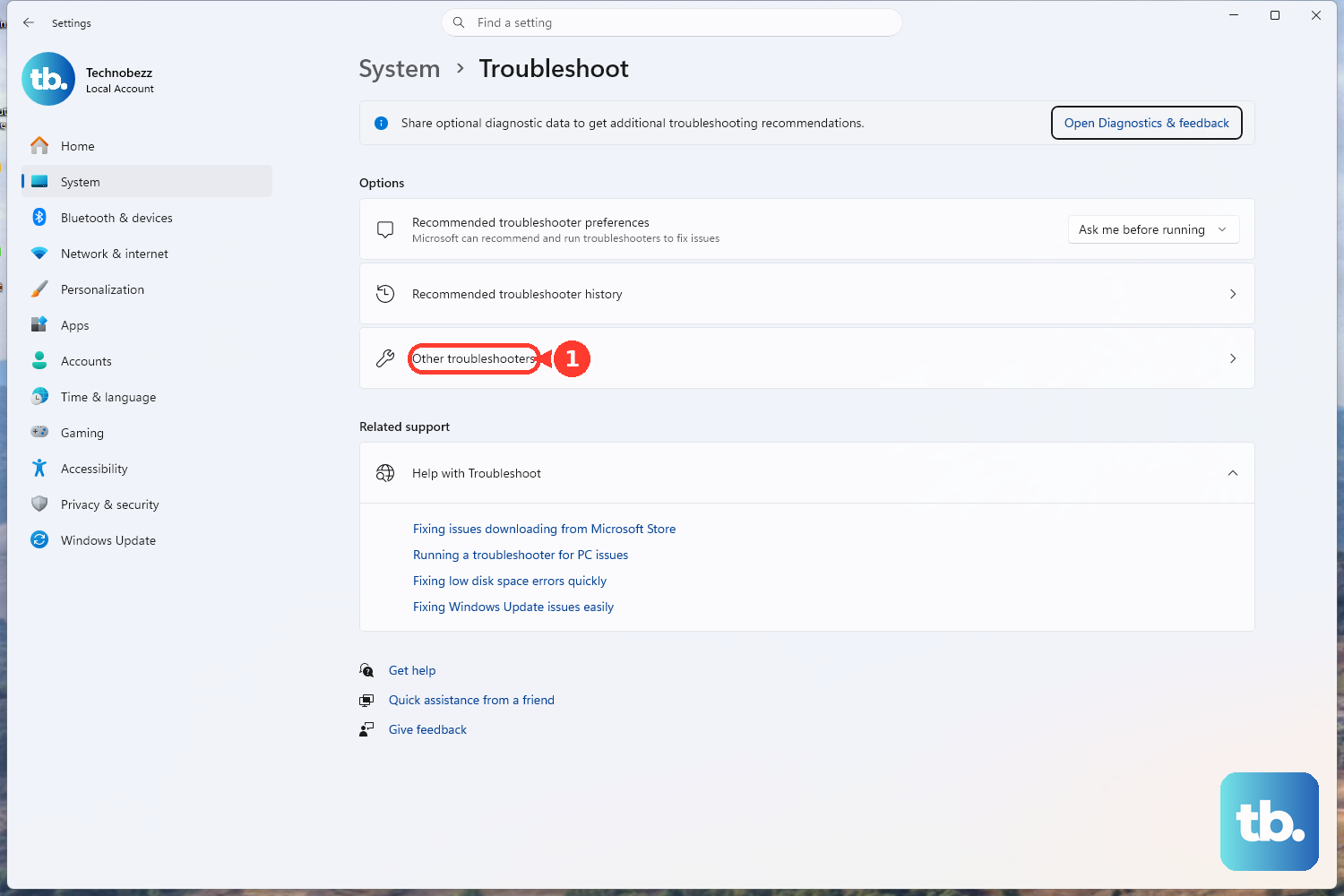
Windows has a handy tool for this. Go to Settings > System > Troubleshoot > Other troubleshooters. Find Playing Audio and click Run. It will scan for common issues like disabled services or incorrect default devices and often fixes them on the spot.
Verify Your Output Device
Head to Settings > System > Sound. Under the Output section, make sure "Samsung Galaxy Book 4 Pro Speakers" or something similar is selected. If you see "Digital Output (HDMI)" or a disconnected Bluetooth device listed, that's your problem. Click your speakers and ensure the volume there is also turned up.
Update or Reinstall Your Audio Driver
Press the Windows key + X and choose Device Manager. Expand the section called Sound, video and game controllers. Right-click on your audio device (it might be Realtek Audio) and select Update driver, then Search automatically for drivers. If that doesn't work, right-click again and choose Uninstall device. Restart your laptop, and Windows will install a fresh driver automatically.
Restart the Core Audio Services
Press Windows + R, type services.msc, and hit Enter. In the long list, find Windows Audio. Right-click it and select Restart. Do the same for the service right below it called Windows Audio Endpoint Builder. This resets the audio engine and can clear up glitches instantly.
Disable Audio Enhancements
Sometimes the software enhancements that are supposed to improve sound can break it instead. Go back to Settings > System > Sound, click on your output device, and scroll down to find Audio enhancements. Try setting this to Off to see if your audio returns.
Check the Samsung Settings App
Since you're on a Galaxy Book, open the Samsung Settings app. Look for any audio or sound-related settings there. In my experience, there can occasionally be a conflict between Samsung's management software and Windows settings, so toggling options here on and off can help.
Try a System Restore Point
If the audio just stopped working after a recent update or software install, you can roll the system back. Type "Create a restore point" into the Windows search bar, open that system property, and click System Restore. Choose a restore point from before the problem started. This will revert system files and settings without touching your personal documents.
Test with External Audio
Plug in a pair of headphones or USB speakers. If you get sound through those, the issue is likely with your laptop's internal speakers or their driver. If you don't get sound through any output, the problem is almost certainly a system-wide software or driver issue.
Perform a Clean Boot
This helps rule out software conflicts from other programs. Type "System Configuration" into the search bar and open it. Go to the Services tab, check Hide all Microsoft services, then click Disable all. Go to the Startup tab and click Open Task Manager, then disable all startup items. Restart your laptop. If audio works now, a third-party service was interfering.