
When the predictive text on your Samsung Galaxy A56 stops working, it can feel like you're typing with one hand tied behind your back. Word suggestions vanish, autocorrect starts making bizarre changes, or the whole smart typing system just freezes up. This is usually a software hiccup within One UI 7, and there are several straightforward ways to get it back on track.
I'd start with a simple restart of your phone. Press and hold the Volume Down and Side button together for about ten seconds until you see the Samsung logo. This clears out any temporary glitches in the system that might be affecting the keyboard's learning algorithms. It's a quick fix that solves the problem more often than you'd think.
Toggle Predictive Text Off and On
Sometimes the predictive text feature just needs a quick refresh. Head into your phone's settings to find the toggle. Open Settings, then go to General Management > Language & Input > On-Screen Keyboard.
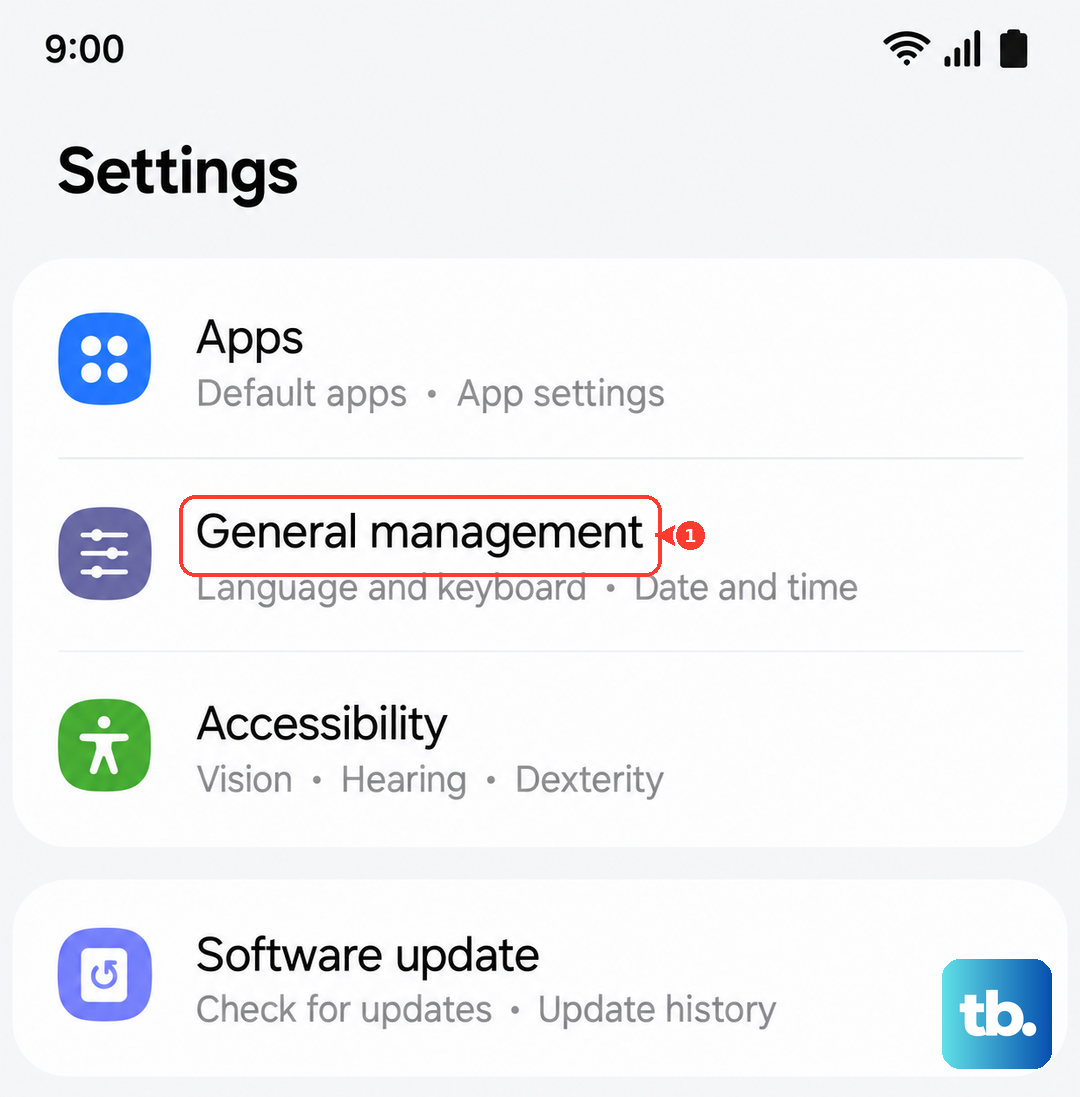
Tap on Samsung Keyboard. Next, select Smart typing. You'll see the Predictive text switch right at the top. Turn it off, wait a second, and then turn it back on. This resets the feature without affecting your saved data.
Clear the Keyboard's Cache
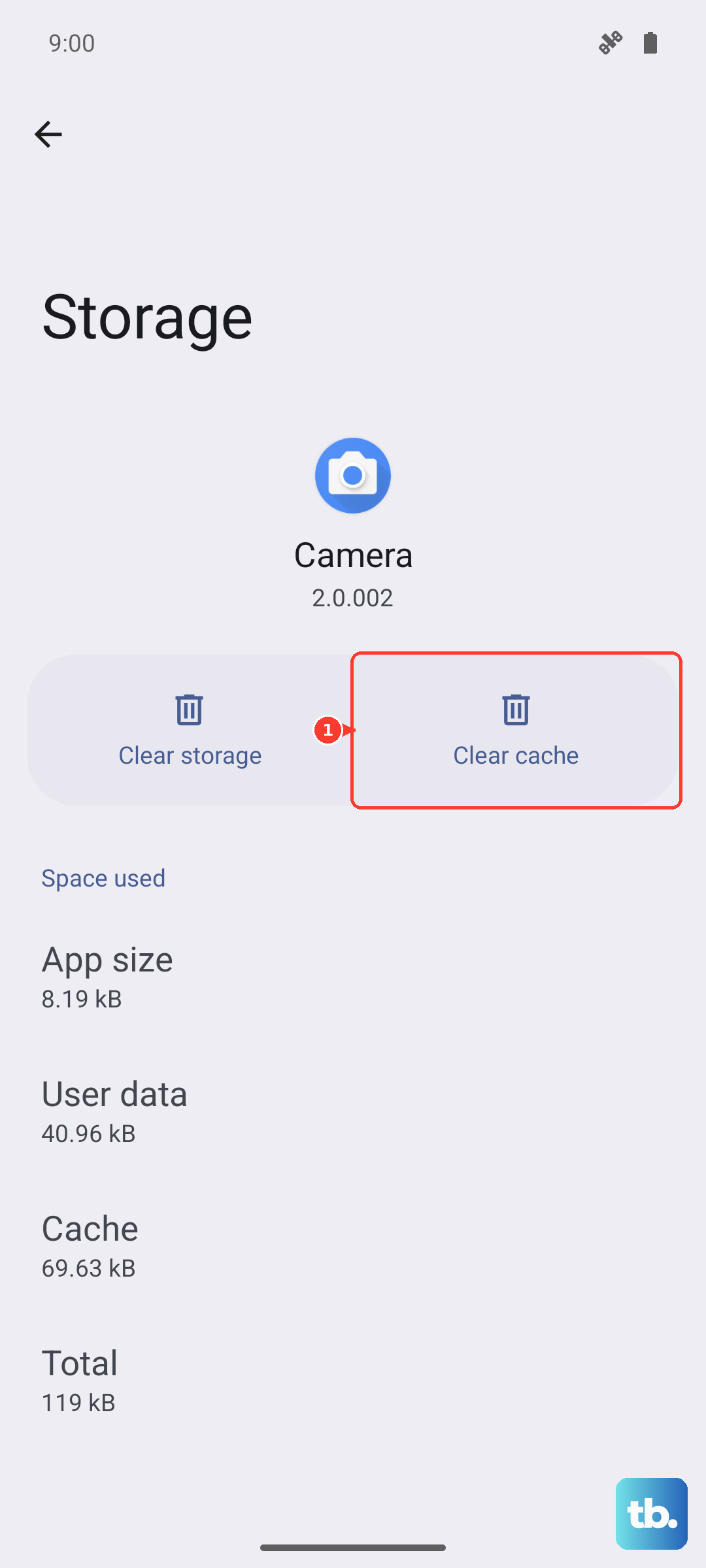
If toggling doesn't work, the next step is to clear the keyboard's cache. This gets rid of temporary files that might have become corrupted. Go back to Settings and tap on Apps.
You might need to tap the three-dot menu in the top right and select Show system apps to find it. Look for Samsung Keyboard in the list and tap on it. Select Storage, then tap Clear Cache. This is a safe first step that won't delete your personal dictionary or settings.
Check and Adjust Your Keyboard Settings
It's worth taking a minute to make sure all your keyboard settings are configured correctly. A single wrong toggle can break the whole predictive system. Navigate to Settings > General Management > Language & Input > On-Screen Keyboard > Samsung Keyboard.
First, tap Languages and types to ensure your primary language (like English US) is downloaded and selected. Then, go into Smart typing. Verify that Predictive text is on. Also check that Auto replacement is enabled, as this is what applies the corrections.
Update Your Keyboard and Language Files
Outdated software is a common culprit. You need to check for updates in two places: the Samsung Keyboard app itself and the language files it uses. First, open the Galaxy Store and check for updates to the Samsung Keyboard app.
Then, for the language updates, go to Settings > General Management > Language & Input > On-Screen Keyboard > Samsung Keyboard > Languages and types. Tap on your language, then Manage input languages. Tap the three-dot menu and select Check for an update.
Reset the Keyboard to Default Settings
If you're still having issues, a full reset of the keyboard will wipe its slate clean. This will erase all your personalized settings, like your saved words and custom dictionary, so it's a last resort before more drastic measures.
To do this, go to Settings > General Management > Language & Input > On-Screen Keyboard > Samsung Keyboard. Scroll down and tap Reset to default settings. Confirm your choice. After the reset, you'll need to go back into the Smart typing menu and re-enable Predictive text.
Clear the Keyboard's App Data
When a reset isn't enough, clearing the app's entire data is the most thorough software fix. This completely reinstalls the keyboard's configuration from scratch. You'll lose all learned words, shortcuts, and settings.
Go to Settings > Apps, find Samsung Keyboard, and select Storage. This time, tap Clear Data instead of just the cache. After your phone reboots, the keyboard will act like it's brand new, and you'll need to walk through its initial setup prompts again.