
Seeing a call suddenly drop on your Samsung Galaxy A56 is one of those modern annoyances that can leave you talking to yourself. It's usually a quick hiccup with the network connection, a software setting that got out of sync, or sometimes just a spot with poor reception.
Let's run through the most effective fixes, starting with the ones that take just a few seconds. I'd always start with the first couple on this list.
Toggle Airplane Mode On and Off
This is the fastest way to refresh your phone's connection to the cellular network. It forces the modem to reconnect, which can clear up temporary glitches causing the drops.
Just swipe down from the top of your screen to open the Quick Settings panel. Tap the Airplane Mode icon to turn it on, wait about 10 seconds, and then tap it again to turn it off. You should see the signal bars disappear and then come back.
Check Your Signal Strength
Weak signal is the most common culprit for dropped calls. Take a look at the signal bars in the top-right corner of your A56's screen. If you're down to one or two bars, try moving to a different room or near a window.
Buildings with thick walls, basements, and rural areas are typical trouble spots. If the signal is consistently poor at home, you might want to talk to your carrier about a network extender.
Perform a Force Restart
A simple reboot can clear out minor software bugs that might be interfering with the phone app or modem. For the Galaxy A56, press and hold the Volume Down button and the Side (power) button together for about 10 seconds.
Keep holding until you see the Samsung logo appear on the screen, then let go. This is the same method used on the Galaxy S series and it's a great first step for many glitches.
Disable Wi-Fi Calling Temporarily
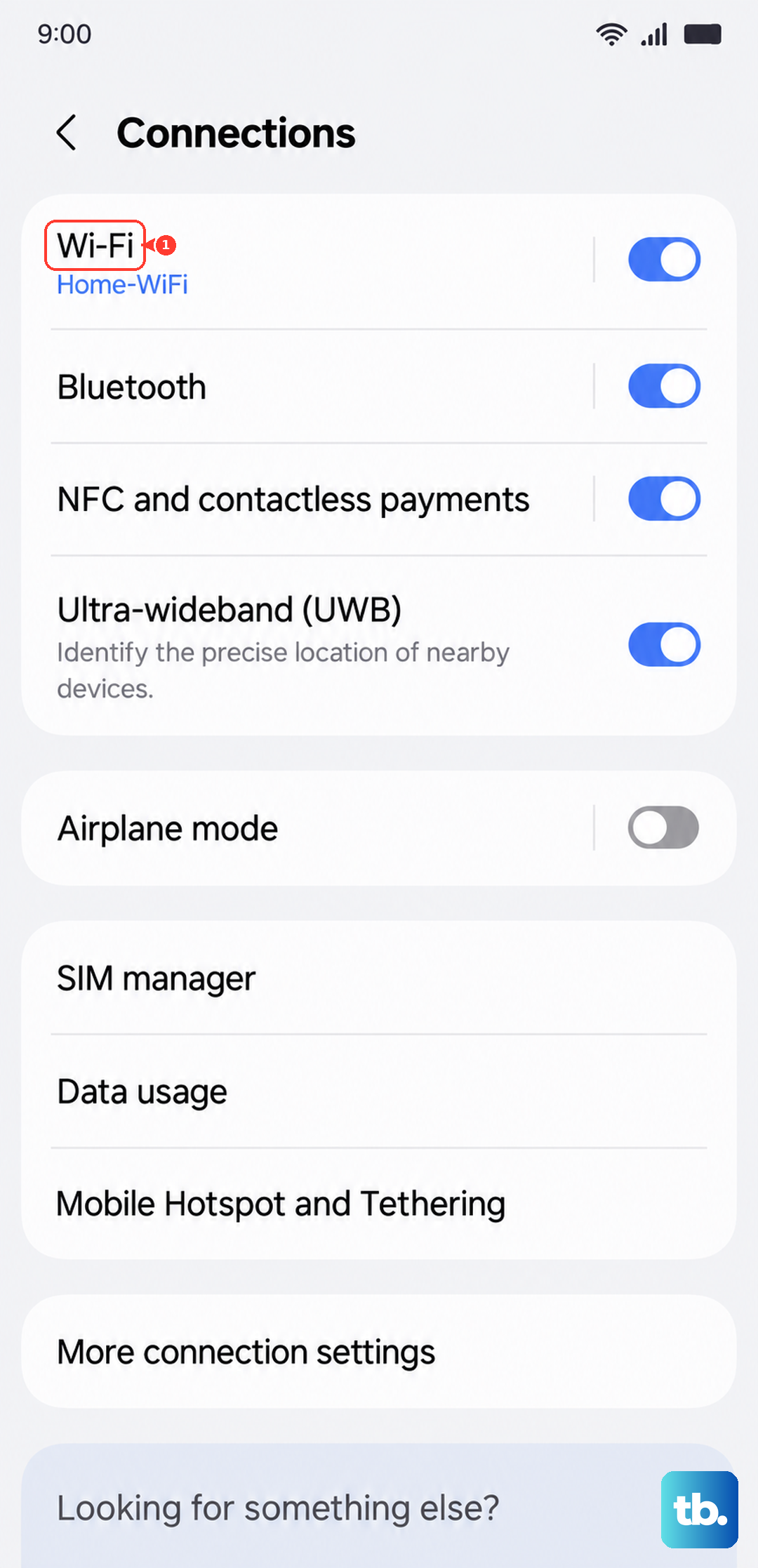
Wi-Fi Calling is a fantastic feature, but if your internet connection is unstable, it can lead to call quality issues or drops. It's worth turning it off to see if your calls stabilize on the pure cellular network.
Go to Settings > Connections > Wi-Fi Calling and toggle the switch off. Make a test call, and if it works, you know the issue is with your Wi-Fi network. You can try re-enabling it later on a more stable connection.
Update Your Phone's Software
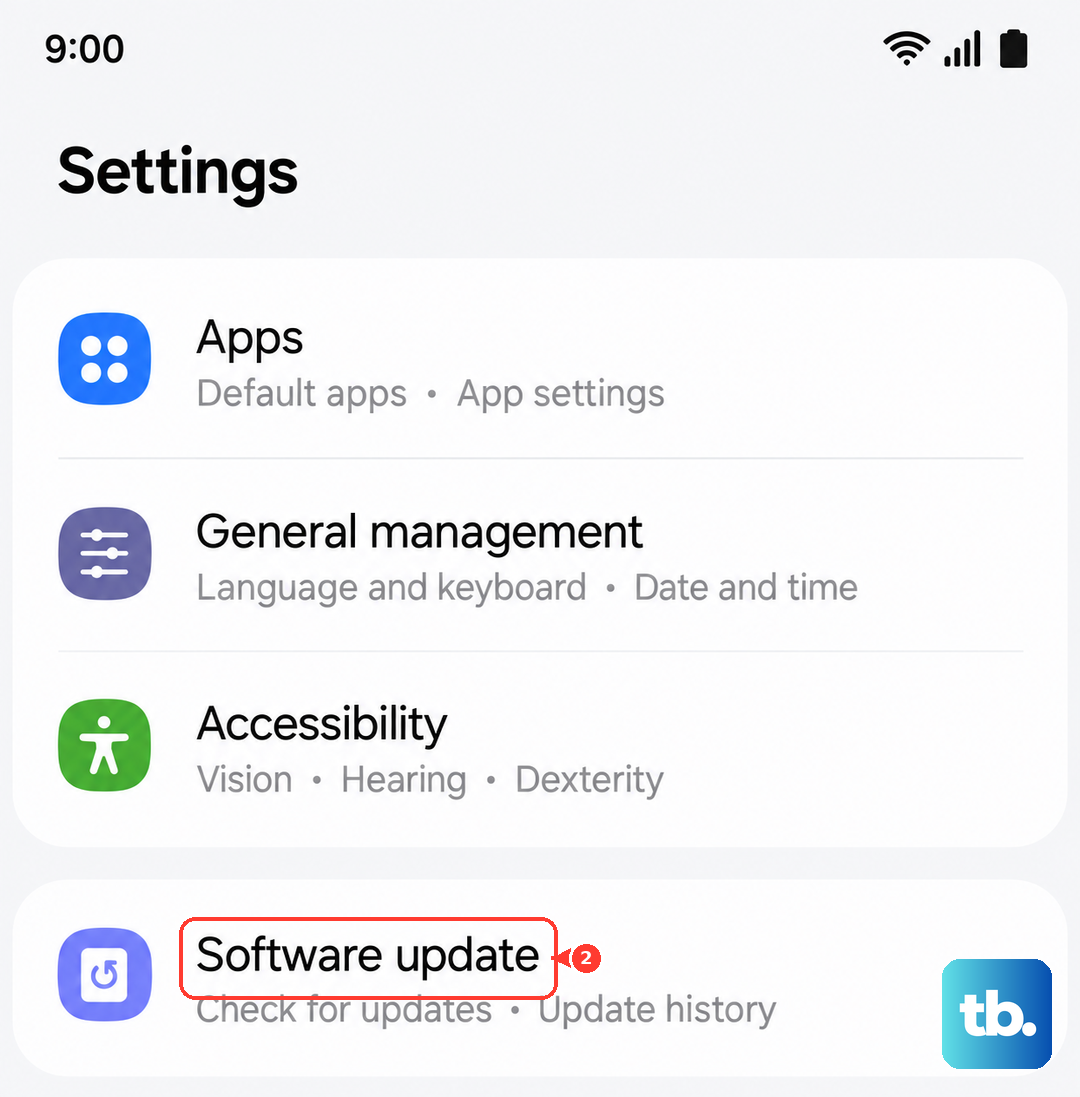
Samsung regularly releases updates for One UI that include bug fixes and improvements for network connectivity. An outdated system could be the reason your calls are failing.
Head to Settings > Software update > Download and install. Make sure you're connected to Wi-Fi and have at least a 50% charge before you start. Installing the latest update has resolved call issues for many users.
Reset Your Network Settings
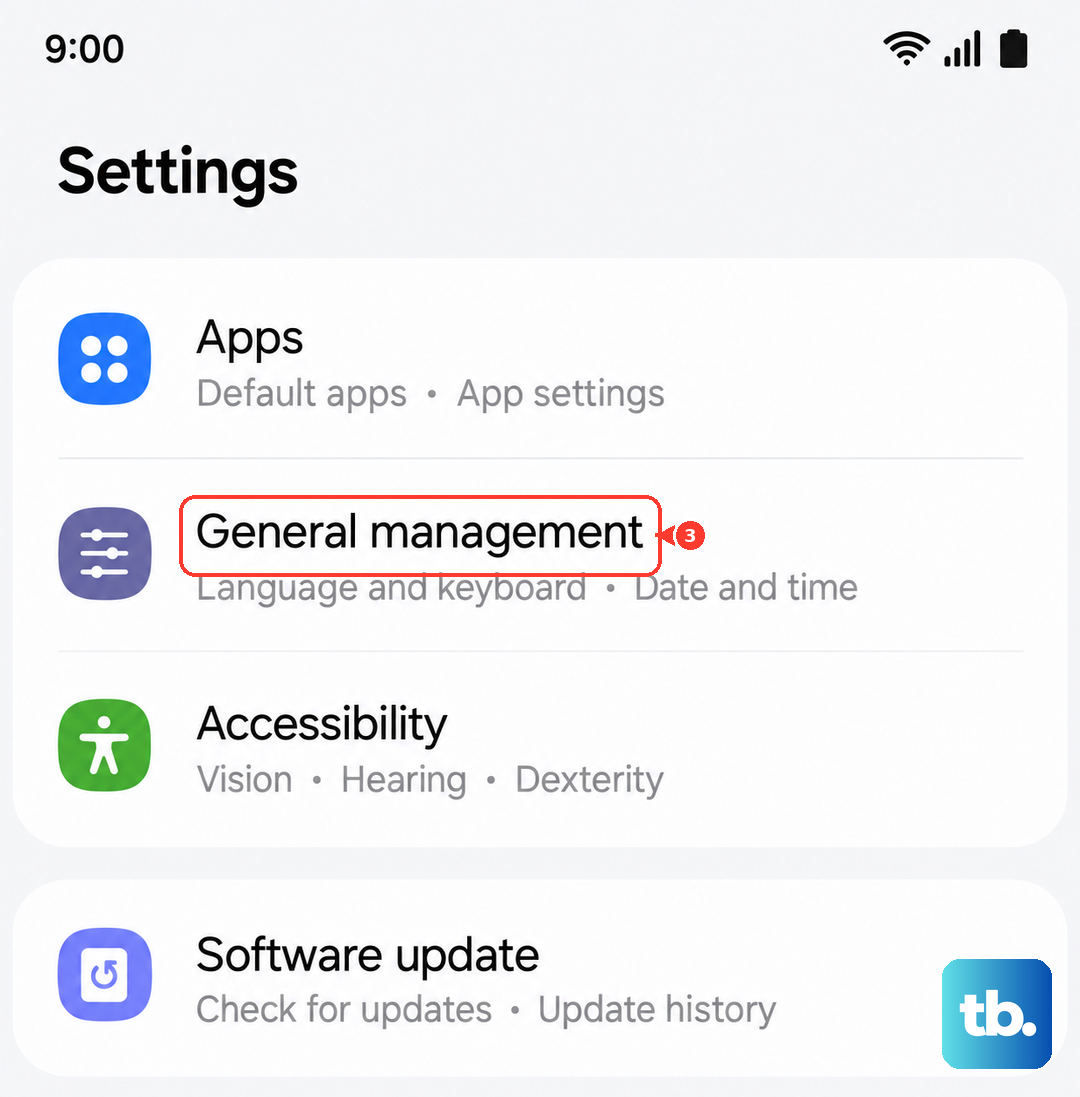
This will erase all your saved Wi-Fi networks, Bluetooth pairings, and cellular preferences, but it won't touch your personal data like photos or messages. It's a powerful way to clear out any corrupted network configurations.
On your A56, go to Settings > General management > Reset > Reset network settings. Tap to confirm, and your phone will restart. Afterward, you'll need to reconnect to Wi-Fi and re-pair Bluetooth devices, but it often fixes persistent calling problems.
Check for App Updates
Don't forget about the Phone app itself. Samsung and Google push updates through the Galaxy Store and Google Play Store that can improve stability.
Open the Galaxy Store, tap the menu icon, and go to Updates. Also, open the Google Play Store, tap your profile picture, and go to Manage apps & device > Updates available. Install any updates for system apps, especially the Phone or Carrier Services apps.
Inspect Your SIM Card
A loose, dirty, or damaged SIM card can cause intermittent network loss. The SIM tray on the A56 is on the top edge. Use the ejector tool that came with the phone (or a small paperclip) to pop it out.
Carefully remove the SIM card, give the gold contacts a gentle wipe with a soft, dry cloth, and reinsert it firmly. Make sure it's seated correctly in the tray before sliding it back into the phone.
Verify Call-Blocking and Do Not Disturb Settings
It's easy to accidentally block a number or have a Focus mode active that silences calls. Go to your Phone app, tap the three-dot menu, and select Settings > Block numbers to check the list.
Also, swipe down your notification panel to see if Do Not Disturb or a Focus mode is active. If it is, tap the icon to turn it off and see if your call behavior changes.
Contact Your Mobile Carrier
If you've tried everything here and calls are still dropping, the issue might be on your carrier's end. There could be local network maintenance, an outage, or a problem with your account provisioning.
Give their customer service a call from a different phone if possible, or use online chat support. They can check for outages, reprovision your line, or send you a new SIM card if they suspect yours is faulty.