
When your Samsung Galaxy A56 won't download apps, it can bring your phone to a standstill. You might see the download stuck at "Pending" or get an error message you don't understand. This is a common issue with straightforward fixes, especially on newer One UI 7 devices.
Let's get your app downloads working again. I'd start with the quick fixes first, as they solve most problems.
Check Your Connection and Restart
First, make sure your internet is actually working. Pull down the notification shade on your A56 and look at the Wi-Fi or mobile data icon. If you're on Wi-Fi, try opening a webpage in Samsung Internet to confirm it's live.
Some public or corporate Wi-Fi networks can block the ports the Play Store uses. A quick test is to turn off Wi-Fi, enable mobile data, and try the download again. If it works, you know the issue is with that specific network.
Next, give your phone a fresh start. Press and hold the Volume Down button and the Side button (power button) together for about 10 seconds. You'll feel a vibration and see the Samsung logo as it restarts. This clears out any temporary glitches in the system.
Verify Date, Time, and Storage
Google's servers are very picky about time. If your phone's clock is off, downloads can fail silently. Go to Settings > General Management > Date and Time.
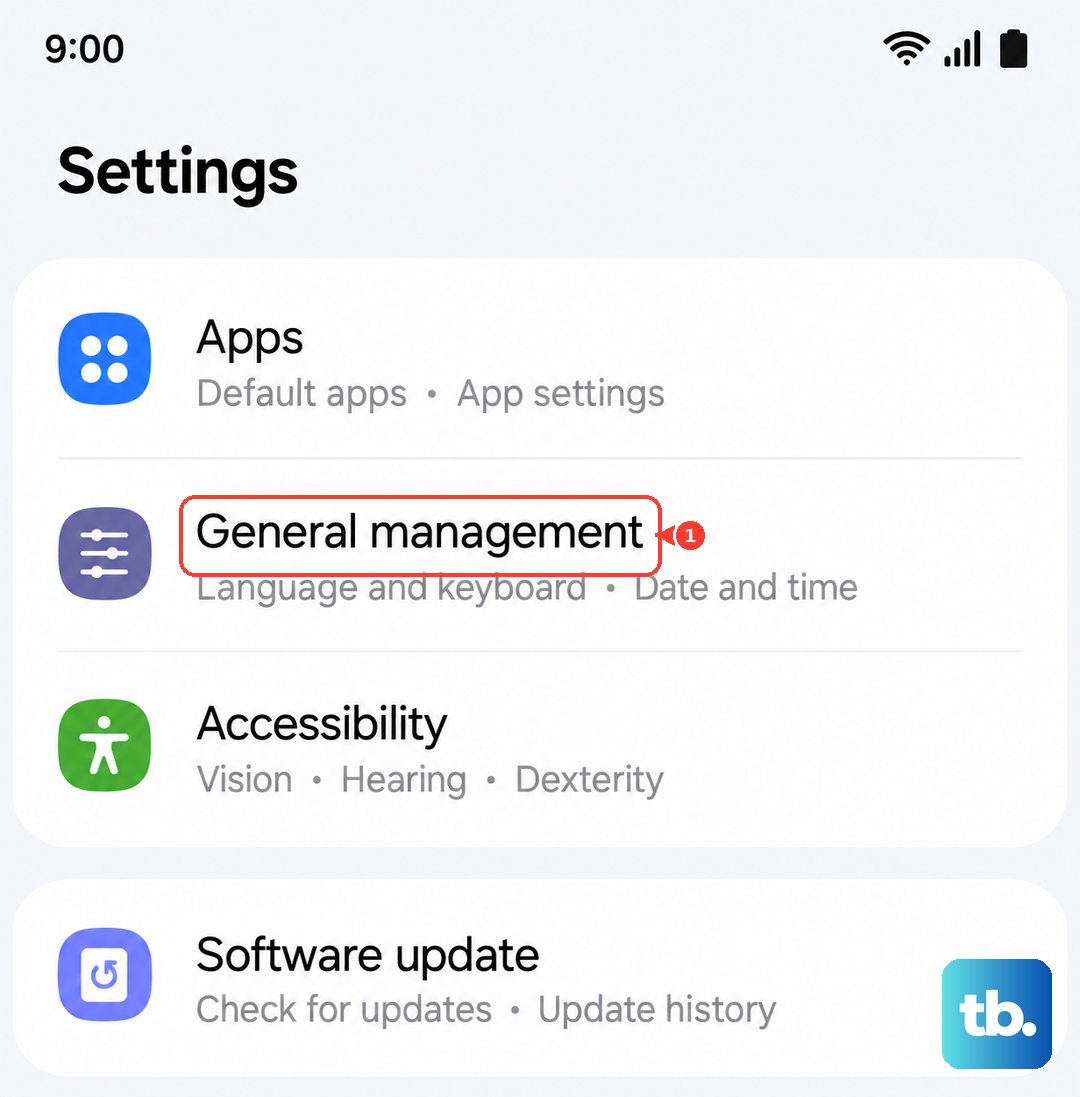
Make sure "Automatic date and time" is switched on. If it's already on and you're having issues, try turning it off and back on again to force a refresh. This takes just a few seconds.
Also, check if you're simply out of space. The Galaxy A56 doesn't have expandable storage, so what you have is what you get. Go to Settings > Battery and Device Care > Storage. If you're critically low, you'll need to delete some photos, videos, or old apps before new downloads can proceed.
Clear the Google Play Store Cache
The Play Store stores temporary data that can sometimes become corrupted. Clearing this cache is a safe first step that doesn't delete your apps or account info.
Open Settings and tap on Apps. Find and select Google Play Store from the list. Tap on Storage, then tap Clear Cache. After doing this, open the Play Store again and try your download.
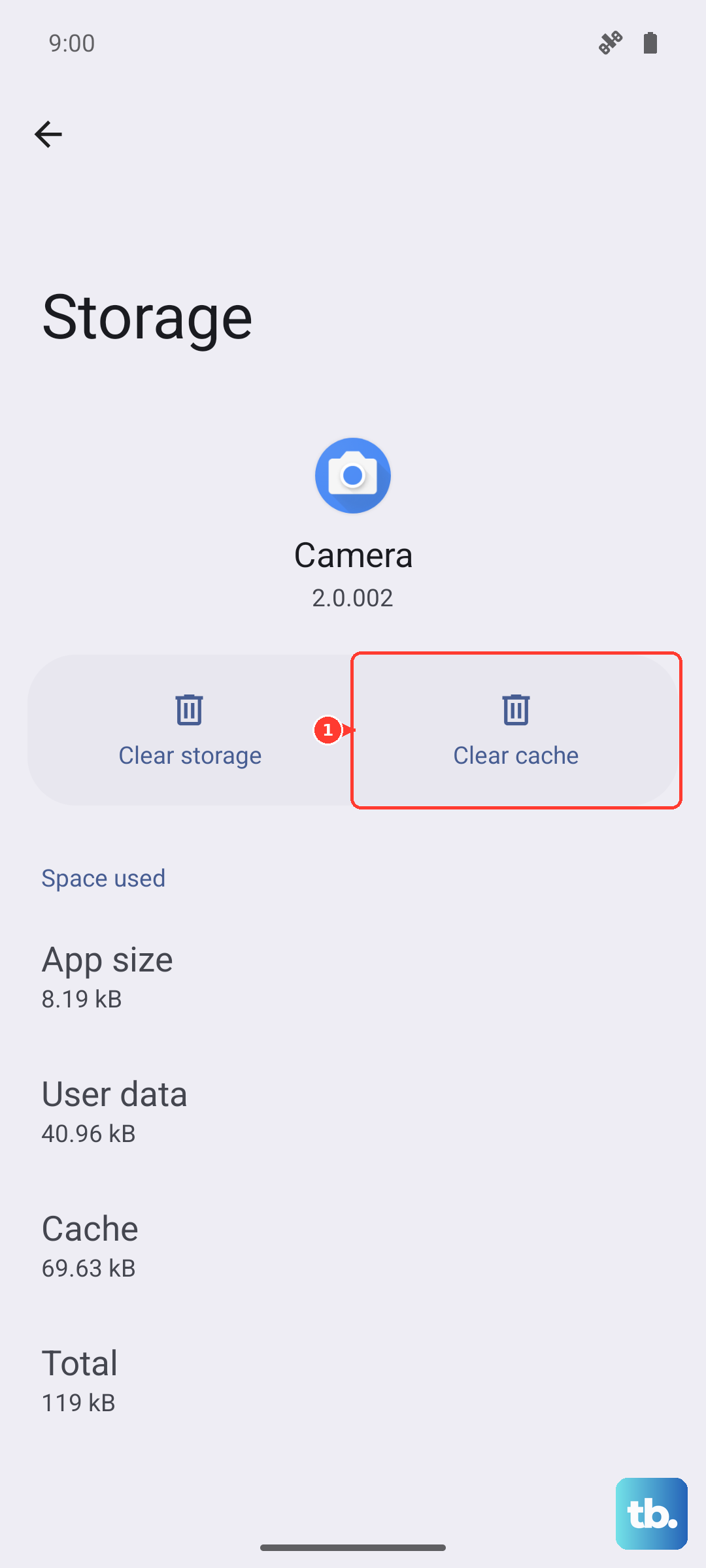
If the download is still stuck, you can take the next step. Go back to the same Play Store storage screen and tap Clear Data. This will reset the app to its default state, so you may need to sign in again. Don't worry, it won't remove your installed apps.
Reset Google Play Services
This app works in the background to connect your phone to Google's services. Problems here are a frequent cause of download failures. Go to Settings > Apps again, and this time find Google Play Services.
Tap on it, then go to Storage. Tap Clear Cache first. If that doesn't help, tap Manage Storage and then Clear All Data. You'll get a warning that this affects other apps, but it's generally safe and can resolve stubborn issues.
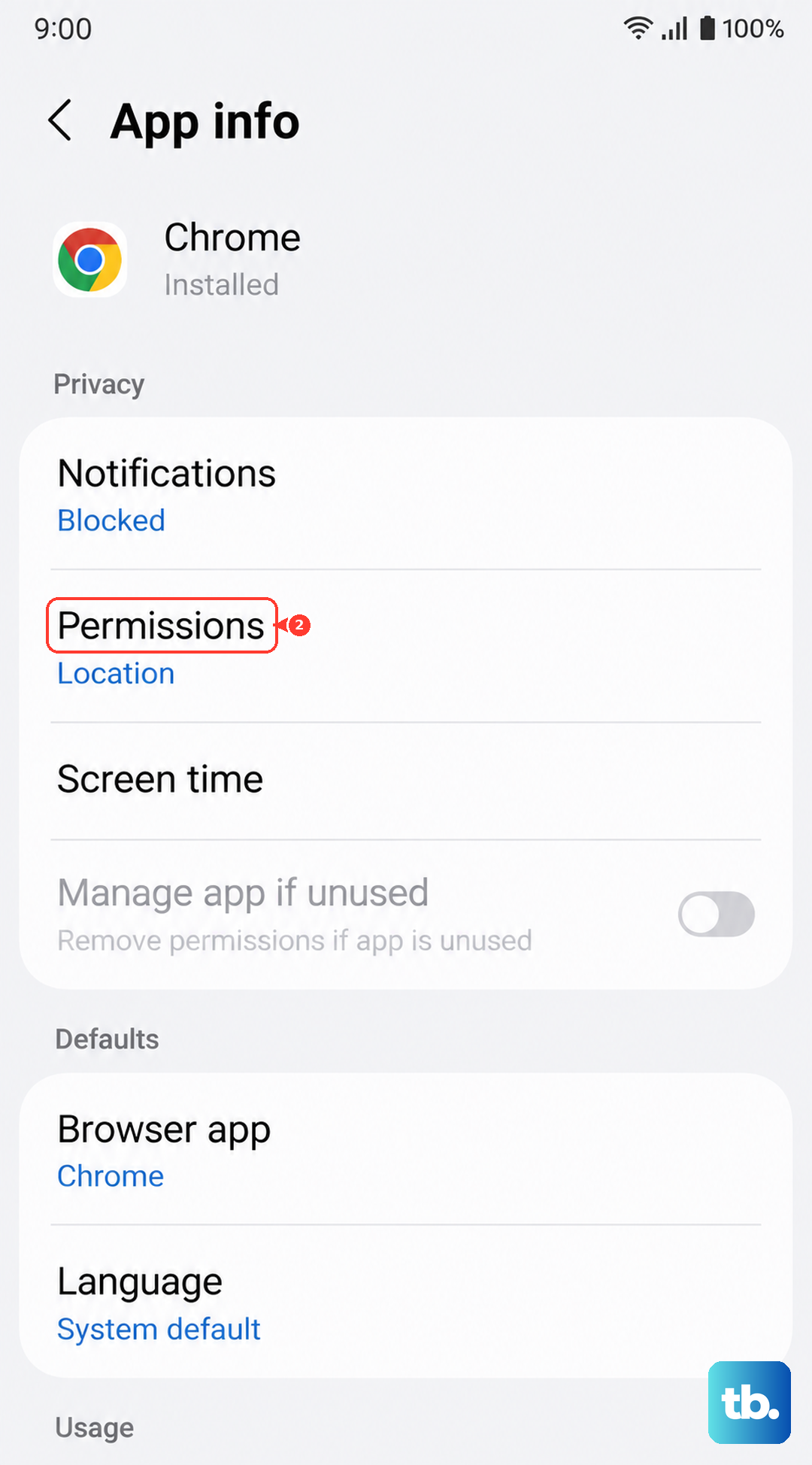
While you're in the Google Play Services app info, also check its permissions. Tap on Permissions and ensure that Storage permission is allowed. This lets the service manage download files properly.
Check for System Updates
Your Galaxy A56 runs on One UI 7 over Android 15. Sometimes, a bug in the system software can interfere with app downloads. Samsung regularly releases updates to fix these kinds of problems.
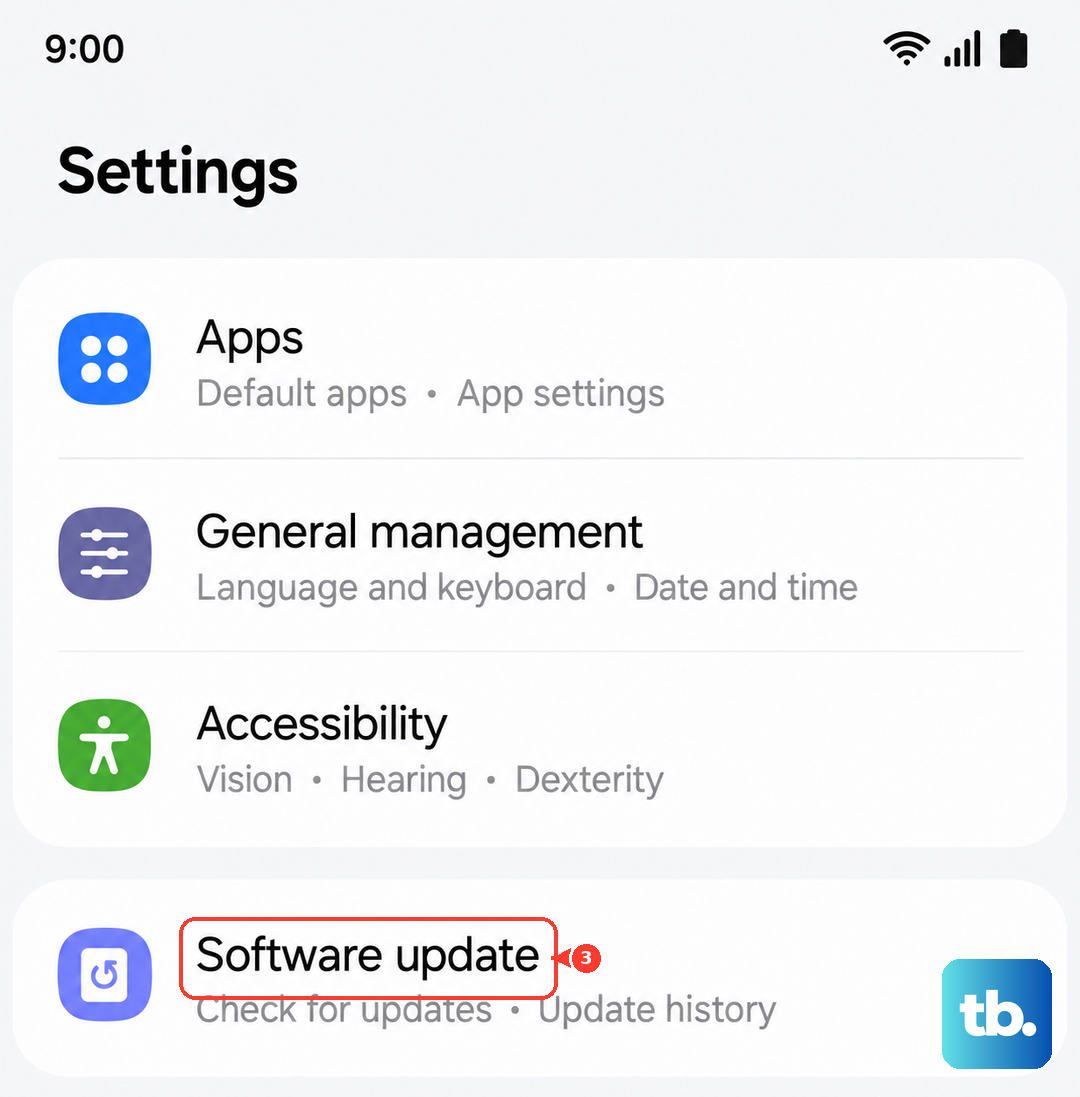
To check, go to Settings > Software Update. Tap Download and Install. If an update is available, it's a good idea to install it. Make sure your phone is charged above 50% and connected to Wi-Fi before starting the update.
Review Your Download Settings
There are a couple of settings within the Play Store itself that can block downloads. Open the Google Play Store app and tap your profile icon in the top right corner. Go to Settings > Network Preferences.
Look at the "Auto-update apps" setting. If it's set to "Don't auto-update apps," that's fine, but it won't stop manual downloads. More importantly, check "App download preference." If it's set to "Over Wi-Fi only" and you're trying to use mobile data, that's your problem. Switch it to "Over any network."
Also, in the main Play Store settings under "About," tap "Play Store version." The app will check for updates itself. If an update is pending, it needs to complete before other downloads can start.
Enable Download Manager
Android uses a system component called Download Manager to handle all downloads. It's possible for it to become disabled or stuck. Go to Settings > Apps. Tap the three-dot menu in the top right and select Show system apps.
Now, search for "Download Manager." If you find it and the button says "Enable," tap it. If it's already enabled, tap on it, then go to Storage and tap Clear Cache and Clear Data. This resets the component.
Remove and Re-add Your Google Account
This step refreshes the connection between your phone and your Google account. Go to Settings > Accounts and Backup > Manage Accounts. Select your main Google account.
Tap Remove Account at the bottom. Confirm you want to remove it. Your contacts and mail synced to this account will be removed from the phone, but they'll sync back when you add it again. Don't worry, your apps and personal files are safe.
After removing it, tap "Add Account" and follow the prompts to sign back in with the same Google account. Once you're signed in, try the Play Store again.
Address Specific Error Messages
If you're seeing an error code, it gives us a clearer direction. The error "Insufficient storage available" means exactly that. You need to free up space using the Device Care storage manager mentioned earlier.
The error DF-BPA-09 is often related to payment or account issues, even on free apps. A fix that works for many is to go to Settings > Apps, show system apps, find Google Services Framework, and clear its cache and data.
For a generic "Error retrieving information from server", the most common fix is the Google Play Services data clear we already covered. It's also worth trying to force stop the Play Store app from its app info page before trying again.
Reset All App Preferences
This is a broader reset than targeting single apps, but it's less drastic than a factory reset. It resets permissions, background restrictions, and default app assignments back to their factory state.
Go to Settings > Apps. Tap the three-dot menu and select Reset app preferences. Confirm the action. You'll then need to re-grant permissions to apps as you use them, but it can untangle complex software conflicts causing download failures.