Your Galaxy A55 5G keeps insisting the software is up to date when you know a newer One UI release is out, or the download starts and then stalls at the same percentage every time you try. Maybe the install kicks off, the phone reboots, and you land right back where you started on the same firmware. An update that refuses to install is frustrating on a phone Samsung has promised to support for years, but the cause is almost always something ordinary, like a flaky connection, a full storage drive, or a battery that is too low to finish, rather than a broken handset.
The reassuring part is that the Galaxy A55 5G fully supports over-the-air (FOTA) updates, and it is covered by Samsung's commitment of up to four generations of Android OS and One UI upgrades plus five years of security updates. That means an update really is meant to reach your phone; you just need to clear whatever is standing in its way. Work through the fixes below in order, starting with the quickest and safest, and leave the factory reset for last.
Get on a stable Wi-Fi network first
Software updates are large files, and they need a steady connection to download and install without becoming corrupted partway through. Samsung recommends connecting to Wi-Fi before you check for an update, so you are not burning through mobile data on a package that can run to gigabytes.
If the download stalls or fails, the network is the usual suspect. Forget and re-add the Wi-Fi network, or restart your router, and temporarily switch off any VPN you have running, since a VPN can interfere with the update servers. Once you are back on a solid connection, start the download again from the beginning.
Charge past the halfway mark before you install
An update rewrites core system files, and your A55 may block or abandon the process if the battery is too low to finish safely. Charge the phone above 50 percent, and ideally keep it plugged in while the update installs so it cannot run out mid-way.
Do not power the phone off or unplug it while the update is writing. One practical note, the A55 ships with a USB-C cable but no wall adapter in the box (this is Samsung's general policy now), so use a compatible Samsung charger to top the battery up before you begin.
Clear enough internal storage for the download
An update will not install if there is not enough free internal storage to unpack it. If your phone is nearly full, the check might still run, but the install can quietly fail, or the update may never be offered at all.
Delete files and apps you no longer use, move photos and videos off the device, then try again. The exact amount of space an update needs varies with its size, so free up as much as you comfortably can rather than chasing one fixed figure.
Check for the update by hand
Automatic notifications can lag behind a release, so it is worth looking manually instead of waiting for a prompt.
- 1.Open Settings > Software update.
- 2.Tap Download and install.
- 3.If an update is offered, tap Install now and follow the on-screen prompts.
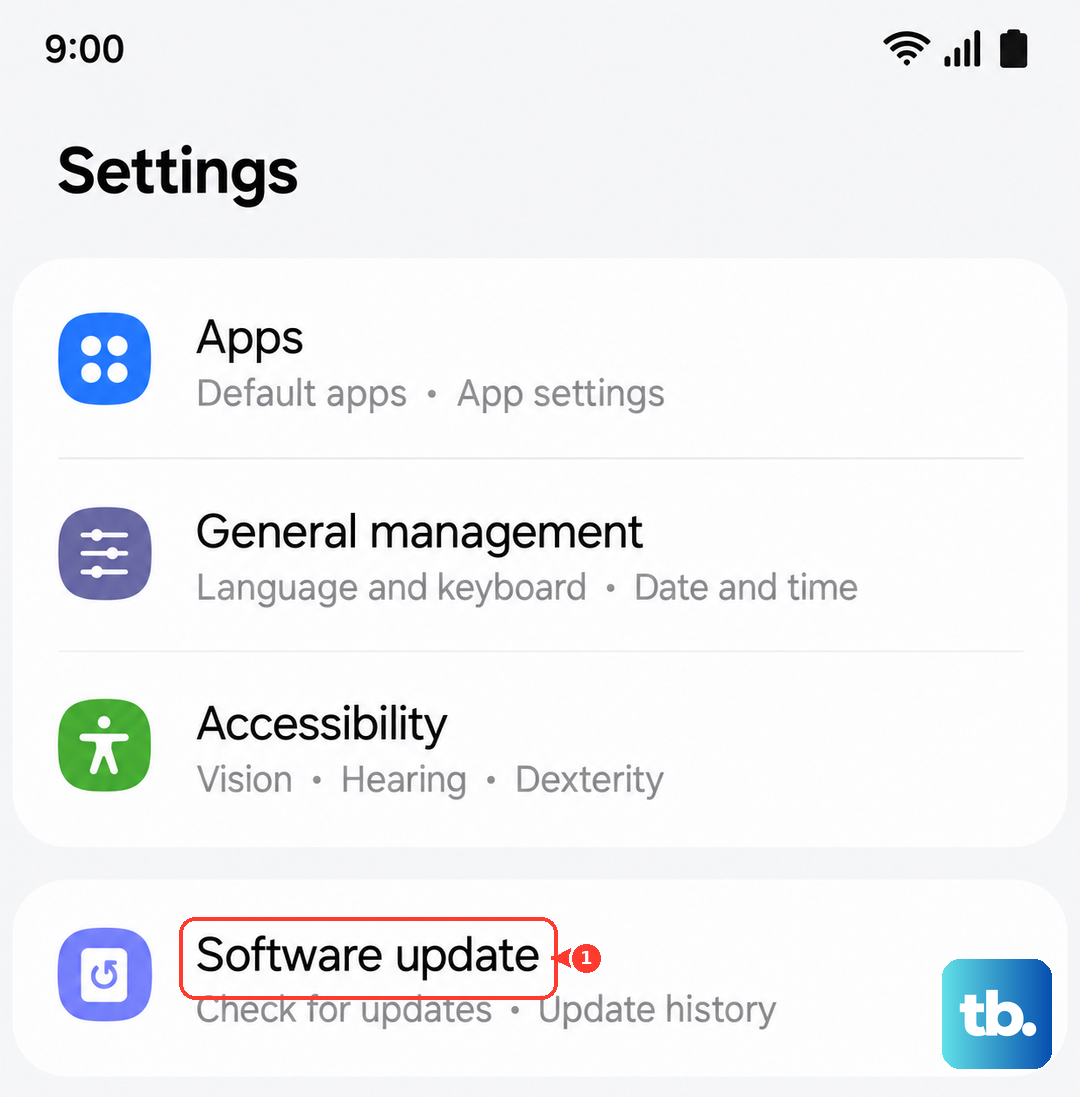
Samsung notes that, depending on your current software version, it may be necessary to repeat this process multiple times to move through several updates in sequence. While you are in this menu, turn on Auto download over Wi-Fi so the phone will automatically update when it is connected to a Wi-Fi network in future.
Restart the phone and try once more
A normal restart clears the temporary glitches and stuck background processes that can quietly block an update. Power the phone off, turn it back on, then return to Settings > Software update and check again. This takes seconds, costs you nothing, and resolves a surprising number of stalled updates before you need anything more involved.
Force a restart if it freezes mid-update
If the screen locks up or stops responding while the update is installing, a forced restart safely interrupts the process so you can try again.
Press and hold the Volume down button and the Side button (or Power button) simultaneously until the device turns off and turns back on. The screen turns black, then the Samsung logo appears; Samsung's Singapore guidance describes this as holding for more than 7 seconds. A correctly performed force restart does not erase your data, so it is safe to use whenever the phone is stuck during an update.
Push the update from a computer with Smart Switch
When the over-the-air update keeps failing no matter what you try, you can install it from a computer instead. Samsung Smart Switch is the free, official desktop tool for this, and it often succeeds when an on-device download will not, because the computer handles the download and transfer directly.
- 1.Install Samsung Smart Switch on your PC or Mac.
- 2.Connect the A55 to the computer with a USB cable.
- 3.Open Smart Switch and select Update when it detects a newer software version.
Do not disconnect the cable until the update has completely finished. Interrupting the transfer can leave the phone in a worse state than the failed over-the-air attempt, so let it run all the way through.
Confirm an update is actually waiting for you
Sometimes the update is not failing at all; there simply is not one to install yet. The Galaxy A55 5G is committed to up to four generations of Android OS and One UI upgrades plus five years of security updates, and it shipped on One UI 6.1 (Android 14), so it sits comfortably within its support window in 2026.
If Settings > Software update reports that your software is up to date, you are already on the latest build Samsung has released for the phone, and no new update will appear until the next one rolls out. Updates also arrive in waves by region and carrier, so a release can take a little time to reach every device after it launches.
Back up and reset as a last resort, then call Samsung
If nothing above works, a reset can clear whatever software conflict is blocking the update. Try the milder option first. Settings > General management > Reset > Reset all settings restores your settings to default without erasing personal data such as photos and messages.
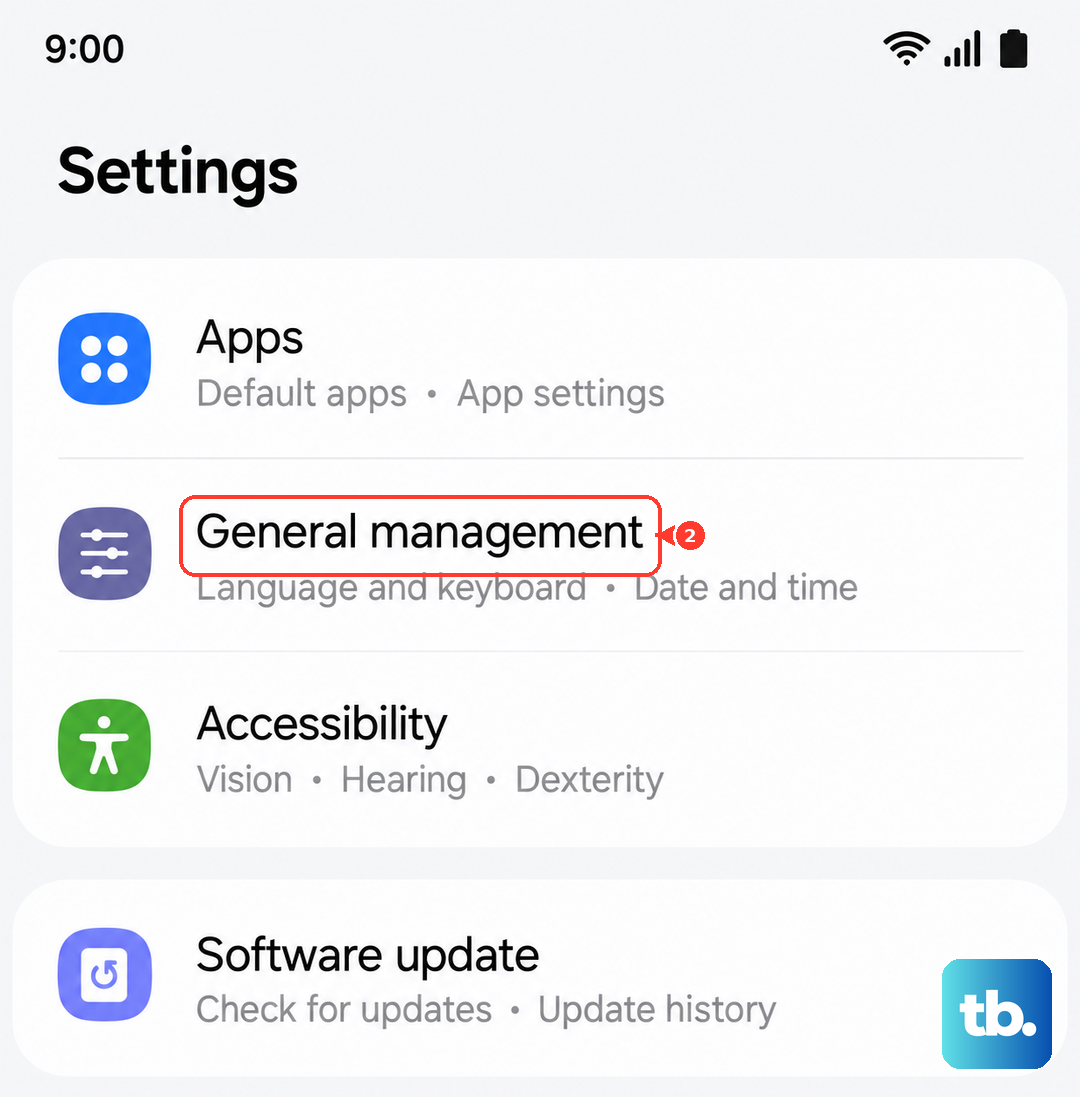
If even that does not help, back up everything and perform a full factory data reset. Save anything you need beforehand, because, in Samsung's own words, "Please save any information you need prior to the factory reset because your personal information may not be recovered."
- 1.Open Settings > General management > Reset.
- 2.Tap Factory data reset.
- 3.Review the information shown on screen.
- 4.Tap Reset, then Delete all.
If the A55 still refuses to update after a clean reset, the issue may need a technician. Contact Samsung support through the official support site (samsung.com/us/support/contact), or use the Samsung Members app, to have the update installed for you.
Frequently Asked Questions
Why does my Galaxy A55 say it is up to date when I know a newer version exists?
Updates roll out in stages by region and carrier, so a release can take time to reach your specific phone. If Settings > Software update reports that you are current, you are on the latest build Samsung has pushed to the A55 so far; check again after a few days, and make sure Auto download over Wi-Fi is enabled.
How long will the Galaxy A55 5G keep getting updates?
Samsung committed to up to four generations of Android OS and One UI upgrades plus five years of security updates for the A55 5G. It launched on One UI 6.1 (Android 14), so it remains well within that support window.
Will updating or resetting my Galaxy A55 erase my data?
A standard software update does not erase your data, and neither does a normal restart or a forced restart. A factory data reset does erase everything, and Samsung warns you to "save any information you need prior to the factory reset because your personal information may not be recovered," so always back up first.
Can I update the Galaxy A55 without Wi-Fi?
Samsung recommends Wi-Fi because updates are large, a stable connection prevents a corrupted or stalled download, and it spares your mobile data. If Wi-Fi is not an option, you can update from a PC or Mac using Samsung Smart Switch over a USB cable instead.
What should I do if my A55 freezes on the Samsung logo during an update?
Force a restart by pressing and holding the Volume down button and the Side button (or Power button) simultaneously until the device turns off and turns back on (Samsung Singapore describes this as more than 7 seconds). This does not erase your data; once it reboots, retry the update from Settings > Software update.