You're staring at your Samsung Galaxy A55, and that Wi-Fi icon just won't turn blue. It's stuck on "Obtaining IP address" or simply says "Saved, Secured" but refuses to connect. I've seen this a lot with the A55, and the good news is it's almost always a software quirk you can fix yourself in a few minutes.
Toggle Wi-Fi and Restart Your Phone
Start with the simplest fix. Swipe down from the top of your screen to open the Quick Settings panel. Tap the Wi-Fi icon to turn it off, wait a solid five seconds, then tap it again to turn it back on. This forces your A55 to drop the current connection and re-scan for networks, which often clears up a temporary glitch.
If that doesn't do it, give your phone a full restart. Press and hold the Side button and the Volume Down button together for about ten seconds. You'll see the Samsung logo appear as the phone reboots. This clears out any stuck processes in One UI 6 that might be blocking the Wi-Fi radio.
Use Airplane Mode to Reset All Radios
When a simple toggle doesn't work, airplane mode is your next best friend. Pull down the Quick Settings panel again and tap the airplane icon. Leave it enabled for at least 15 seconds.
This shuts down every wireless antenna in your phone, including cellular and Bluetooth. When you turn airplane mode back off, all those radios have to reconnect from scratch, which can kickstart a stubborn Wi-Fi connection.
Forget the Network and Re-enter Your Password
Your A55 might be holding onto old or corrupted information for your home network. To clear it out, go to Settings > Connections > Wi-Fi. Tap on the name of your network, then select Forget.
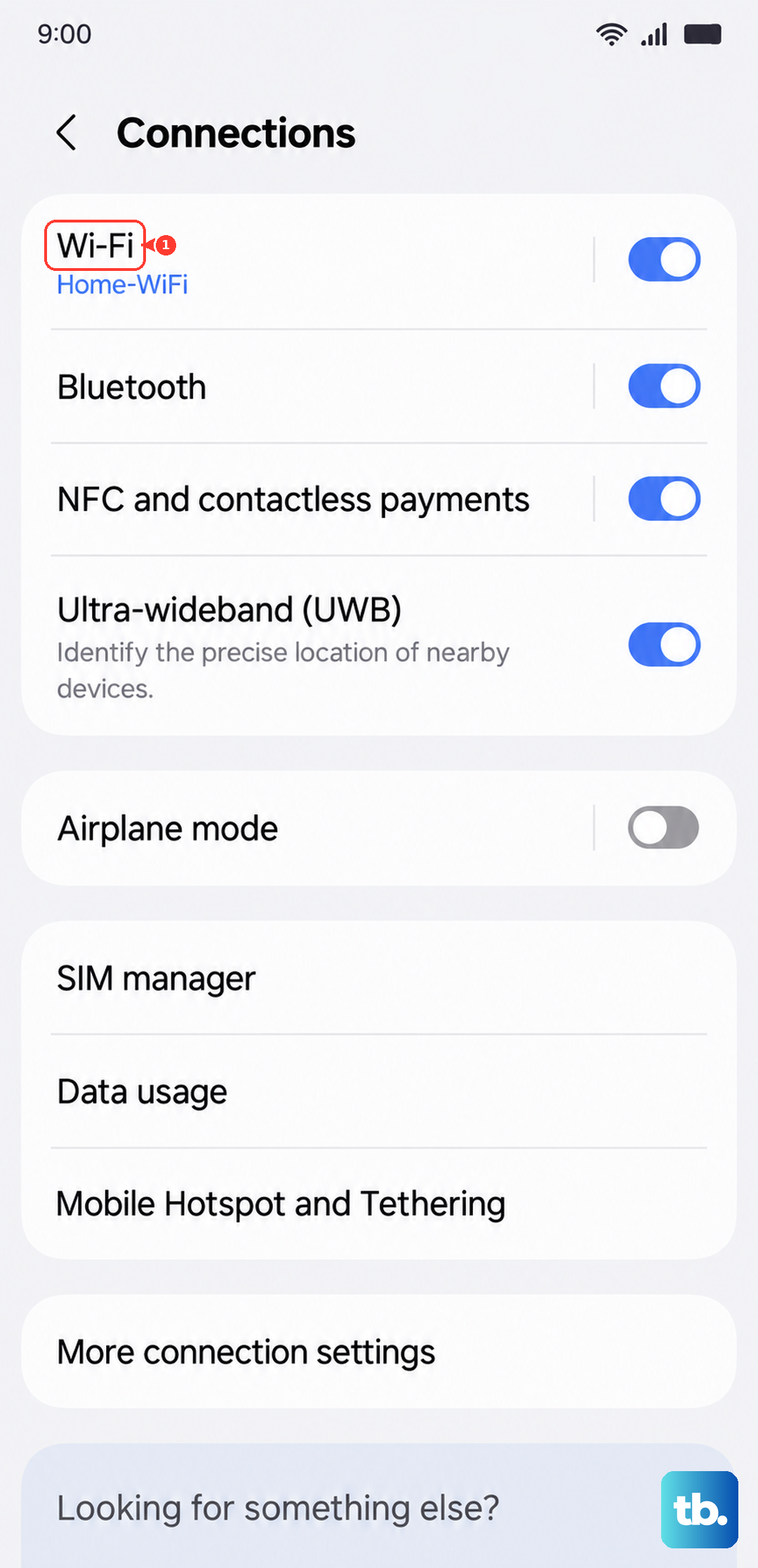
Now, tap on your network name again from the list. You'll be prompted to re-enter the password. Type it in carefully, making sure caps lock isn't on, and tap Connect. This is the fix if you've recently changed your Wi-Fi password or gotten a new router.
Check for Router and Interference Issues
Before you dig deeper into phone settings, make sure the problem isn't your internet source. Unplug your router from power, wait a full 60 seconds, and plug it back in. This gives it a clean restart.
Also, check if other devices in your home can connect. If they can't, the issue is definitely with your router or internet service. If it's just your A55, move on to the next steps. Bluetooth can sometimes interfere on the 2.4GHz band, so try turning Bluetooth off temporarily from Quick Settings as a test.
Disable Wi-Fi Power Saving and Smart Switch
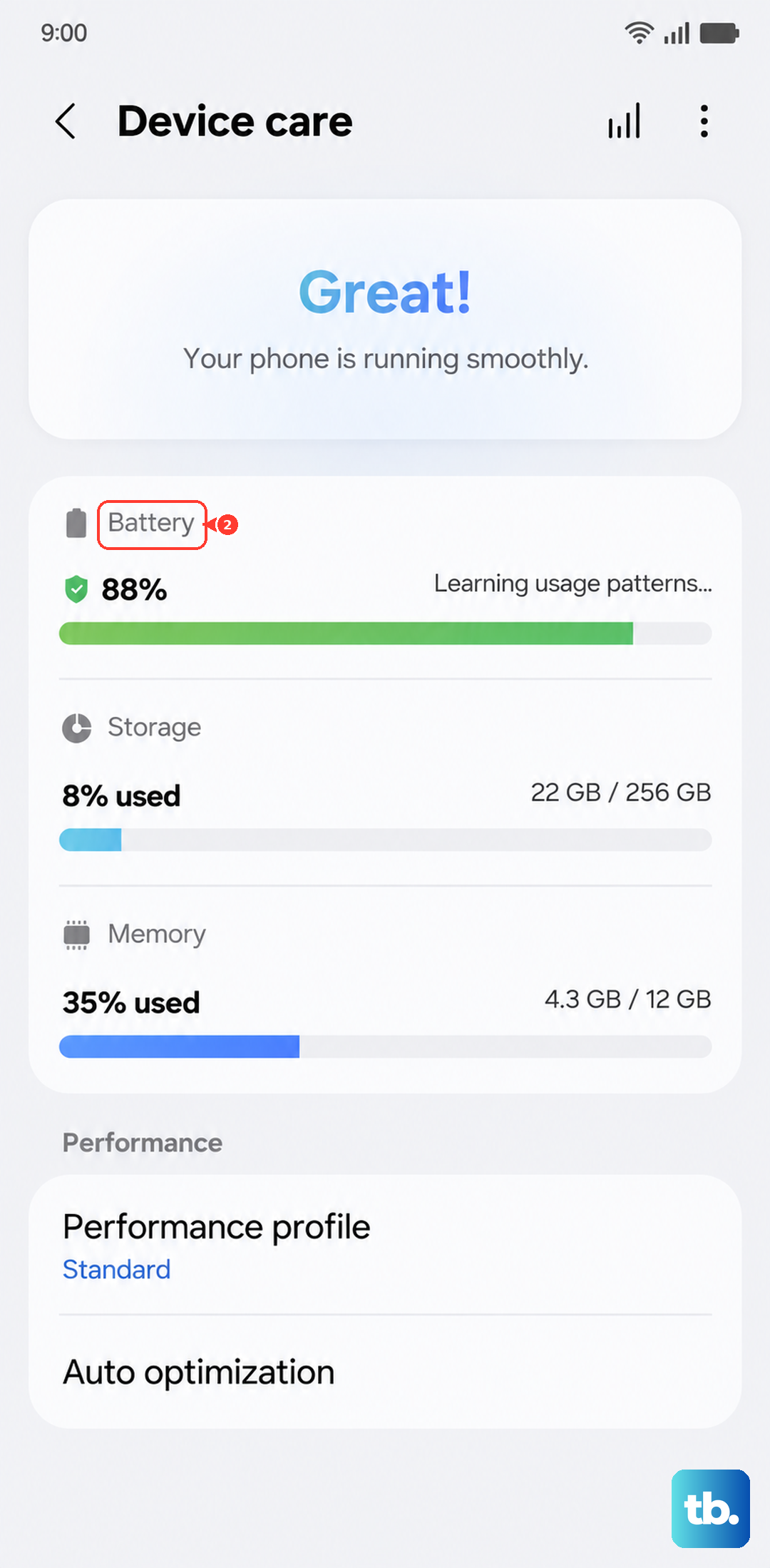
Samsung's software includes features designed to save battery that can sometimes be a little too aggressive. First, check if you have a power saving mode enabled. Go to Settings > Battery and device care > Battery and make sure any power saving mode is turned off.
Next, there's a setting that can automatically switch you to mobile data. Go to Settings > Connections > Wi-Fi. Tap the three-dot menu in the top right, then Intelligent Wi-Fi. Here, turn off the switch for Switch to mobile data. This stops your phone from abandoning a weak Wi-Fi signal, which can sometimes prevent a connection altogether.
Update Your Phone's Software
Outdated software is a common culprit for connectivity bugs. Samsung regularly releases updates for the Galaxy A55 that include stability patches. To check, go to Settings > Software update > Download and install.
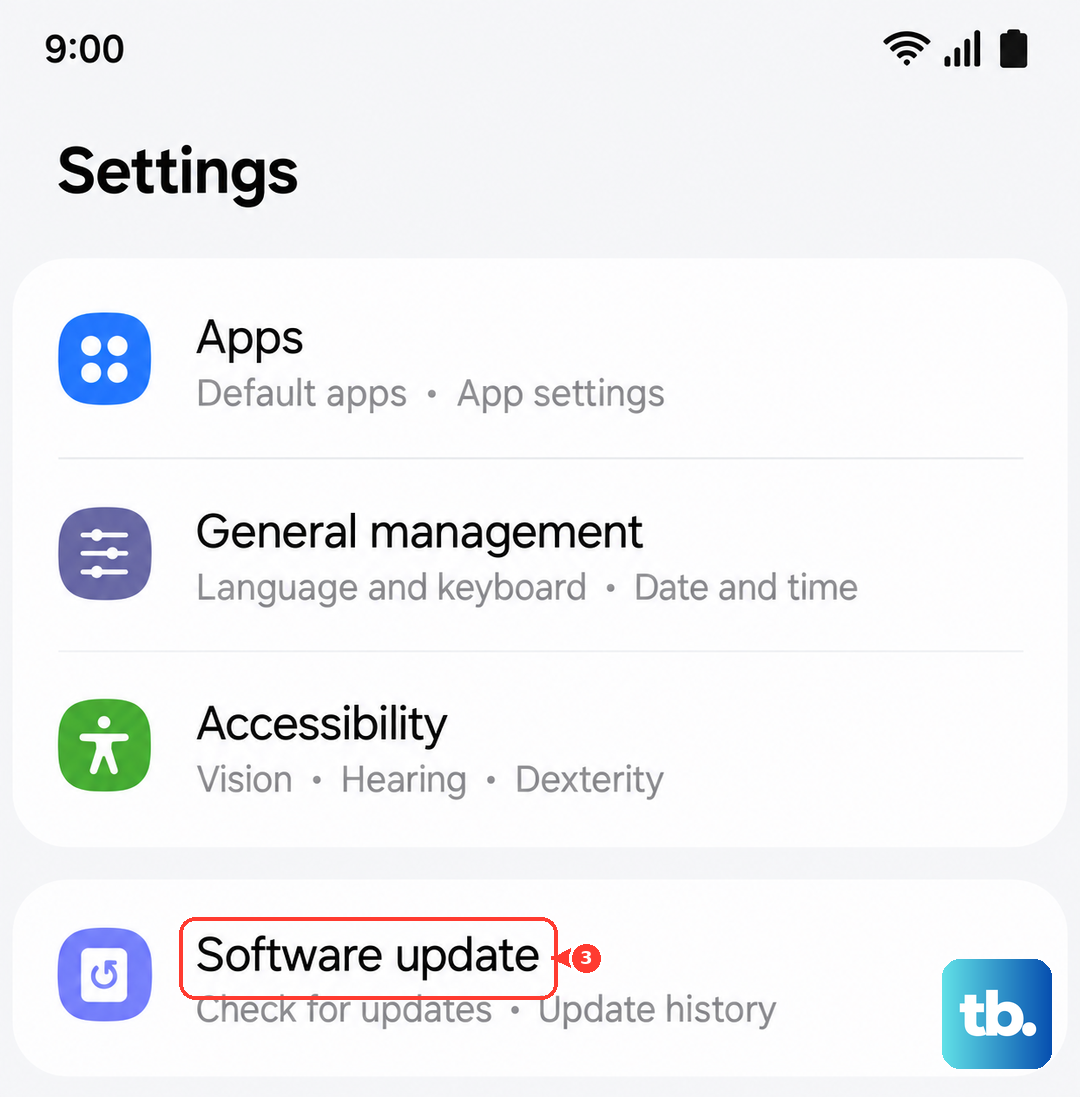
If an update is available, connect to a mobile data network or a known-good Wi-Fi hotspot to download it. Keeping your A55 on the latest available version of Android and One UI is one of the best ways to prevent these kinds of issues.
Verify Your Date and Time Settings
This one seems unrelated, but it's critical for network security. If your phone's clock is wrong, it can fail to properly validate security certificates from your Wi-Fi network. Go to Settings > General management > Date and time.
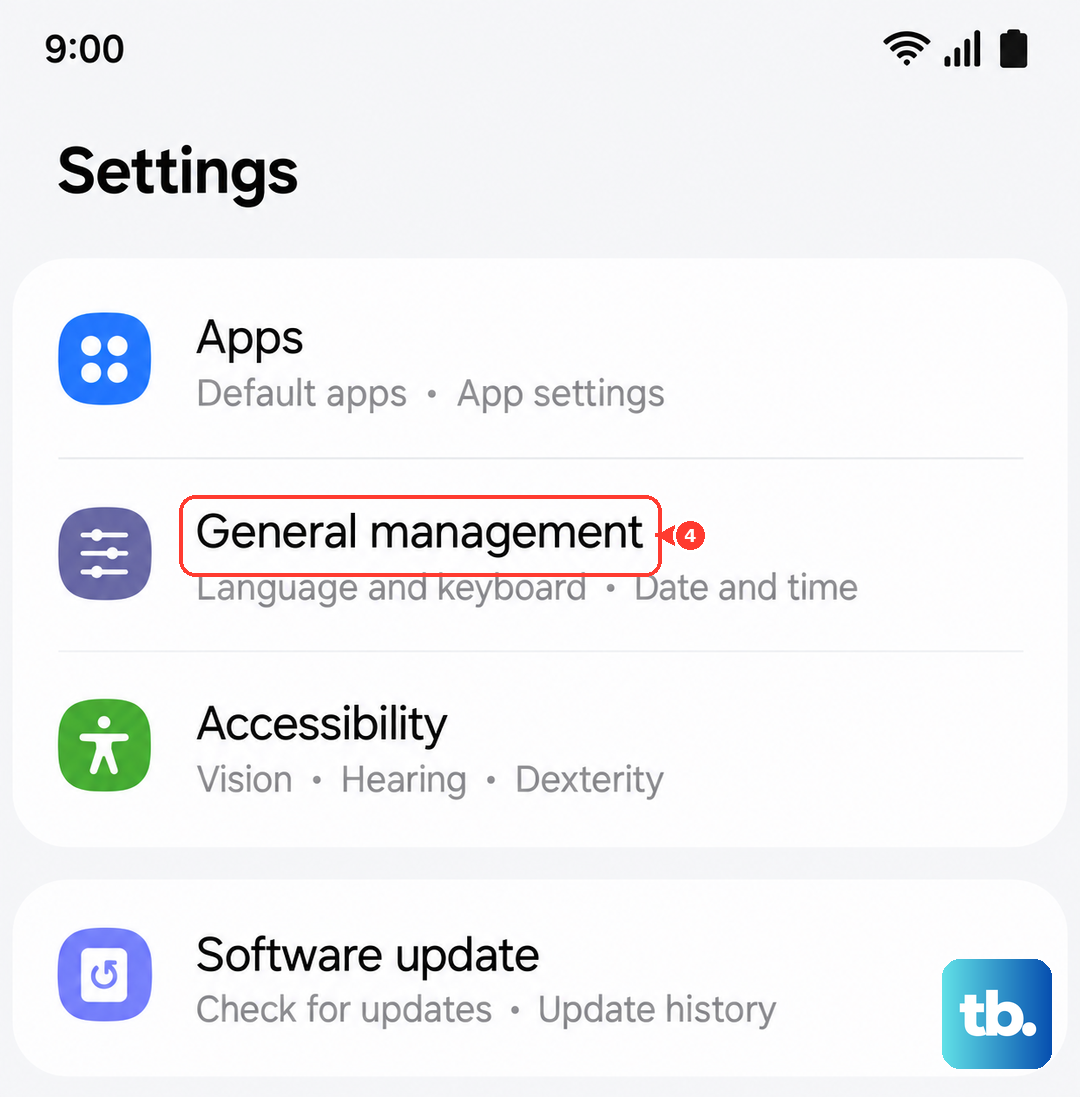
Make sure the option for Automatic date and time is turned on. This lets your phone sync the correct time from your mobile network, ensuring everything lines up for a secure connection.
Test for a Problematic App in Safe Mode
A third-party app you installed could be causing the conflict. Apps like VPNs, ad blockers, or certain security tools often have deep system access. To test this, you need to boot into Safe Mode, which temporarily disables all downloaded apps.
First, press and hold the Side button until the power menu appears. Then, tap and hold the Power off icon on your screen. You'll see a prompt to reboot into Safe Mode. Tap it. If your Wi-Fi works perfectly in Safe Mode, you know a downloaded app is the problem. You'll need to uninstall apps one by one, starting with the most recent or any network-related apps, to find the culprit.
Reset Your Network Settings
If you're still stuck, resetting network settings is a strong step that often works. This will erase all saved Wi-Fi networks, Bluetooth pairings, and custom mobile network settings, so you'll have to reconnect to everything afterward.
To do this, go to Settings > General management > Reset. Tap on Reset network settings. Confirm your choice, and your phone will reboot. After it starts up, try reconnecting to your Wi-Fi network from scratch.
Perform a Factory Reset
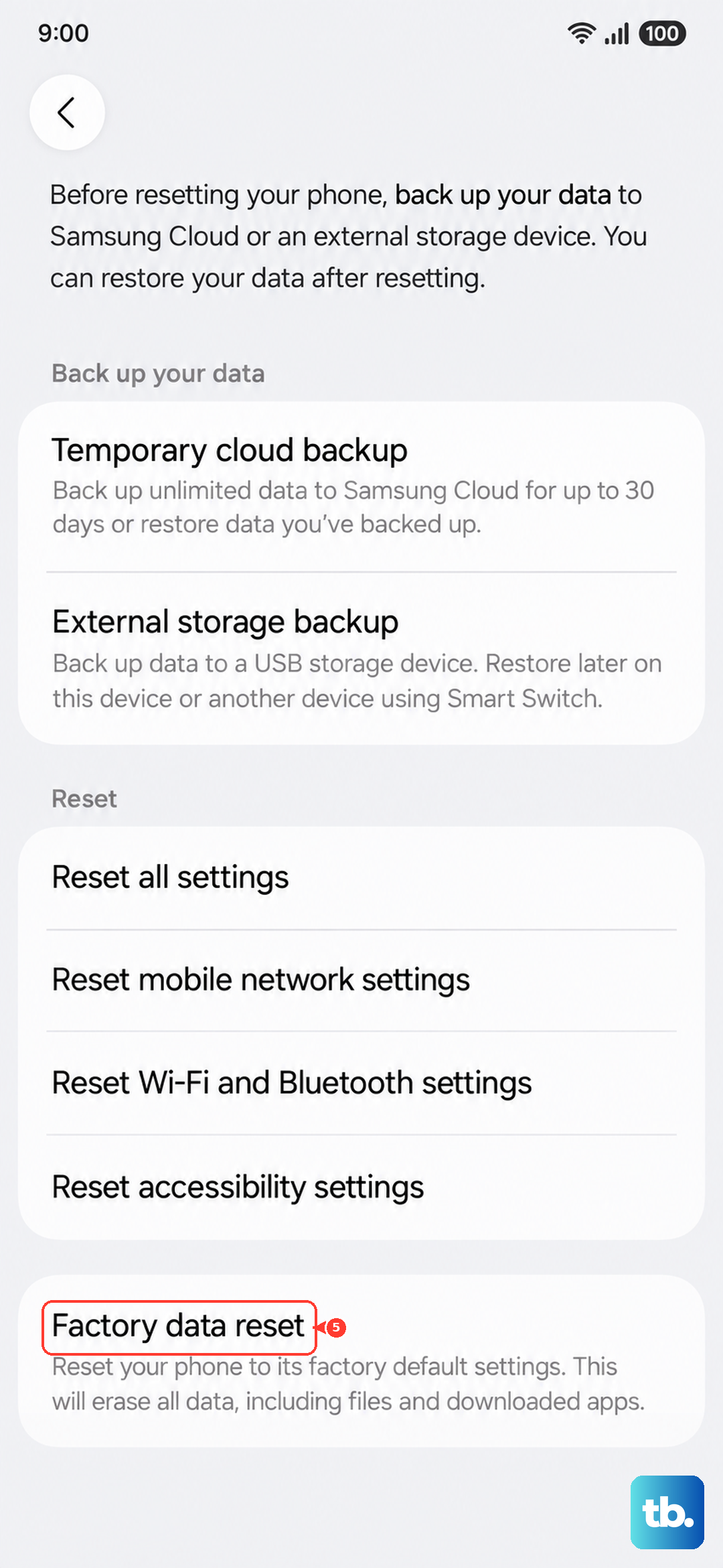
Consider this your absolute last resort before assuming a hardware fault. A factory reset will wipe your Galaxy A55 back to its original out-of-the-box state. You must back up everything important first, like photos, contacts, and app data, as this process erases it all.
Once you're backed up, go to Settings > General management > Reset > Factory data reset. Follow the prompts to complete the reset. If your Wi-Fi still doesn't function after this fresh start, there may be a physical issue with the phone's Wi-Fi antenna or motherboard, and you should contact Samsung support.