
When your Samsung Galaxy A55 is crawling online, it can make everything from streaming to scrolling feel like a chore. The good news is that slow internet on your phone is often a settings issue, not a hardware problem.
I'd start by checking the most common culprit, which is usually right in your network settings. Open the Settings app and go to Connections > Mobile networks. Tap on Network mode and make sure it's set to "5G/LTE/3G/2G (auto connect)" or at least "LTE/3G/2G (auto connect)".
If it's stuck on 3G, that's your problem right there. This simple check takes about 30 seconds and fixes the issue for a lot of people.
Use Samsung's Adaptive WiFi Feature
If your home WiFi is spotty, your A55 has a built-in feature to help. It's called Adaptive WiFi, and it automatically switches you to your mobile data when your WiFi connection becomes too weak to be useful.
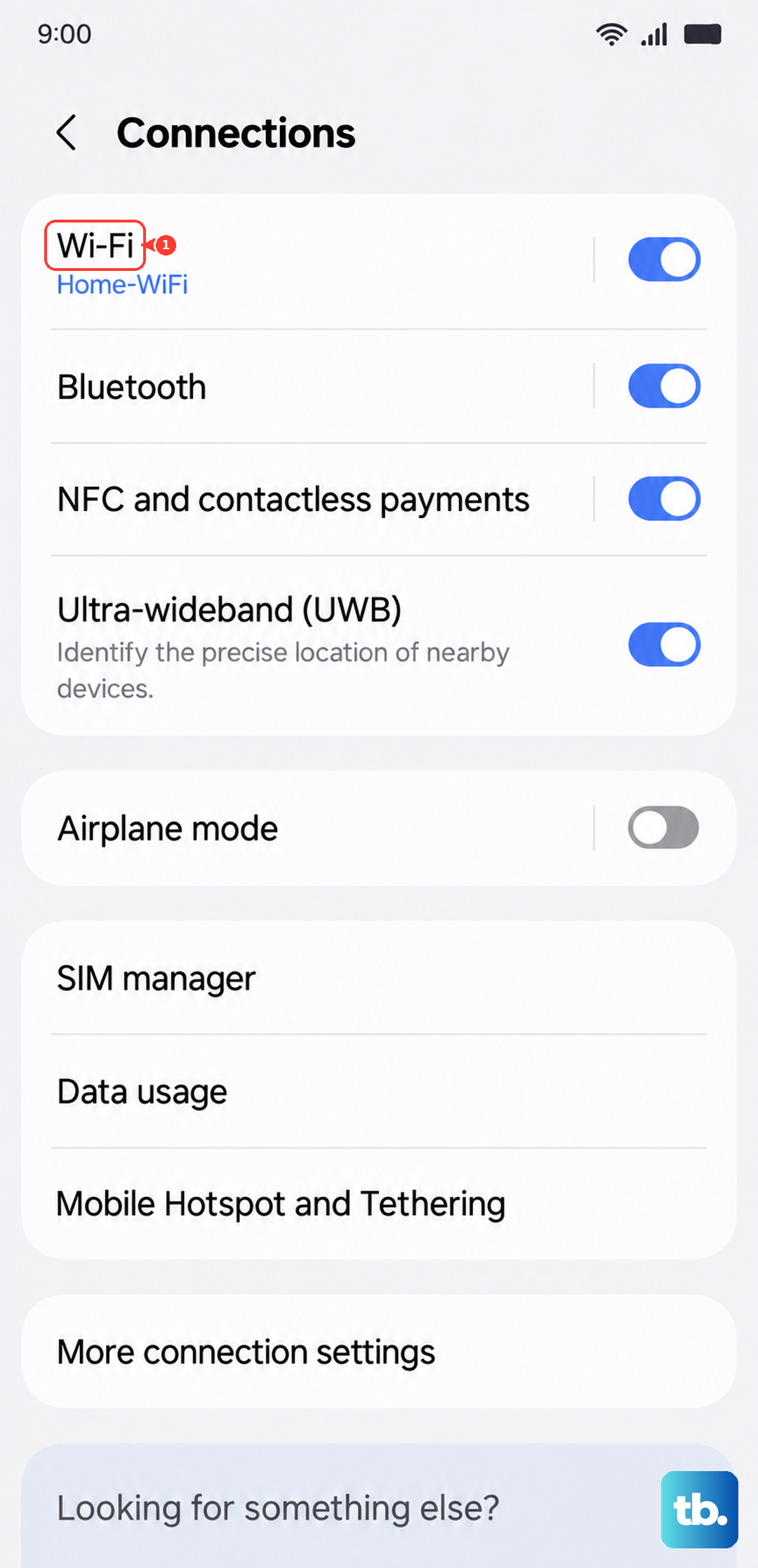
You can find this in Settings > Connections > Wi-Fi. Tap the three-dot menu in the top right, select Intelligent Wi-Fi, and then toggle on Switch to mobile data. This prevents those frustrating moments where a video buffers endlessly because you're clinging to a single bar of WiFi.
Turn On Data Saver Mode
Background apps can silently eat up your bandwidth, slowing down what you're actually trying to do. Samsung's Data Saver mode puts a stop to that. It restricts background data use for all apps except the ones you specifically allow.
Head to Settings > Connections > Data usage. Tap on Data saver and flip the switch to turn it on. You can then tap Allow apps while Data saver on to make exceptions for apps like your messaging service that you always want to receive notifications from.
Clear Your Browser's Cache and Data
Over months of use, your web browser stores thousands of temporary files. While this cache is meant to speed things up, it can sometimes become corrupted or overloaded, having the opposite effect. Clearing it gives you a fresh start.
If you use Samsung Internet, open the app and tap the three-line menu button. Go to Settings > Personal browsing data > Delete browsing data. Select Cached images and files and Site data, then tap delete. For Chrome, the path is similar: open Chrome, tap the three-dot menu, go to Settings > Privacy and security > Clear browsing data.
Check for and Limit Background Data for Specific Apps
Sometimes one problematic app is the bandwidth hog. You can check which apps are using the most data and restrict their background activity individually. Go to Settings > Apps.
Find an app you suspect, like a social media app, and tap on it. Select Mobile data and you'll see an option for Allow background data usage. Toggling this off means the app can only use data when you have it open on your screen, which can free up a significant amount of bandwidth.
Reset Your Network Settings
If you've tried everything and your connection is still slow, a network settings reset can work wonders. This clears all your saved WiFi networks, Bluetooth pairings, and mobile network configurations, returning them to factory defaults.
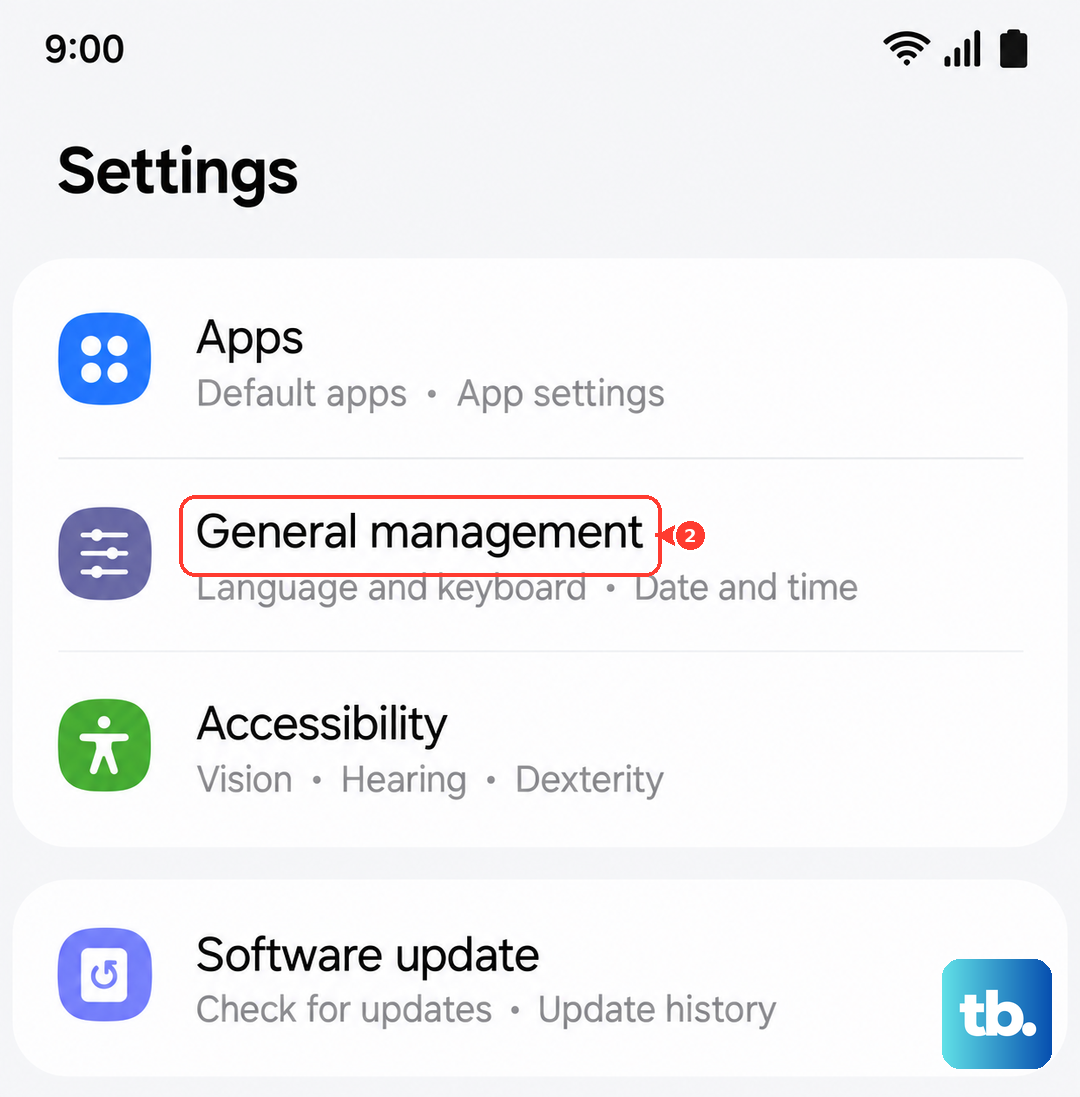
It's a bit more involved, so make sure you know your WiFi passwords beforehand. To do it, navigate to Settings > General management > Reset. Tap on Reset network settings and confirm. Your phone will reboot, and you'll need to reconnect to your WiFi and re-pair Bluetooth devices, but it often resolves deep-seated connection glitches.
Disable Any Active VPN
While VPNs are great for privacy, they route your traffic through another server, which almost always adds some latency and reduces speed. If you're using a VPN app and experiencing slowdowns, try temporarily disabling it.
You can usually do this by opening the VPN app and tapping the disconnect button. If the slowdown disappears, you'll know the VPN was the bottleneck. Some VPNs have settings for different protocols; switching to a lighter protocol like WireGuard might help if you need to keep it on.
Perform a Software Update
Samsung regularly releases updates for One UI that include performance optimizations and bug fixes, some of which are directly related to network connectivity. It's always worth checking if you're running the latest software.
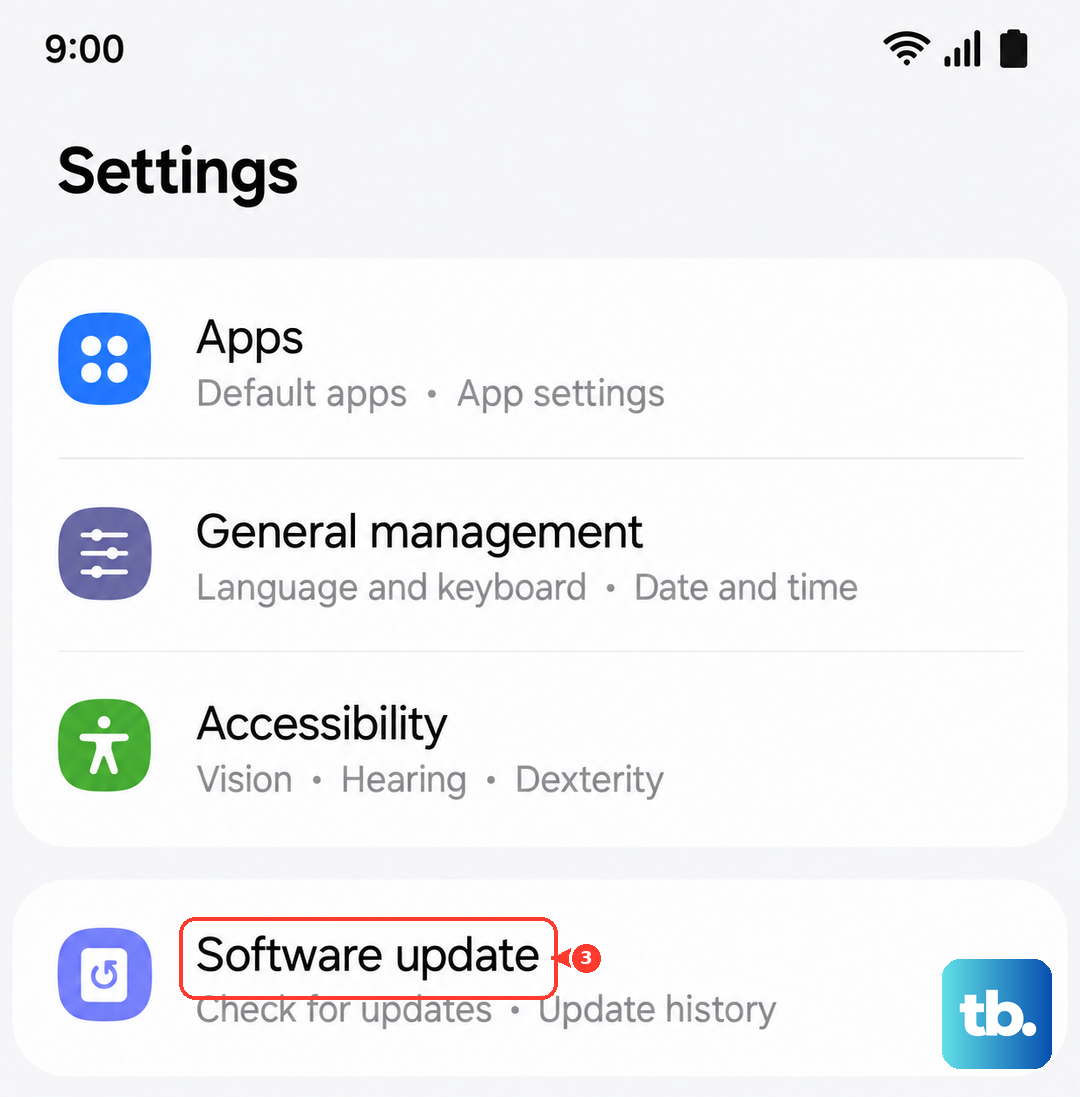
Go to Settings > Software update and tap Download and install. If an update is available, make sure you're on WiFi and plug your A55 into its charger. A 25W USB-C PD charger will get this done fastest, especially since Samsung doesn't include one in the box.
Give Your Phone a Fresh Start
Never underestimate the power of a simple restart. It clears the phone's temporary memory (RAM) and stops any processes that might be stuck and affecting your network performance. For a more thorough refresh, you can use the force restart method.
Just press and hold the Volume Down button and the Side key (power button) together for about 10 seconds. You'll see the Samsung logo appear as the phone rebarts. This is a clean boot that doesn't delete any of your data or settings.