
Missing notifications on your Samsung Galaxy A55 can mean you're missing important messages, emails, or alerts without even knowing it. It's a common headache, but it's usually something you can fix yourself. Let's walk through the most effective solutions, starting with the quickest ones.
Check Do Not Disturb and Focus Modes
This is the first thing I'd check. Your phone might be in a mode that silences alerts. Swipe down from the top of your screen twice to open the full Quick Settings panel. Look for the "Do Not Disturb" or "Modes" icon. If it's highlighted, tap it to turn it off.
Also, open the Settings app and go to Modes and routines. See if any active routine, like "Sleeping" or "Driving," is currently limiting your notifications. You can tap on it to adjust its rules or turn it off completely.
Restart Your Galaxy A55
A simple restart clears out temporary glitches in the system that can stop apps from sending alerts. Just press and hold the Side key and the Volume Down button together for about ten seconds. You'll feel a vibration and see the Samsung logo as the phone reboots.
This takes less than a minute and fixes a surprising number of notification problems right away. It's a good habit to restart your phone every few days to keep things running smoothly.
Review App-Specific Notification Settings
Android and One UI give you very granular control. An app might have permission to notify you, but its specific alerts could be turned off. Go to Settings > Notifications > App notifications.
Find the app that's not alerting you, like Gmail or WhatsApp, and tap on it. Make sure the toggle at the top is on. Then, look at the different "Notification categories" below. You can tap into each category (like "Incoming messages" or "Promotions") to ensure sounds, pop-ups, and badge icons are enabled.
Disable Adaptive Notifications and Battery Optimization
Samsung's software tries to learn your habits and can sometimes be too aggressive. Go to Settings > Notifications > Advanced settings. Look for "Adaptive notifications" and turn it off. This prevents the system from hiding alerts it thinks you don't want.
Next, check battery optimization. Go to Settings > Battery and device care > Battery > Background usage limits. Make sure the problematic app is not in the "Deep sleeping apps" or "Sleeping apps" lists. If it is, remove it from there so it can run normally in the background.
Allow Background Data for the App
If an app can't use data in the background, it can't check for new messages to notify you about. Go to Settings > Apps, select the app, and then tap Mobile data. Ensure "Allow background data usage" is enabled. Also, check that "Allow data usage while Data saver is on" is toggled if you use that feature.
Clear the App's Cache and Data
Corrupted temporary files can break an app's notification function. Go to Settings > Apps, find the app, and tap on it. Select Storage and then tap "Clear cache." This is safe and won't delete your personal info.
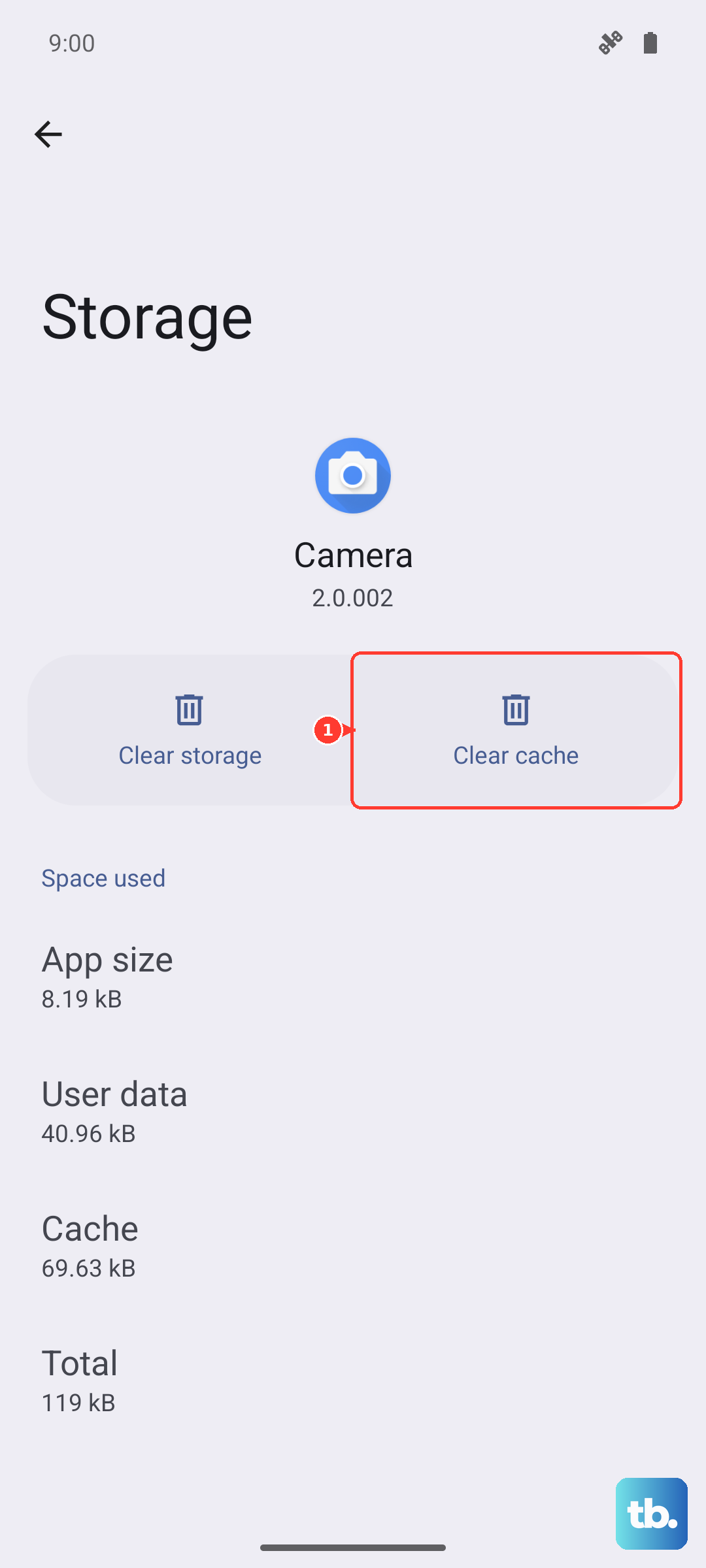
If the problem persists, you can go back and tap "Clear data." This will reset the app to its freshly installed state, so you may need to log back in. Your messages or data might be stored online, but it's good to check first.
Check for Software Updates
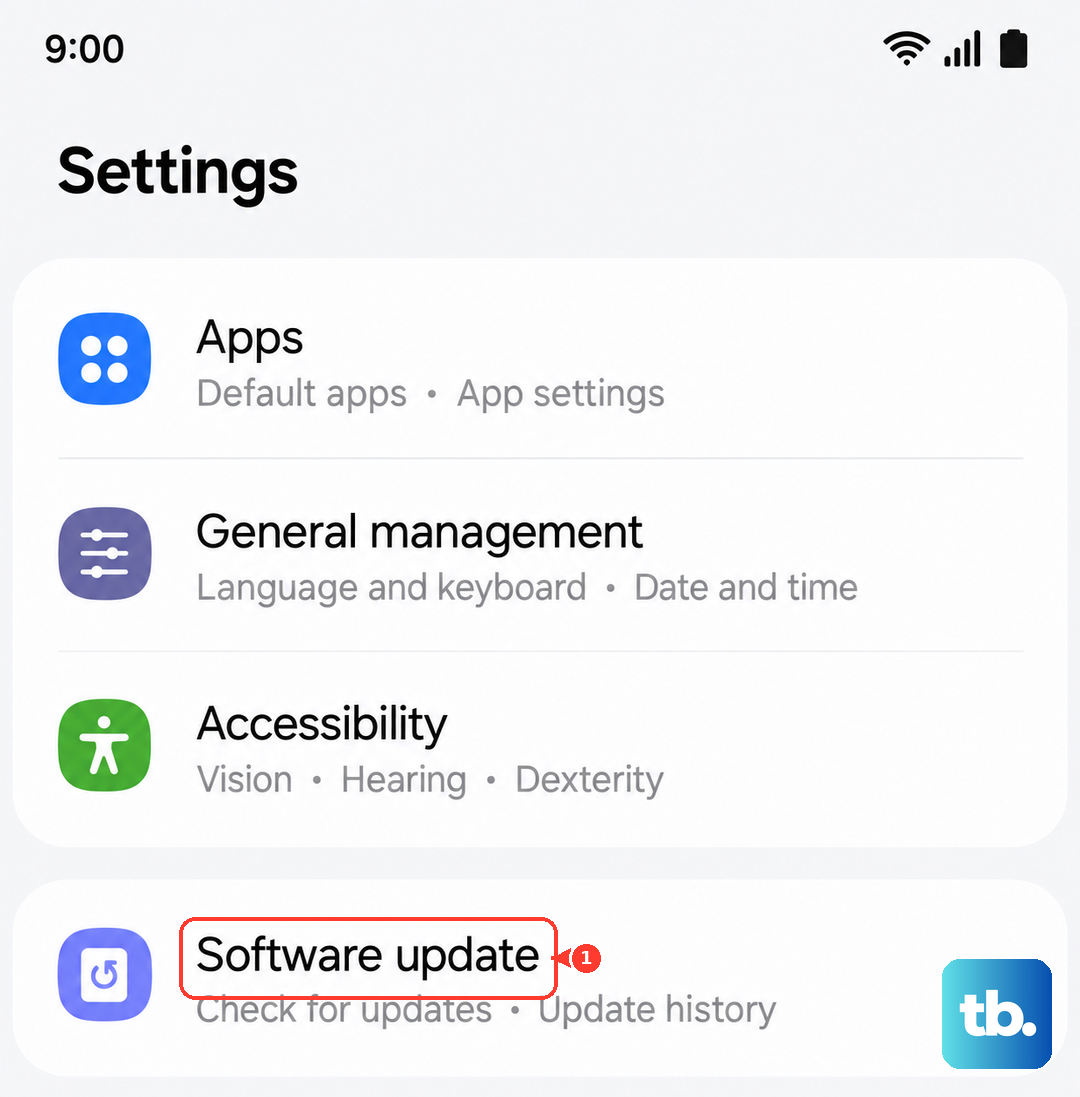
Software updates often include bug fixes for notification delivery. Samsung releases updates regularly for the A55. Go to Settings > Software update and tap "Download and install." If an update is available, install it and restart your phone to see if it resolves the issue.
Reset App Preferences
This resets all your app permissions, notifications, and default apps without deleting any personal data. It's a great middle-ground step. Go to Settings > Apps, tap the three-dot menu in the top right, and select Reset app preferences.
You'll need to re-grant permissions like microphone or location when you next use apps, and you might need to set your default SMS app again. But it often clears up weird system conflicts causing notification failures.
Examine Notification Channels for System Apps
For system apps like Phone or Samsung Messages, you need to check their notification channels. Go to the app's notification settings as described earlier. For the Samsung Messages app, tap on a category like "Other messages."
Make sure "Pop-up on screen" is enabled if you want those previews. Also, ensure the importance level is set to "High" or "Medium," not "Low" or "Silent." A "Low" setting can deliver notifications without making a sound or vibrating.
Disable Any Third-Party Theme or Launcher
If you're using a third-party theme from the Galaxy Store or a different launcher like Nova or Niagara, try temporarily switching back to the default Samsung theme and the One UI Home launcher. Some themes and launchers modify the notification system in ways that can cause conflicts.
Go to Settings > Wallpaper and style to change your theme back to default. Go to Settings > Apps > Default apps to change your home screen launcher back to "One UI Home."
Perform a Network Settings Reset
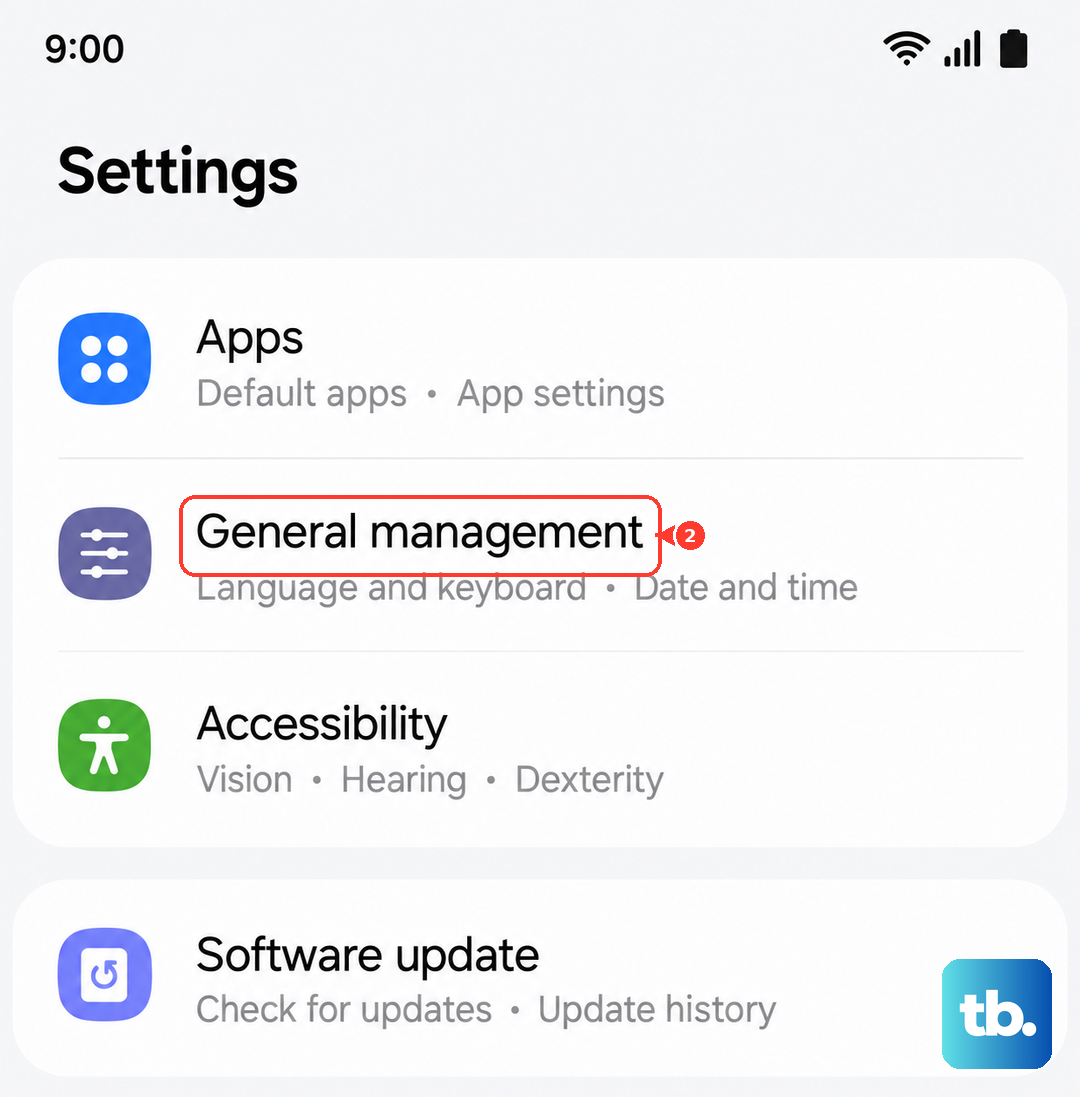
This resets all your Wi-Fi, Bluetooth, and mobile network settings. It's helpful if the issue is related to how your phone connects to the internet to fetch notifications. Go to Settings > General management > Reset > Reset network settings.
You'll have to reconnect to Wi-Fi networks and re-pair Bluetooth devices afterward, but it can resolve underlying connection issues that stop apps from communicating with their servers.