
When your Samsung Galaxy A55 can't download MMS messages, it usually means photos, videos, and group texts are stuck. This is a common headache on Android phones, often tied to a simple setting or a network hiccup. The good news is you can almost always fix it yourself without needing a trip to the store.
Let's start with the quick checks that solve most problems in under a minute.
Restart Your Galaxy A55
A simple restart clears out temporary glitches that can block MMS downloads. For your A55, press and hold the Volume Down button and the Side key (power button) together for about 10 seconds. Keep holding until you see the Samsung logo appear, then let go.
Check Your Mobile Data Connection
MMS doesn't download over Wi-Fi alone, it needs mobile data. Swipe down from the top of your screen to open the Quick Settings panel and make sure the Mobile Data icon is turned on. If you're connected to Wi-Fi, try turning it off temporarily to force the phone to use your cellular network for the download.
Force Stop and Relaunch Messages
Sometimes the Samsung Messages app just gets stuck. Go to Settings > Apps, then find and tap on Messages. On the app info page, tap Force Stop, then confirm. Open the Messages app again and see if the pending MMS downloads.
Enable Auto-Download MMS
The most common fix is ensuring your phone is set to grab MMS automatically. Open the Samsung Messages app, tap the three dots in the top-right corner, and go to Settings. Tap on Multimedia messages.
Here, make sure Auto download is turned on. While you're here, also check the Roaming auto download setting if you're traveling. I've seen phones block downloads to avoid surprise charges, so toggling this on can help.
Verify Your APN Settings
Incorrect Access Point Name (APN) settings are a frequent culprit, especially if you recently switched carriers or SIM cards. These settings tell your phone how to connect to your carrier's multimedia service.
Go to Settings > Connections > Mobile networks > Access Point Names. You should see a list of APNs. If it's empty or you're unsure, the safest move is to get the correct settings directly from your carrier. You can usually find them on their support website or by contacting customer service.
Clear the Messages App Cache
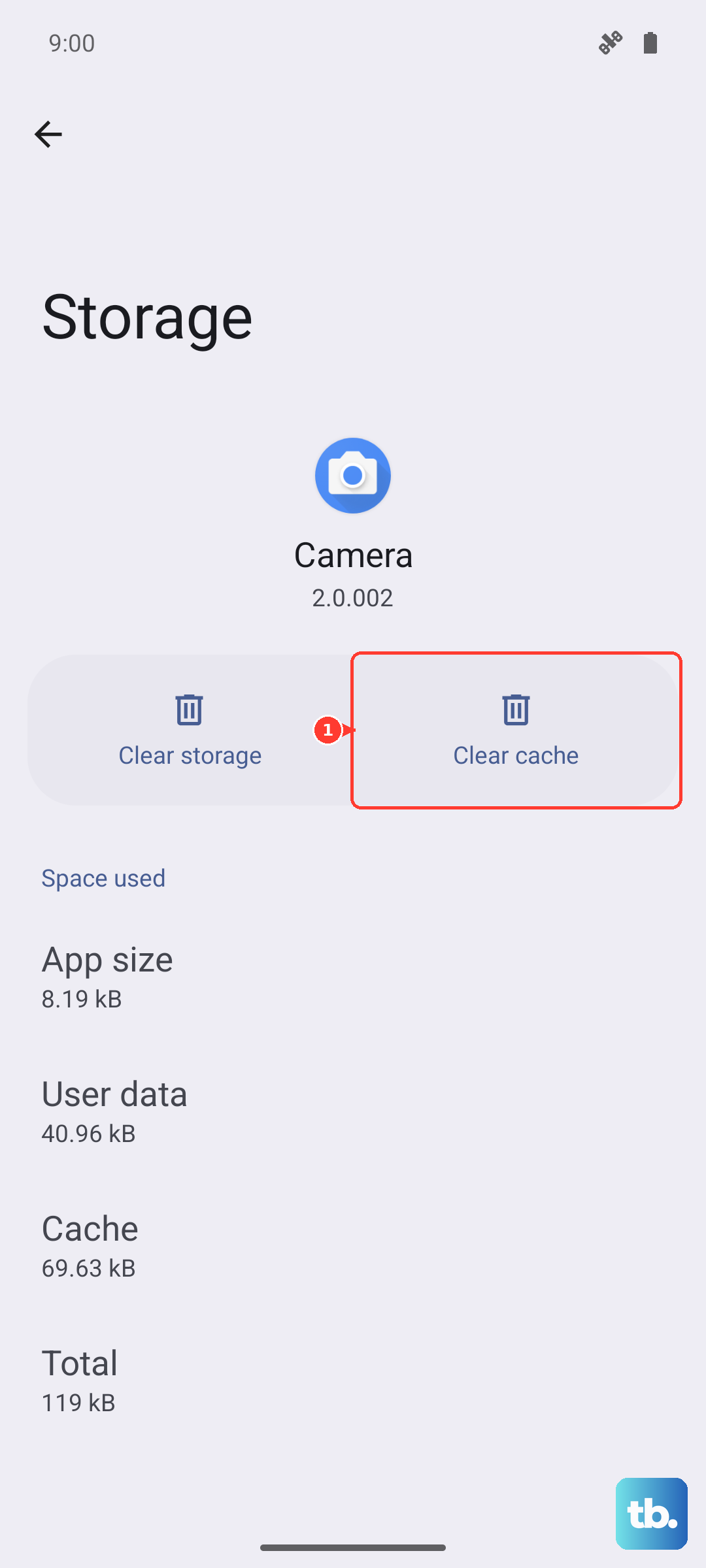
Corrupted temporary files can cause all sorts of app misbehavior. Clearing the cache is safe and won't delete your texts. Go to Settings > Apps, select Messages, then tap Storage.
Tap Clear cache. If the problem persists, you can try Clear data, but be warned this will erase your entire message history, so only do this if you have your conversations backed up or are okay losing them.
Reset Your Network Settings
This is a more thorough step that resets all Wi-Fi, Bluetooth, and cellular connections to factory defaults. It won't delete your personal files like photos or contacts. On your A55, navigate to Settings > General management > Reset > Reset network settings.
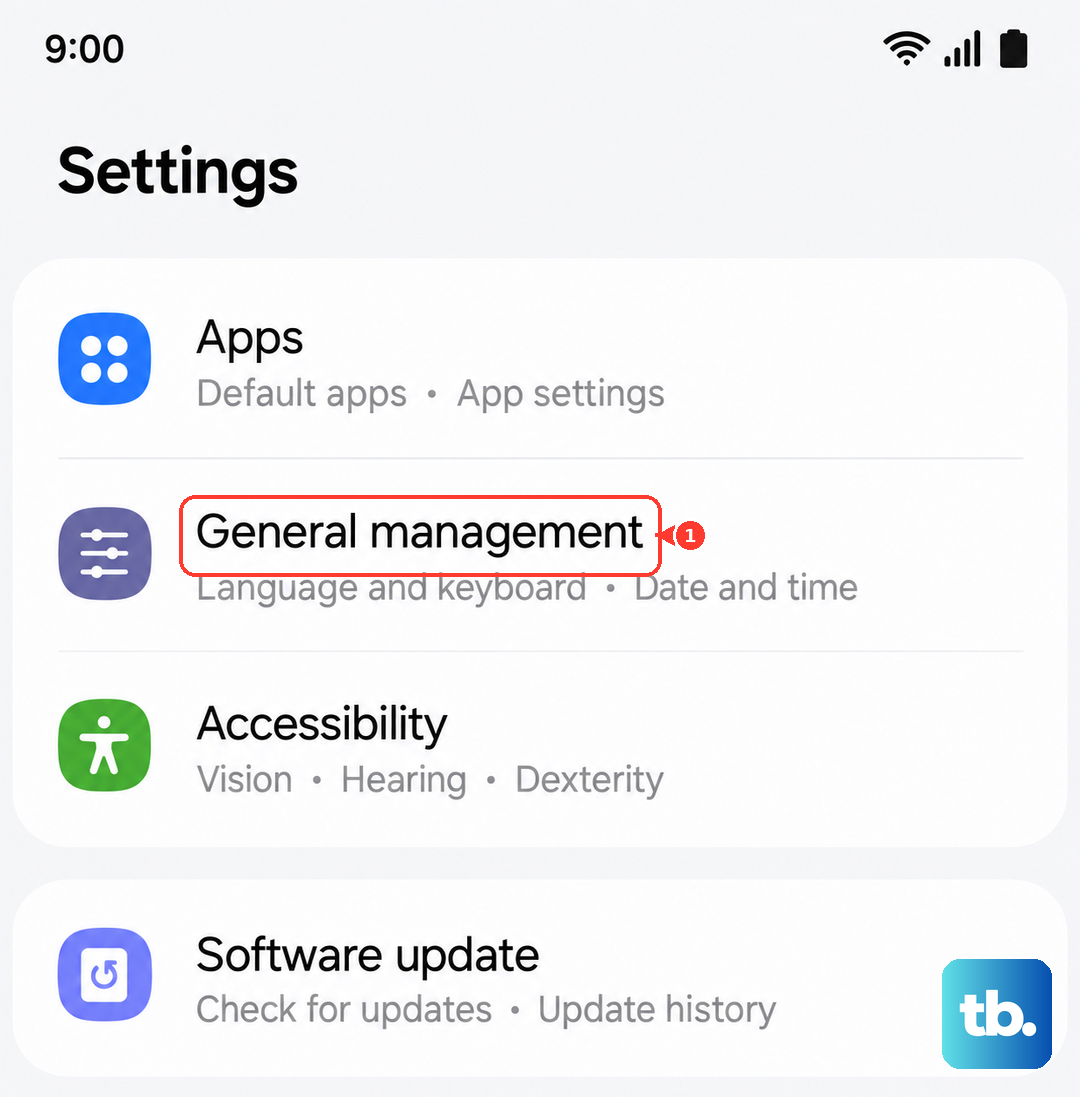
Tap to confirm. Your phone will reboot, and you'll need to reconnect to Wi-Fi networks and re-pair Bluetooth devices, but it often clears up stubborn MMS issues.
Check for a Software Update
Samsung regularly releases updates that fix bugs, including ones related to messaging. Make sure your Galaxy A55 is running the latest version of One UI. Go to Settings > Software update > Download and install.
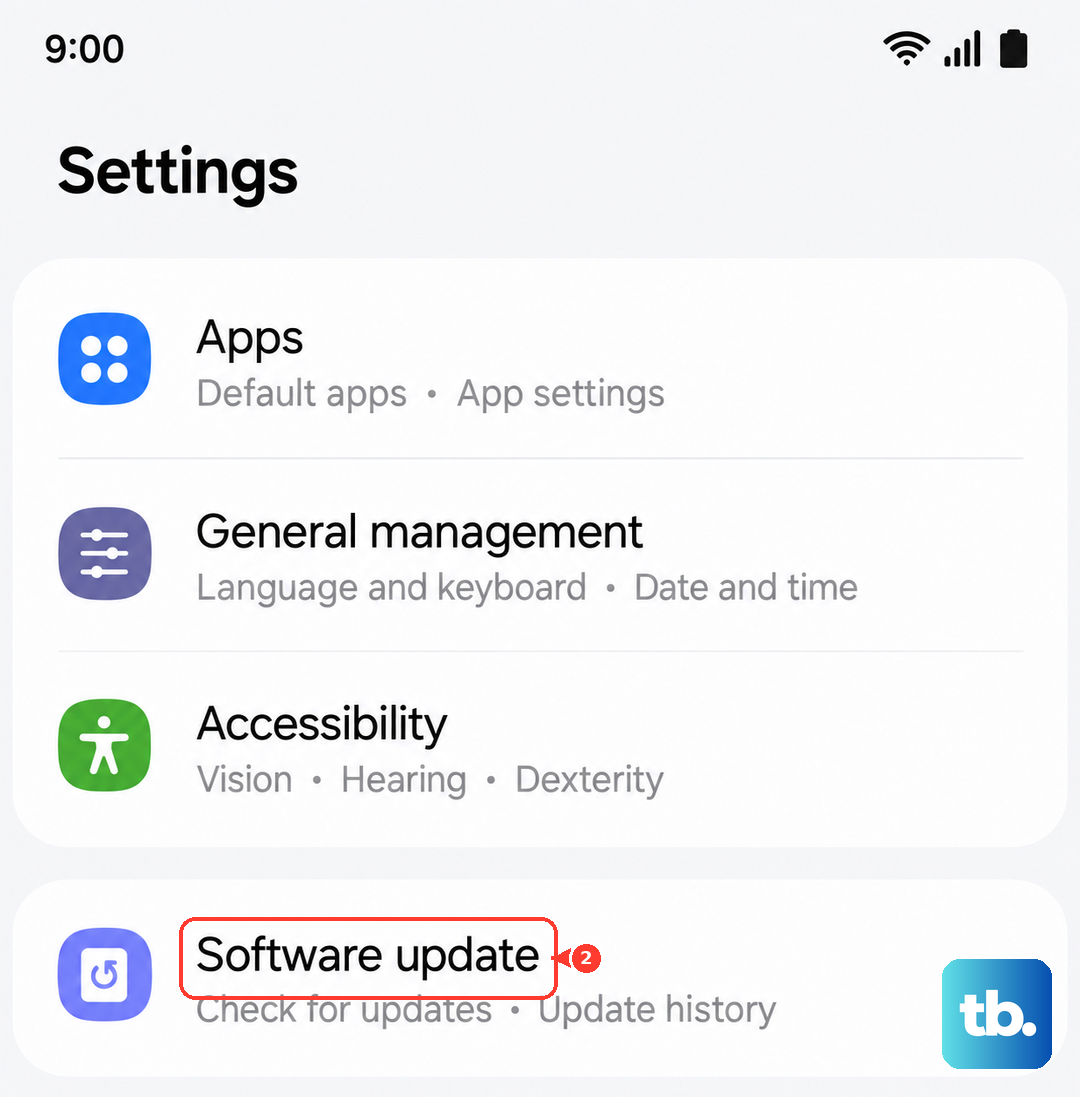
If an update is available, install it. It's a good idea to be on Wi-Fi and have your phone charged above 50% before starting.
Try a Different Messaging App
This is a great way to figure out if the problem is with the Samsung Messages app itself or with your phone's system. Download a free alternative like Google Messages from the Play Store and set it as your default.
If MMS downloads work perfectly in the new app, then the issue is isolated to the Samsung app. You can either keep using the new app or use its success as a clue to further troubleshoot the original one.
Contact Your Mobile Carrier
If you've worked through all these steps and MMS still won't download, it's time to call your carrier. There might be an outage in your area, a provisioning issue with your line, or a specific setting they need to refresh on their end.
They can also double-check that your plan includes MMS messaging and that there are no blocks on your account. Sometimes the fix is just a quick refresh they can do from their support system.