
When your Samsung Galaxy A55's keyboard won't pop up, it can stop you from texting, searching, or logging into apps. This is a common glitch on Android phones, especially with Samsung's One UI software, but it's usually something you can fix yourself in a few minutes.
Force Stop and Restart the Keyboard App
This is often the quickest fix. A temporary glitch in the Samsung Keyboard app can cause it to freeze. Force stopping it closes the app completely so it can start fresh.
Go to Settings > Apps. Tap the search icon and type "Samsung Keyboard" to find it. Tap on the app, then tap Force Stop and confirm. Exit Settings and try opening your keyboard in a messaging app to see if it works.
Restart Your Galaxy A55
If force stopping didn't help, a full phone restart is the next logical step. This clears out any system-wide temporary files that might be interfering with the keyboard.
Just press and hold the Side key and the Volume Down button together for about ten seconds. You'll see the Samsung logo appear as the phone reboots. Once it's back on, test the keyboard immediately.
Clear the Keyboard's Cache and Data
Corrupted cache files are a frequent culprit. Clearing the cache is safe and won't delete your personal typing data, but clearing the app data will reset the keyboard to its default settings, so you'll lose any custom dictionaries or layouts.
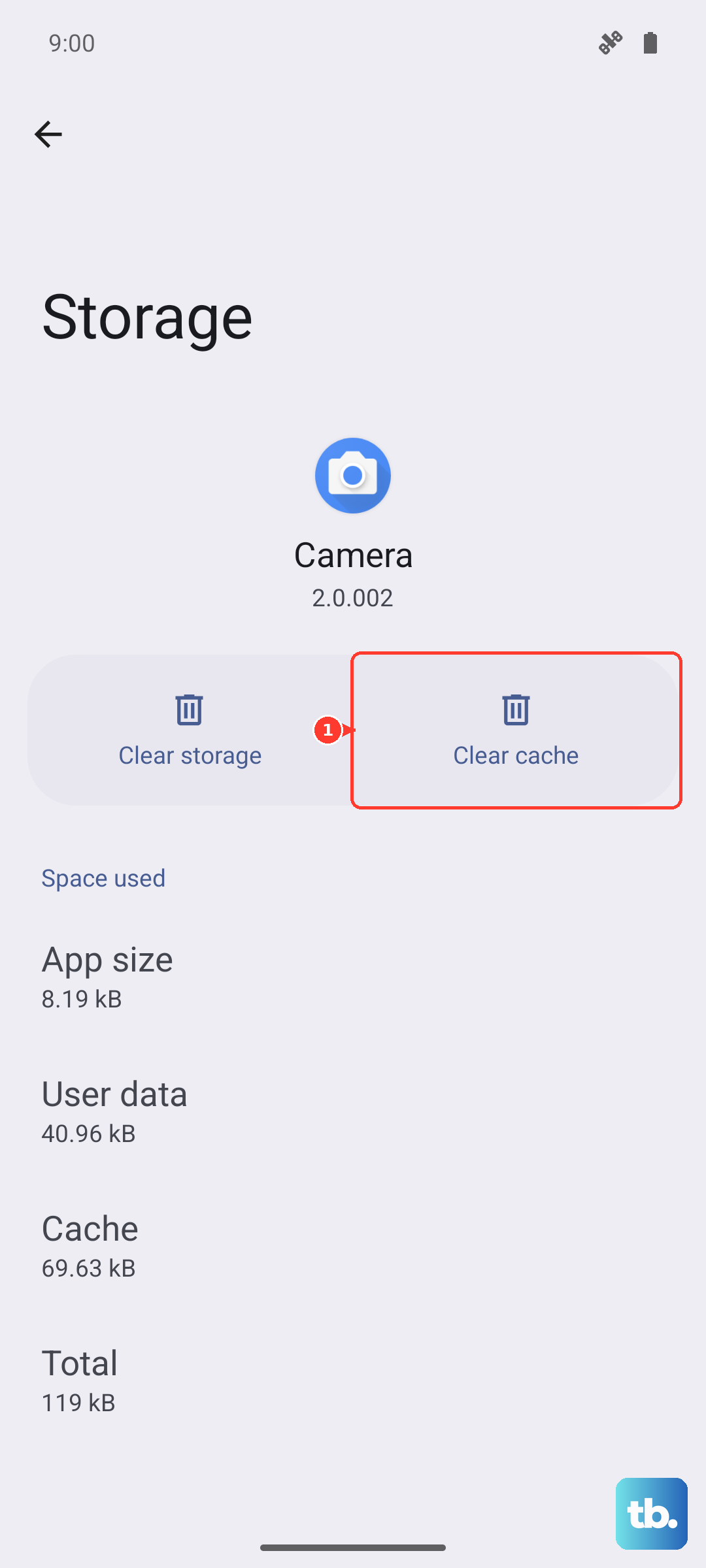
Head back to Settings > Apps > Samsung Keyboard. Tap on Storage. Tap Clear Cache first and test the keyboard. If it's still not working, go back and tap Clear Data, then confirm. You'll need to set the keyboard up again, but this often solves persistent crashes.
Check for Keyboard and System Updates
An outdated keyboard app can have bugs that cause it to fail. Since your A55 runs on One UI 6, it's important to keep both the app and the system software current.
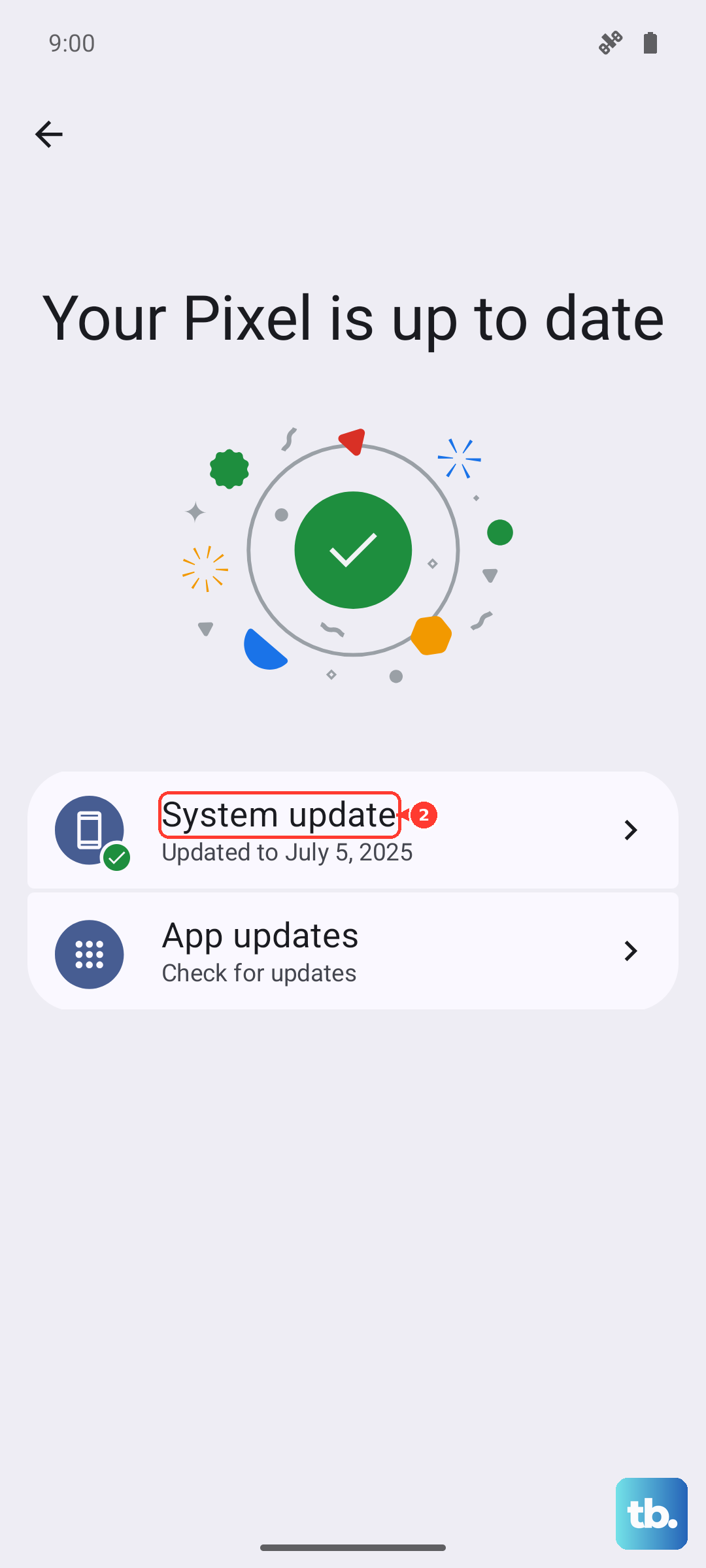
Open the Google Play Store, tap your profile icon, and go to Manage apps & device. Under "Updates available," see if Samsung Keyboard is listed. For system updates, go to Settings > Software update and tap Download and install.
Reset Your Keyboard Settings
If a specific setting got changed and is now causing a conflict, resetting everything to default can help. This is less drastic than clearing all app data but targets the configuration.
Navigate to Settings > General Management > Keyboard list and default. Tap on Samsung Keyboard and then look for the Reset settings option at the bottom. Confirm the reset and your keyboard will revert to its original setup.
Boot Into Safe Mode
This is a great way to check if a recently downloaded third-party app is causing the problem. Safe mode temporarily disables all apps you installed from the Play Store.
Press and hold the Side key until the power menu appears. Tap and hold the Power off option until you see a prompt to reboot to Safe Mode. Tap it. If your keyboard works perfectly in Safe Mode, you know a downloaded app is to blame. Start by uninstalling apps you added around the time the keyboard stopped working.
Try a Different Keyboard App
Sometimes the simplest workaround is to just switch keyboards. This gives you a functional keyboard immediately while you figure out the issue with the Samsung one.
Go to the Play Store and install a popular alternative like Gboard (Google's keyboard) or SwiftKey. After installing, go to Settings > General Management > Keyboard list and default and tap on Default keyboard to switch to the new one.
Reset All Settings on Your Phone
This is a more comprehensive reset if you suspect a deeper system setting is misconfigured. It will reset your network settings, Bluetooth connections, and all app permissions to default, but it won't delete your photos, messages, or apps.
Go to Settings > General Management > Reset. Select Reset all settings and enter your PIN if prompted. Your phone will reboot and you'll need to reconfigure things like Wi-Fi, but it can clear up obscure software conflicts.
Check the Dictionary and Voice Input Services
The keyboard relies on other system services to work. If Samsung's Dictionary app or Google's voice typing service has an issue, it can sometimes prevent the keyboard from opening.
Go to Settings > Apps and search for "Dictionary." Select Samsung Dictionary and tap Force Stop, then Storage > Clear Cache. You can do the same for "Google" or "Android System Intelligence" which handles voice input. After clearing the cache, restart your phone.