
Seeing "Call Failed" on your Samsung Galaxy A55 can be frustrating, especially when you need to make an important call. This error typically happens when your phone can't connect to the cellular network properly. Weak signals, software glitches in One UI, or incorrect settings are usually to blame.
Here are 10 effective ways to fix the call failed error on your Galaxy A55, starting with the quickest solutions.
Toggle Airplane Mode
The fastest fix is to reset your cellular connection by turning Airplane Mode on and off. This clears temporary network glitches that can cause call failures.
Swipe down from the top of your screen to open the Quick Settings panel. Tap the Airplane Mode icon to turn it on, wait about 10 seconds, then tap it again to turn it off. Your phone will reconnect to the network, which often resolves the issue immediately.
Check Your Signal Strength
Weak cellular signal is the most common reason for call failures. Look at the signal bars in the top-right corner of your screen. If you have one bar or see an "X," you're in a poor coverage area.
Move to a different location or near a window for better reception. Sometimes, simply stepping outside can make a big difference. If you're indoors, structures like concrete walls can significantly block the signal.
Restart Your Galaxy A55
A simple restart can fix many software-related issues that might be interfering with the phone app or modem. Press and hold the Volume Down button and the Side button (power key) together for about 10 seconds.
You'll feel a vibration and see the Samsung logo as the phone restarts. This takes about 30 seconds and is a great first step for any odd behavior.
Check Do Not Disturb and Focus Modes
Samsung's Focus modes and Do Not Disturb can sometimes block calls if configured incorrectly. Make sure these aren't accidentally silencing your incoming calls.
Swipe down from the top of your screen and look for the Do Not Disturb or a Focus icon in your Quick Settings. If one is active, tap it to turn it off. You can also go to Settings > Notifications > Do Not Disturb to check the schedule and allowed exceptions.
Update Date and Time Settings
Incorrect date and time settings can cause network authentication issues, leading to call failures. It's best to let your phone set this automatically.
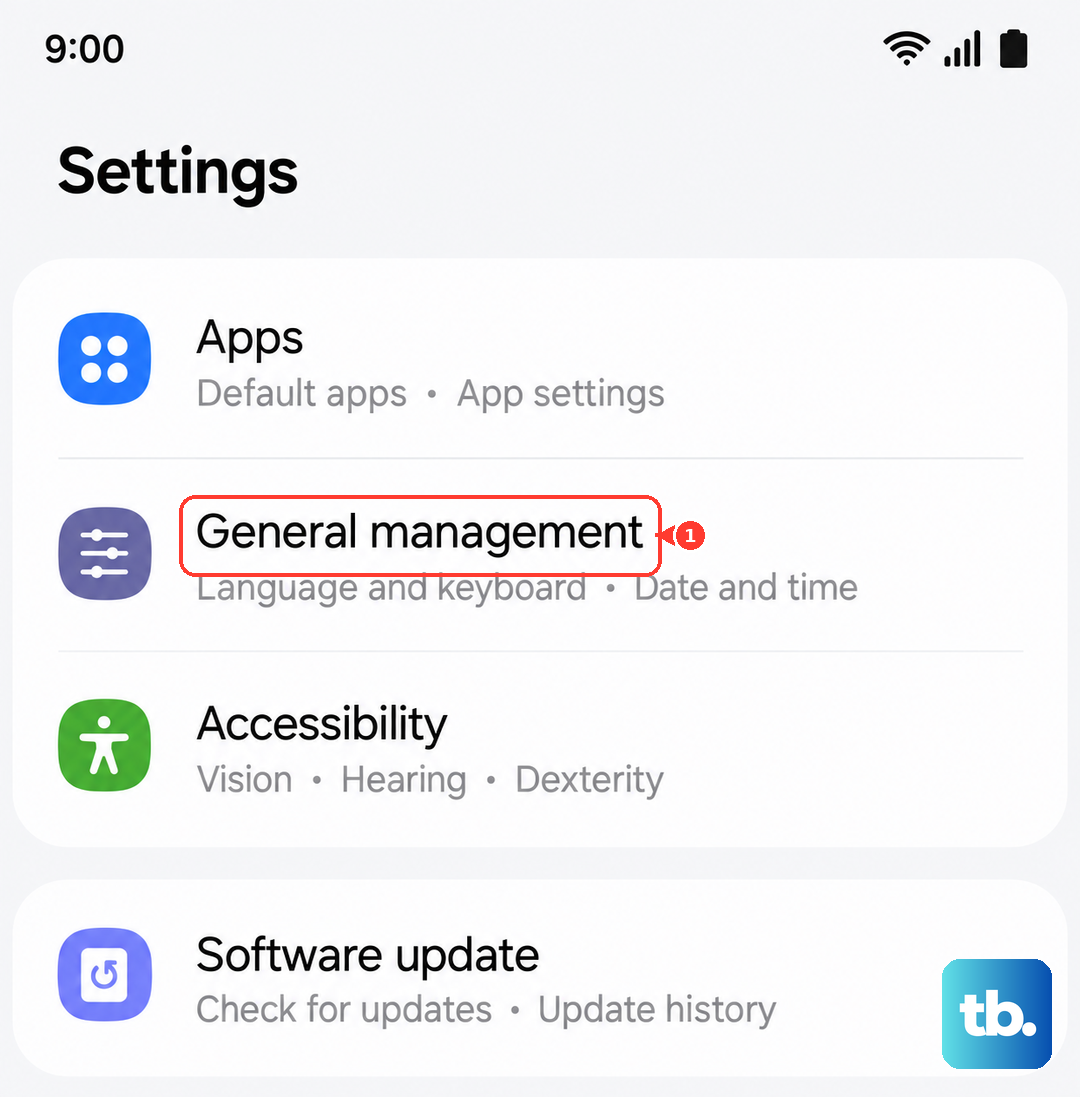
Go to Settings > General management > Date and time. Make sure the "Automatic date and time" switch is turned on. This syncs your phone with your carrier's network time.
Check for Blocked Numbers
Make sure you haven't accidentally blocked the number you're trying to call, or that your calls aren't being blocked globally. Samsung's Phone app has a built-in blocker.
Open the Phone app and tap the three-dot menu in the top right. Go to Settings > Block numbers. Review the list to see if the number is there. You can remove it by tapping the minus (-) icon next to it.
Verify Mobile Data and Network Mode
Ensure your mobile data is enabled. While calls use the voice network, some carrier features rely on data. Also, try switching your network mode if you're having persistent issues with 5G or 4G calls.
Go to Settings > Connections > Mobile networks. Make sure "Mobile data" is on. Tap "Network mode" and try selecting "4G/3G/2G (auto connect)" instead of the 5G option. Test your call, then you can switch back later.
Update Your Software
Software updates include bug fixes for the phone dialer, modem firmware, and One UI that can resolve calling issues. Samsung releases updates regularly.
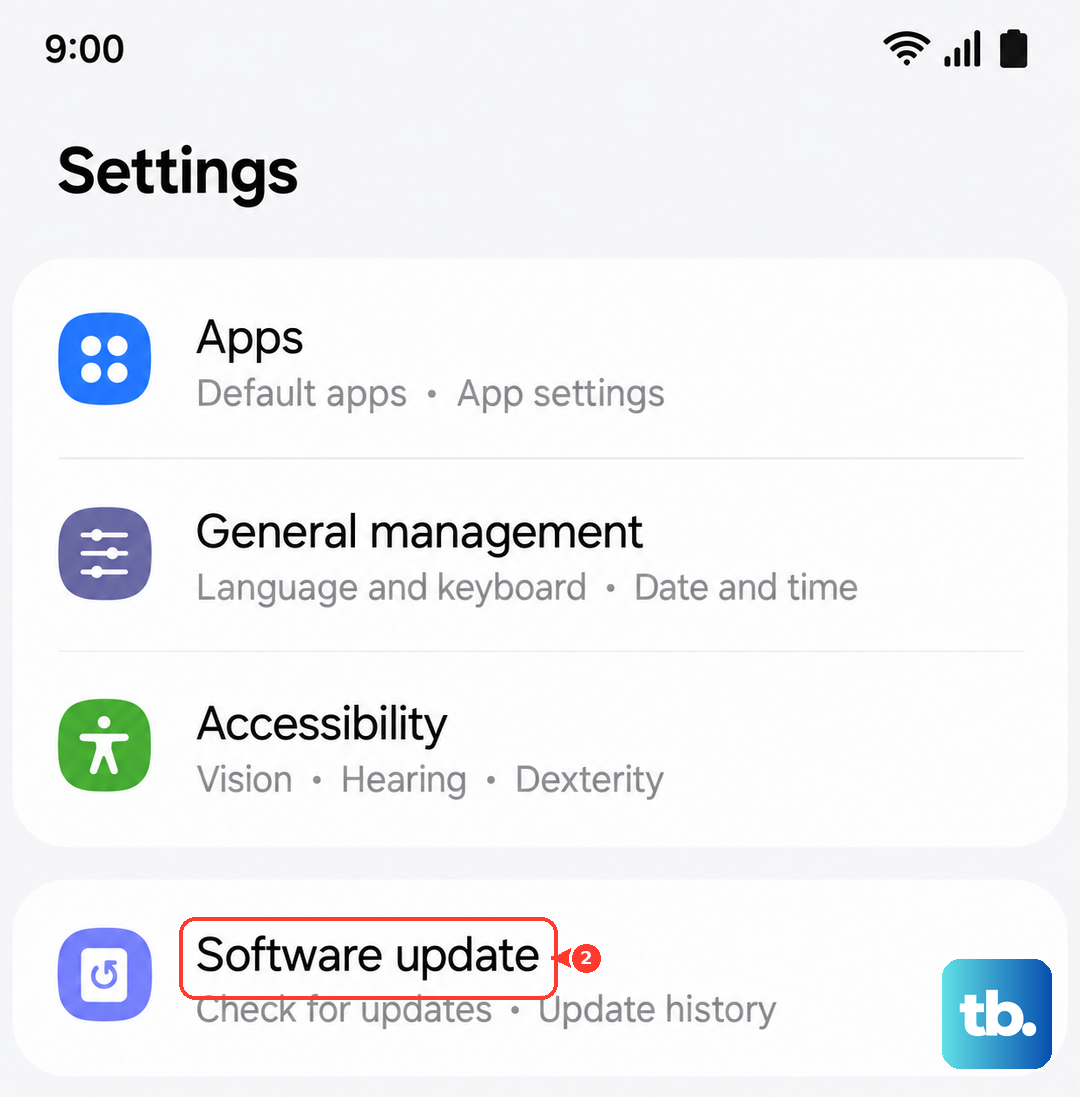
Connect to Wi-Fi and ensure you have at least 30% battery. Go to Settings > Software update > Download and install. If an update is available, follow the prompts to install it. I've seen updates specifically fix call dropout problems on recent Galaxy models.
Reset Network Settings
This clears all your saved Wi-Fi networks, Bluetooth pairings, and cellular settings back to default without touching your personal data. It's a strong fix for persistent network problems.
Go to Settings > General management > Reset. Tap "Reset network settings." You'll need to enter your PIN or password, then confirm. After the reset, you'll have to reconnect to Wi-Fi and pair Bluetooth devices again, but it often solves tricky call issues.
Check Your SIM Card
A faulty, dirty, or loose SIM card is a common hardware cause of call failures. The SIM tray on the A55 is on the bottom edge of the phone.
Use the SIM ejector tool that came in the box (or a small paperclip) to gently push into the tiny hole on the tray. Remove the SIM card, gently wipe the gold contacts with a soft, dry cloth, and reinsert it firmly. Make sure the tray is fully seated when you push it back in.
Contact Your Carrier
If you've tried everything and calls are still failing, the problem is likely on your carrier's end. There could be a network outage, a problem with your account, or your SIM card could be damaged.
Call your carrier's customer service from another phone if possible. Ask them to check for outages in your area and to verify your line is provisioned correctly for voice calls. They can also perform a network refresh from their side and, if needed, issue you a replacement SIM card.