You press and hold the Side button on your Galaxy A36 5G and Bixby never appears, or you say "Hey Google" and the phone just sits there in silence. Voice commands that worked yesterday now get ignored, mis-heard, or answered by the wrong assistant entirely.
The good news is that almost every cause on the A36 5G (model SM-A366) comes down to a setting, a stale voice profile, or a quick software hiccup, and you can work through them yourself. The fixes below start with the safest, easiest steps and only reach a reset at the very end.
Give the A36 a quick restart before anything else
A simple restart clears the temporary glitches that can stop Bixby or Google Assistant from responding, and it takes under a minute. It is the single most effective first move because it costs you nothing and often fixes a frozen or unresponsive assistant outright.
- 1.Press and hold the Side button and Volume down button for a few seconds.
- 2.Tap Restart.
- 3.Tap Restart again to confirm.
Once the phone is back on, try your wake phrase again before moving on. If it works, you are done; if not, continue down the list.
Check which assistant your phone is actually using
If the wrong app, or no app at all, is set as your digital assistant, your voice commands simply have nowhere to go. The A36 5G can run Bixby (built into One UI) or Google Assistant / Gemini, and you choose which one answers.
Open Settings > Apps > Choose default apps > Digital assistant app. Then tap Digital assistant app again, select Bixby or Google, and tap OK.
One thing to remember is that Bixby still wakes on the Side button no matter which assistant you set here, so pressing and holding the Power/Side button opens Bixby even when Google is your chosen default. If you would rather the Side button launch Google, go to Settings > Advanced features > Side button > Press and hold > Digital assistant, tap the Settings icon, and select Google.
Re-register your voice so Bixby hears you again
If you use Bixby and it ignores "Hi, Bixby" or triggers when you did not call it, your saved voice profile may be stale. Re-recording your voice usually restores reliable wake-up.
Go to Settings > Advanced features > Bixby > Voice registration. Record your voice again when prompted, then choose your wake-up phrase ("Hi, Bixby" or "Bixby").
If Bixby still mis-triggers or fails to respond, adjust the Wake-up sensitivity to Low, Medium, or High and test each level. You can also confirm Bixby itself is alive by pressing and holding the Power/Side button until Bixby appears.
Switch on Hey Google and finish Voice Match
If you prefer Google Assistant or Gemini, "Hey Google" only works once Voice Match is fully set up. An incomplete or skipped setup is one of the most common reasons hands-free commands do nothing.
Say "Hey Google, open Assistant settings." Under Popular settings, tap Voice Match. Turn on Hey Google, then complete the Voice Match setup.
On a Galaxy phone you can also point the digital assistant to Google through Settings > Google services > All services tab > Search, Assistant & Voice > Google Assistant > Digital assistant from Google > Google Assistant, so your spoken commands are routed correctly.
Move somewhere quieter and free up the microphone
Voice assistants need to hear you cleanly, and a noisy room is enough to swallow your command. If you are somewhere loud, reduce the background noise or step into a quieter spot, then try again.
Also check that nothing is covering the phone's microphone, such as a thick case, a sticker, or your hand wrapped over the bottom edge. A blocked or dirty mic opening can make the assistant seem broken when the real problem is physical.
Stop power saving from muting the assistant
Battery features can quietly switch off the always-listening parts of your assistant to save energy, which is exactly why "Hey Google" or "Hi, Bixby" might stop responding after a while. Turning them off is a quick test.
Open Settings > Battery. Turn off Battery Saver, then turn off Adaptive Battery.
Try your voice command again right away. If the assistant springs back to life, you have found the culprit, and you can decide whether to leave these features off.
Update the Google app and retrain your voice model
An out-of-date Google app can break "Hey Google" recognition even when every setting looks correct. Keeping it current often resolves the misfires on its own.
Open the Google Play Store, then go to the Google app page. Tap Update if it is available.
If "Hey Google" still triggers at the wrong times or not at all, retrain your voice profile. In Voice Match, tap Voice model, then Retrain voice model, and follow the prompts to record fresh samples.
Install the latest One UI software update
A software bug can break voice features across the system, and Samsung ships fixes through One UI updates. Installing the newest version is worth doing before you consider any reset. Go to Settings > Software update > Download and install.
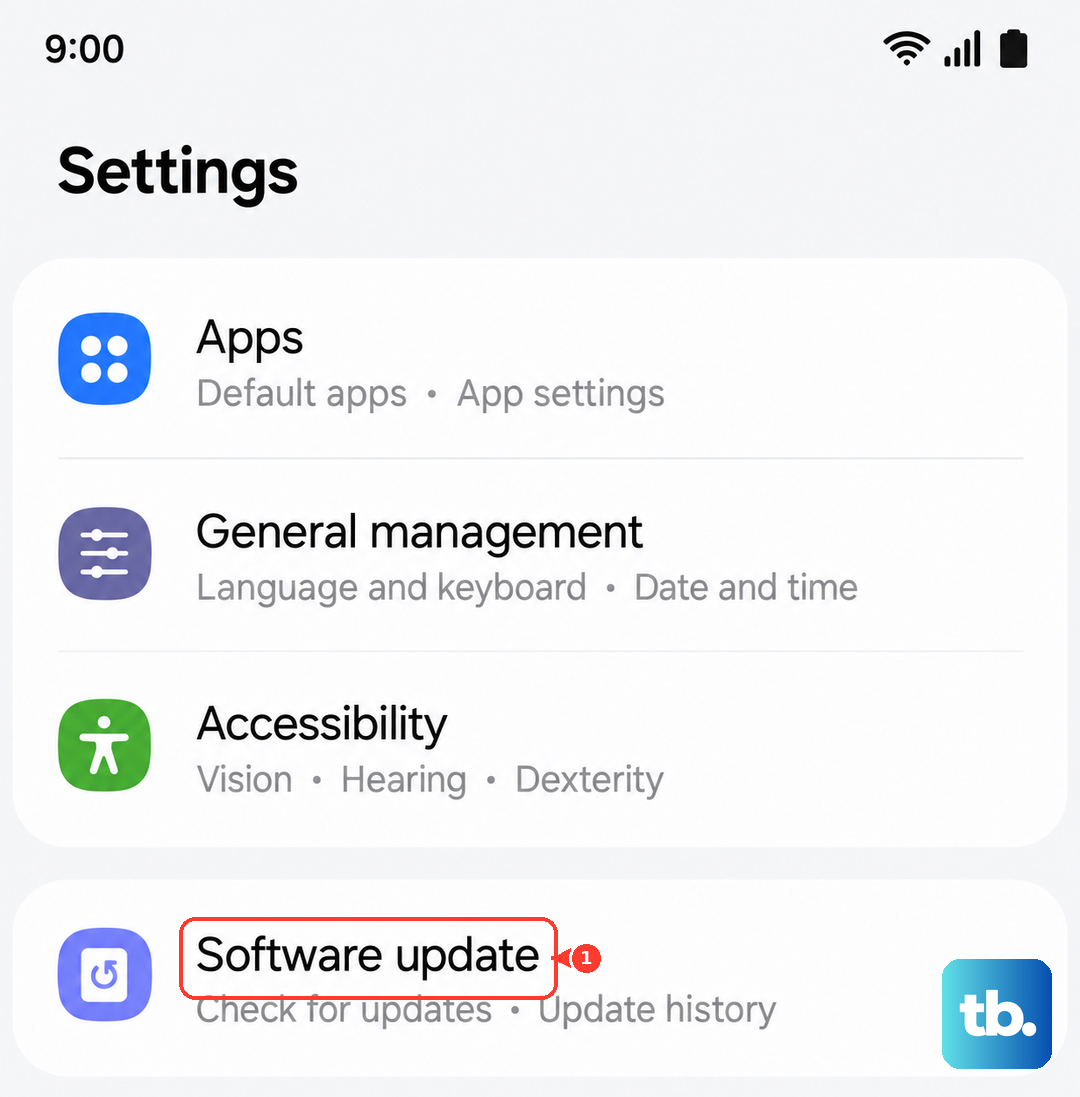
Tap Install now (the wording may also appear as Check for software updates, Check for system updates, or Download now, depending on your carrier).
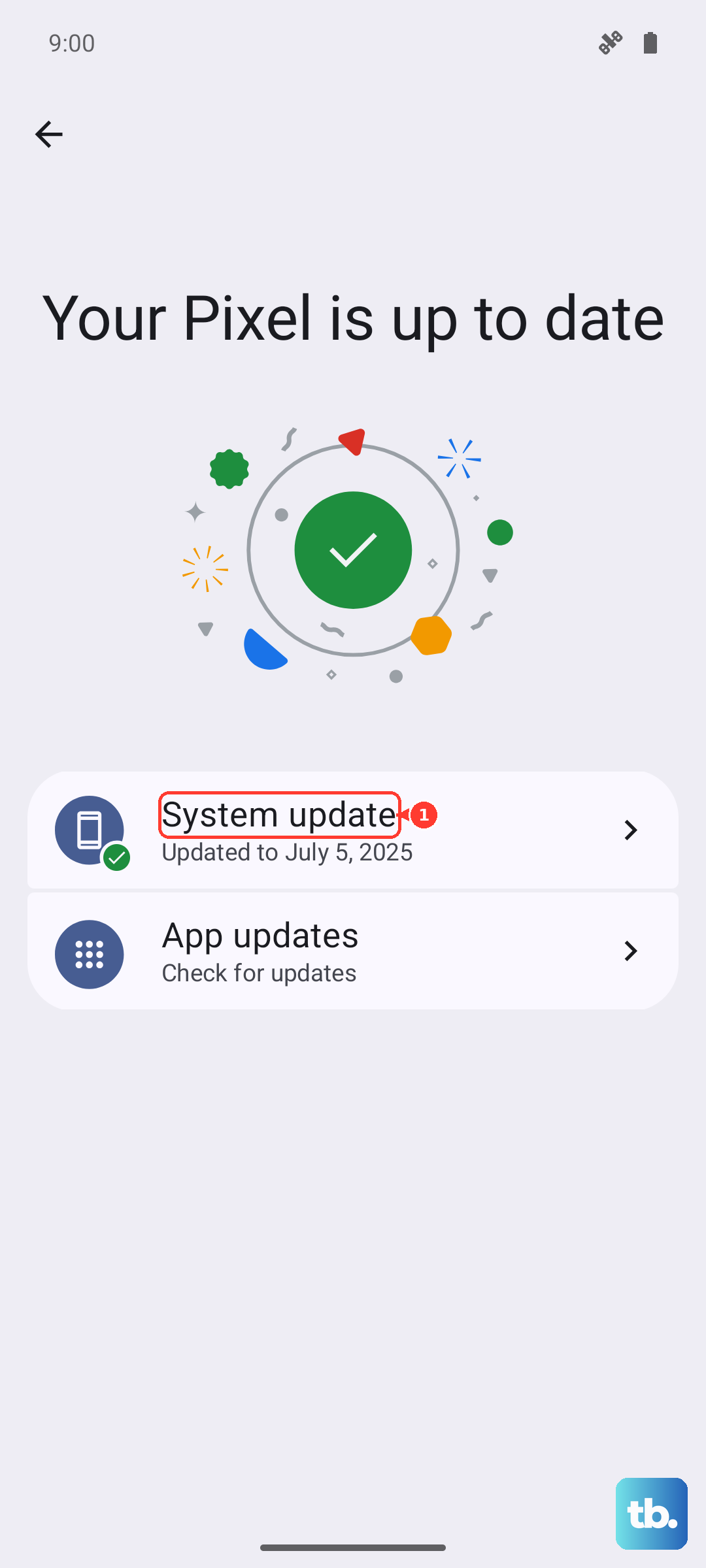
You can confirm your current build at Settings > About phone > Software information. Keep the phone connected to Wi-Fi and charged while the update downloads and installs so it does not stall partway through.
Force restart when the screen is frozen
If the screen is stuck and the assistant will not open at all, a force restart cuts power and reloads the system without erasing anything. On the A36 5G the Side button is the Power button, and you must press it together with Volume down, because holding the Side button alone just launches Bixby.
Press and hold the Volume down button and the Side button simultaneously for about 10 seconds, or until the device turns off and then turns back on. Wait for the phone to fully boot, then test your assistant again.
Reset your settings, then factory reset as a last resort
When nothing above works, start with the gentler option. Resetting all settings returns system options to their defaults without touching your apps, photos, or files. Go to Settings > General management > Reset > Reset all settings.
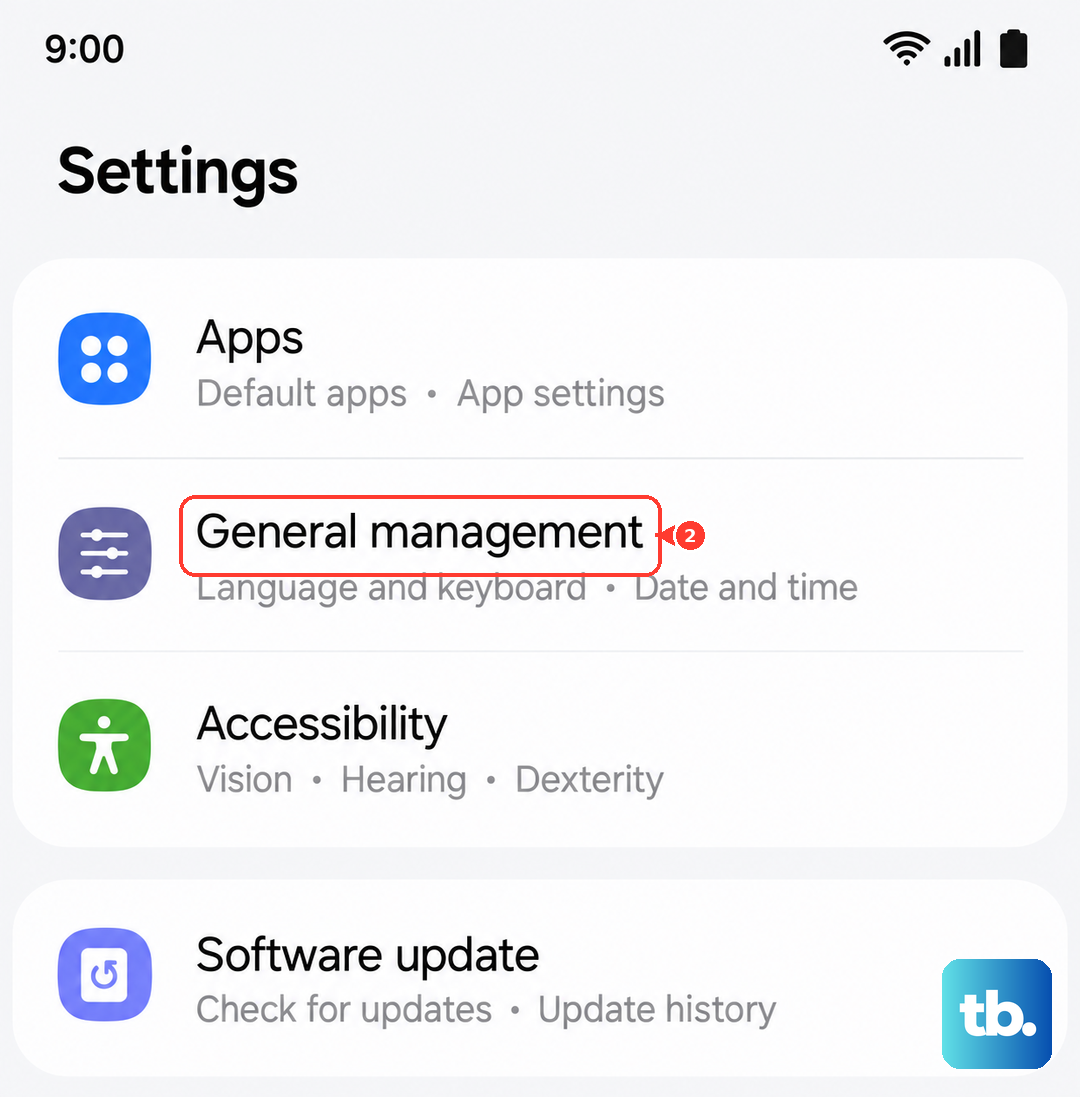
If the assistant is still broken, a factory reset is the final step, and it erases everything on the phone. Back up your data first, because Samsung warns: "Please save any information you need prior to the factory reset because your personal information may not be recovered."
Go to Settings > General management > Reset > Factory data reset. Review the information shown. Tap Reset, then tap Delete all. Enter your security credentials and Samsung account password if prompted.
If the voice assistant still fails after a full reset, the issue may be beyond a settings fix. At that point, contact Samsung Support to arrange a repair or service.
Frequently Asked Questions
Why won't "Hi, Bixby" wake my Galaxy A36 5G?
Usually the wake-up profile needs re-registering or the sensitivity is set too low. Go to Settings > Advanced features > Bixby > Voice registration to record your voice again and pick your wake phrase, then raise the Wake-up sensitivity to Medium or High if it still misses you.
Can I use Google Assistant instead of Bixby on the A36 5G?
Yes. Set it as your default at Settings > Apps > Choose default apps > Digital assistant app, then turn on Voice Match so "Hey Google" works. You can also route the assistant to Google through Settings > Google services > All services tab > Search, Assistant & Voice > Google Assistant > Digital assistant from Google > Google Assistant.
Does the Side button still open Bixby after I switch my default assistant to Google?
Yes. On the A36 5G, pressing and holding the Power/Side button continues to launch Bixby even after you choose Google as your digital assistant, because that button behavior is separate from the default-assistant setting. To change it, use Settings > Advanced features > Side button > Press and hold.
Will resetting fix things without deleting my photos and apps?
Reset all settings (Settings > General management > Reset > Reset all settings) restores system options to default and does not erase your apps or data, so try it first. A factory data reset, by contrast, deletes everything, so only use it after backing up, and heed Samsung's warning that personal information may not be recovered.