When your Samsung Galaxy A36 goes silent, it can feel like you're suddenly cut off from everything. The sound might drop out during a call, your favorite song might play without any audio, or your alarm could fail to make a peep. I've found that on the A36, these issues are often just a quick setting that got changed or a minor software hiccup, especially with the new One UI 7 software that launched with this model.
Before changing anything, play a quick speaker test in your browser. It sends a tone to the left and right channels separately, so you immediately know whether the speakers produce any sound at all.
Let's start with the most common fix. Grab your phone and press the volume up button on the side. While you're doing that, take a quick glance at the screen to see which volume slider is moving. If it's the media volume, that's good, but you should also check your ringtone and notification volumes separately in the settings.
Check All Your Volume Levels
On your Galaxy A36, different sounds are controlled by different sliders. It's possible your media volume is up but your ringtone is set to silent. Open your Settings and go to Sounds and vibration, then tap on Volume.
You'll see separate sliders for Ringtone, Media, Notifications, and System. Make sure none of them are all the way down. I'd slide each one up to at least the halfway point to test. Also, look at the very top of this menu and ensure your Sound Mode is set to Sound and not Vibrate or Mute.
Disconnect Any Bluetooth Devices
This is a frequent culprit. If your phone has recently connected to a wireless speaker, headphones, or your car, it might still be trying to send audio there even if the device is off. Swipe down from the top of your screen to open the Quick Settings panel.
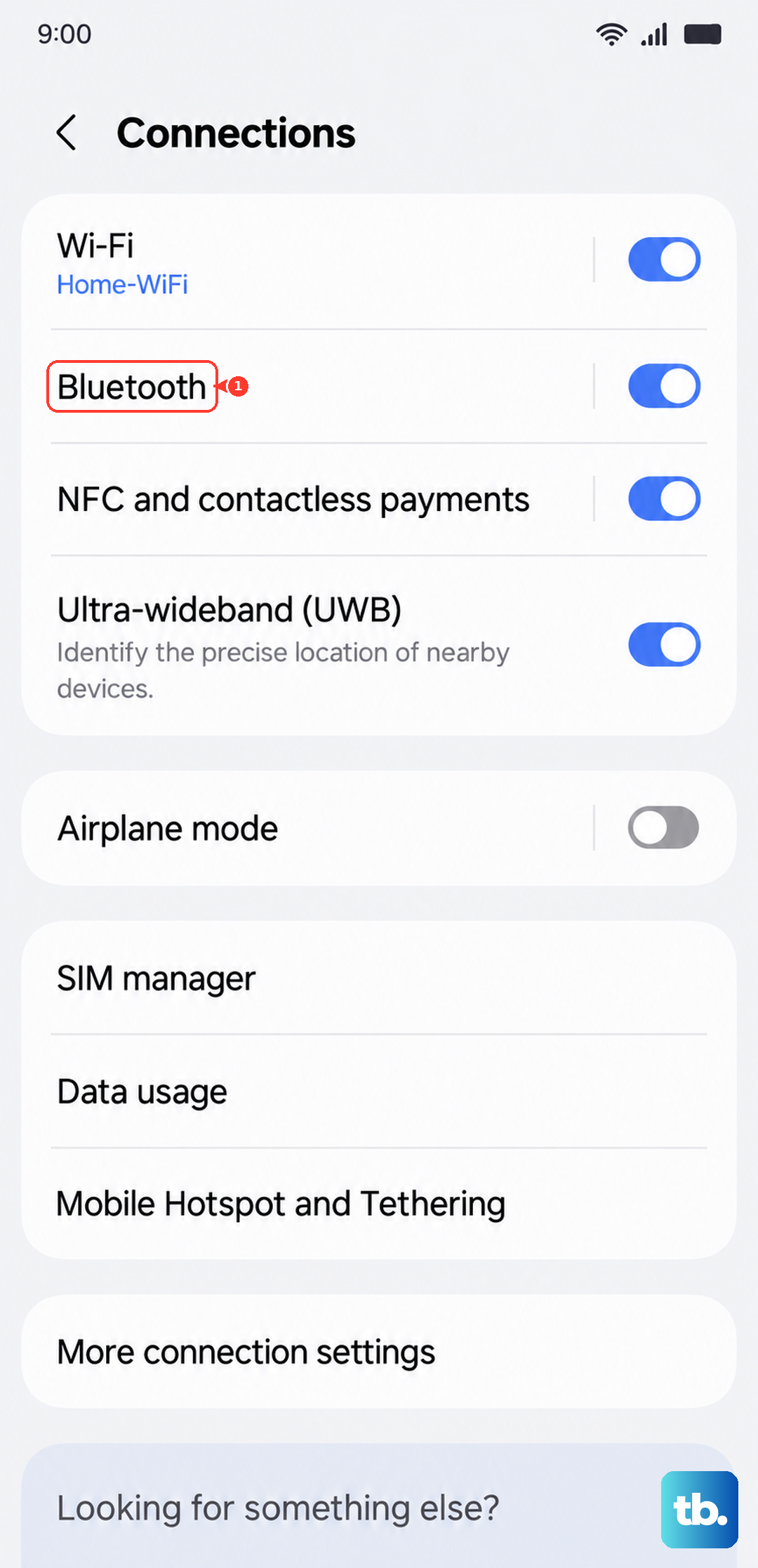
Look for the Bluetooth icon. If it's blue, tap it to turn it off completely. For good measure, you can also go into Settings > Connections > Bluetooth, tap the gear icon next to any recently used devices, and select Disconnect. This ensures audio will route back to your phone's internal speaker.
Clean the Speaker Grill Carefully
The bottom edge of your Galaxy A36 houses the main speaker. Over time, lint from your pocket or dust can clog the tiny holes. First, shine a flashlight at an angle across the grill. If you see a layer of dust packed in there, that's likely muffling your sound.
Take a soft, clean, dry toothbrush or a small makeup brush and gently brush across the grill. You can also use a can of compressed air, but hold it upright and use very short bursts from a few inches away. Never use a pin or a toothpick, as you can easily puncture the speaker membrane inside.
Review Do Not Disturb and App-Specific Settings
Check if you've accidentally scheduled Do Not Disturb mode. Go to Settings > Notifications > Do Not Disturb. See if it's turned on, and if there's a schedule active. Toggle it off to test.
Also, Samsung has a feature called Separate app sound that can sometimes get confused. Go to Settings > Sounds and vibration > Advanced sound settings > Separate app sound. If this is turned on for an app like Spotify or YouTube, it might be directing that app's audio differently. Try turning the feature off entirely.
Perform a Force Restart
A simple force restart clears the phone's temporary memory and can fix a lot of weird software glitches, including audio problems that popped up after the One UI 7 update. It doesn't delete any of your data.
On the Samsung Galaxy A36, press and hold the Volume Down button and the Side (Power) button at the same time. Keep holding them for about 10 to 15 seconds. You'll see the screen go black and then the Samsung logo will appear. Release the buttons and let the phone boot up normally. Test your sound as soon as it's back on.
Check for a Software Update
Samsung has been known to release patches for audio-related bugs. Since the A36 launched with Android 15 and One UI 7, there's a good chance an early software bug could be the cause. Connecting to Wi-Fi first is a good idea, as these updates can be large.
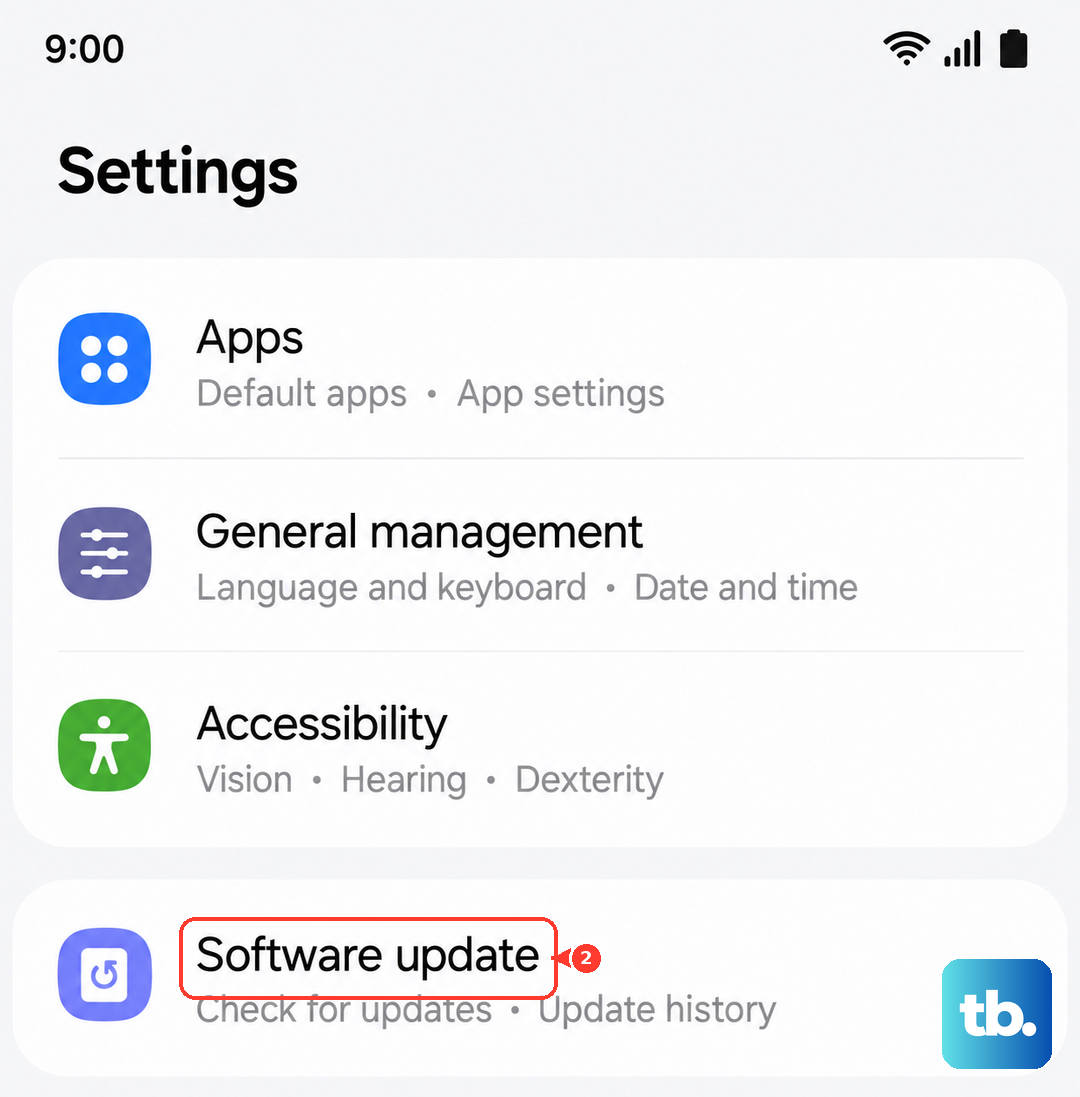
Go to Settings > Software update and tap Download and install. If an update is available, follow the prompts to install it. Your phone will restart during this process. After the update, check if your sound has returned.
Boot Into Safe Mode
Safe Mode temporarily disables all third-party apps you've downloaded. If your sound works perfectly in Safe Mode, then you know a recently installed app is causing the conflict. This is a great diagnostic step.
To enter Safe Mode on the A36, press and hold the power button until the power menu appears. Then, tap and hold the Power off option on your screen. A prompt will appear asking if you want to reboot to Safe Mode. Tap Safe mode. The words "Safe mode" will appear in the bottom-left corner of your screen. Test your audio with a system sound, like changing the volume.
To exit, just restart your phone normally. If sound works in Safe Mode, start uninstalling your most recently downloaded apps one by one, testing the sound after each one.
Clear the System Cache Partition
This is a bit more advanced but very effective for post-update issues. It clears temporary system files that can become corrupted. You'll use the phone's recovery menu.
First, turn off your Galaxy A36 completely. Now, connect it to your computer with a USB-C cable. While it's connected, press and hold the Volume Up button and the Power button together. Release both buttons when you see the Android recovery screen.
Use the volume buttons to highlight Wipe cache partition. Press the power button to select it. Then, highlight Yes and press the power button again. Once it's done, select Reboot system now.
Reset All Settings
If you're still having trouble and the issue seems to be with system sounds or call audio, this step can help. It will reset all your settings, like Wi-Fi passwords, Bluetooth pairings, and display preferences, back to factory defaults, but it won't touch your photos, messages, or apps.
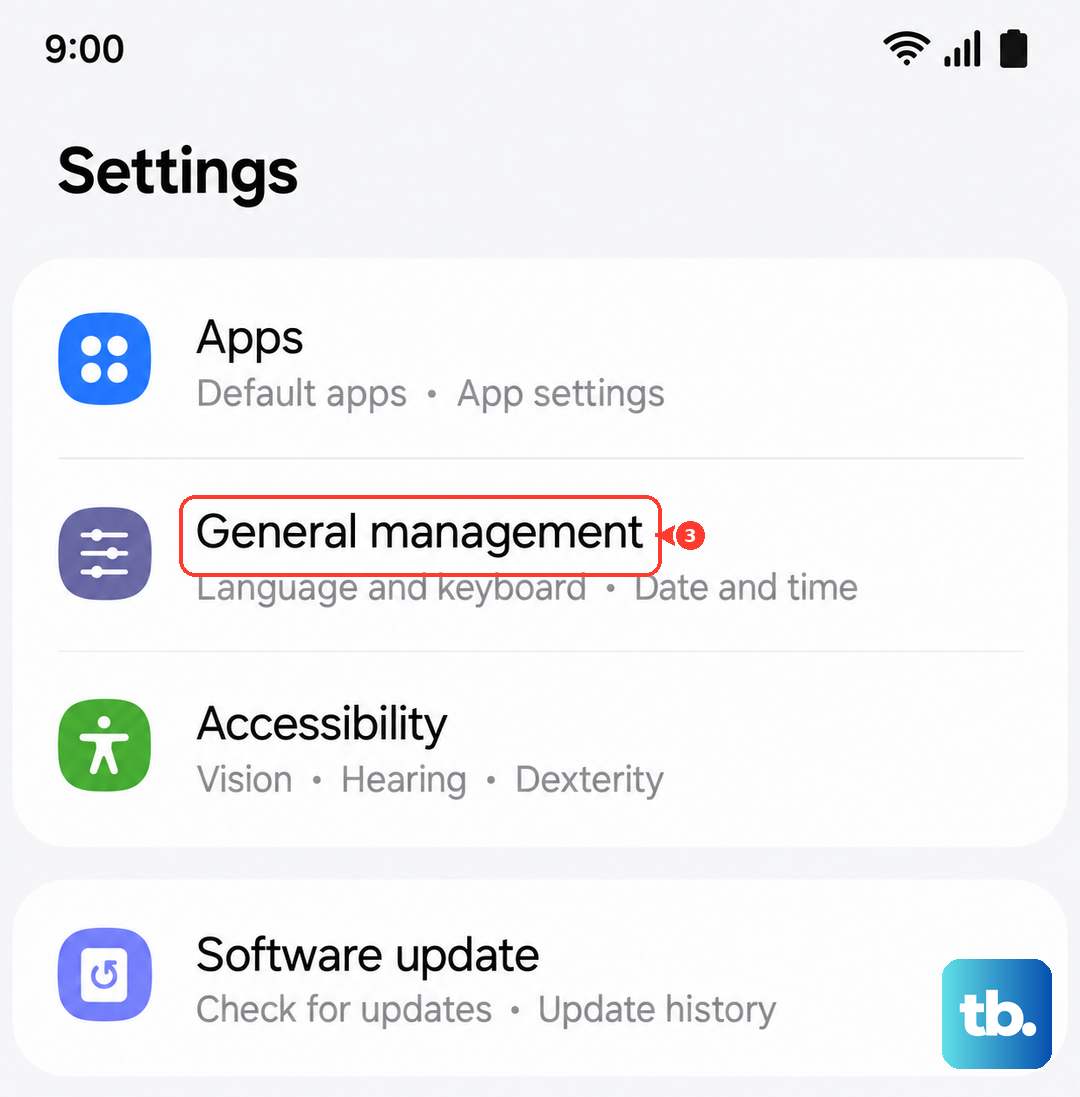
Go to Settings > General management > Reset. Tap on Reset settings. You may see an option to reset network settings, Bluetooth settings, etc. You can choose "Reset all settings" to be thorough. Confirm your choice and enter your PIN if prompted. The phone will restart. You'll need to reconnect to Wi-Fi and Bluetooth devices afterward, but it often resolves deep-seated configuration problems.