
Slow WiFi and mobile data on your Samsung Galaxy A36 can make everything feel like it's moving through molasses. Videos buffer, web pages hang, and apps take forever to load. I'd start with the quickest fixes first, as they often solve the problem in under a minute.
Before diving deep, try a simple force restart. Press and hold the Volume Down and Power buttons together for about ten seconds until you see the Samsung logo. This clears temporary glitches in the system that can affect network performance. It's the fastest thing to try.
Toggle Airplane Mode On and Off
This is another quick reset for your phone's radios. Swipe down from the top of your screen to open the Quick Settings panel and tap the Airplane Mode icon. Wait about ten seconds, then tap it again to turn it off. This forces your A36 to re-establish connections with both your mobile network and any WiFi, which can instantly improve speed.
If you're only having issues on mobile data, you can also try manually switching network modes. Go to Settings > Connections > Mobile networks > Network mode. If you're set to "5G/LTE/3G/2G (auto connect)", try switching it to "LTE/3G/2G (auto connect)" for a moment, then switch it back. This can kick a sluggish 5G connection back into gear.
Check and Reset Your WiFi Connection
Sometimes the issue is with the specific WiFi network. Start by forgetting the problematic network on your phone. Go to Settings > Connections > WiFi, tap on the network name, then tap "Forget". Reconnect by selecting it again and entering the password. This clears any corrupted connection data.
While you're in the WiFi settings, tap the three-dot menu in the top right and go to Advanced. Look for "Intelligent WiFi" and make sure "Switch to mobile data" is turned off for now. This feature is meant to help, but it can sometimes cause your phone to jump to a slower cellular connection unnecessarily when your WiFi is fine.
Also in Advanced, check the "WiFi power saving mode". If it's on, try turning it off. This mode can reduce WiFi performance to save battery, which might be the cause of your slow speeds.
Enable Data Saver and Restrict Background Data
If your mobile data is slow, it might be because apps are using it in the background. Samsung's Data Saver is a great tool for this. Go to Settings > Connections > Data Usage > Data Saver and toggle it on. This will block most apps from using background mobile data.
For more control, you can restrict data for specific apps. Go to Settings > Apps, select an app, then tap Mobile data. Here you can turn off "Allow background data usage". Do this for apps that you know don't need to update constantly, like games or streaming services you only use on WiFi.
Clear the Cache for Key Services
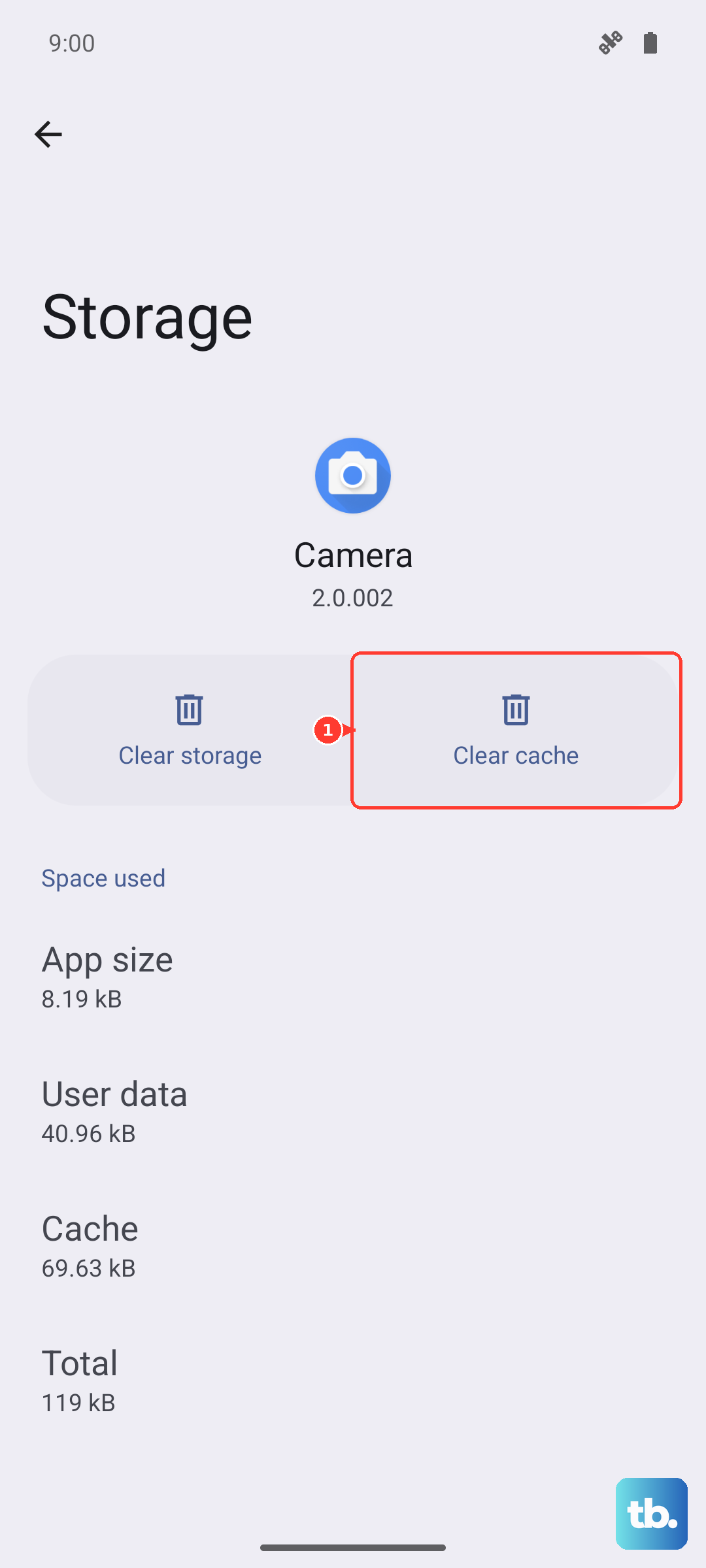
Corrupted cache files in system services can cause all sorts of weird behavior, including network slowdowns. The main culprit is often Google Play Services. Go to Settings > Apps, tap the filter icon and select "Show system apps". Find and select "Google Play Services".
Tap Storage, then tap "Clear cache". Do not tap "Clear data" as this can cause other issues. You can also do this for the "Google" app and your preferred browser, like Chrome or Samsung Internet. Clearing these caches frees up space and removes temporary files that might be causing conflicts.
Update Your Phone's Software
Since the Galaxy A36 runs Android 15 with One UI 7, there may be early software bugs affecting connectivity. Manufacturers frequently release updates to fix these kinds of issues. Go to Settings > Software update and tap "Download and install".
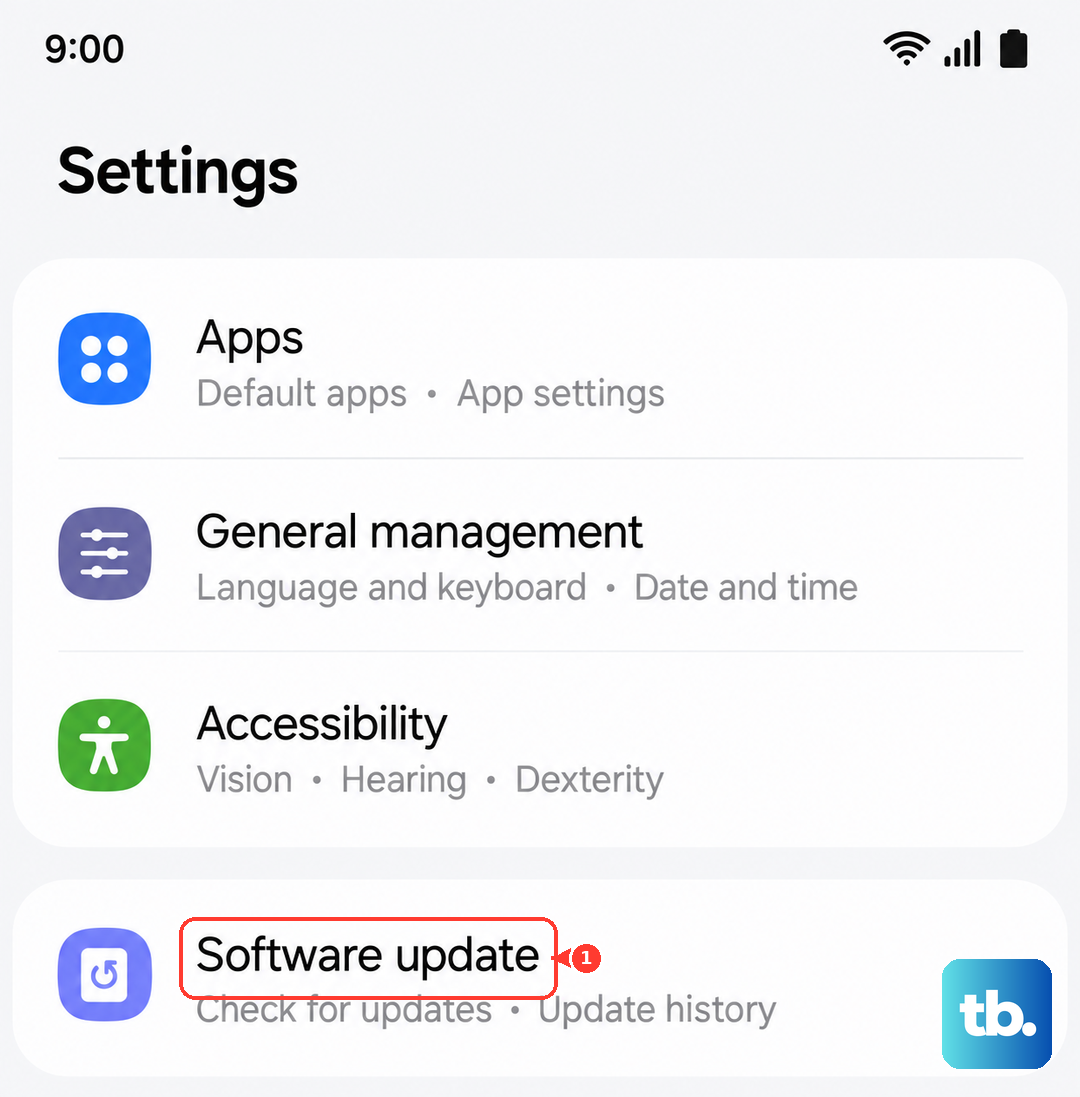
If an update is available, install it. These updates often include important patches for modem firmware, which directly controls how your phone connects to networks. Keeping your phone updated is one of the best ways to ensure stable and fast connections.
Disable Any Active VPN
If you're using a VPN app for privacy or work, try disabling it temporarily. All your internet traffic gets routed through the VPN server, which can significantly slow things down depending on the server's load and location. Open your VPN app and disconnect, or go to Settings > Connections > More connection settings > VPN and turn it off there.
Test your internet speed with the VPN off. If your speeds return to normal, you know the VPN was the bottleneck. You might need to try a different server within your VPN app or contact your VPN provider for support.
Reset Your Network Settings
This is a more comprehensive step that will reset all network-related configurations to their factory defaults. It will erase all saved WiFi networks, Bluetooth pairings, and custom mobile network settings. Make sure you know your important WiFi passwords before proceeding.
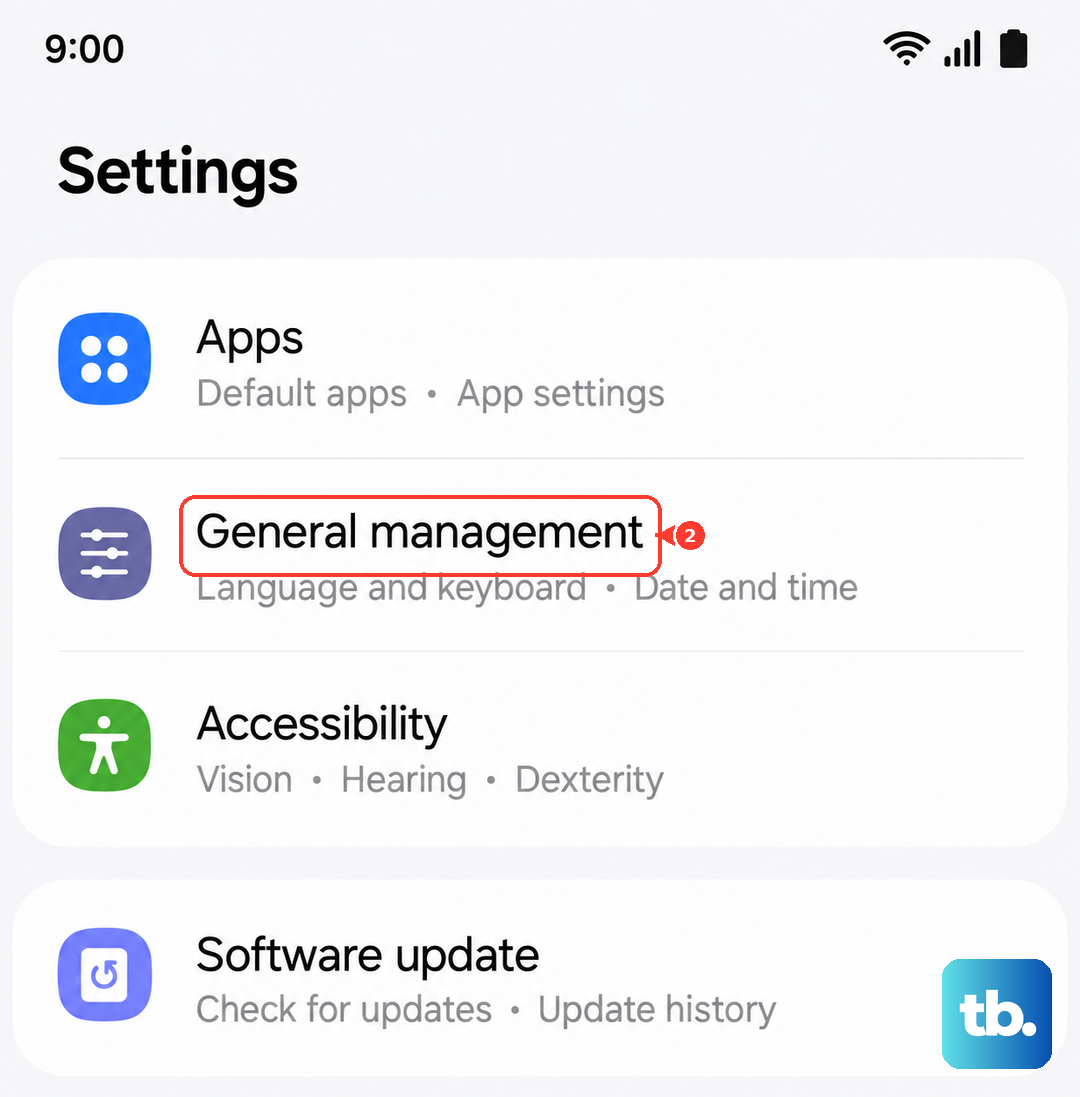
To reset, go to Settings > General management > Reset > Reset network settings. Tap "Reset settings" and confirm. Your phone will reboot. After it restarts, you'll need to reconnect to your WiFi networks and re-pair Bluetooth devices, but this often clears deep-seated network problems.
Check for Physical or Environmental Issues
Your phone's case, especially a thick or metal one, can sometimes interfere with signal reception. Try removing the case and see if your WiFi or data speeds improve. Also, consider your location. WiFi signals don't travel well through concrete walls or metal structures.
For mobile data, network congestion is a real factor. Speeds can slow down dramatically during peak hours in crowded areas like stadiums, concert venues, or downtown during rush hour. If you're in a busy area, moving even a block or two can sometimes connect you to a different cell tower with less traffic.
Try a Different DNS Server
Your phone uses a DNS server to translate website addresses into IP addresses. Sometimes your default DNS (usually provided by your ISP or mobile carrier) can be slow. You can change it to a faster public DNS like Google DNS or Cloudflare DNS.
For WiFi, go to Settings > Connections > WiFi, tap on your connected network, then tap "Advanced". Change the IP settings from "DHCP" to "Static". You'll need to re-enter your IP address and gateway (you can find these by switching back to DHCP and writing them down first). Then, set DNS 1 to 8.8.8.8 (Google) and DNS 2 to 1.1.1.1 (Cloudflare). This can make web browsing feel snappier.