If your Samsung Galaxy A36 has gone silent, missing alerts for texts, emails, and apps, start with the notification, Do Not Disturb, battery, and data settings below. These controls can block alerts after a settings change or software update, and they are quick to check from the phone itself.
Let's start with the quickest fix. A simple restart can clear out temporary glitches that stop notifications. Just press and hold the Volume Down and Power button together for about ten seconds until you see the Samsung logo. This force restart is often all it takes.
Check Your Do Not Disturb and Focus Modes
Do Not Disturb can block notifications. Swipe down from the top right of the screen to open Quick settings, then turn off the Do not disturb icon if it is illuminated.
Also, check if any Focus modes are active. Go to Settings > Modes and Routines. If a mode like "Work" or "Sleep" is running, it might be blocking notifications from certain apps. You can either turn the mode off or tap on it to edit which apps are allowed to notify you.
Review App-Specific Notification Settings
Android and One UI give you granular control over notifications per app. If you're missing alerts from a specific app like WhatsApp or Gmail, you need to check its individual settings.
Open Settings > Notifications > Advanced settings and turn on Manage notification categories for each app if it is off. Then go to Settings > Notifications > App notifications, choose the app, turn on notifications, and open Notification categories if the app offers it. Make sure the category you need allows notifications and is set to alert rather than silent.
Ensure Apps Can Run in the Background
To save battery, Samsung can put apps into a power-saving state. If an app is in Sleeping apps or Deep sleeping apps, some functions may be unavailable when the app is closed, and Samsung notes it may not send notifications.
Go to Settings > Battery > Background usage limits. Look at both "Deep sleeping apps" and "Sleeping apps" lists. If your problematic app is there, remove it. Then, go back to Settings > Apps, select the app, tap Battery, and choose "Unrestricted" for its background usage.
Clear the Cache for the Messages or Problem App
Corrupted temporary data can break an app's notification function. Clearing the cache is safe and won't delete your messages or login info.
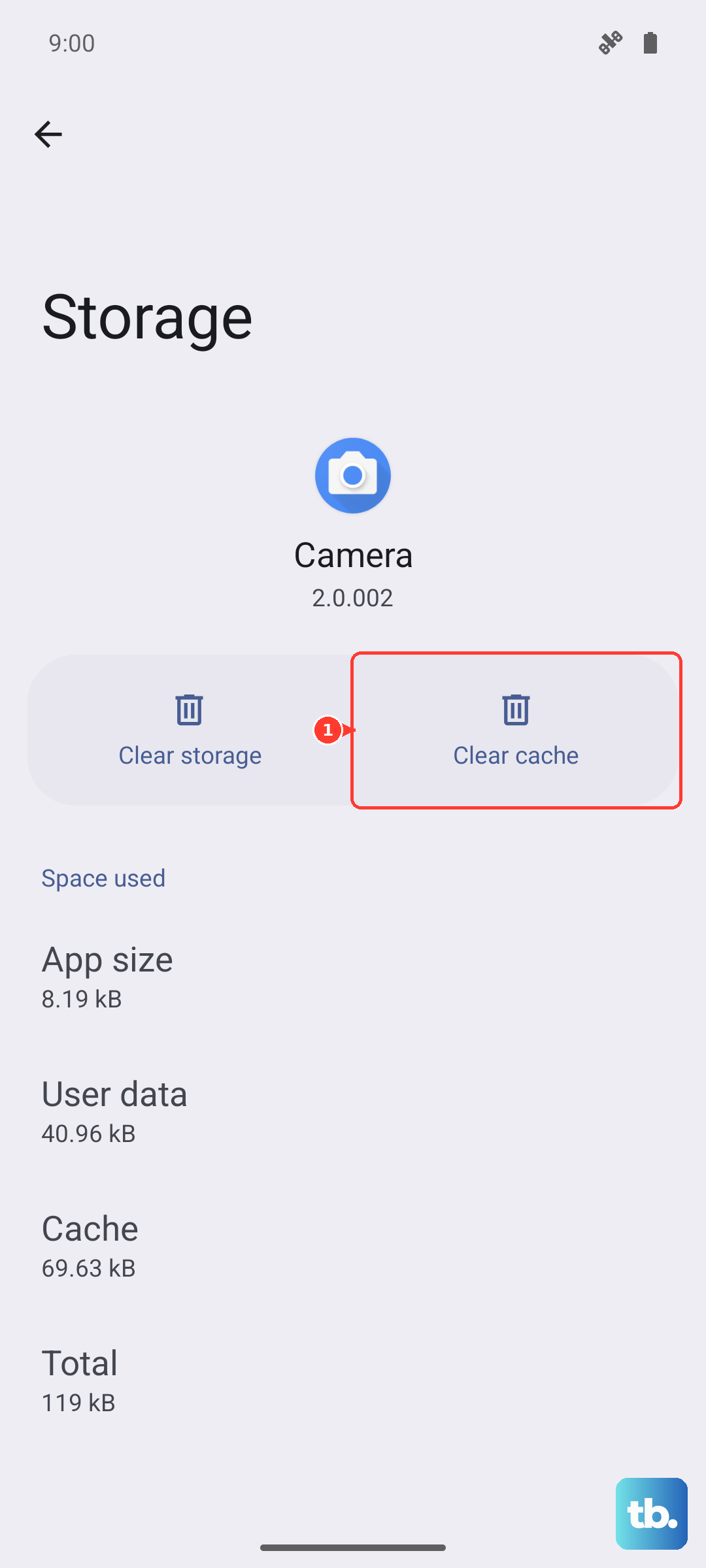
Head to Settings > Apps, find the app (like Samsung Messages or Google Messages), and tap on it. Select Storage, then tap "Clear cache." After doing this, force stop the app by tapping "Force stop" on the same screen, then reopen it.
Check for Software Updates
Outdated apps or system software can cause notification compatibility issues, so it is worth checking for updates before changing more intrusive settings.
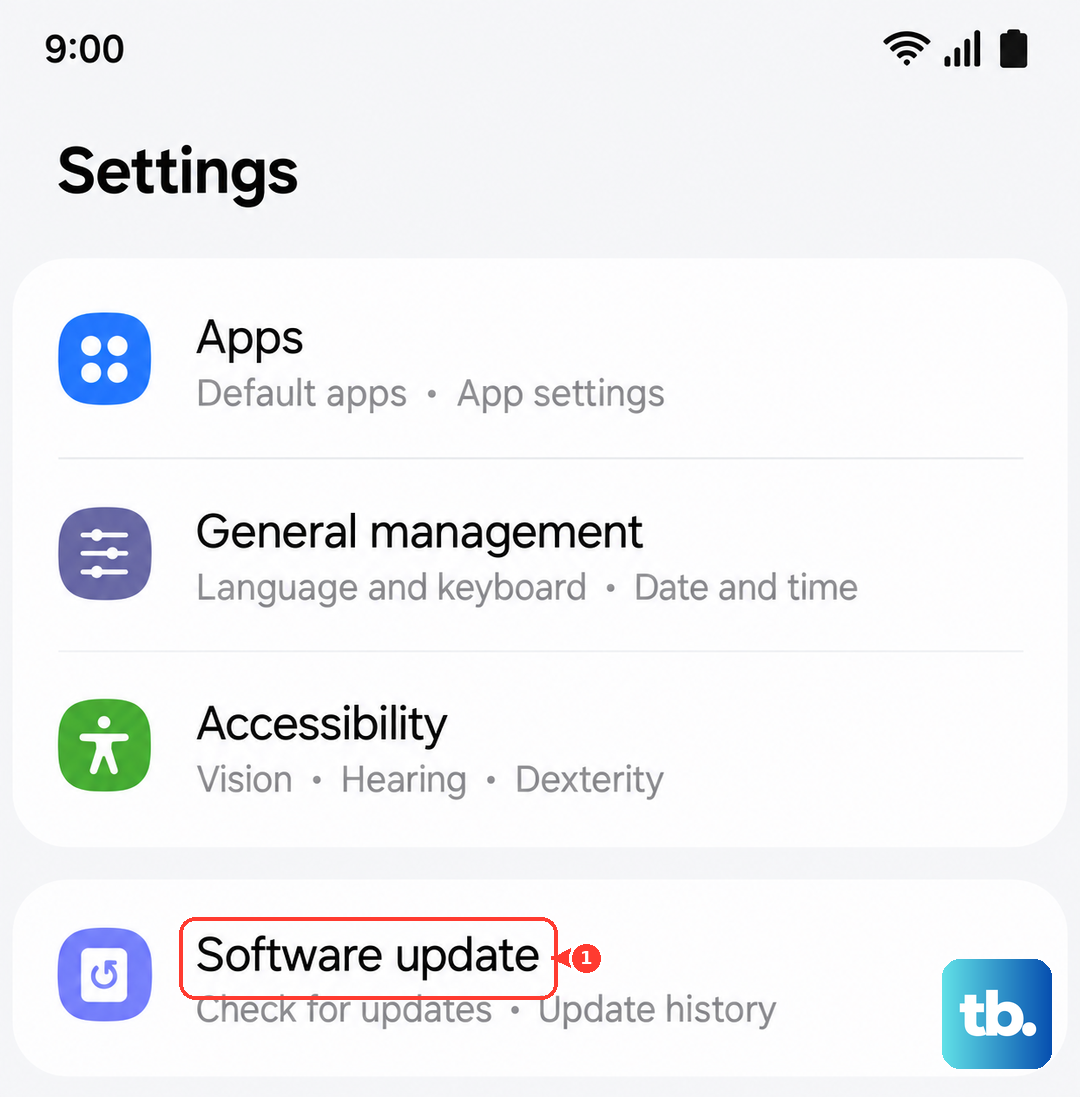
Open Settings > Software update and tap "Download and install." If an update is available, follow the on-screen prompts to install it, then test notifications again.
Reset App Preferences
This is a useful nuclear option for app-related settings. It will reset all your notification permissions, background data restrictions, and default app assignments without deleting any personal data.
Go to Settings > Apps, tap the three-dot menu in the top right, and select "Reset app preferences." Confirm the action. You'll then need to re-allow notifications for your apps when they first ask, but this can clear up any misconfigured system settings.
Examine Notification Pop-Up and Lock Screen Settings
Sometimes notifications are arriving, but you're not seeing them because of display settings. In Settings > Notifications > App notifications, select the affected app and review its notification style options, including Notification pop-up, if available.
Also go to Settings > Notifications > Lock screen notifications to turn on lock screen notifications. To change how they appear, use Settings > Lock screen and AOD > Notification style.
Disable Battery Optimization for Key Apps
Battery optimization is great for longevity, but it can be too aggressive. For critical apps like your messaging and email clients, it's worth turning optimization off.
Navigate to Settings > Apps, select the app, and tap Battery. If "Optimized" is selected, change it to "Unrestricted." This tells your A36 to let the app run more freely in the background to check for new alerts.
Clear the System UI Cache
The System UI is responsible for many visual elements, including the notification panel and shade. If its data is corrupted, notifications can behave strangely.
You'll need to enable "Show system apps" first. Go to Settings > Apps, tap the three-dot menu, and select that option. Scroll down and find "System UI" in the list. Tap on it, select Storage, and then tap "Clear cache." Do not clear data here, just the cache. Restart your phone afterward.
Boot into Safe Mode to Check for App Conflicts
If notifications started disappearing after you installed a new app, that app could be the culprit. Booting into Safe Mode temporarily disables all third-party apps.
Open the Power menu by pressing and holding the Side button and Volume Down button together, or by swiping down from the top right and tapping the Power icon. Touch and hold the "Power off" icon, then tap the Safe mode icon. If notifications work normally in Safe mode, start by uninstalling apps that were installed or updated when the problem began.
Reset the Relevant Network Settings
This is less common, but if your issue is specifically with internet-dependent notifications (like WhatsApp or Slack) and not SMS, a connection setting could be involved.
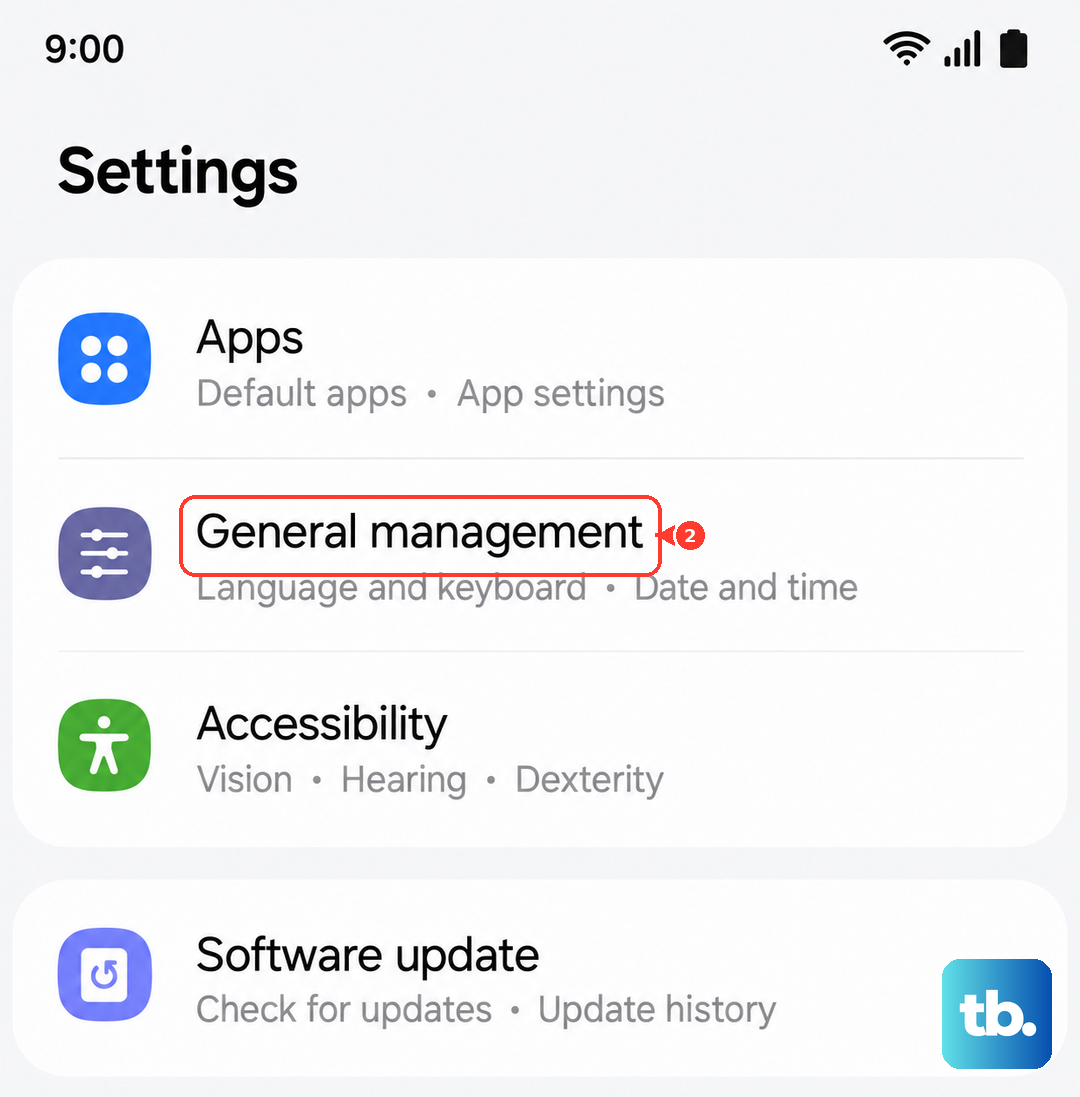
Go to Settings > General management > Reset. For mobile data issues, choose Reset mobile network settings; for Wi-Fi or Bluetooth issues, choose Reset Wi-Fi and Bluetooth settings. Confirm the reset. A Wi-Fi/Bluetooth reset requires reconnecting Wi-Fi networks and Bluetooth accessories.