Missing calls on your Samsung Galaxy A36 because the ringer won't sound is a common headache. You might see the screen light up with a missed call notification, but never hear a peep. The issue usually comes down to a simple setting or a minor software hiccup, especially with the new One UI 7 software that launched with this phone.
Let's start with the quickest fix. Unlock your phone and press the volume up button on the side a few times. If you see a volume slider on screen, tap the three-dot menu and make sure the "Ringtone" volume is turned all the way up, not just the media volume.
Check Your Sound Mode and Do Not Disturb
Your A36 has a few different sound profiles that can silence the ringer. Swipe down from the top of your screen twice to open the full Quick Settings panel. Look for an icon that says "Sound", "Vibrate", or "Mute". Tap it to cycle until it's set to "Sound".
Also, check for the Do Not Disturb icon, which looks like a circle with a line through it. If it's highlighted, tap it to turn it off. You can dig deeper by going to Settings > Notifications > Do Not Disturb. Here, make sure it's toggled off and review any schedules or allowed exceptions that might be interfering.
Review Your Ringtone and Volume Settings
Sometimes the selected ringtone file itself can cause issues. Go to Settings > Sounds and vibration > Ringtone. Try switching to a different built-in Samsung tone and tap "Apply". Make a test call to see if it works.
While you're there, go back to Sounds and vibration and tap "Volume". Ensure the "Call" volume slider is maxed out. I've seen cases where media volume is high but the ringer volume was accidentally lowered.
Disconnect Bluetooth and Accessories
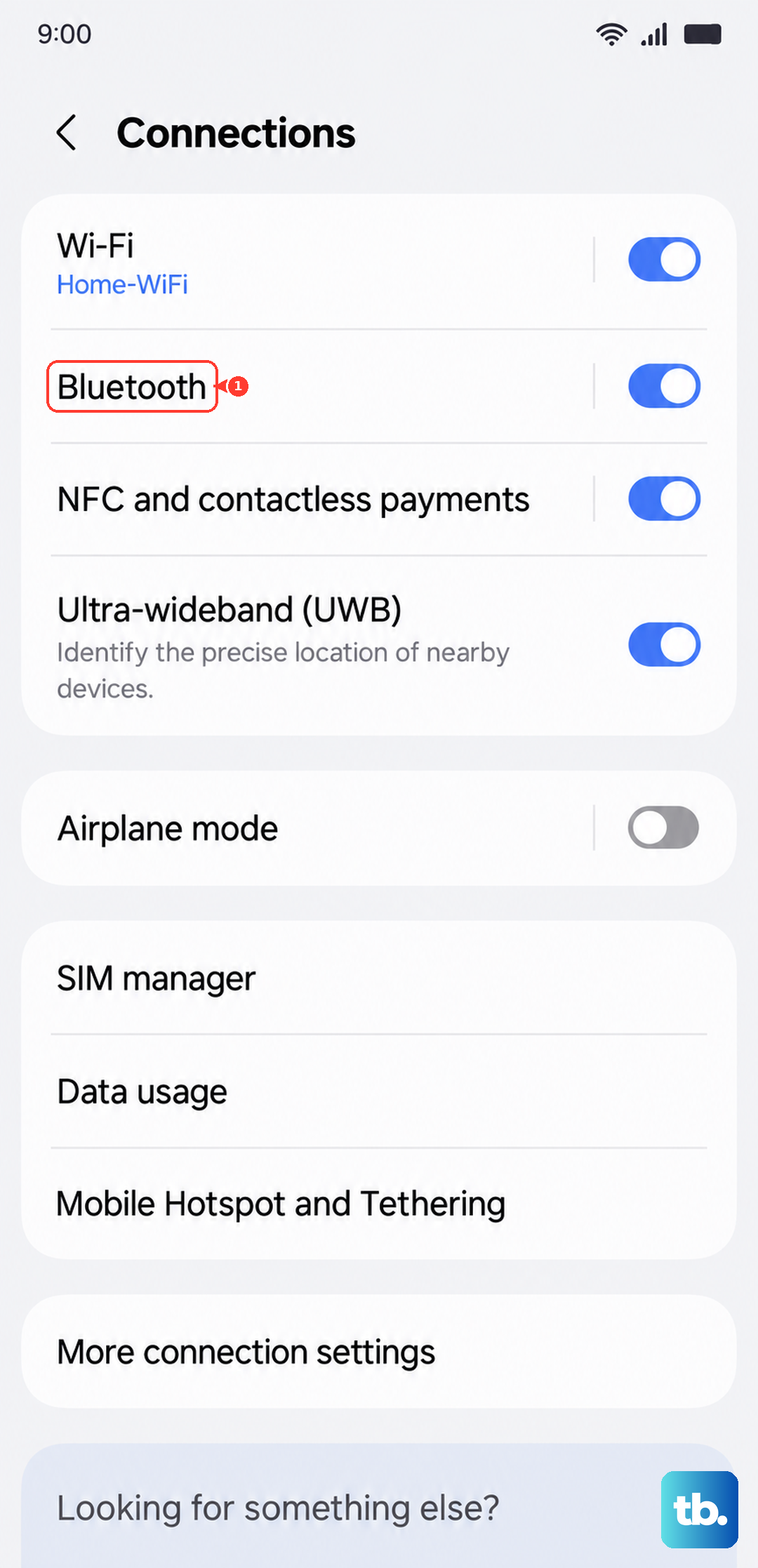
If your Galaxy A36 is connected to a Bluetooth headset, speaker, or your car, incoming call audio might be routed there instead of the phone's speaker. Go to Settings > Connections > Bluetooth and toggle it off temporarily to test. You can also check the "Media" or "Call audio" setting for each connected device and turn them off individually.
Inspect Call Settings and Blocked Numbers
Samsung's Phone app has its own set of rules. Open the Phone app, tap the three-dot menu in the top right, and go to Settings. Look for options like "Block numbers" to ensure important contacts aren't accidentally blocked.
Also check for "Call forwarding" within the Phone app settings. If this is accidentally enabled, calls are sent to another number before your phone can ring. Make sure all forwarding options are turned off.
Manage App-Specific Notifications
If you're missing calls from apps like WhatsApp, Facebook Messenger, or Skype, the problem is likely in that app's notification settings. For the app in question, go to Settings > Notifications > App notifications, find the app, and tap it.
Make sure notifications are turned on. Then, tap "Notification categories" and look for an category related to "Incoming calls" or "Voice calls". Ensure it's enabled and set to "Sound" or "Sound and pop-up".
Perform a Soft Reset
A simple restart can clear out temporary glitches that might be affecting the sound system. Press and hold the Volume Down button and the Power button simultaneously for about 10 seconds until you feel a vibration and see the Samsung logo. This force restarts the phone without deleting any data.
Check for Software Updates
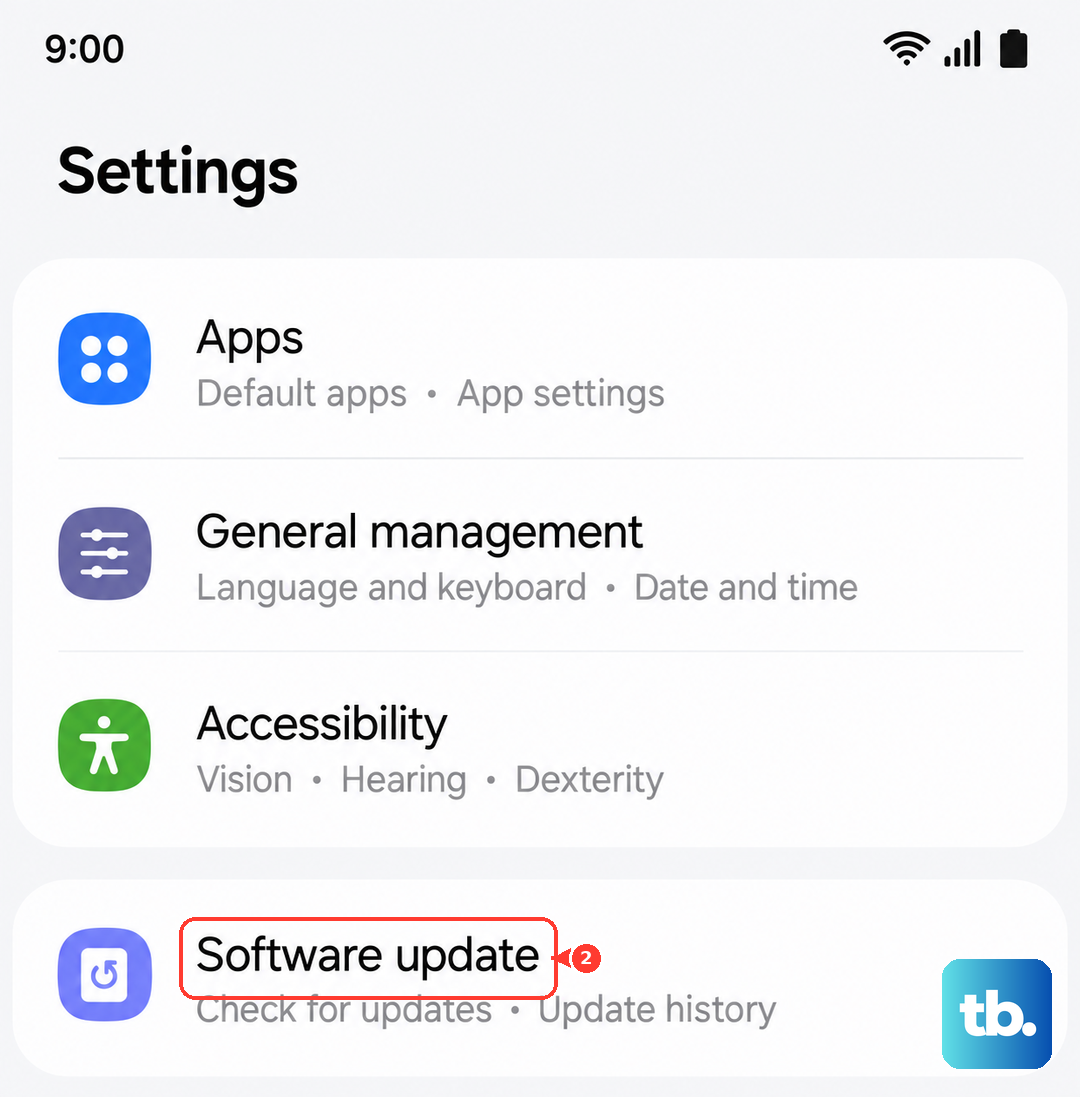
Since the Galaxy A36 runs the new Android 15 with One UI 7, there could be early software bugs affecting ringtones. Samsung releases updates to fix these issues. Connect to Wi-Fi, then go to Settings > Software update > Download and install. If an update is available, installing it often resolves sound-related problems.
Reset App Preferences or All Settings
If a specific app is the problem, try resetting app preferences. This resets notification settings and app permissions without deleting your data. Go to Settings > Apps > Menu (three dots) > Reset app preferences and tap "Reset".
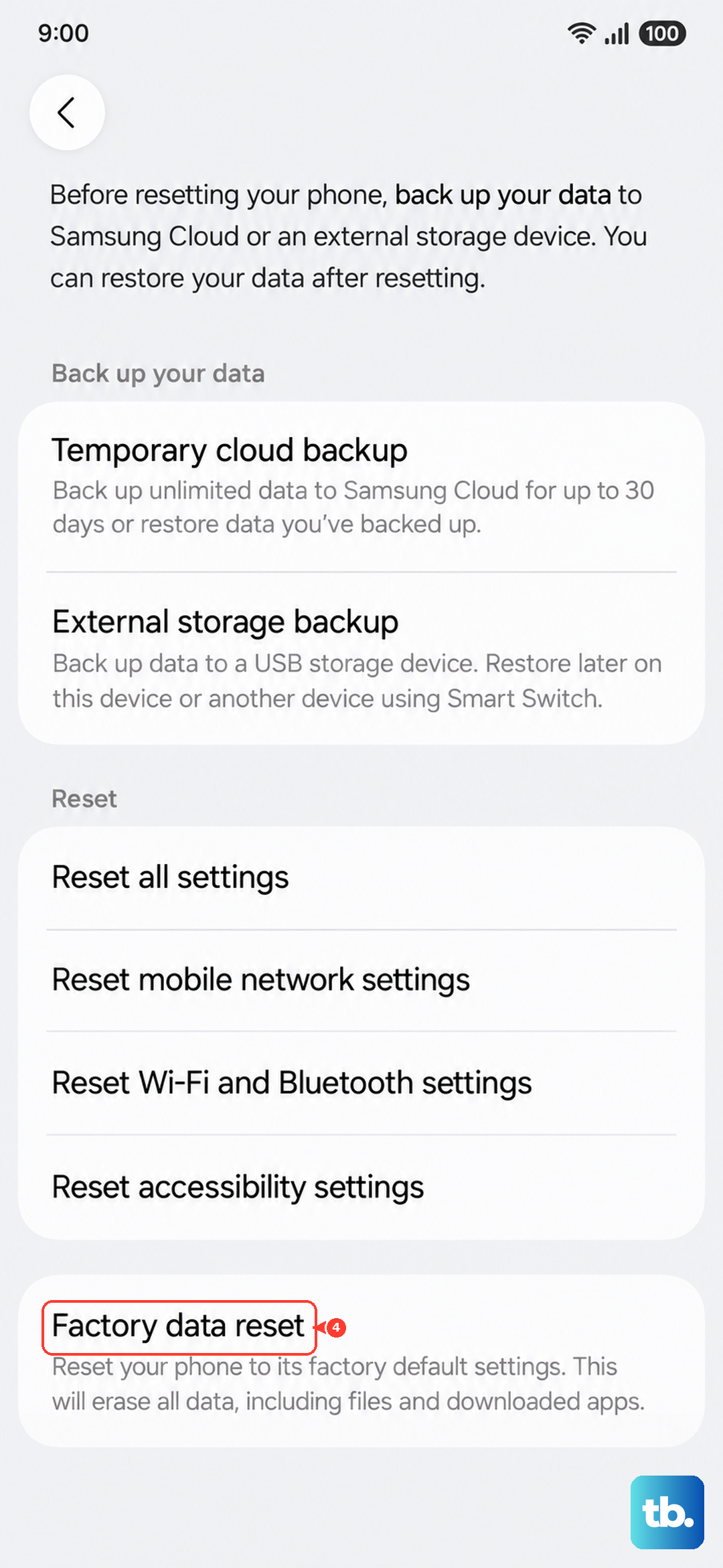
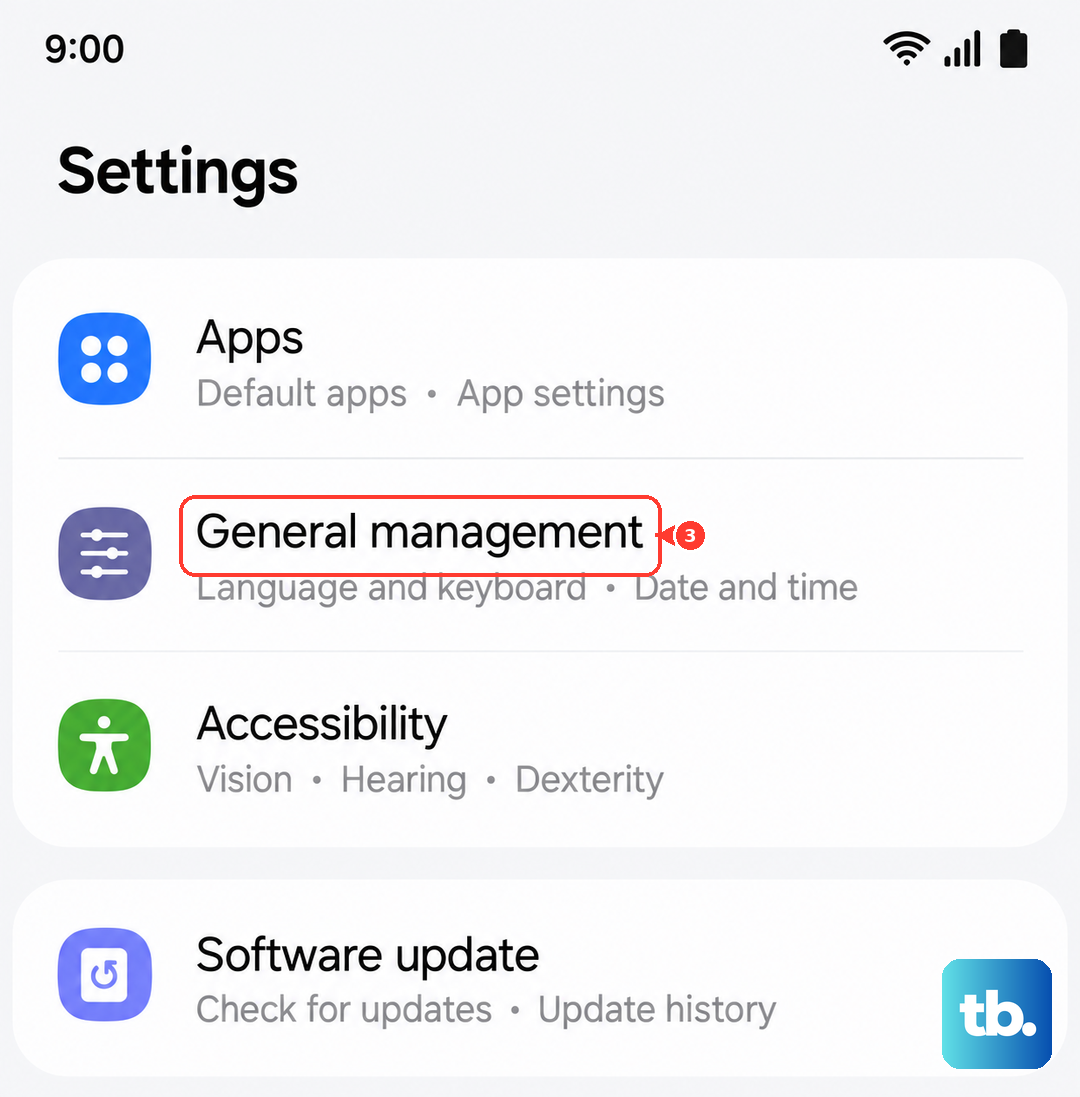
For a broader fix, you can reset all system settings. This will revert your Wi-Fi, Bluetooth, and sound settings back to default. Go to Settings > General management > Reset > Reset all settings. Enter your PIN if prompted and confirm. Your personal files and apps will remain untouched.
Boot into Safe Mode
This helps determine if a recently downloaded third-party app is causing the conflict. Press and hold the power button until the power menu appears. Then, tap and hold the "Power off" option on screen until you see a "Safe mode" prompt. Tap it to restart.
If the ringer works normally in Safe Mode, a downloaded app is likely the culprit. You'll need to uninstall apps one by one, starting with the most recently installed, to find the offender.
Clear the Cache Partition
Corrupted system cache files can cause various issues, including sound problems. Turn off your Galaxy A36. Then, press and hold the Volume Up button and the Power button together. When you feel a vibration, release the Power button but keep holding Volume Up until the Android Recovery screen appears.
Use the volume buttons to navigate to "Wipe cache partition" and press the power button to select it. Confirm the action. Once it's done, select "Reboot system now".
Verify SIM Card and Network Status
A network-related issue can sometimes manifest as silent calls. Try making a call yourself first. If you have another phone, try inserting your A36's SIM card into it to see if calls ring normally, which would point to a phone setting rather than a carrier issue.
You can also try resetting the network settings. Go to Settings > General management > Reset > Reset network settings. This will erase all Wi-Fi passwords and paired Bluetooth devices, so be prepared to reconnect to them afterward.
Consider a Factory Reset
If you've tried everything else and the ringer is still silent, a factory reset is the final step. This will erase all data from your phone, so you must back up everything important first. Go to Settings > General management > Reset > Factory data reset. Tap "Reset" and follow the prompts. After the phone restarts, set it up as new and test the ringer before restoring your backup.