When your Samsung Galaxy A36 stops ringing for incoming calls, it can feel like you're suddenly cut off from everyone. This is a surprisingly common hiccup, especially after a major software update like the jump to Android 15 and One UI 7. The good news is that the fix is usually just a setting or two away.
Let's jump straight into the most common fix for this issue. Open your Phone app and tap the three dots in the top right to open the menu. Go to Settings > Block numbers. Take a look at the list there, and also check the toggle for "Block unknown callers." If that's on, your phone is silently rejecting any number not in your contacts. Turn it off and see if calls start coming through.
Check Do Not Disturb and Focus Modes
One UI 7 has refined its Focus Modes, and it's easy to have one enabled without realizing it's blocking calls. Swipe down twice from the top of your screen to open your full Quick Settings panel. Look for the "Do Not Disturb" or "Modes" icon, if it's highlighted, tap it to turn it off.
For a more detailed check, go to Settings > Modes and routines. See if any active mode has rules that silence or allow only specific contacts. You can edit the routine or simply turn it off temporarily to test.
Verify Your Network and SIM Status
Sometimes the issue is with your connection, not your settings. First, check your signal bars. If you're showing low signal or an "X," try toggling Airplane mode on and off from the Quick Settings panel. This forces your A36 to re-register on the network.
If that doesn't help, it's worth removing your SIM card. Use the ejector tool that came with your phone (or a small paperclip) to pop out the SIM tray. Give the gold contacts on the SIM card a gentle wipe with a soft, dry cloth and reseat it firmly. A loose or dirty SIM can cause intermittent call failures.
Review Call Settings and Forwarding
Accidental call forwarding is another classic culprit. Open the Phone app, go to the three-dot menu, and select Settings > Supplementary services. Tap on "Call forwarding" and make sure all options, like "Forward when busy" or "Forward when unanswered," are set to "Disable."
Also, head back to the main Phone settings and look for "Call barring." Ensure no barring options are active for incoming calls. I've seen this get mysteriously enabled after a carrier update on some Samsung models.
Reset Your Network Configuration
If you're still missing calls, a network settings reset can clear out any corrupted connection data. Go to Settings > General management > Reset > Reset network settings. Tap to confirm.
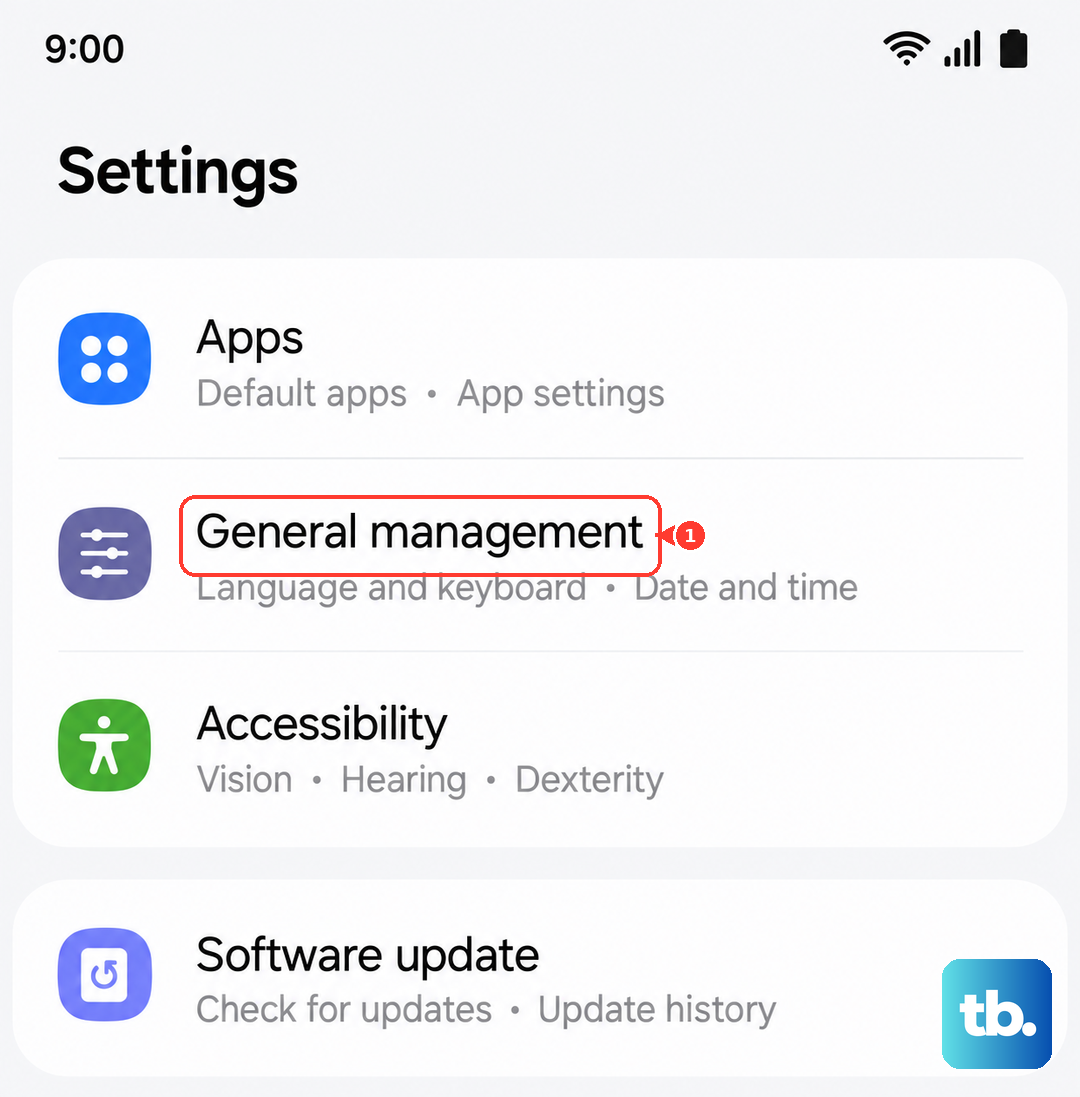
Be aware this will erase all saved Wi-Fi passwords, Bluetooth pairings, and mobile data preferences. You'll need to reconnect to your Wi-Fi and re-pair any accessories, but it often resolves stubborn network glitches, including those related to the initial One UI 7 bugs some users reported.
Update Software and App Data
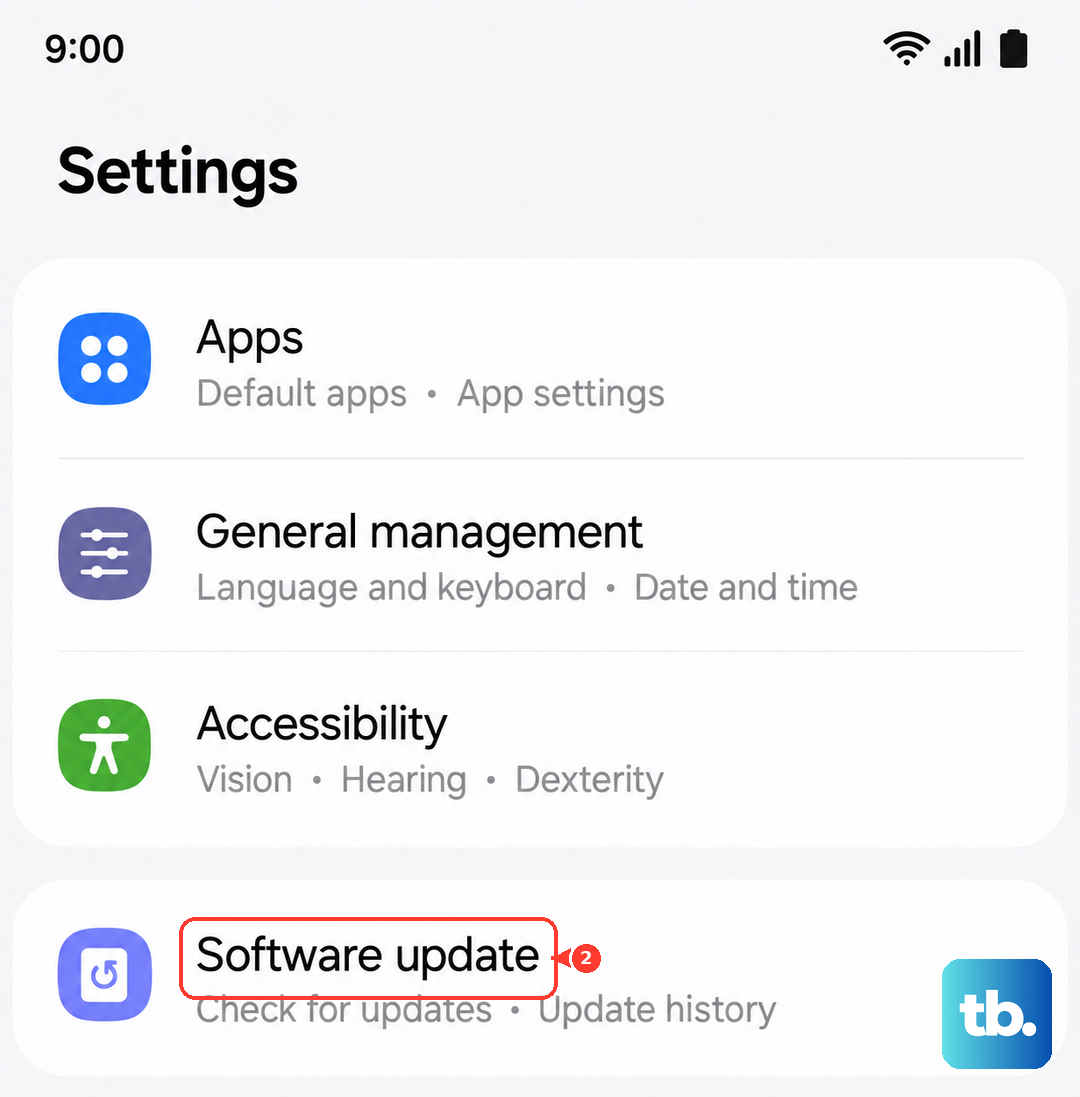
Since the A36 launched with Android 15, Samsung has been pushing updates to smooth out One UI 7. Go to Settings > Software update and tap "Download and install." An update might contain a direct fix for call reception issues.
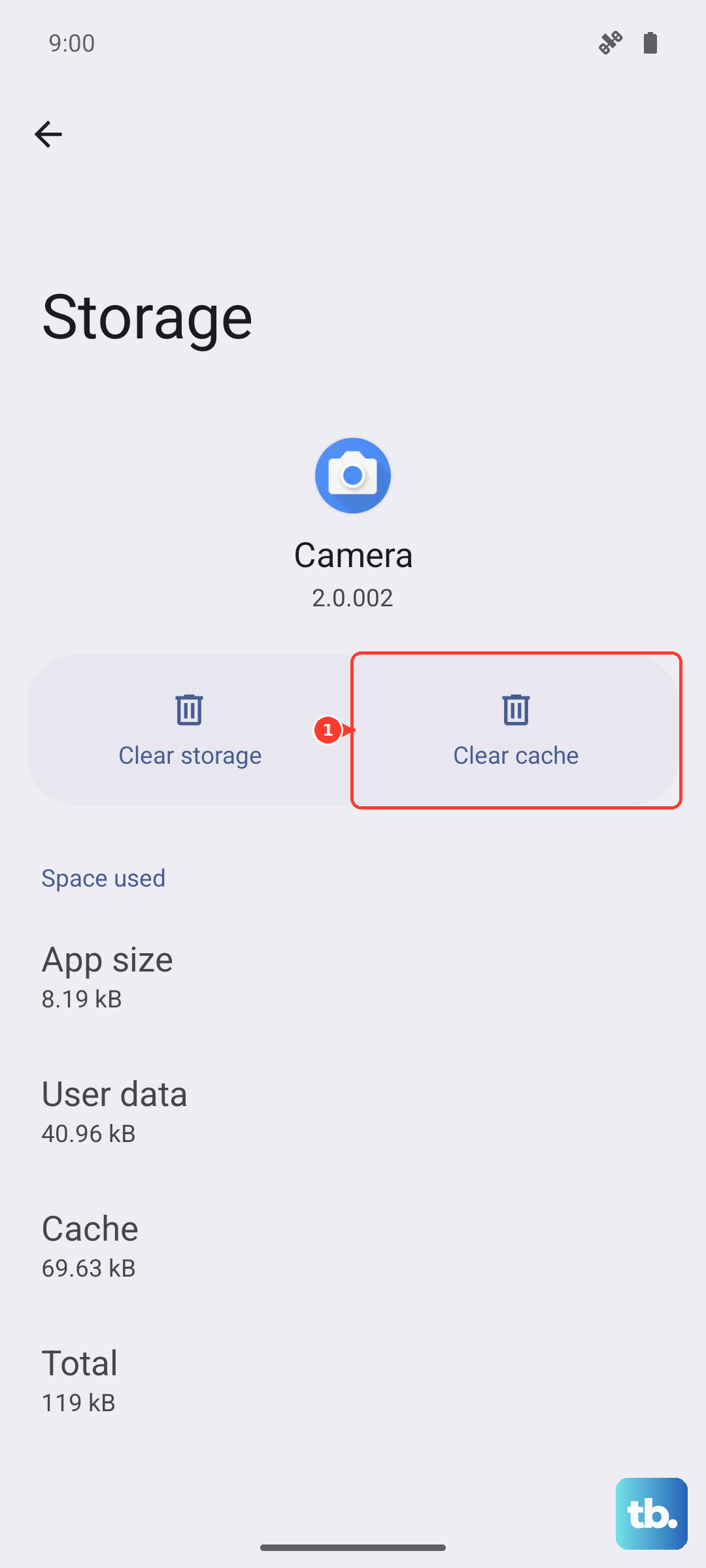
You can also try refreshing the Phone app itself. Go to Settings > Apps, find "Phone" in the list, and tap on it. Select Storage and then tap "Clear cache." If the problem persists, you can try "Clear data," but note this will reset your call history and any custom settings within the Phone app.
Check for Problematic Third-Party Apps
An app with call-screening or call-blocking permissions could be interfering. Think about any security, dialer, or call recorder apps you've installed recently. Try booting your A36 into Safe Mode to see if the problem goes away.
To do this, press and hold the power button until the power menu appears. Then, tap and hold the "Power off" option on your screen. You'll get a prompt to reboot into Safe Mode. Tap it. If calls work normally in Safe Mode, a downloaded app is likely the cause. You'll need to uninstall apps one by one to find the offender.
Perform a Factory Reset
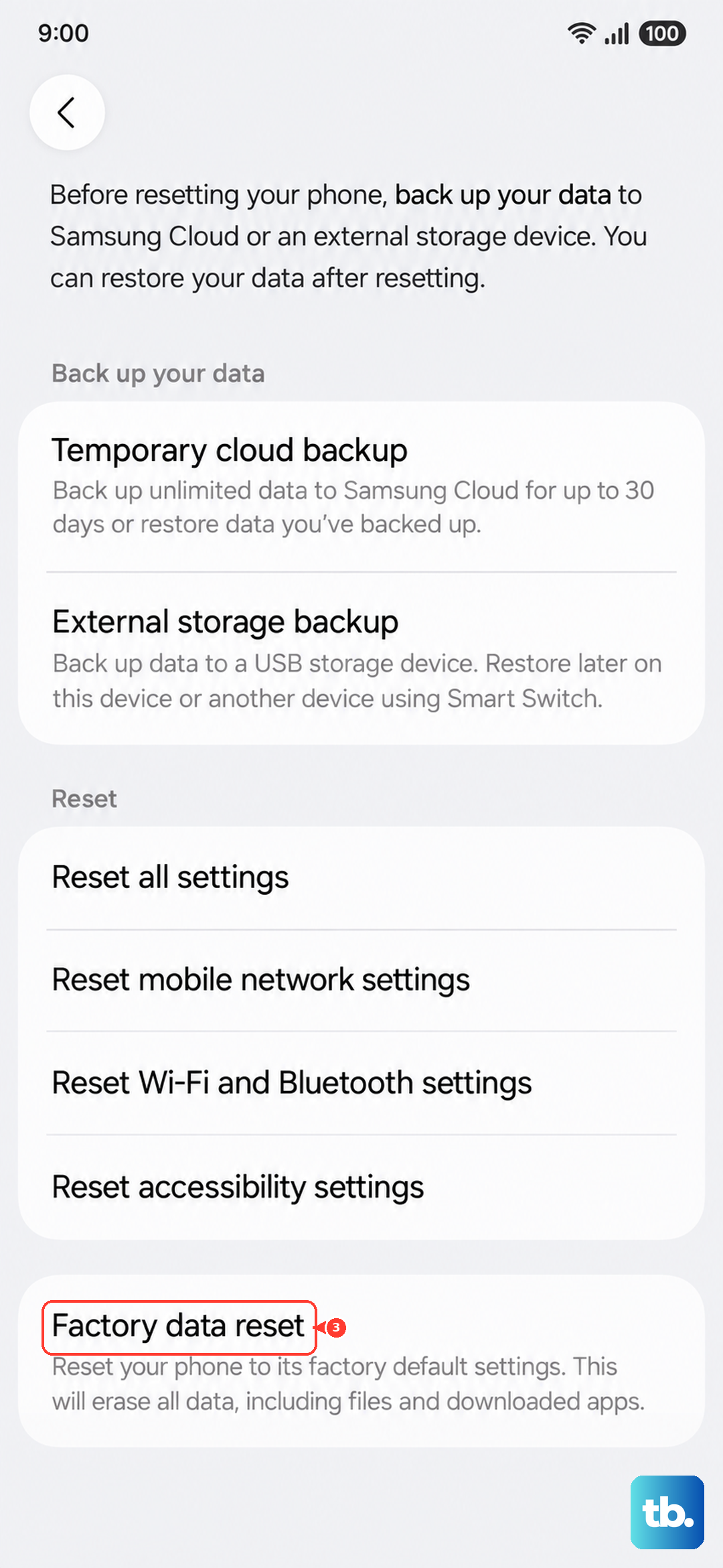
If every other step has failed, a factory reset is the final software solution. This will wipe your phone back to its original state, so it's crucial to back up everything important first using Samsung Cloud or a computer.
Once backed up, go to Settings > General management > Reset > Factory data reset. Scroll down and tap "Reset." After the process completes, set up your phone as new initially to test if calls work. If they do, you can then restore your backup, though be cautious as you might restore the problematic setting or data.