
When your Samsung Galaxy A36 won't download that photo or group chat video, it's usually a quick setting or a network hiccup. MMS needs mobile data to work, and a few things in One UI 7 or with your carrier can sometimes block it.
Let's start with the simplest fixes that often clear this up in under a minute.
Restart Your Galaxy A36
A quick restart clears out temporary glitches that can stall the messaging service. Just press and hold the Volume Down and Power button together for about ten seconds until you see the Samsung logo.
Your phone will reboot. Once it's back on, try downloading the stuck MMS again.
Check Your Mobile Data and Signal
MMS doesn't download over Wi-Fi alone on Android. You need an active mobile data connection. Swipe down from the top of your screen twice to open the Quick Settings panel and make sure the Mobile Data icon is turned on.
Also, check your signal bars. If you're in a weak coverage area, try moving to a different spot or turning on Airplane mode for 15 seconds and then turning it off to re-register with the network.
Enable MMS Auto-Retrieve
This is the most common fix. Your phone might be set to ask for permission before downloading MMS to save data, which can sometimes fail. Open your Samsung Messages app and tap the three-dot menu in the top right.
Go to Settings > Multimedia messages. Here, make sure the switch for Auto download is turned on. While you're here, if you travel, you might also want to enable Auto download while roaming.
Clear the Messages App Cache
Corrupted temporary files in the app's cache can cause download failures. Clearing it is safe and won't delete your texts. Go to your phone's Settings and tap Apps.
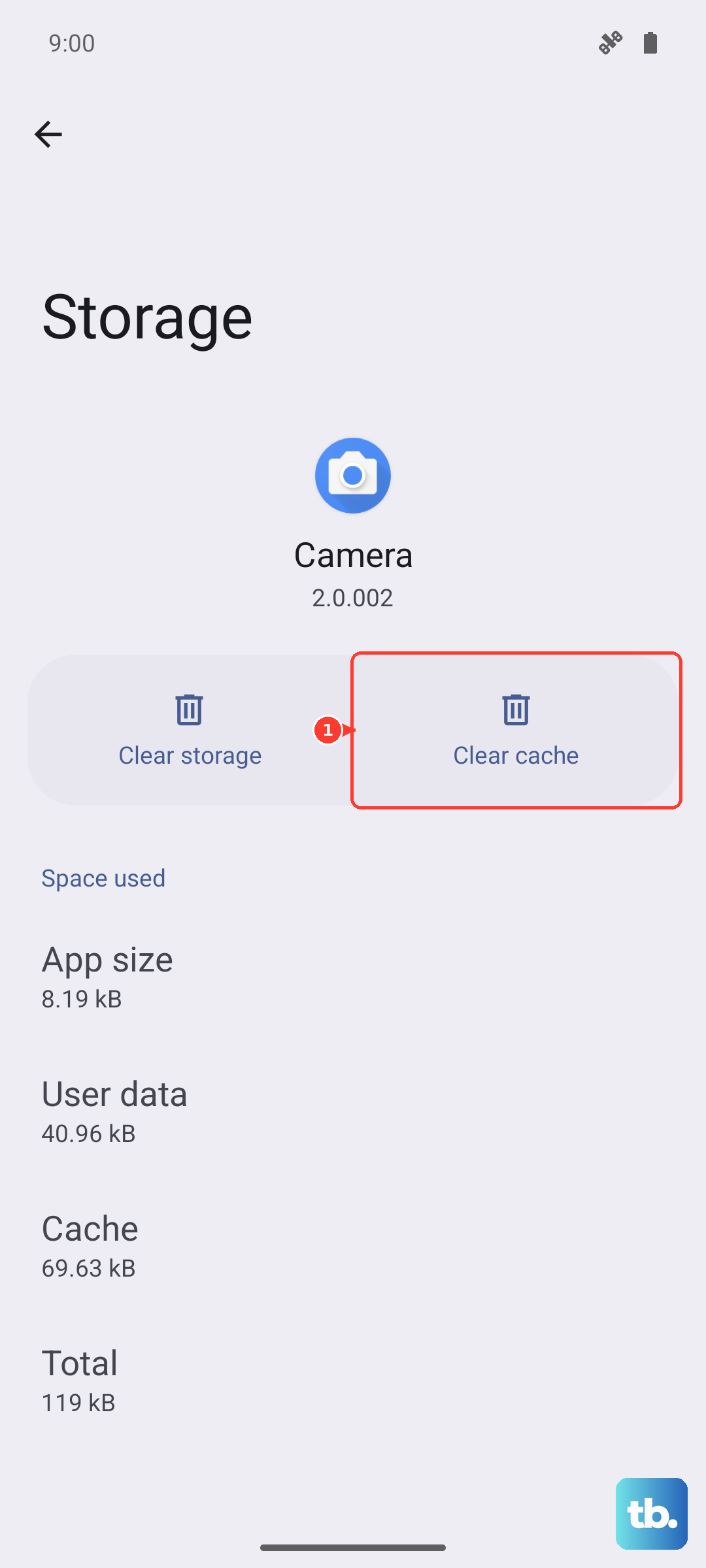
Find and select Messages from the list. Tap on Storage, then hit Clear cache. Open your Messages app again and check if the MMS comes through.
Verify Your APN Settings
Incorrect Access Point Name (APN) settings from your carrier will break MMS. The settings can sometimes get corrupted, especially after a software update. Go to Settings > Connections > Mobile networks > Access Point Names.
You should see an APN selected for your carrier (like T-Mobile US or VZWINTERNET). The best move is to contact your carrier's support or visit their website for the exact, up-to-date APN details for the Galaxy A36. You can edit the existing one or add a new APN profile.
Reset Your Network Settings
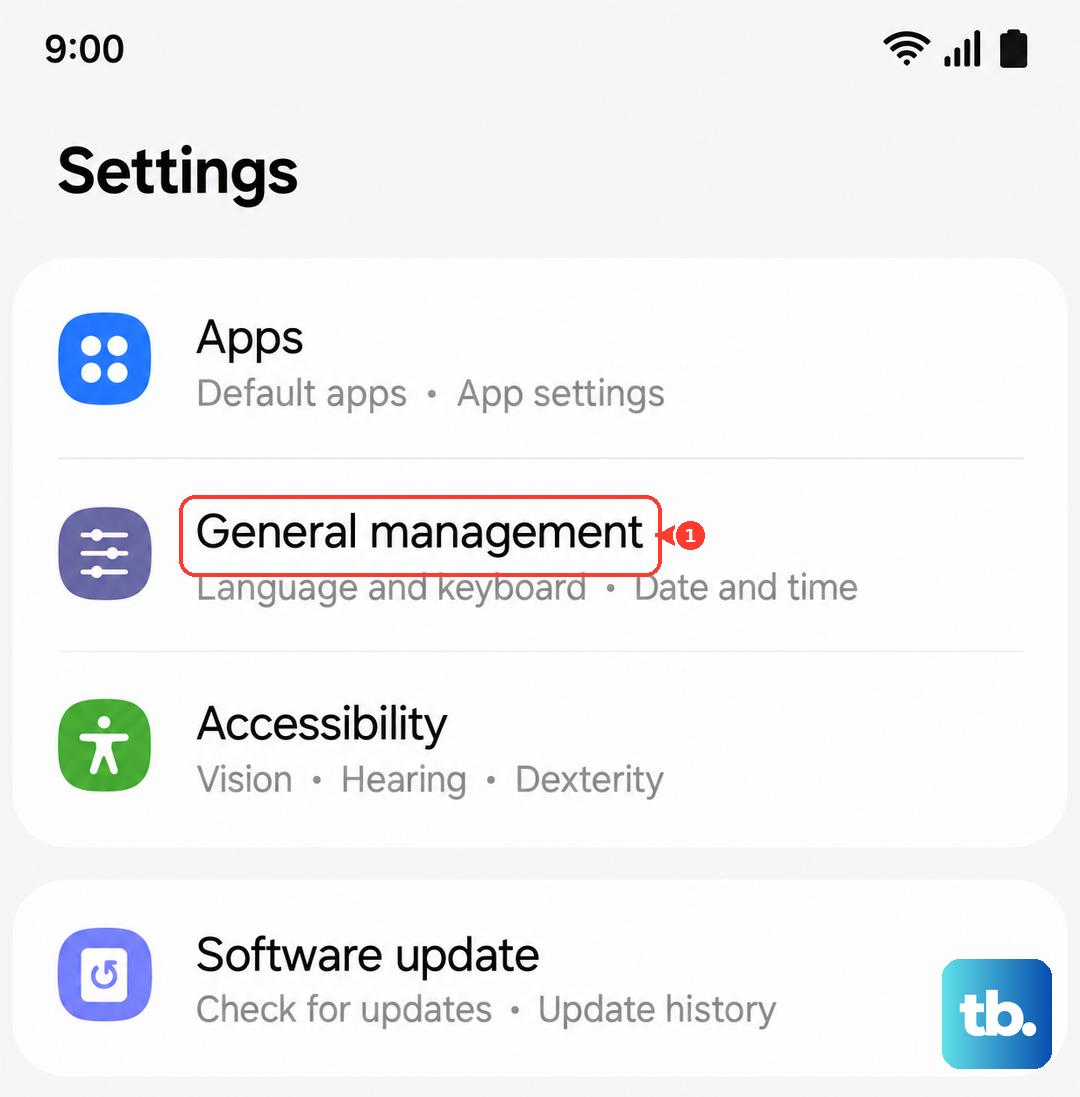
This fixes a wide range of connectivity issues by resetting Wi-Fi, Bluetooth, and mobile data settings to default. It won't erase your personal files. Go to Settings > General management > Reset.
Tap Reset network settings. You'll need to confirm and enter your PIN. After the reset, you'll have to reconnect to Wi-Fi networks and re-pair Bluetooth devices, but it often clears stubborn MMS blocks.
Update Your Phone Software
Early versions of One UI 7 on the A36 had some bugs that affected various functions. Samsung releases updates to patch these. Go to Settings > Software update > Download and install.
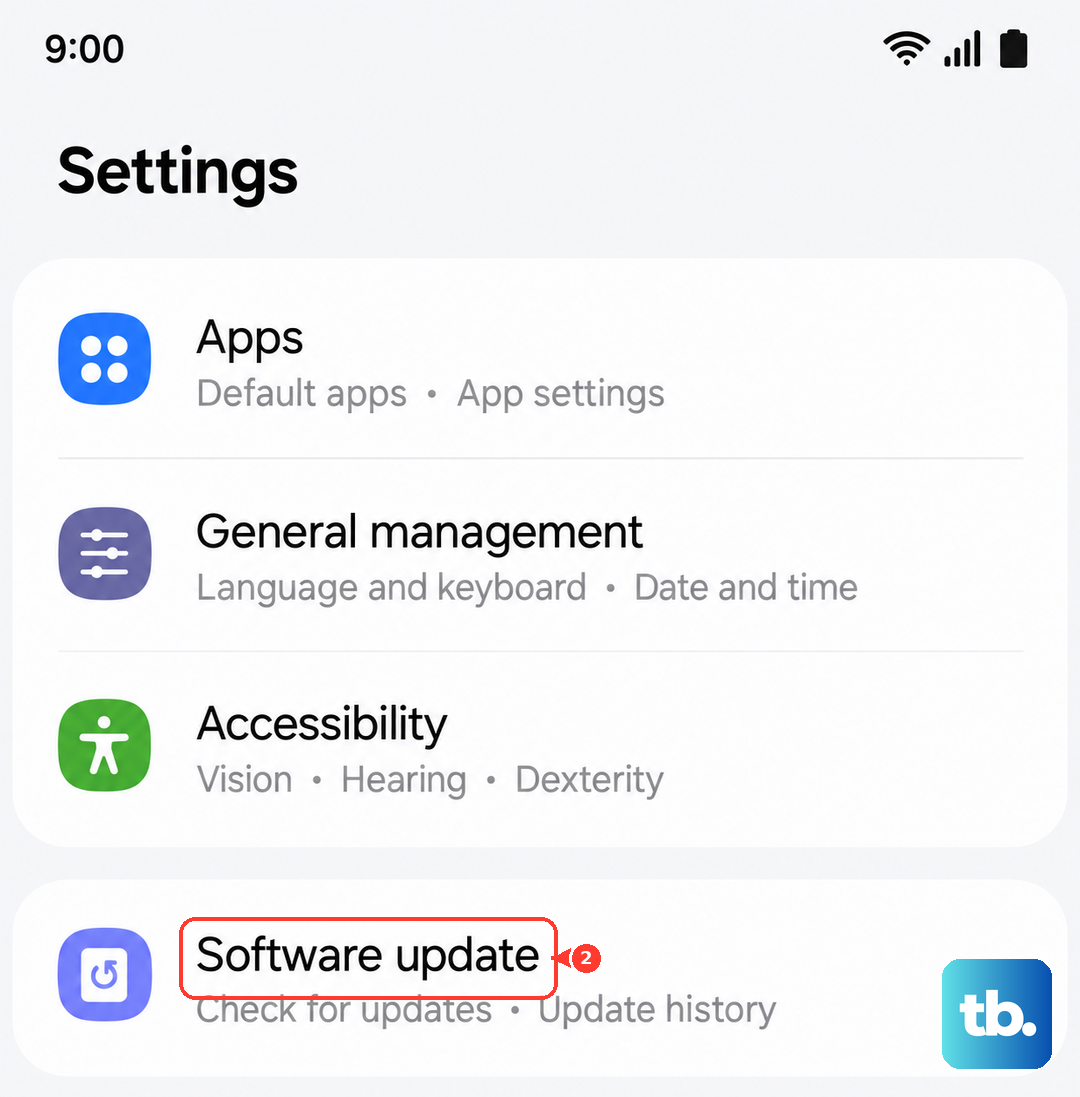
If an update is available, install it. I've seen updates specifically resolve messaging issues for other Galaxy models, so it's always worth checking.
Try a Different Messaging App
This can tell you if the problem is with the Samsung Messages app itself. Download a popular alternative like Google Messages from the Play Store and set it as your default.
Make sure to configure its MMS settings as well (usually found in its Settings > Advanced menu). If MMS downloads fine in the new app, the issue is likely with your original app's data, which leads to the next step.
Clear Messages App Data
This is more drastic than clearing the cache. It will erase all your text messages and restore the app to a fresh state, so only do this if you've backed up your chats or are okay losing them. Go back to Settings > Apps > Messages > Storage.
This time, tap Clear data and confirm. The app will be like new. Set it up again and test an MMS download.
Contact Your Mobile Carrier
If you've worked through all these steps, the problem might be on your carrier's end. They can check if there's a service outage, reprovision your line for MMS, or send updated network settings directly to your phone.
Sometimes, specific plans or features like content filtering can accidentally block multimedia messages. A quick call to their tech support can usually sort it out.