
That "Unfortunately, Samsung Keyboard has stopped" pop-up on your Galaxy A36 is a real conversation killer. It's a common hiccup, especially with the jump to One UI 7, but you can almost always get your keys back with a few straightforward steps.
Force Stop and Restart the Keyboard App
This is the quickest fix and often works immediately. It just clears out any temporary glitch the keyboard app is stuck on.
Head to Settings > Apps. Tap the three-dot menu in the top right and select Show system apps. Scroll down and find Samsung Keyboard, then tap it. On the app info screen, tap Force Stop and confirm.
Now, just back out and try opening any app where you need to type. If you're using Gboard or another third-party keyboard, look for that specific app name instead.
Give Your Phone a Fresh Start
If the keyboard is still being stubborn, a full restart of your A36 can clear out system-wide gremlins. Just press and hold the Power button, then tap Restart.
For a more thorough refresh, you can perform a force restart. Press and hold the Volume Down and Power buttons together for about 10 seconds until you feel a vibration and see the Samsung logo.
Clear the Keyboard's Cache and Data
Corrupted temporary files can definitely cause this error. Clearing the cache is safe and won't delete your personal data, but clearing the data will reset the keyboard to its factory settings.
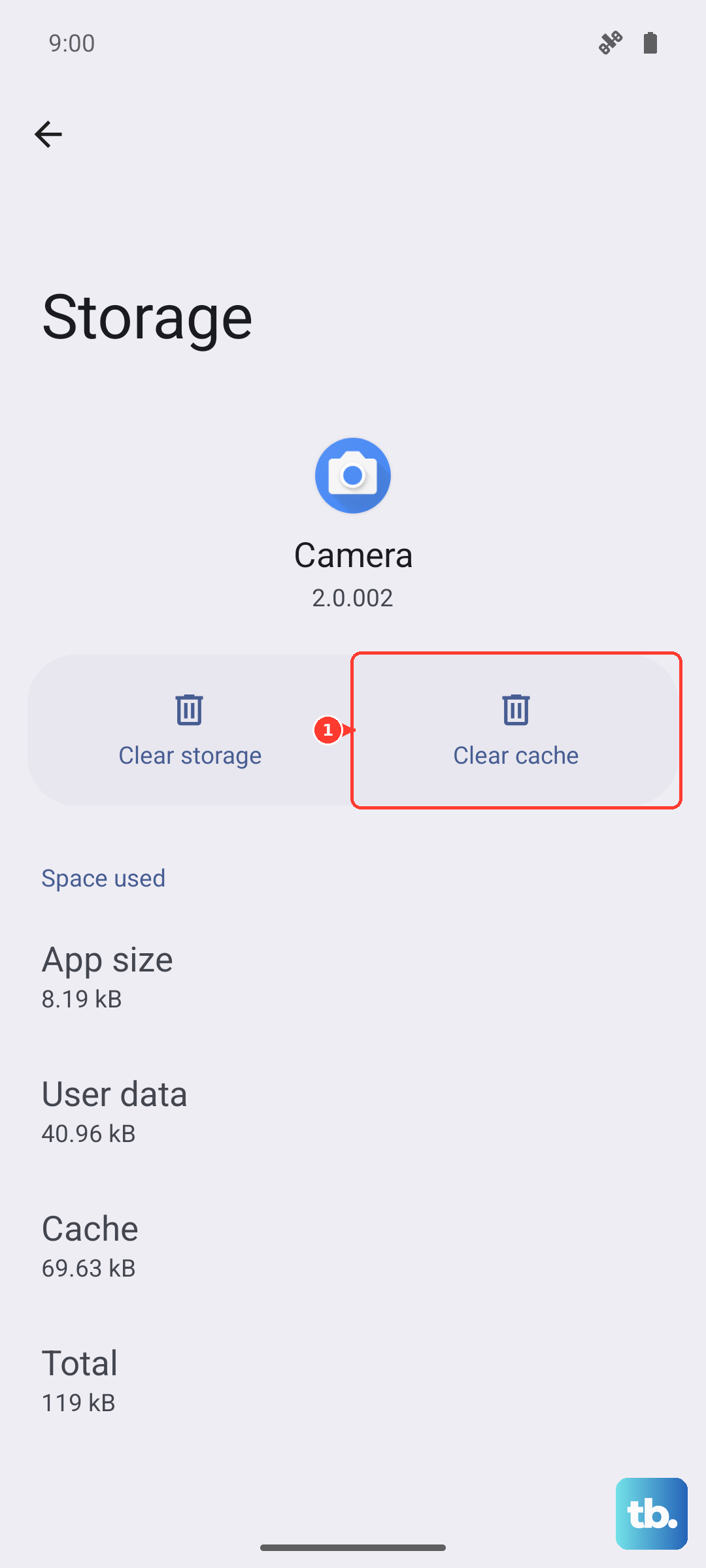
You'll lose any custom dictionaries or personalized settings, so keep that in mind. Go back to Settings > Apps > Samsung Keyboard and tap Storage.
Tap Clear Cache first, then Clear Data. Confirm the action, then restart your phone to let the changes take full effect.
Don't Forget the Dictionary App
The dictionary works hand-in-hand with your keyboard for predictions and corrections. If its files get messed up, it can crash the whole typing experience.
You'll need to clear its data too. Go to Settings > Apps, show system apps, and find Dictionary. Tap Storage and hit Clear Data.
Check for Keyboard and System Updates
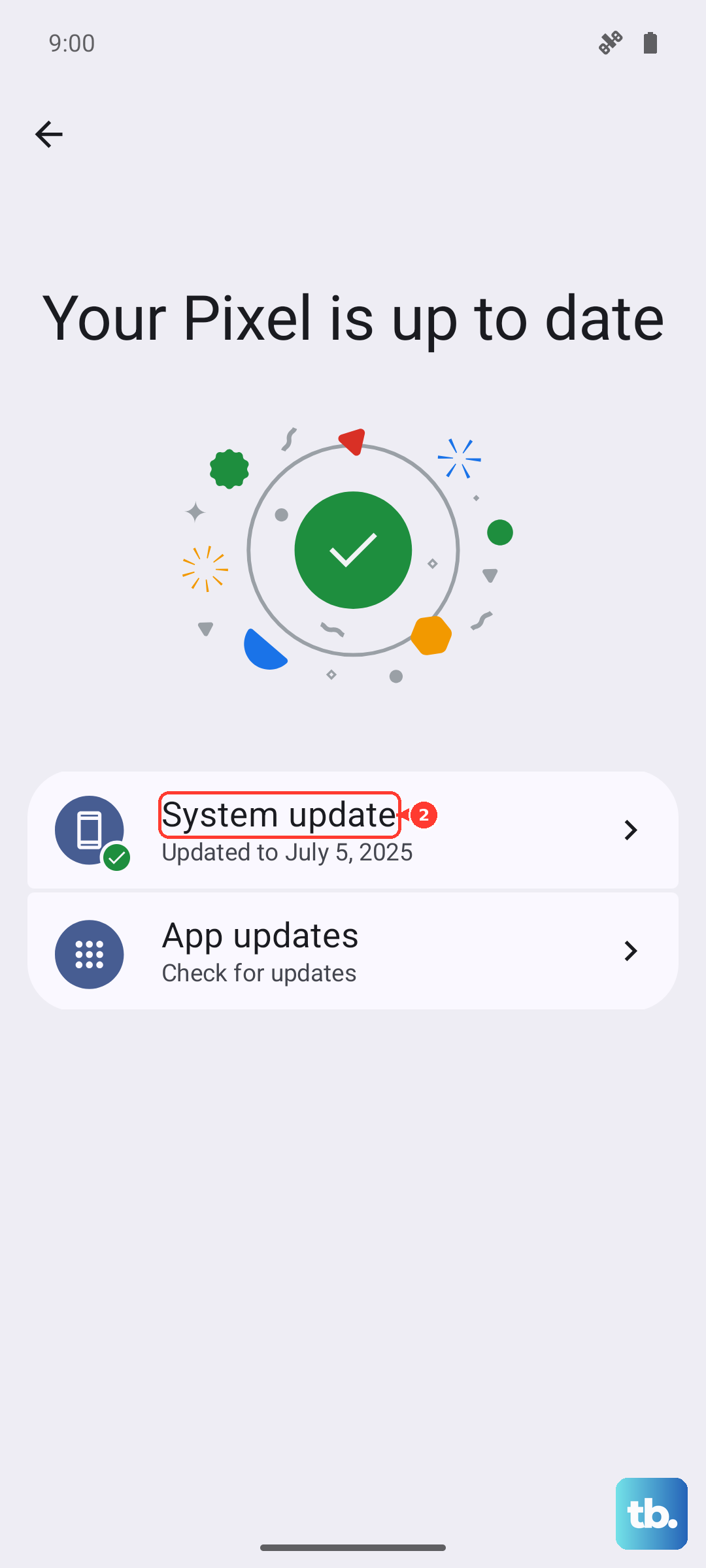
An outdated app or a bug in One UI 7 itself could be the culprit. First, open the Google Play Store, tap your profile icon, and go to Manage apps & device.
See if there's an update available for Samsung Keyboard. Next, check for a full system update by going to Settings > Software update > Download and install. I've seen early One UI 7 bugs get squashed by these updates.
Reset Your Keyboard Settings
If a weird setting is causing a conflict, resetting everything to default can help. Navigate to Settings > General Management > Keyboard list and default.
Tap Samsung Keyboard, then look for the three-dot menu in the top corner. Select Reset settings from there. This won't delete your personal data, just the keyboard's configuration.
Try a Different Keyboard App
Sometimes the fastest workaround is to just switch keyboards while you sort out the main issue. Apps like Gboard or SwiftKey are great alternatives.
Download one from the Play Store, then go to Settings > General Management > Keyboard list and default to enable it and set it as your default. This gets you typing again immediately.
Boot Into Safe Mode
If the keyboard works fine in Safe Mode, you know a third-party app you installed is causing the conflict. To enter Safe Mode on the A36, press and hold the Power button until the menu appears.
Then, tap and hold the Power off option. You'll get a prompt to reboot to Safe Mode. Tap it. Once in, test the keyboard. If it works, start by uninstalling any recent apps you added before the problem began.
Reset All Settings
This is a more nuclear option for settings, but it doesn't touch your photos, messages, or apps. It will reset things like your Wi-Fi passwords, Bluetooth connections, and display settings back to default, which can resolve deep configuration conflicts.
Go to Settings > General Management > Reset > Reset all settings. Enter your PIN if asked and confirm. Your phone will reboot, and you'll need to reconfigure some preferences, but your data will be safe.