
When your Samsung Galaxy A36 starts restarting on its own, it's more than just an annoyance. It can interrupt calls, disrupt your work, and make you worry about the phone's health. This is a common issue with Android phones, and it's often tied to software quirks, a misbehaving app, or even the specific bugs that came with the initial One UI 7 launch.
Before you try anything, it's a good idea to make sure your data is backed up. You can use Samsung Cloud or Google One. This protects your photos, messages, and settings just in case you need to take more serious steps later.
Perform a Force Restart
This is almost always the first thing I'd try. A force restart clears the phone's temporary memory and can knock out any minor software glitch that's causing the restarts. For the Galaxy A36, it's a simple button combo.
Press and hold the Volume Down button and the Power button at the same time. Keep holding them for about 10 seconds, or until you feel the phone vibrate and see the Samsung logo appear on the screen. This doesn't delete any of your personal data, it just gives the system a fresh start.
Check for and Uninstall Problematic Apps
A newly installed or recently updated app is a prime suspect. Think about if the random restarts started around the time you downloaded something new. To check, you can boot the phone into Safe Mode.
Turn the phone off completely. Then, press and hold the Power button until you see the Samsung logo. As soon as the logo appears, release the Power button and immediately press and hold the Volume Down button. Keep holding it until the phone finishes starting up. You'll see "Safe mode" in the bottom corner.
If the phone runs stable in Safe Mode, a third-party app is likely the culprit. Restart normally to exit Safe Mode, then start uninstalling apps one by one, beginning with the most recent ones, until the restarts stop.
Update Your Apps and Android Software
Outdated software is a classic cause of instability. First, make sure all your apps are up to date. Open the Google Play Store, tap your profile icon, and go to Manage apps & device. Under "Updates available," tap Update all.
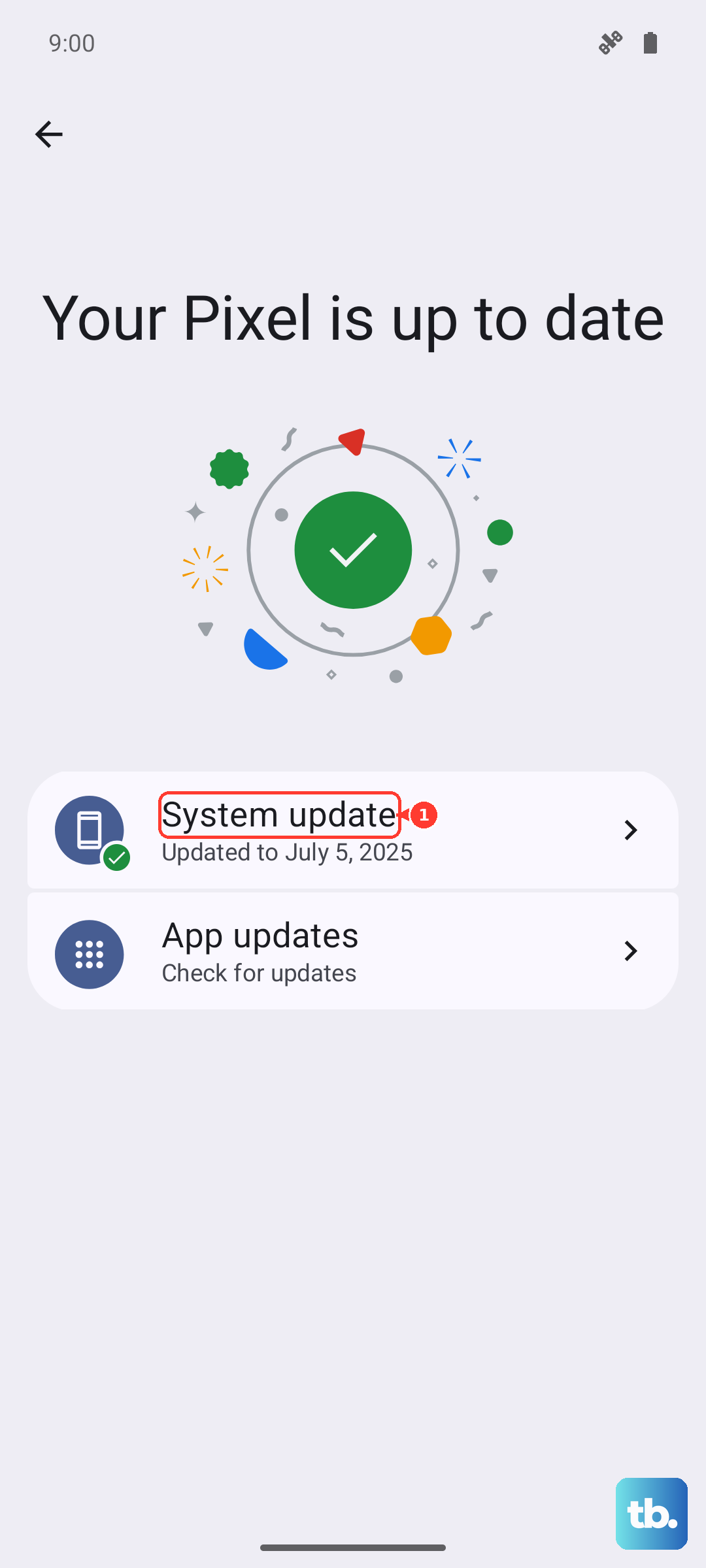
Next, check for a system update. Samsung frequently releases patches that fix bugs like random reboots. Go to Settings > Software update > Download and install. If an update is there, let it install while your phone is plugged into a charger. Since the A36 launched with Android 15 and One UI 7, early updates are crucial for smoothing out these initial bugs.
Clear the System Cache
Over time, cached data from apps and the system itself can become corrupted and cause all sorts of strange behavior, including restarts. Clearing this cache is a safe maintenance step that doesn't touch your personal files.
Turn off your phone. Then, press and hold the Volume Up button and the Power button together. When the Samsung logo appears, release only the Power button but keep holding Volume Up. This will boot you into the Recovery Mode menu.
Use the Volume buttons to navigate to Wipe cache partition and select it with the Power button. Confirm your selection, then choose Reboot system now when it's done.
Review Your Battery and Charger
Since the Galaxy A36 doesn't come with a charger in the box, you might be using an old or incompatible one. A faulty charger or cable can cause power fluctuations that make the phone act erratically. Try using a different, high-quality USB-C cable and a charger that supports USB Power Delivery (PD).
For the fastest and most stable charge, look for a charger that supports the A36's 45W maximum. Also, check your battery settings. Go to Settings > Battery. You can enable features like "Battery protection" to limit charging to 85%, which can improve long-term battery health and stability.
Free Up Storage Space
If your phone's internal storage is completely full, the operating system doesn't have room to work properly, which can lead to crashes and reboots. Go to Settings > Device care > Storage.
This screen will show you what's taking up space. Look for large files you don't need, old downloads, or consider moving photos and videos to Google Photos or a microSD card if you have one. Keeping at least 10% of your storage free is a good rule of thumb.
Reset All Settings
If the problem persists, you can reset all your system settings back to default without erasing your personal data. This will wipe your Wi-Fi passwords, Bluetooth pairings, and customized preferences, but your apps, photos, and messages will stay.
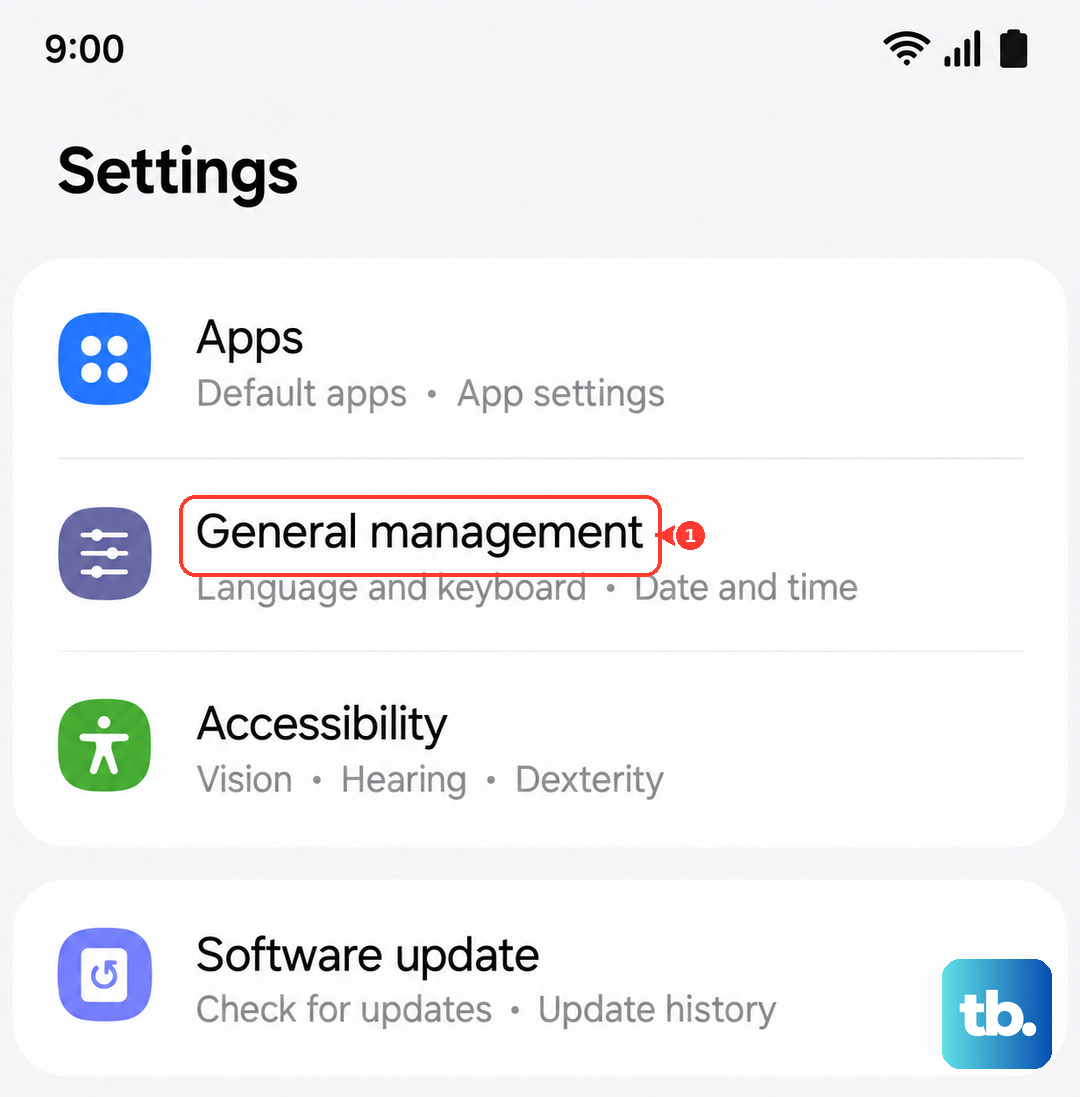
Go to Settings > General management > Reset > Reset all settings. Enter your PIN or password if prompted and confirm. After the phone reboots, you'll need to reconnect to Wi-Fi and re-pair Bluetooth devices, but it often resolves deep-seated configuration conflicts.
Check for Overheating
The Galaxy A36 can get warm during heavy use or fast charging. If it overheats, it will often restart itself as a safety measure. Feel the back of the phone. Is it unusually hot? If so, take it out of its case, stop using it for a few minutes, and move it out of direct sunlight.
Also, consider your usage. Are you playing a demanding game while fast charging? That's a surefire way to generate heat. Disabling unused features like certain 5G bands (in Settings > Connections > Mobile networks) can also reduce battery drain and heat during normal use.
Perform a Factory Reset
This is the most comprehensive software fix. A factory reset will erase everything on your phone and return it to its original out-of-the-box state. This is a last resort, so double-check that your backups are complete.
You can do this from the settings menu. Go to Settings > General management > Reset > Factory data reset. Tap Reset, enter your credentials, and confirm. The phone will erase itself and restart. After setup, test it for a while before restoring all your apps to see if the restarting issue is gone.