
You're sitting there with your Samsung Galaxy A26 5G, Wi-Fi connected icon nowhere in sight, and nothing's loading. I've been there. The good news is that Android 15 and One UI 7 handle wireless connections pretty well, but glitches happen. These ten fixes will get you back online.
Toggle Wi-Fi Off and On
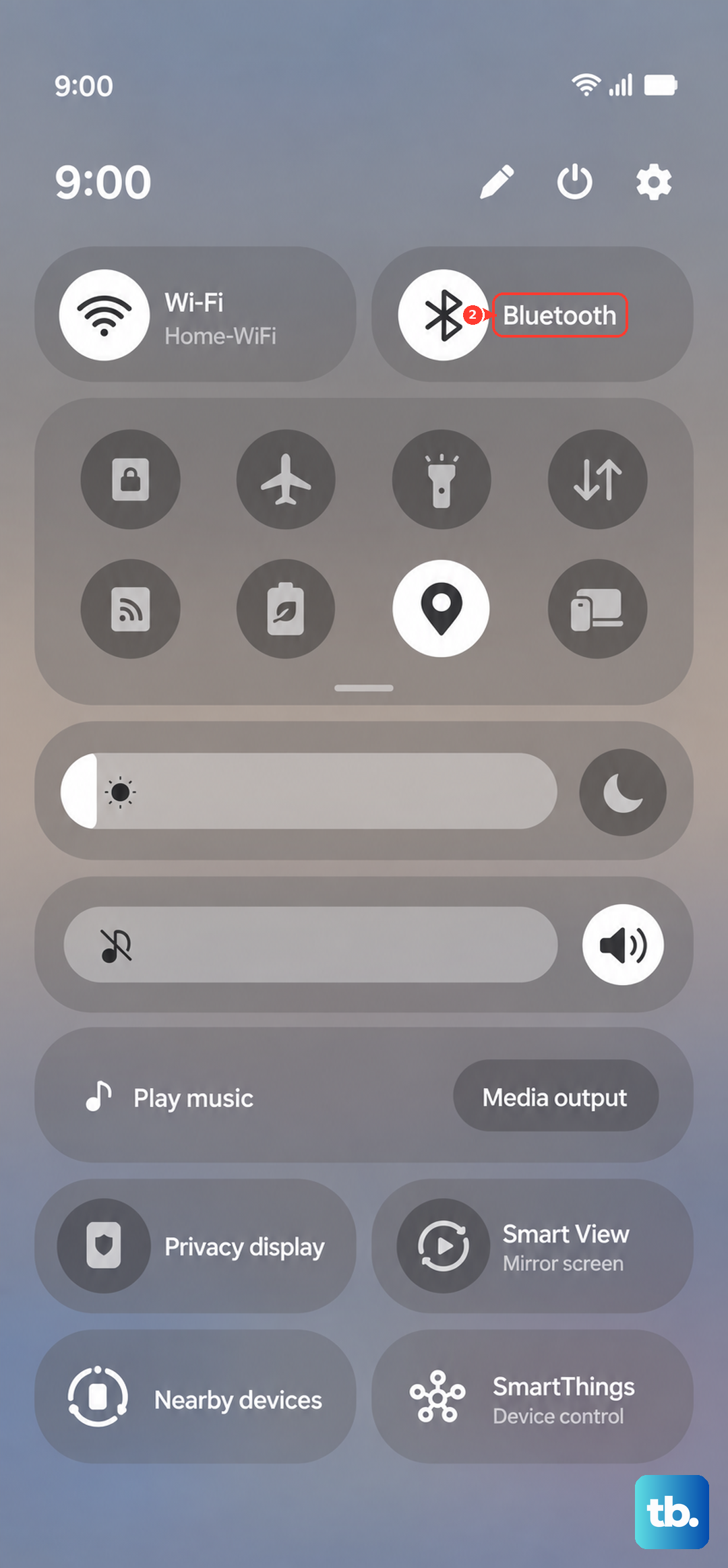
Start with the simplest thing. Swipe down twice to open the quick settings panel, tap the Wi-Fi icon to turn it off, wait about five seconds, then tap it back on. This forces your phone to re-scan for networks.
If that didn't do it, try a restart. Press and hold the Side key and Volume Down together until the power menu shows up, then tap Restart. For a full force restart if your phone is acting sluggish, press and hold the Volume Down and Power buttons together for 10 15 seconds. That'll reboot it no matter what.
Turn Airplane Mode On and Off
This trick resets all your wireless radios at once Wi-Fi, Bluetooth, and cellular. Pull down the quick settings, tap Airplane Mode to enable it, leave it on for about 15 seconds, then tap it again to turn it off. Your phone will reconnect everything fresh, and your Wi-Fi often comes back.
Forget and Reconnect to the Network
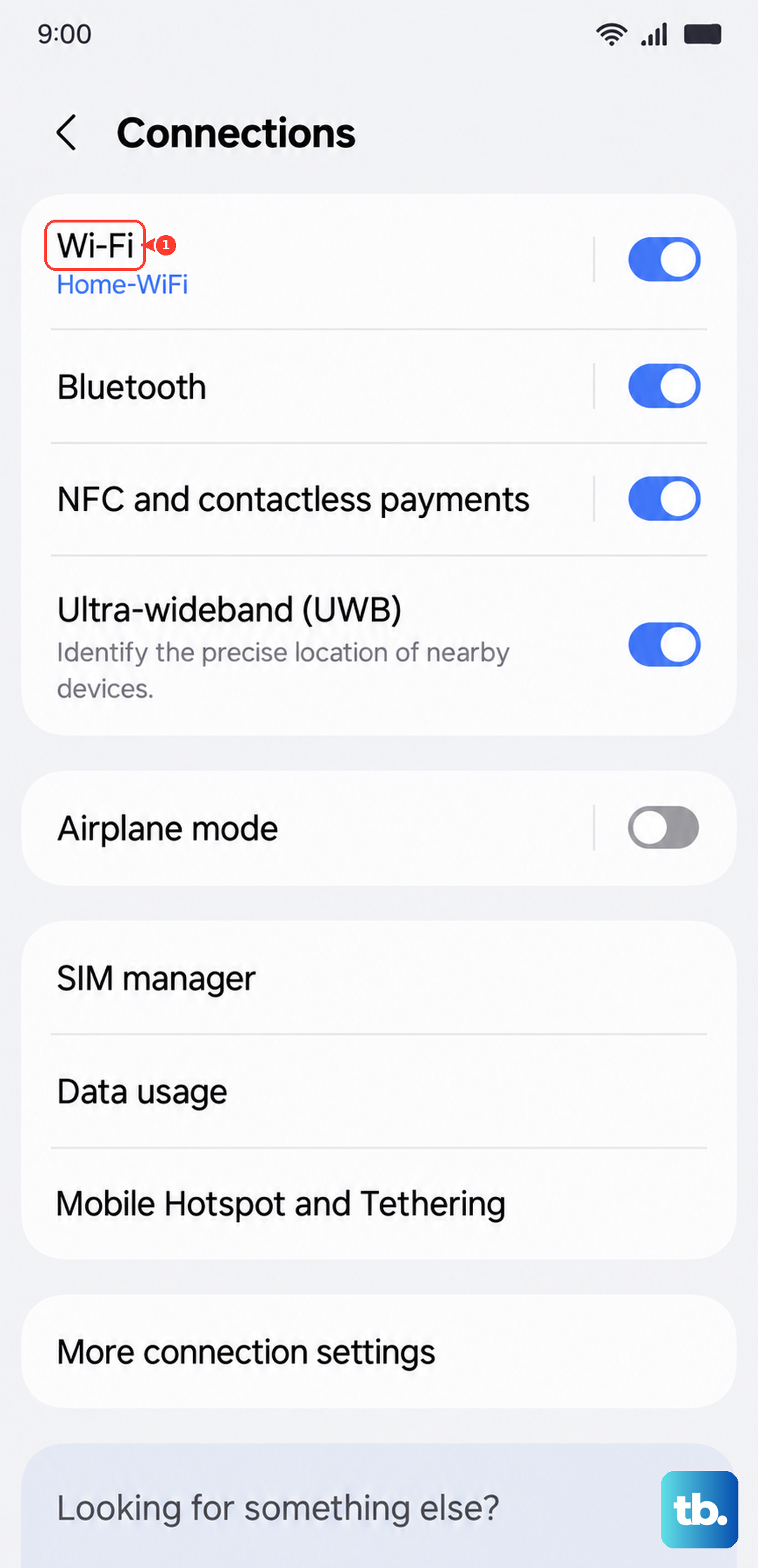
Sometimes your Galaxy A26 is holding onto corrupted credentials. Go to Settings > Connections > Wi-Fi, tap the gear icon next to your network, and select Forget. Now tap the network again, enter the password, and connect. This clears out any bad handshake data.
Double-Check Your Password and Network Name
It sounds too basic, but make sure you're selecting the right SSID. If your neighbor's network has a similar name, your phone might be trying to connect to theirs. Also check that caps lock isn't on when typing the password Wi-Fi passwords are case-sensitive on every router.
Turn Off Bluetooth
Bluetooth and Wi-Fi share the 2.4GHz frequency, and they can interfere with each other. Open the quick settings panel and tap the Bluetooth icon to disable it. Then try connecting to Wi-Fi again. If it works, keep Bluetooth off when you're on Wi-Fi, or switch to a 5GHz network if your router supports it.
Disable Smart Network Switch
Smart Network Switch automatically jumps you to mobile data when Wi-Fi gets weak. That sounds helpful, but it often prevents your phone from connecting to Wi-Fi in the first place. Go to Settings > Connections > Wi-Fi > tap the three-dot menu > Advanced > turn off Smart network switch. This is a known gotcha on One UI 7.
Turn Off Power Saving Mode
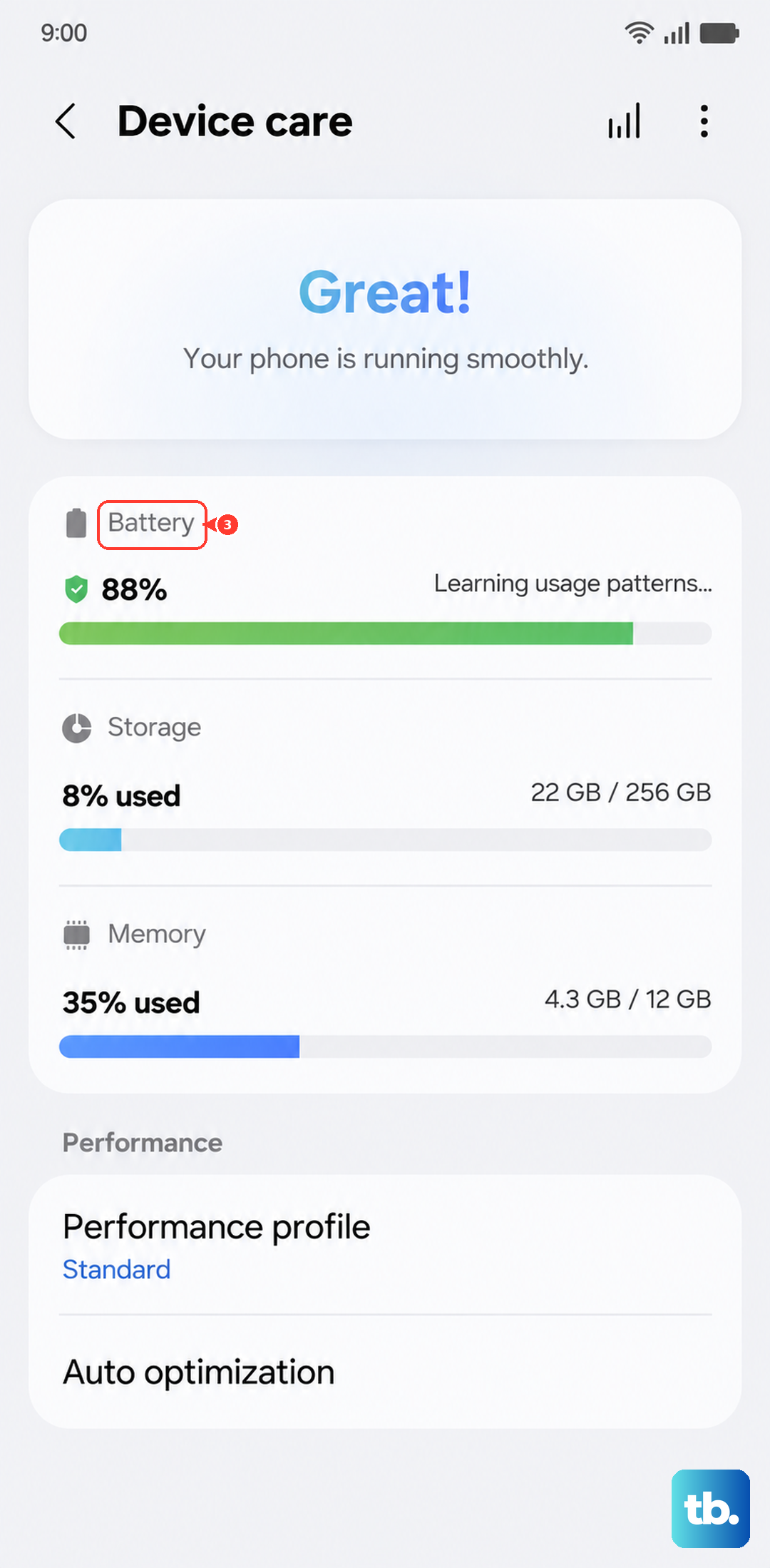
Power saving mode can throttle Wi-Fi performance or even disable it in the background. Head to Settings > Battery and device care > Battery > Power saving and toggle it off. If your phone was in power saving mode, you should see your Wi-Fi list pop up right away.
Install the Latest Software Update
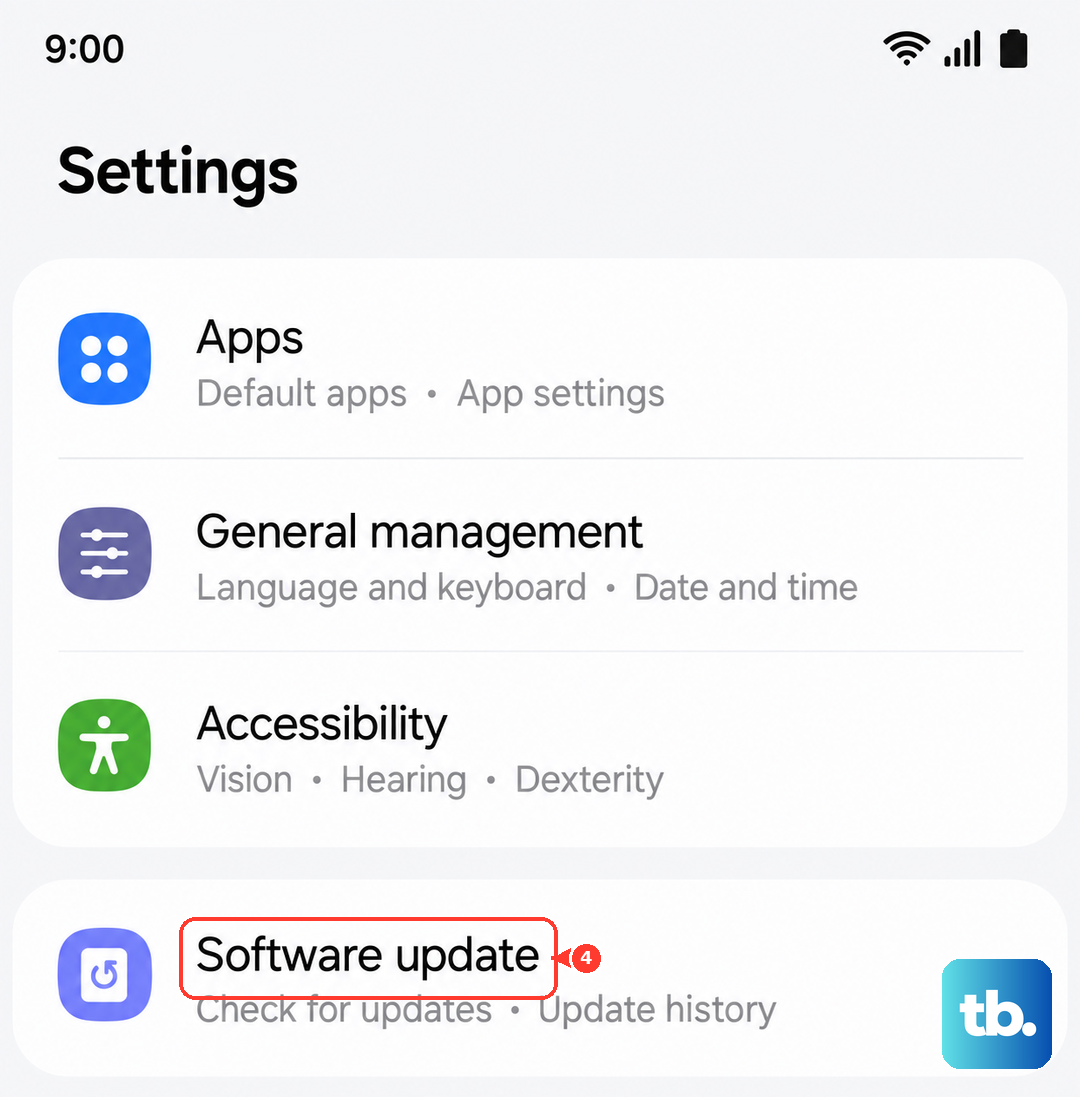
Running an older version of Android 15 or One UI 7 can cause weird Wi-Fi bugs. Go to Settings > Software update > Download and install. Samsung frequently releases patches that fix connectivity issues. Make sure you're on the latest build before diving deeper.
Fix Your Date and Time Settings
This one catches a lot of people off guard. If your phone's date or time is wrong, Wi-Fi authentication can fail because security certificates won't validate. Go to Settings > General management > Date and time and make sure Automatic date and time is turned on. Give your Wi-Fi a minute to reconnect after toggling that.
Reset Network Settings
If you've tried everything above and your Galaxy A26 still won't connect, it's time to wipe the slate clean. Go to Settings > General management > Reset > Reset network settings. This erases all saved Wi-Fi networks, Bluetooth pairings, and mobile data settings. You'll need to reconnect to your Wi-Fi manually, but it often solves stubborn problems.