
Video playback that keeps stuttering, freezing, or buffering on your Samsung Galaxy A26 5G can make even a short clip feel like a chore. This is a pretty common complaint, and it usually comes down to one of a handful of issues. Let's run through what's actually causing it and what you can do right now to fix it.
The Galaxy A26 5G runs Android 15 with One UI 7, and while the hardware handles most video formats well, software quirks, storage problems, or network hiccups can still trip it up.
Start with a simple restart
Before you dig into anything complicated, try a basic restart. It clears out temporary system glitches that can mess with video playback. On the Galaxy A26 5G, you can do a forced restart by pressing and holding the Volume Down and Power buttons together for about 10 to 15 seconds. The phone will vibrate and reboot. This is safe and won't erase any of your data.
Free up storage space
When your phone's internal storage gets too full, apps start struggling. Video players need space to buffer and process files, and a nearly full drive causes dropped frames and stutter. Go to Settings > Battery and device care > Storage and check how much free space you have. If it's below 2GB or so, clear out unused apps, old downloads, and cached data. You can also use the built-in Device care tool to clean up junk files automatically.
Check your network connection
Streaming video from YouTube, Netflix, or any online service will lag if your Wi-Fi or mobile data is weak. Even videos stored in cloud services like Google Photos can buffer if the connection drops. Toggle Wi-Fi off and try streaming over mobile data, or vice versa, to see which one works better. If you're on Wi-Fi, restarting your router can sometimes clear up intermittent issues.
Update One UI and your apps
Outdated system software can cause all kinds of media playback problems. Samsung pushes regular updates to One UI 7 that fix known bugs, including video-related ones. Check for updates by going to Settings > Software update > Download and install. While you're at it, open the Galaxy Store and Google Play Store to update your video apps as well.
Clear the cache partition
This is a specific fix that works well on Samsung phones. The system cache can get corrupted over time, causing lag and glitches. You can clear it without losing any personal data. Start by turning off your Galaxy A26 5G. Then press and hold the Volume Up and Power buttons together until the Samsung logo appears. Release both buttons when you see the Android recovery menu. Use the volume buttons to navigate to Wipe cache partition and press the Power button to select it. Confirm the action, then reboot the phone once it's done.
Turn off battery-saving modes
Power-saving features on the Galaxy A26 5G can throttle performance to save battery, which directly impacts video playback smoothness. If Power saving or Adaptive power saving is on, video apps may not get enough resources to play smoothly. Go to Settings > Battery and device care > Battery and turn off any power-saving modes. You can also set individual apps to Unrestricted under Background usage limits if you prefer to keep the system-wide mode on.
Check for app-specific bugs
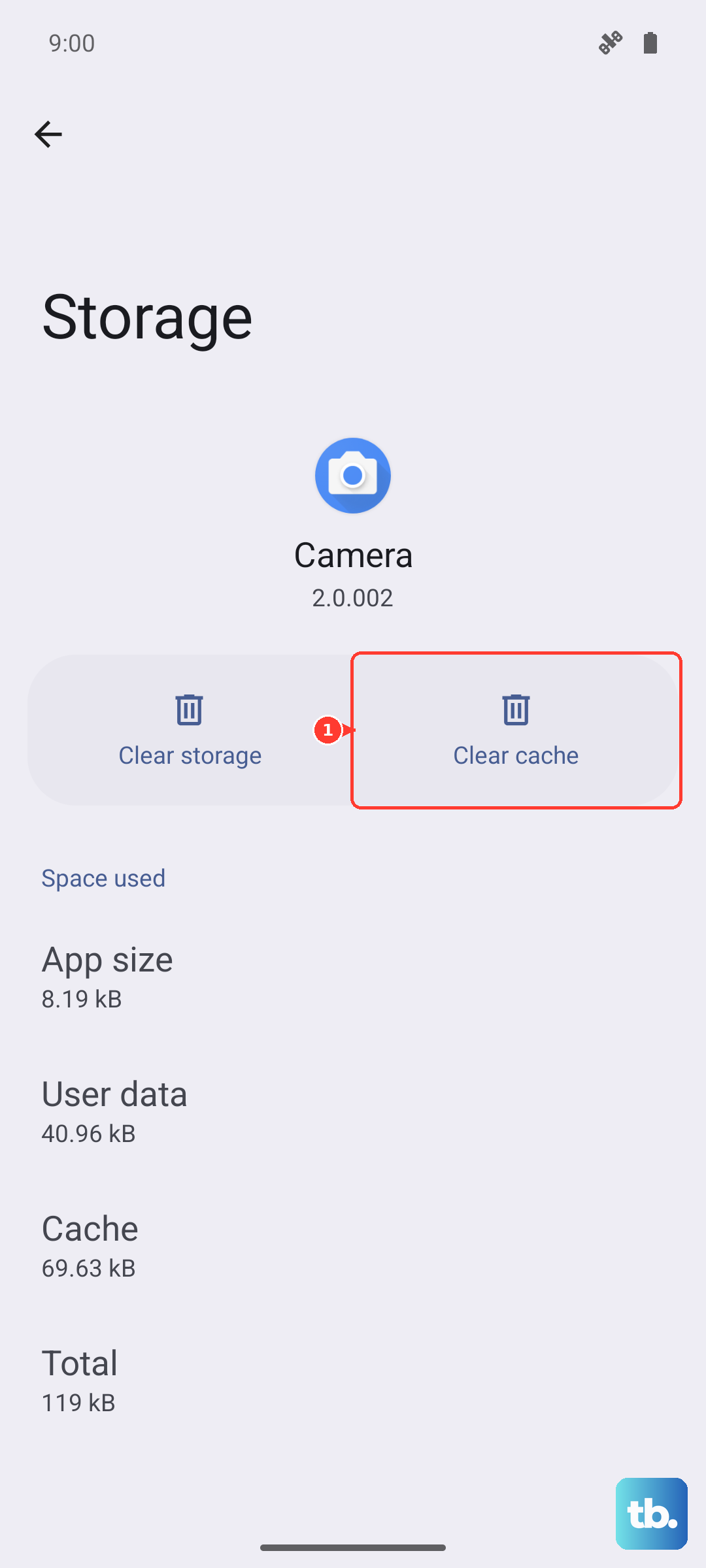
Sometimes the issue isn't your phone at all but the video app itself. If you only see lag in one app, try clearing that app's cache. Go to Settings > Apps, find the problematic app, tap Storage, and select Clear cache. If that doesn't help, try Clear data (note: this resets the app to its default state). Updating or reinstalling the app can also resolve bugs that cause stutter.
Reset network settings
If your streaming videos lag even on a strong connection, corrupted network settings could be the culprit. This won't delete your photos or apps, but it will remove saved Wi-Fi passwords and Bluetooth pairings. Go to Settings > General management > Reset > Reset network settings. You'll need to reconnect to Wi-Fi networks afterward, but it can clear up persistent network-related video lag.
Reduce video resolution
If your Galaxy A26 5G is struggling with high-resolution videos, particularly 4K content, try lowering the playback resolution. Most streaming apps let you adjust quality in their settings. For locally stored videos, consider using a lighter video player app like VLC, which can handle a wider range of codecs and formats more efficiently than the stock player.
Factory reset as a last step
If none of the above fixes worked, a factory reset can wipe out whatever software issue is causing the lag. Back up everything first, because this erases all your data. Go to Settings > General management > Reset > Factory data reset. After the reset, set up your phone as new and test video playback before restoring your apps. If the problem disappears, a corrupted app or setting was causing it.