Your Samsung Galaxy A26 5G is getting uncomfortably warm, maybe even hot enough that you're worried about it. That's understandable, overheating can affect performance, battery life, and in rare cases, cause the phone to shut down to protect itself. Here's what's going on and how to cool things down.
Overheating on the Galaxy A26 5G usually comes down to one of a few things: too many apps running in the background, direct sunlight or hot environments, intensive tasks like gaming or video streaming, or a charging issue. The good news is most of these are easy to fix.
Force Restart Your Phone First
Before diving into anything else, do a force restart. This clears out any temporary glitches that might be causing the processor to work harder than it should. Press and hold the Volume Down and Power buttons simultaneously for about 10-15 seconds until the device restarts.
This won't delete any of your data, and it's one of the quickest ways to see if the overheating stops. If the phone cools down after the restart, you're probably dealing with a rogue app or a minor software hiccup.
Check What's Running in the Background
Open the recent apps screen and swipe away everything you're not using. Then head to Settings > Battery > Background usage limits. You'll see a list of apps that are running behind the scenes. Any app that's using a lot of battery is also generating heat.
Tap on anything suspicious and select Put app to sleep or Deep sleeping apps if you don't need it running constantly. Games, streaming apps, and social media are usually the biggest culprits here.
Take Off the Case While Charging
Phone cases trap heat, especially thicker ones or those made of silicone. If you're charging your Galaxy A26 5G and it's getting warm, pop the case off. This lets the heat dissipate naturally through the phone's frame.
The A26 5G charges at up to 25W, and while that's not the fastest charging speed out there, it still generates some warmth. Letting the phone breathe while charging makes a noticeable difference.
Keep It Out of Direct Sunlight
This one sounds obvious, but it's easy to overlook. If your phone is sitting on the dashboard of your car, on a windowsill, or anywhere with direct sun hitting it, the ambient temperature alone can push it past safe operating temps.
The Galaxy A26 5G's thermal management system can only do so much if the environment around it is hot. Move it to a cooler spot and give it a few minutes to cool down.
Turn Off Fast Charging
Fast charging generates more heat than standard charging. If you're seeing overheating specifically when you plug in, try disabling fast charging. Go to Settings > Battery > Charging settings and toggle off fast charging.
You'll get slower charging speeds, but the phone will stay much cooler. Some users have also reported that charging issues, like the phone stopping mid-charge or showing a warning, clear up after turning this off.
Use a Compatible Charger and Cable
The Galaxy A26 5G works best with a USB PD 3.0 charger that supports PPS (Programmable Power Supply). If you're using a random charger from a drawer or a cheap third-party cable, it might not be communicating properly with the phone.
Check your charging cable and port for any debris or damage as well. A partially blocked USB-C port can cause resistance and generate excess heat. Use a flashlight to look inside, and gently clean it out with a toothpick or a SIM ejector tool if needed.
Update the Software
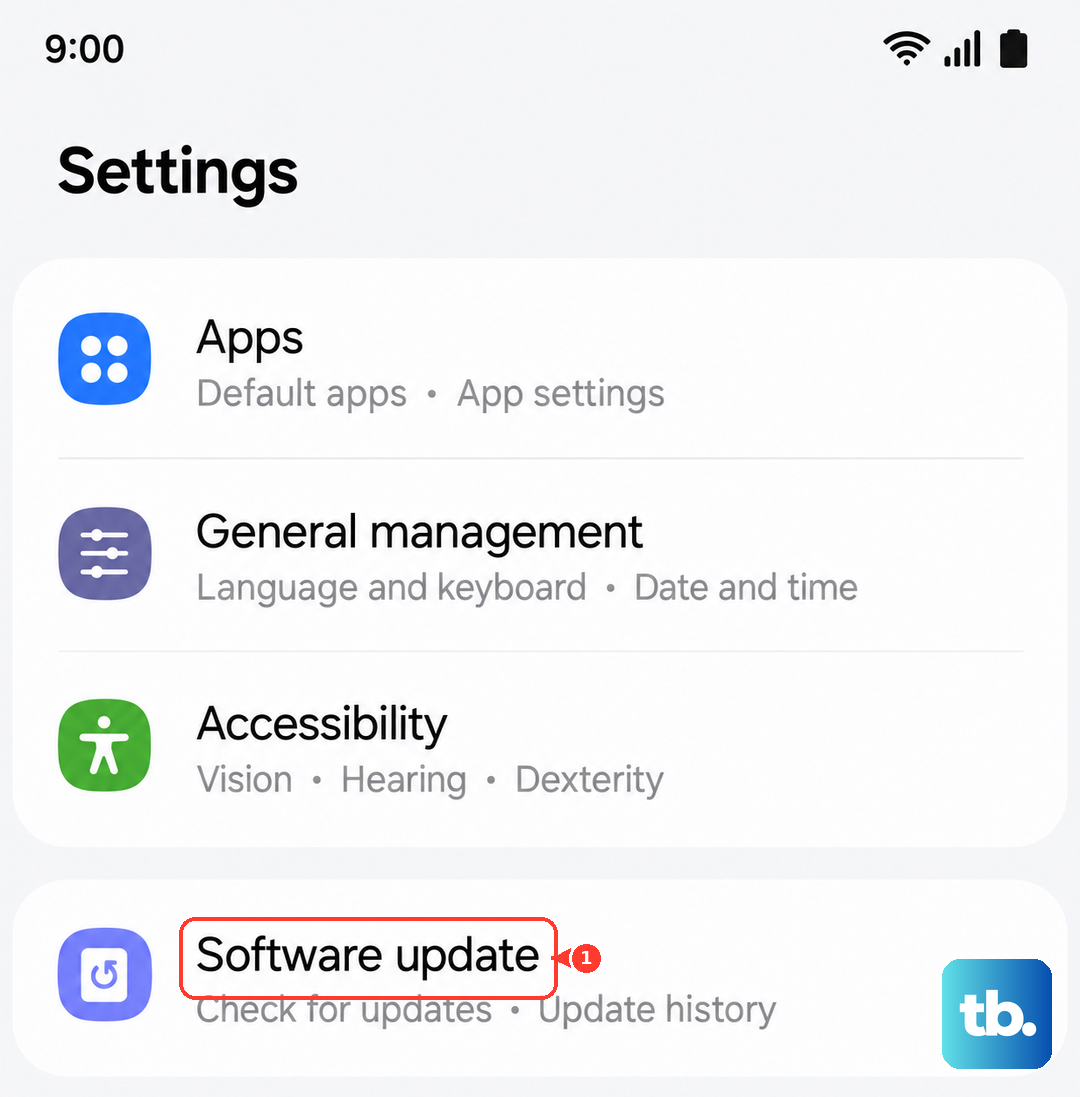
Samsung regularly pushes updates through One UI 7 that include thermal management improvements. Go to Settings > Software update > Download and install. If there's an update waiting, grab it.
These updates often fix background processes that were causing excessive CPU usage, which directly translates to less heat.
Run a Diagnostic Check
Open the Samsung Members app and tap on Diagnostics (sometimes labeled as Phone diagnostics). Run the battery and charging tests. This will check if the battery is healthy and if the charging circuit is working normally.
If the diagnostic shows a problem, like a failing battery, that could be the root cause. A degraded battery generates more heat during charging and discharge cycles. In that case, it's worth contacting Samsung for a replacement.
Clear the Cache Partition
If you're still seeing overheating, clearing the cache partition through recovery mode can help. This wipes out temporary system files that might be corrupted and causing issues.
To do this, turn off the phone. Then press and hold the Volume Up and Power buttons together until the Samsung logo appears. Once you're in recovery mode, use the volume buttons to navigate to Wipe cache partition and press the Power button to select it. Confirm, then select Reboot system now.
This won't delete any of your personal data, just system cache files. It's a safe step and often clears up weird behavior on the A26 5G.
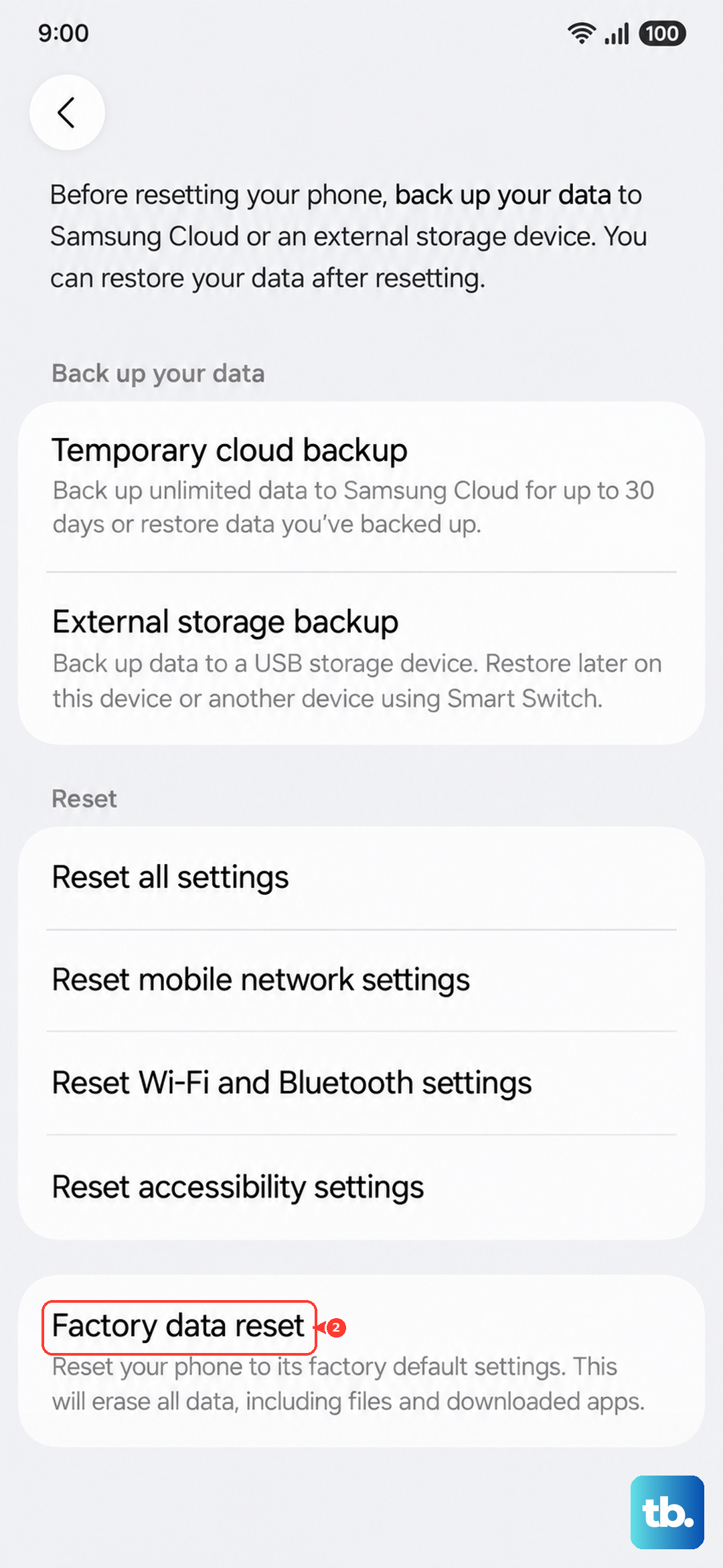
If the phone is still overheating after all of this, it's worth backing up your data and doing a factory reset. Go to Settings > General management > Reset > Factory data reset. That's a last resort, but it eliminates any software-level cause.