When your Samsung Galaxy A26 5G stops receiving incoming calls, it's usually a settings glitch or network hiccup rather than a hardware failure. The fix is often something simple you can do in a minute or two. Let's run through the most likely causes first.
Quick Checks Before Anything Else
Start with the basics. Make sure Airplane Mode isn't on by accident — check the quick settings panel. Toggle it on and off to refresh the cellular connection. If you see a "No Service" or "Emergency Calls Only" message at the top, try moving to a different spot; poor signal can block incoming calls entirely.
Also confirm your mobile plan is active. If you're past due or your carrier has suspended service, calls won't come through. A quick call to your carrier from another phone can confirm that.
Do Not Disturb Might Be Blocking Calls
Do Not Disturb mode on the Galaxy A26 5G can silently block incoming calls even when your phone isn't set to silent. Swipe down twice to open the full quick settings panel and tap the Do Not Disturb icon to turn it off. For a deeper check, go to Settings > Notifications > Do Not Disturb and make sure it's disabled. If you use scheduled DND, double-check that it hasn't accidentally turned on during your active hours.
Call Blocking and Spam Filters
Samsung's Phone app includes built-in spam and call blocking that sometimes catches legitimate calls. Open the Phone app, tap the three-dot menu, then Settings > Block numbers. Review the blocked list and remove any numbers you want to receive calls from. Also tap Caller ID and spam protection and see if it's blocking unknown callers. You can temporarily disable spam filtering to test if that's the issue.
Call Forwarding Could Be Routing Calls Elsewhere
Call forwarding settings can redirect your incoming calls to another number without you realizing it. Open the Phone app, tap the three-dot menu, then Settings > Supplementary services (or Call settings on some carrier versions). Tap Call forwarding and make sure all options (Always forward, When busy, etc.) are set to 'Disable' or 'Forward to — None'. While you're there, check Call barring to confirm incoming calls aren't restricted.
SIM Card Troubles
A loose or damaged SIM card can prevent your Galaxy A26 5G from connecting to the network properly. Turn off the phone, locate the SIM tray (on the left edge), and pop it out with the ejector tool. Inspect the metal contacts for dirt or damage, then reinsert the SIM firmly. If you have another phone handy, put the SIM in that phone and see if incoming calls work there. If not, the SIM might need replacement from your carrier.
Network Settings Reset
If your phone shows a strong signal but still misses calls, resetting network settings can clear up configuration glitches. Go to Settings > General management > Reset > Reset network settings. Confirm and let it reboot. This will erase saved Wi-Fi passwords and Bluetooth pairings, but it won't touch your apps or data.
Clear the Phone App Cache
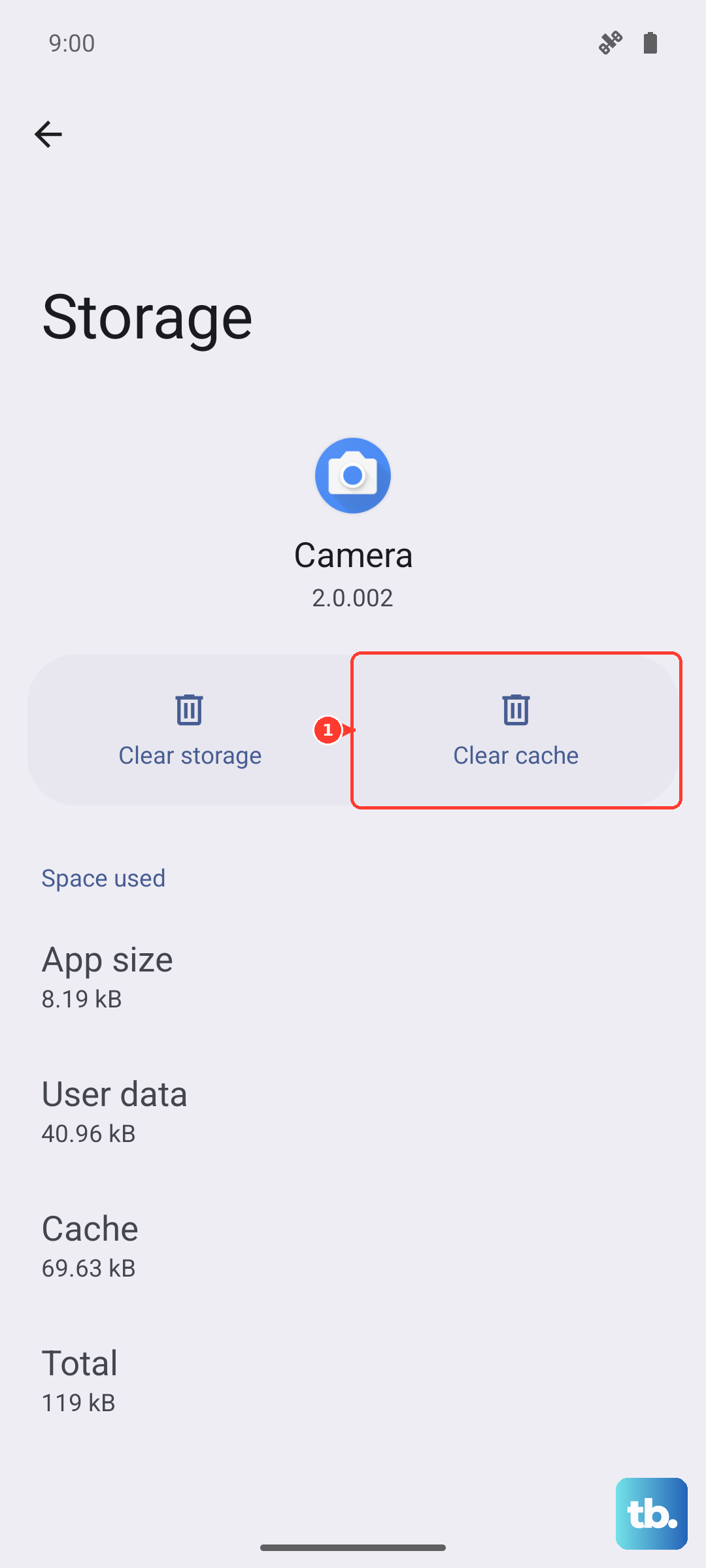
Over time, the Phone app can build up corrupt cache data that interferes with call handling. Go to Settings > Apps > Phone > Storage. Tap Clear cache first, then Clear data (this will reset app preferences like customized ringtones, but not your contacts). Restart your Galaxy A26 5G afterward.
Software Updates
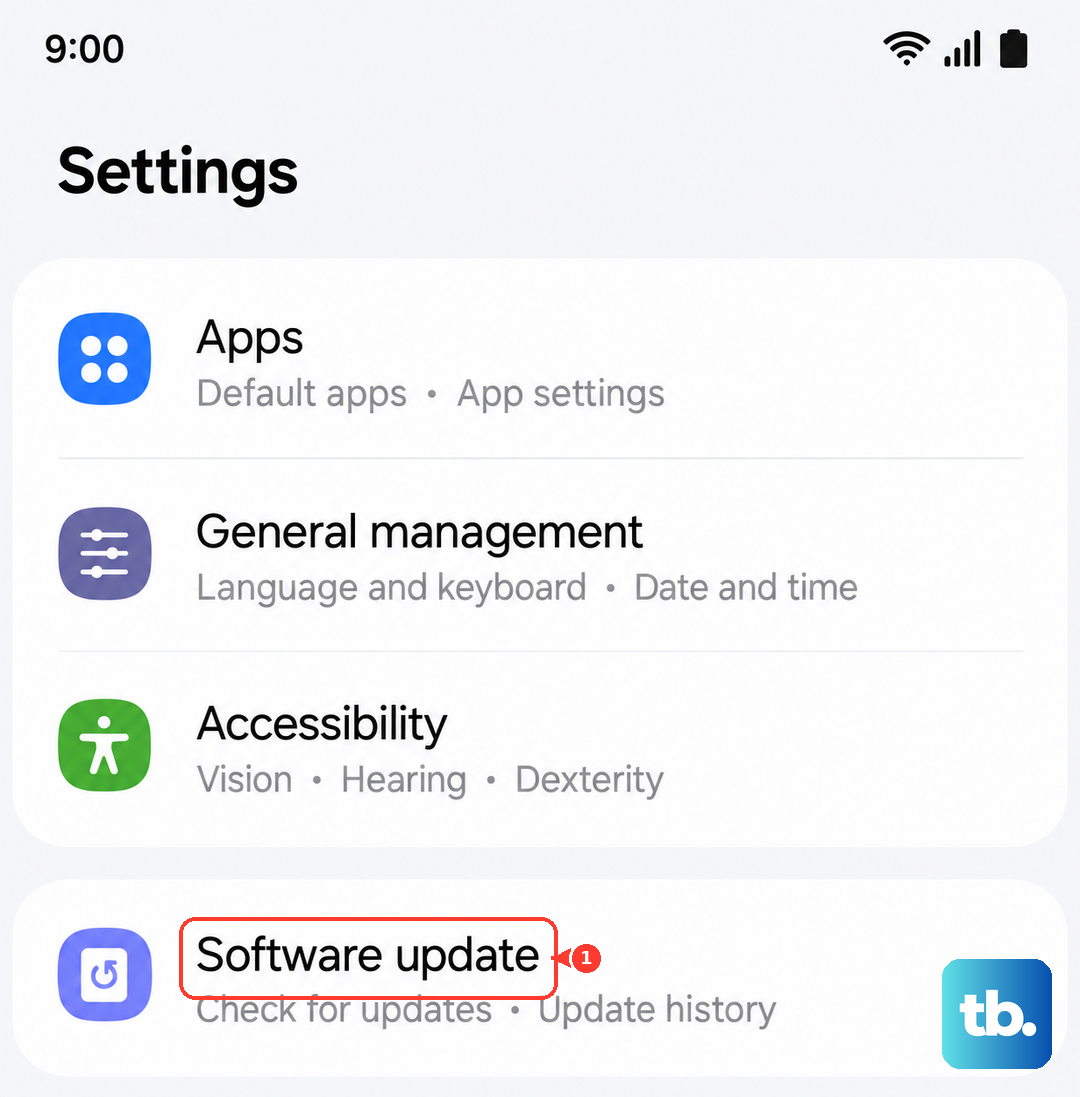
Samsung regularly pushes One UI updates that fix call-related bugs. Go to Settings > Software update > Download and install. If an update is available, install it and test incoming calls again. The Galaxy A26 5G runs Android 15 with One UI 7, and carrier-specific updates often include network tuning.
Third-Party Apps That Interfere
Some apps, especially call-recording apps, VPNs, or messaging apps with VoIP features, can conflict with the phone's native call system. Try booting your phone into Safe Mode, which disables all third-party apps. If incoming calls work in Safe Mode, a downloaded app is the culprit. You can then uninstall apps one by one to find the problem app.
Factory Reset as a Last Resort
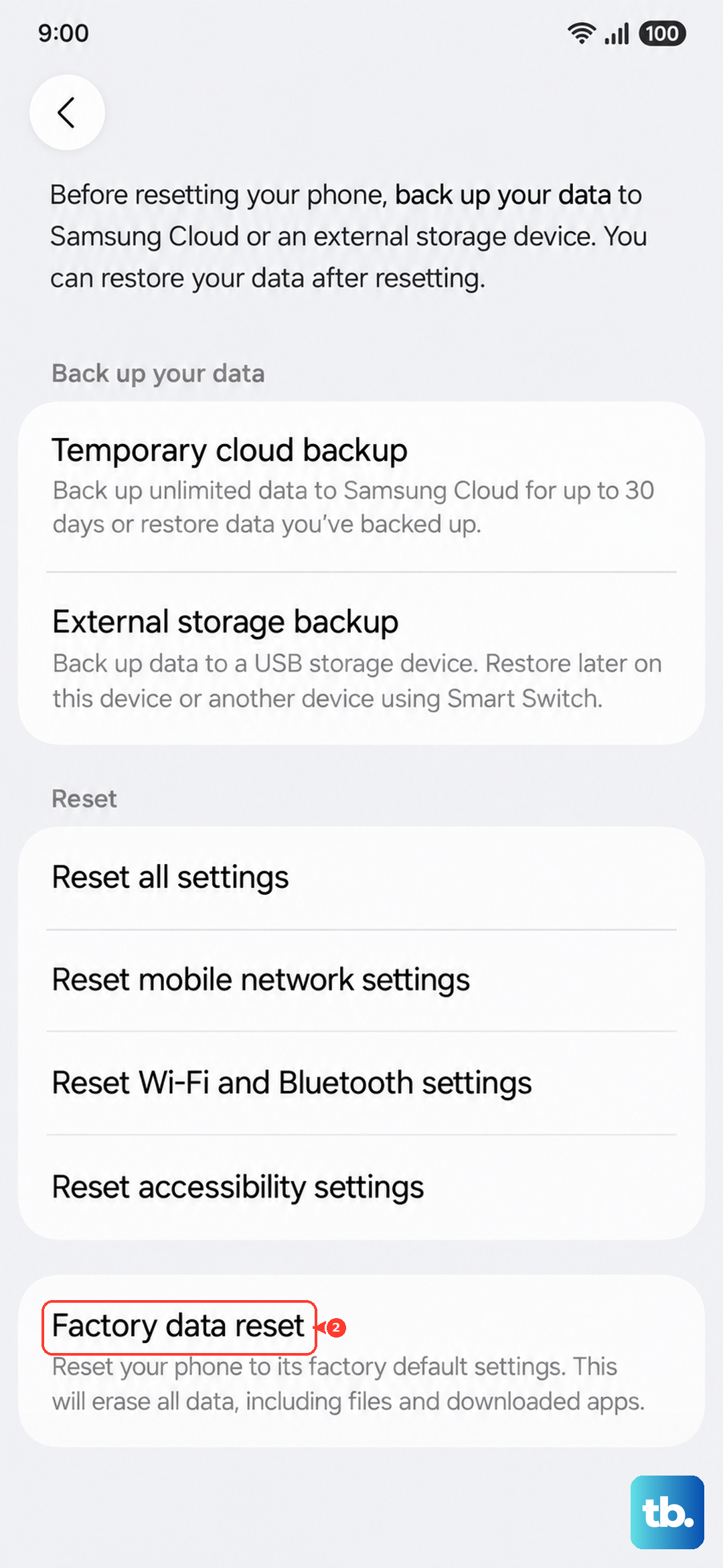
If none of these steps help, a factory reset can resolve deeper software corruption. This wipes everything on your phone, so back up your photos, contacts, and files first. Go to Settings > General management > Reset > Factory data reset. Follow the prompts and set up your phone as new before restoring data. You can test incoming calls before restoring to confirm the reset cleared the issue.