
Seeing "Mobile Network Not Available" on your Samsung Galaxy A26 5G can stop you from making calls, sending texts, or getting online. The good news is that most of the time this is fixable in a few minutes without any special tools. Let's run through the solutions that work for the A26 5G, starting with the fastest one.
Force Restart the Phone
Before you dig into settings, try a force restart. This clears temporary software hiccups that sometimes confuse the cellular radio. On the Samsung Galaxy A26 5G, press and hold the Volume Down and Power buttons simultaneously for about 10-15 seconds until the device restarts.
That alone fixes the network error more often than you'd expect. If your signal comes back after the reboot, you're all set. If not, move on to the next step.
Toggle Airplane Mode On and Off
This is a quick way to force the phone to re-register with the network. Swipe down twice from the top of the screen to open the quick settings panel, then tap the Airplane Mode icon to turn it on. Wait about ten seconds, then tap it again to turn it off.
Your phone will scan for available networks and reconnect. It's an easy test that takes almost no time.
Reinsert the SIM Card
A loose or slightly misaligned SIM card can cause the "Network Not Available" error. Use the SIM ejector tool (or a paperclip) to pop out the SIM tray on the A26 5G. Take the card out, inspect the contacts for any dirt or damage, then slide it back in firmly until it clicks.
If the SIM contacts look grimy, wipe them gently with a dry cloth before reinserting. After the phone restarts, check if the network comes back.
Check the Network Mode Setting
The A26 5G supports multiple network generations, and sometimes it gets stuck on a mode that isn't available in your area. Go to Settings > Connections > Mobile Networks > Network Mode. Select 5G/LTE/3G/2G (Auto Connect) or Automatic if you see that option.
Let the phone scan again. If you're in a spot with weak 5G coverage, forcing it to stick with 4G LTE can give you a more stable connection.
Clear the Cache Partition
The A26 5G has a hidden recovery mode that lets you wipe temporary system files without deleting your data. This can fix issues caused by corrupted cache data.
Turn off the phone. Press and hold the Volume Up and Power buttons together until the Samsung logo appears, then release. Use the volume buttons to highlight Wipe cache partition and press the Power button to select it. Confirm and reboot.
This won't erase your apps or photos. It just clears out old cached files that might be interfering with network functions.
Reset Network Settings
If the software equivalents of "confused configuration" are at fault, resetting the network stack often does the trick. Go to Settings > General Management > Reset > Reset Network Settings. Tap Reset Settings and confirm.
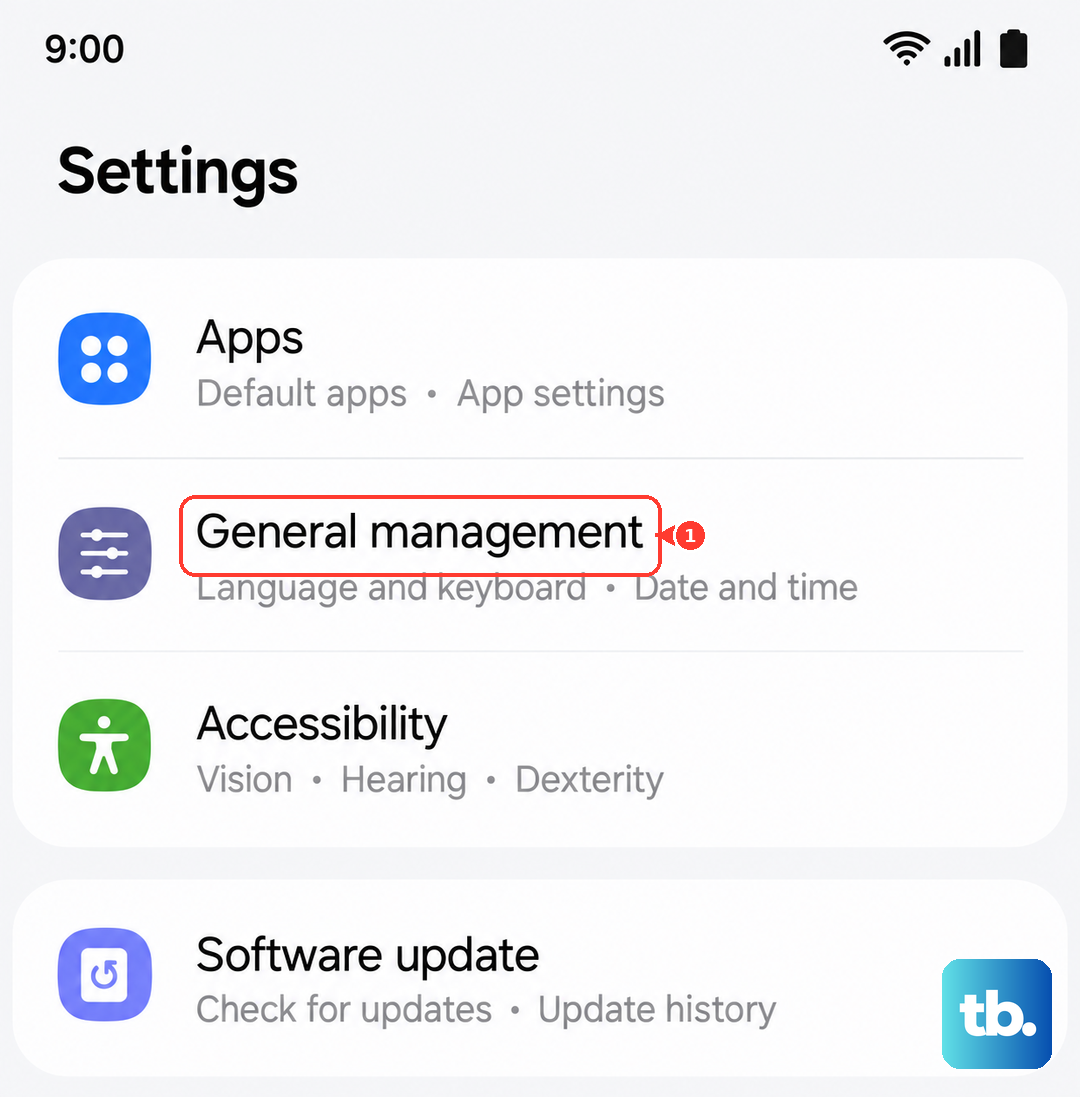
Keep in mind this will delete saved Wi-Fi networks and Bluetooth pairings, but it won't touch your personal files or apps. You'll need to re-enter Wi-Fi passwords afterward.
Update APN Settings
The Access Point Name (APN) tells your phone how to connect to your carrier's data network. If the APN is wrong, you might see the network error. Go to Settings > Connections > Mobile Networks > Access Point Names. Tap the three dots and choose Reset to default.
If that doesn't work, contact your carrier for the correct APN details and enter them manually. This is especially common if you recently swapped carriers or bought an unlocked phone.
Search for Available Networks Manually
Sometimes the phone just needs a nudge to find the local cell towers. Go to Settings > Connections > Mobile Networks > Network Operators. Tap Search networks, wait for the list to appear, then select your carrier. If that fails, choose Select automatically to let the phone find the best network on its own.
This forces a fresh registration with the tower and can clear up the error.
Disable Any Active VPN
VPN apps reroute your traffic, and they can sometimes interfere with how the phone connects to the mobile network. Go to Settings > Connections > More Connection Settings > VPN. Tap the gear icon next to any active VPN profile and delete it, or simply turn it off.
Try making a call or loading a web page afterward. If the network works with the VPN off, you know the VPN app was the culprit, and you can look for a newer version or a different app.
Check for Software Updates
Samsung often includes network-related bug fixes in One UI updates. Go to Settings > Software Update > Download and Install. If an update is available, install it and let the phone restart.
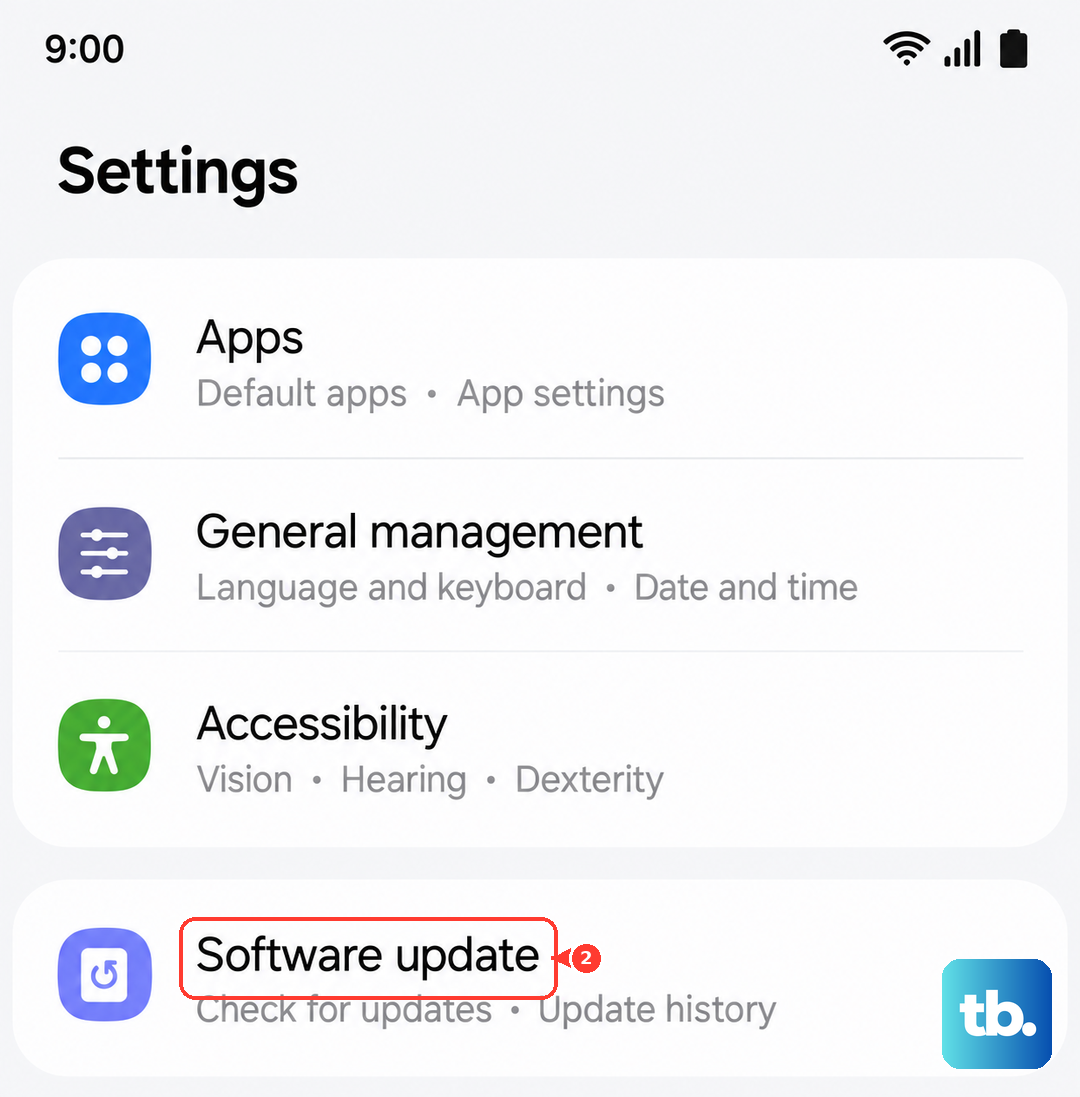
After the update, the phone will reconnect to the network fresh. This is a good catch-all step if you've tried everything else and the problem persists.