
Seeing your keyboard freeze or lag on the Samsung Galaxy A26 5G can stop you mid-sentence. It usually happens because of a temporary glitch, a corrupted cache, or a conflict with another app. The good news is that almost all of these issues are fixable in a few minutes.
Force Restart the A26 5G
Before diving into settings, try a force restart. It clears out minor software hiccups without deleting anything.
On the Galaxy A26 5G, press and hold the Volume Down and Power buttons together for about 10 15 seconds. Let go once the Samsung logo appears.
Test your keyboard after the phone boots back up. If it works normally, you're set. If not, move to the next fix.
Force Stop the Keyboard App
Sometimes the keyboard app itself gets stuck. Forcing it to close can fix lag or freezing right away.
Open Settings and tap Apps.
Tap the three-dot menu in the top-right and select Show system apps.
Scroll to Samsung Keyboard (or your default keyboard) and tap it.
Tap Force stop.
Exit Settings and open any app that uses the keyboard. It should be responsive again.
Clear Keyboard Cache and Data
Corrupted cache files can cause lag and freezing. Clearing them removes temporary data but also resets your keyboard preferences (like autocorrect history).
Go to Settings > Apps and find your keyboard app.
Tap Storage first, then Clear cache.
Next tap Clear data and confirm.
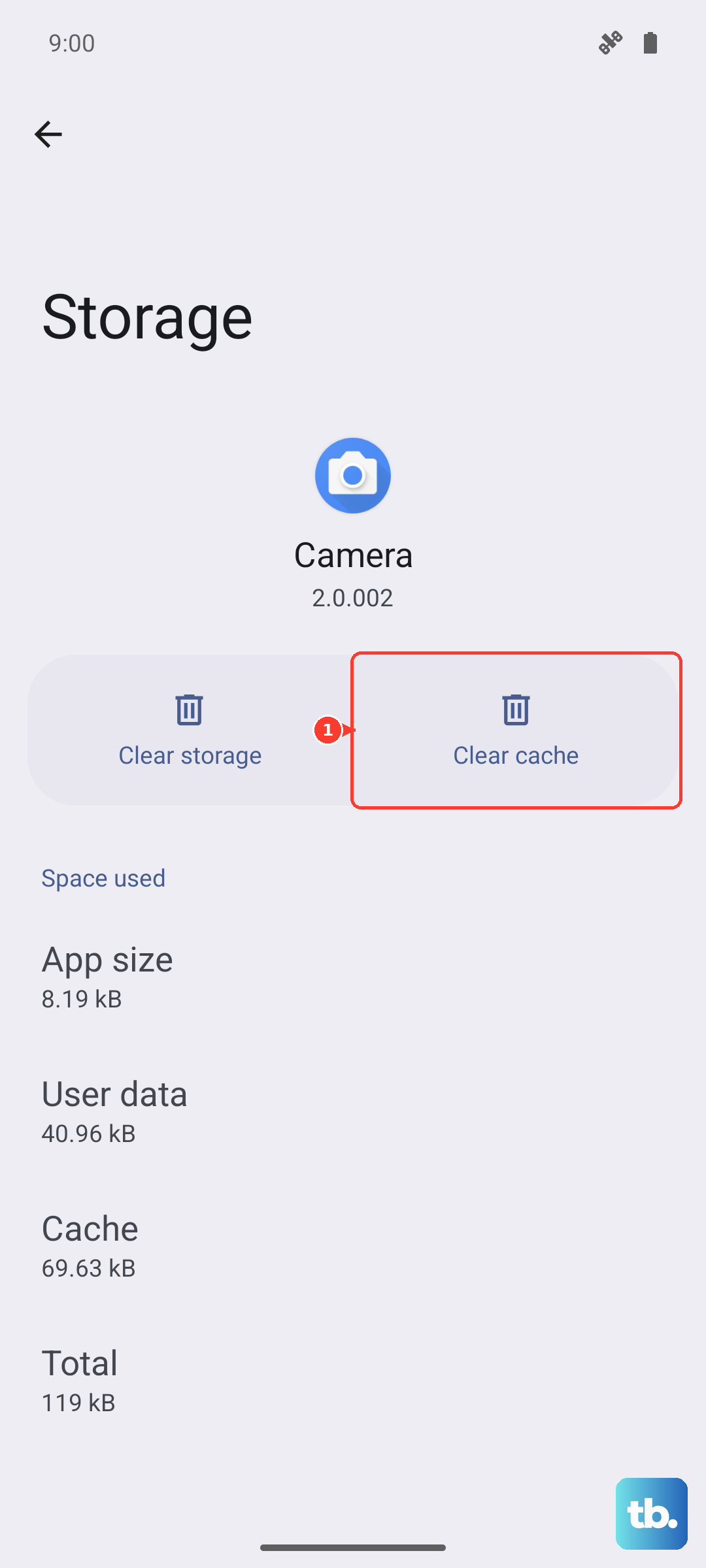
Restart your phone afterward. The keyboard will start fresh, and most lag issues disappear after this step.
Clear the Dictionary App Cache
The Dictionary provider works closely with Samsung Keyboard. A corrupted dictionary cache can cause the same freezing or crashes.
Open Settings > Apps > Show system apps.
Find Dictionary (or Dictionary provider) and tap it.
Tap Storage and then Clear cache. If problems persist, also tap Clear data.
No need to restart this time, just test your keyboard.
Update the Keyboard App (and System Software)
Outdated keyboard apps can develop compatibility problems with Android 15 or One UI 7 on your A26 5G. Check both app updates and system updates.
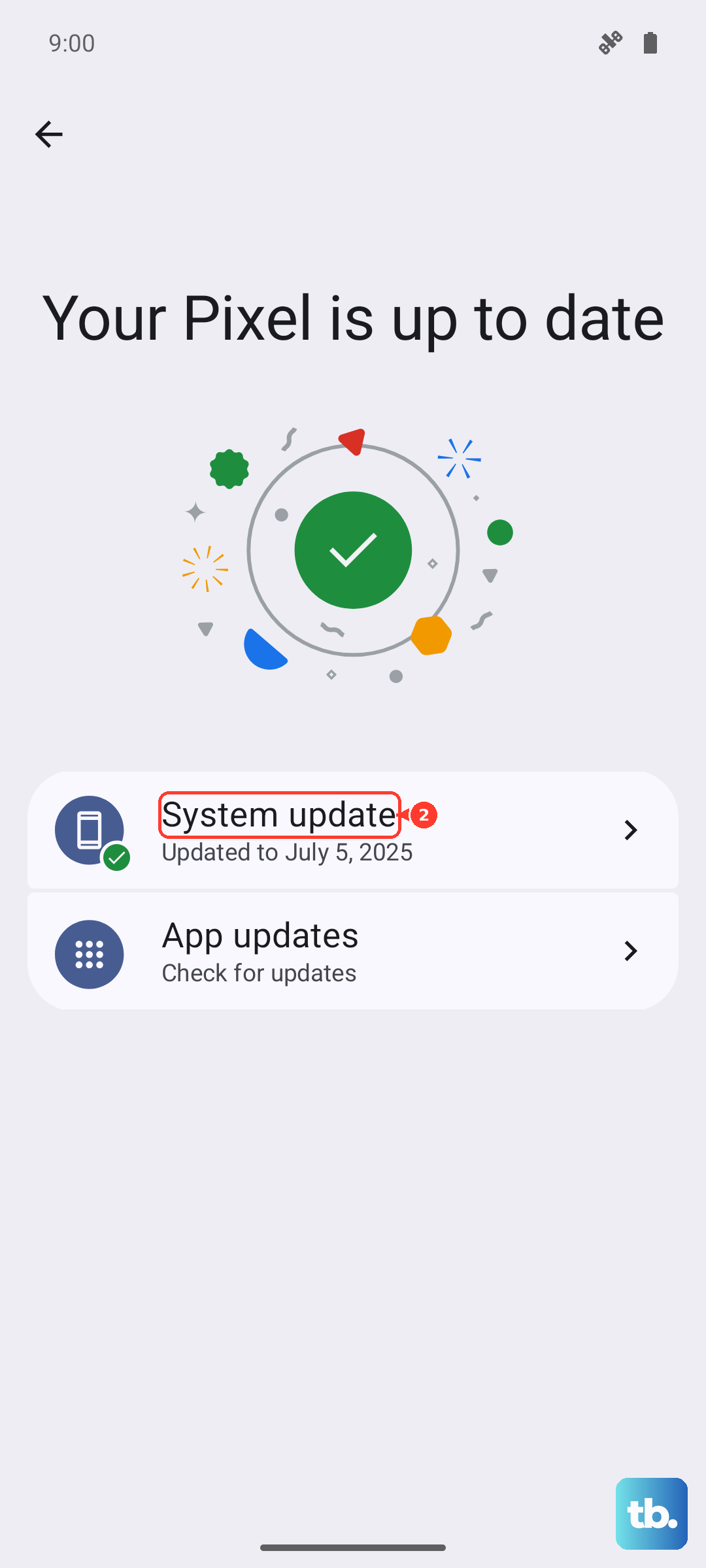
For app updates: open the Google Play Store, tap your profile icon, then Manage apps & device. If an update for Samsung Keyboard or any third‑party keyboard is available, install it.
For system updates: go to Settings > Software update > Download and install. If a new version is available, let it install. A fresh firmware build often includes keyboard fixes.
Reset Samsung Keyboard Settings
One UI 7 lets you restore the keyboard to its default settings without losing your contacts or photos. This can solve configuration conflicts that cause freezing.
Go to Settings > General management > Language and input.
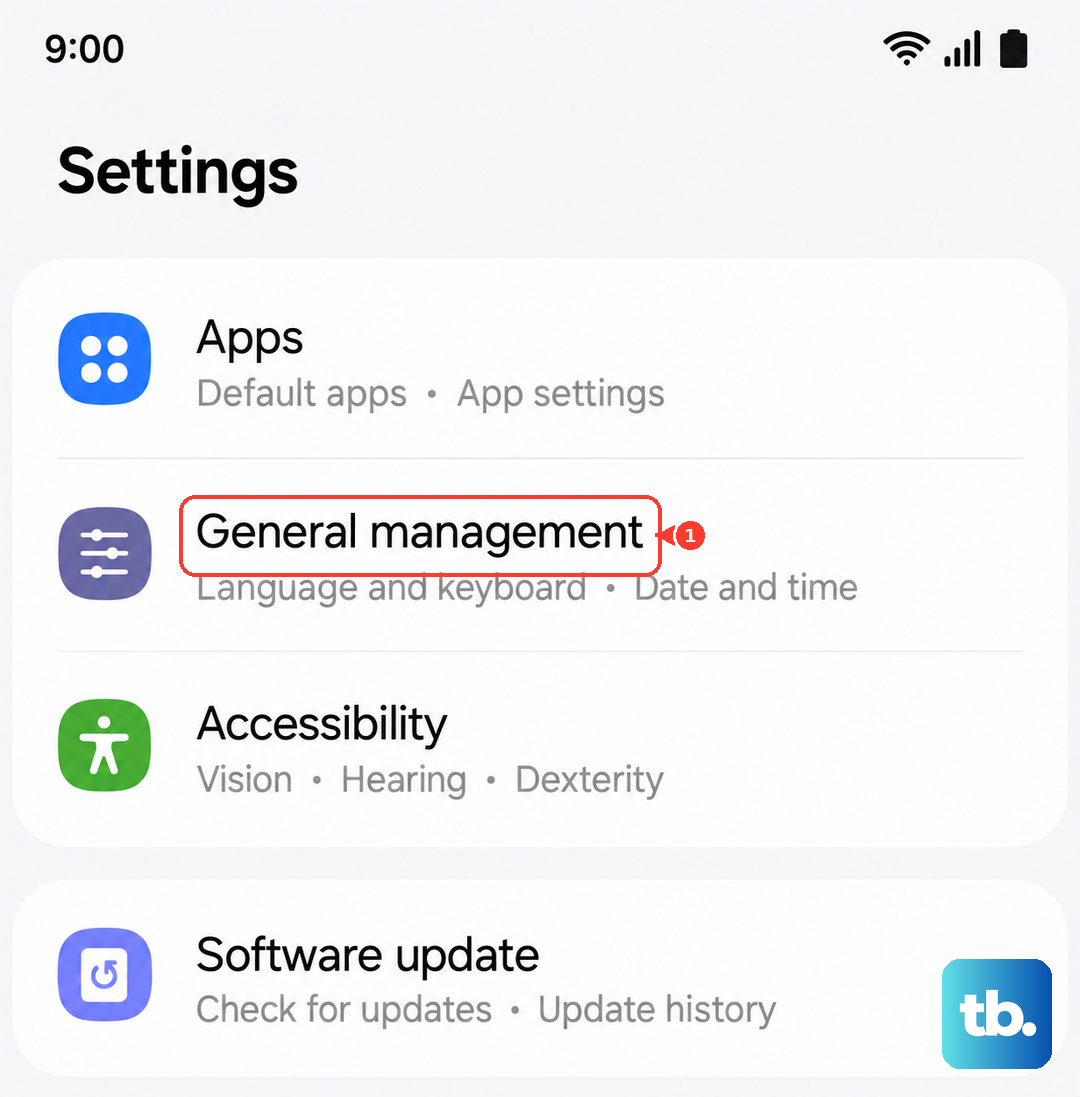
Tap On‑screen keyboard and select Samsung Keyboard.
Tap Reset to default settings at the bottom.
Your custom keyboard layout, themes, and typing predictions will be erased, but the app itself will be back to its stable factory state.
Boot Into Safe Mode to Find the Culprit
If the keyboard works fine in some apps but lags in others, a third‑party app might be the problem. Safe mode disables all non‑system apps, letting you test the keyboard in a clean environment.
- 1.Press and hold the Power button.
- 2.Tap Power off on the screen.
- 3.Once the phone is off, press and hold Power again until the Samsung logo appears, then release it.
- 4.Immediately press and hold Volume Down. Keep holding until the device finishes booting. You'll see "Safe mode" in the bottom-left corner.
Open a message app and type something. If the keyboard is smooth, a recent app is causing the conflict.
Restart the phone normally (to exit safe mode) and uninstall apps you installed just before the issue started, one at a time, testing the keyboard after each removal.
Switch to a Third‑Party Keyboard (Quick Workaround)
If Samsung Keyboard keeps freezing and you need to get back to typing right now, installing a different keyboard app is the fastest workaround. Gboard and SwiftKey both work perfectly on the A26 5G.
Open the Play Store, search for Gboard or SwiftKey, and install it.
Open Settings > General management > Language and input.
Tap On‑screen keyboard and select your new keyboard, then enable it when prompted.
You can always switch back later once the Samsung Keyboard issue is resolved. This is a solid temporary fix that lets you type normally while you troubleshoot the main keyboard.
Reset All Settings (Without Losing Data)
When keyboard problems stick around despite trying everything above, resetting all system settings can help. This won't wipe your apps, photos, or accounts, but it will reset Wi‑Fi passwords, wallpaper, and other preferences to default.
Go to Settings > General management > Reset.
Tap Reset all settings and confirm.
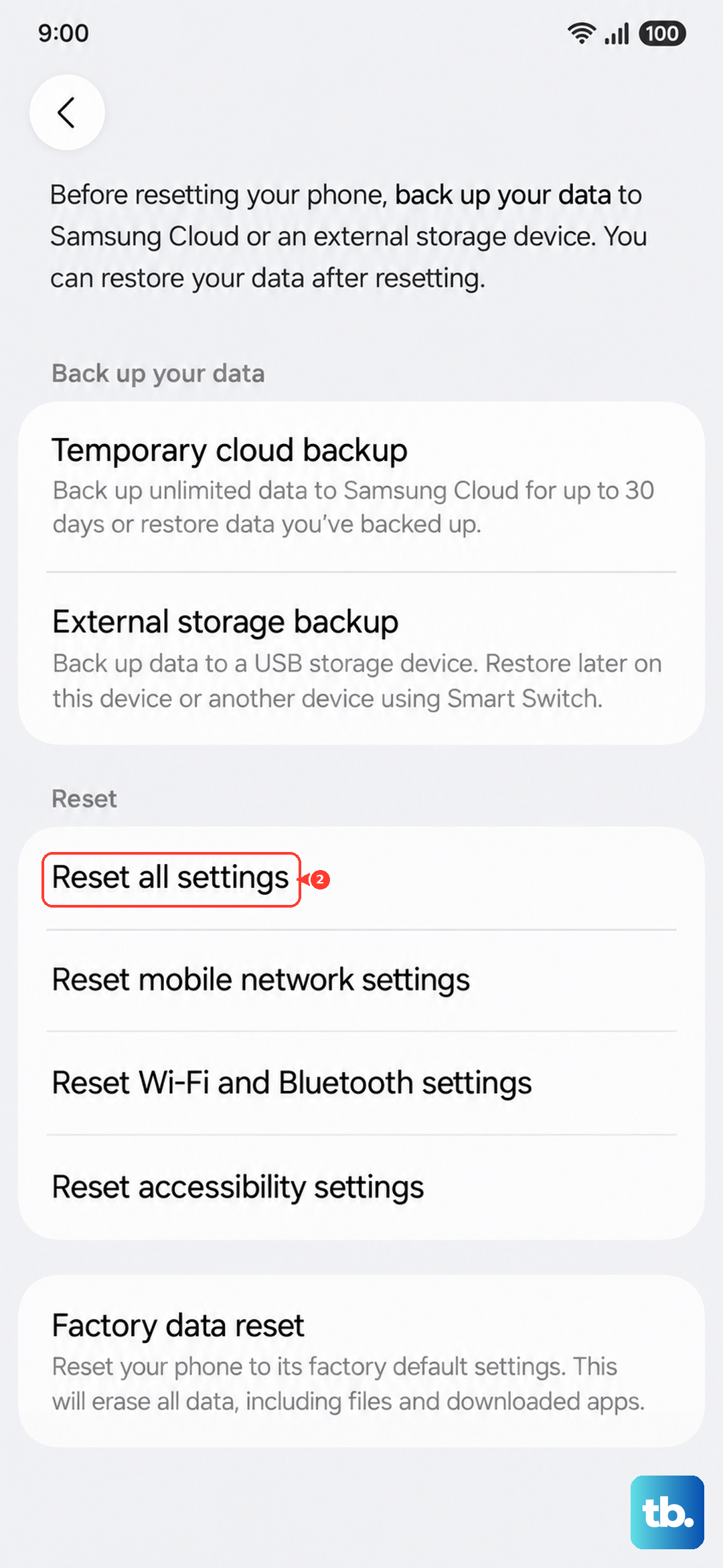
The phone will reboot. Afterward, you'll need to re‑enter Wi‑Fi passwords, but the keyboard should be back to its stable baseline.
If the freezing still occurs, you can try a factory reset as a last resort (back up everything first through Samsung Cloud or Google Drive).