
When your Samsung Galaxy A26 5G hotspot keeps disconnecting, it kills your other devices' internet access. The problem usually has a straightforward fix, and most solutions take just a few seconds to try.
Toggle Mobile Hotspot Off and On
Open Settings > Connections > Mobile Hotspot and Tethering and tap the toggle to turn it off. Wait about 10 seconds, then turn it back on. Make sure Mobile Hotspot is switched on at the top. This simple reset clears temporary glitches in the hotspot service and often solves the problem immediately.
Force Restart Your Galaxy A26
Press and hold the Volume Down and Power buttons simultaneously for about 10-15 seconds until the device restarts. This isn't a normal restart it's a hard reset that clears stuck processes without erasing your data. It's especially useful if the hotspot has been running for a while and the network service got jammed.
Check Your Mobile Data Connection
Mobile Hotspot requires an active cellular data connection. Swipe down from the top of the screen to open the Quick Settings panel and make sure Mobile Data is on. If you're in a weak signal area, the hotspot may cut out frequently. Also check that your carrier plan actually includes hotspot access some prepaid or budget plans restrict tethering or throttle it after a certain amount of data.
Reset Network Settings
Go to Settings > General Management > Reset > Reset Mobile Network Settings. This erases saved Wi-Fi networks, Bluetooth pairings, and cellular settings, then builds them fresh. You'll need to reconnect to Wi-Fi networks afterward, but it clears up persistent hotspot bugs that keep disconnecting. This step won't touch your photos, apps, or Samsung account data.
Update Your Carrier Settings
Carrier settings updates can fix behind-the-scenes connectivity issues. Open Settings > About Phone > Status > SIM Card Status if a carrier update is available, you'll see a prompt to install it. You can also check by going to Settings > About Phone and tapping Software Update > Download and Install, which sometimes bundles carrier updates with system patches.
Forget and Reconnect on the Other Device
On the device that keeps disconnecting from your hotspot, go to its Wi-Fi settings and tell it to forget the Galaxy A26 hotspot network. Then search for available networks again, select your hotspot, and re-enter the password. A corrupted saved connection profile can cause drop-outs, and a fresh handshake usually fixes it.
Change Your Hotspot Password
In Settings > Connections > Mobile Hotspot and Tethering > Mobile Hotspot, tap Configure. Change the password to something new, then tap Save. Reconnect your other devices with the new password. A fresh password forces a new authentication exchange between your phone and the connected devices, which can stop random disconnects.
Try USB or Bluetooth Tethering
If the Wi-Fi hotspot keeps cutting out, switch to a wired or Bluetooth connection. Plug your Galaxy A26 into your laptop with the charging cable, then go to Settings > Connections > Mobile Hotspot and Tethering and turn on USB Tethering. For Bluetooth, pair your phone with the other device first, then enable Bluetooth Tethering. These methods bypass the Wi-Fi radio entirely and tend to be more stable.
Check for One UI Updates
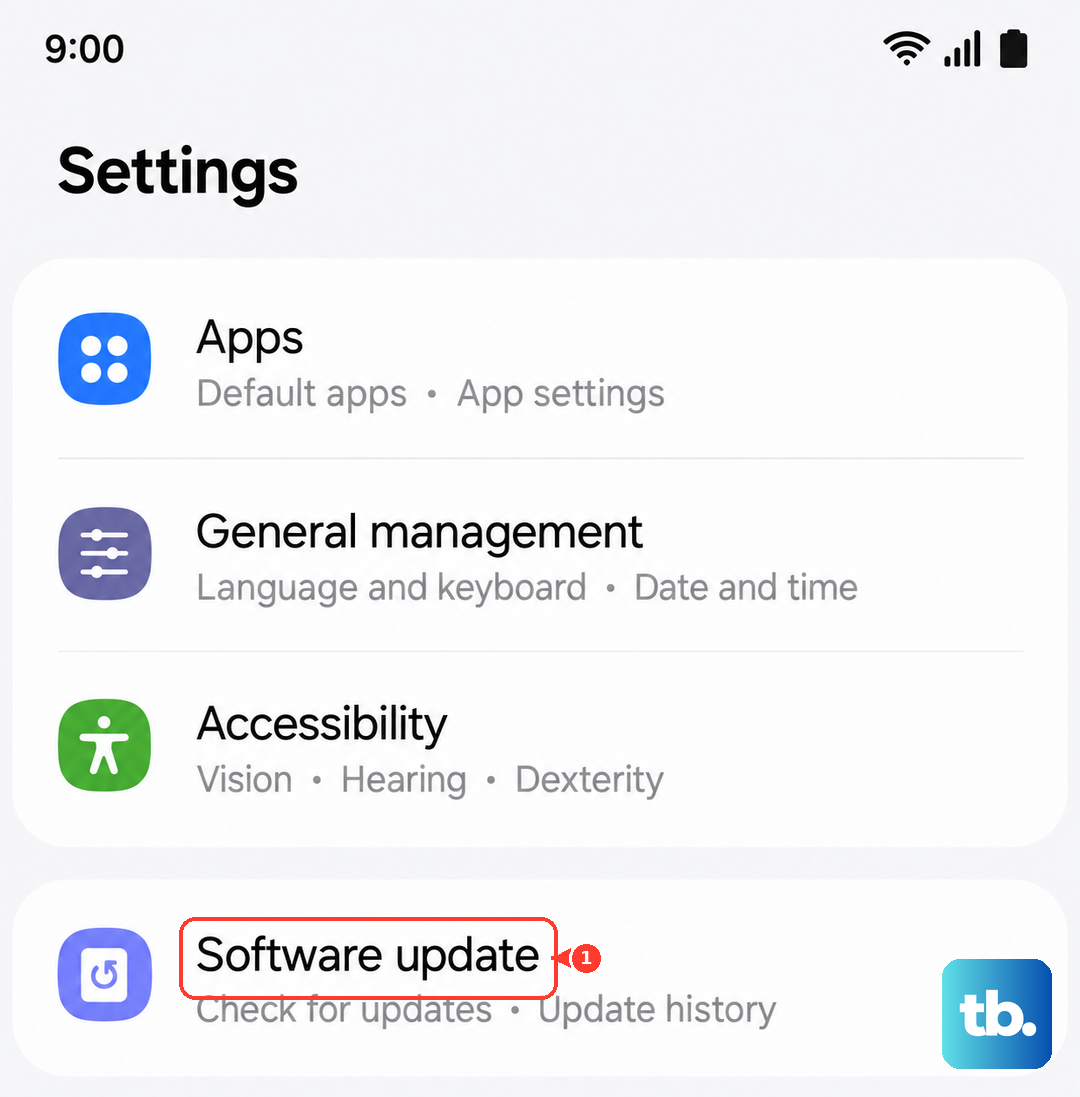
Open Settings > Software Update > Download and Install. Samsung regularly patches hotspot connectivity bugs in One UI updates. If there's an update available, install it over Wi-Fi (or mobile data if you're stuck). Some past updates have specifically addressed hotspot stability on Galaxy phones.
Contact Your Carrier
If none of these steps work, your carrier might have hotspot disabled on your plan or there could be an account-level restriction. Call your carrier's customer support and ask them to confirm that tethering is allowed on your line. They can also check if there's a data cap or throttle that's causing the hotspot to disconnect when you hit a limit.