
A smartphone that suddenly stops responding to taps or button presses is usually dealing with a software glitch, not a hardware failure. The Samsung Galaxy A26 5G runs Android 15 with One UI 7, and like any operating system, it can temporarily lock up. Here's how to safely get it working again.
Force Restart Your Galaxy A26 5G
This is the fix for a completely unresponsive screen. Press and hold the Volume Down and Power buttons at the same time for about 10-15 seconds. Keep holding even if the screen stays dark for the first few seconds.
The phone will eventually vibrate and show the Samsung logo. This process is perfectly safe and won't delete any of your apps, accounts, or personal data. In my experience, this is the single most effective move when the phone is totally locked up.
Let It Cool Down
The Galaxy A26 5G has a known tendency to display an overheating warning under heavy use, especially while charging. If the phone feels warm to the touch and the screen is frozen, it might be the system protecting itself from heat damage.
Set it down on a cool surface away from direct sunlight and wait 10-15 minutes. Don't try to force restart it repeatedly while it's still hot. Once it cools off, try the force restart and it will likely respond normally.
Give the Battery Some Juice
A critically low battery can sometimes cause the phone to freeze or become unresponsive. Plug it into a charger and walk away for 15-20 minutes. The A26 5G supports 25W wired charging, but it needs a compatible USB PD 3.0 charger with PPS support to hit those speeds.
If you're using an old slow charger, it might not provide enough power to wake the phone back up quickly. Also, keep in mind that this model has a known issue where the battery time left doesn't display correctly during the initial charge, so don't rely on that reading.
Check the USB-C Port
A pocket full of lint is a common cause of intermittent freezing, particularly when the phone is plugged in. The USB-C port on the A26 5G is a magnet for dust, and debris can prevent the charger from making a solid connection.
Grab a plastic toothpick or a small wooden skewer and gently dig out any gunk you see in the port. Don't use anything metal, a shorted pin can cause weird behavior or worse. Just a quick clean can resolve charging freezes entirely.
Close a Frozen App
If the phone itself feels slightly responsive but one specific app is locked up, you don't need a full restart. Swipe up from the bottom of the screen and hold to open the recent apps menu. Find the frozen card and swipe it off the screen to close it.
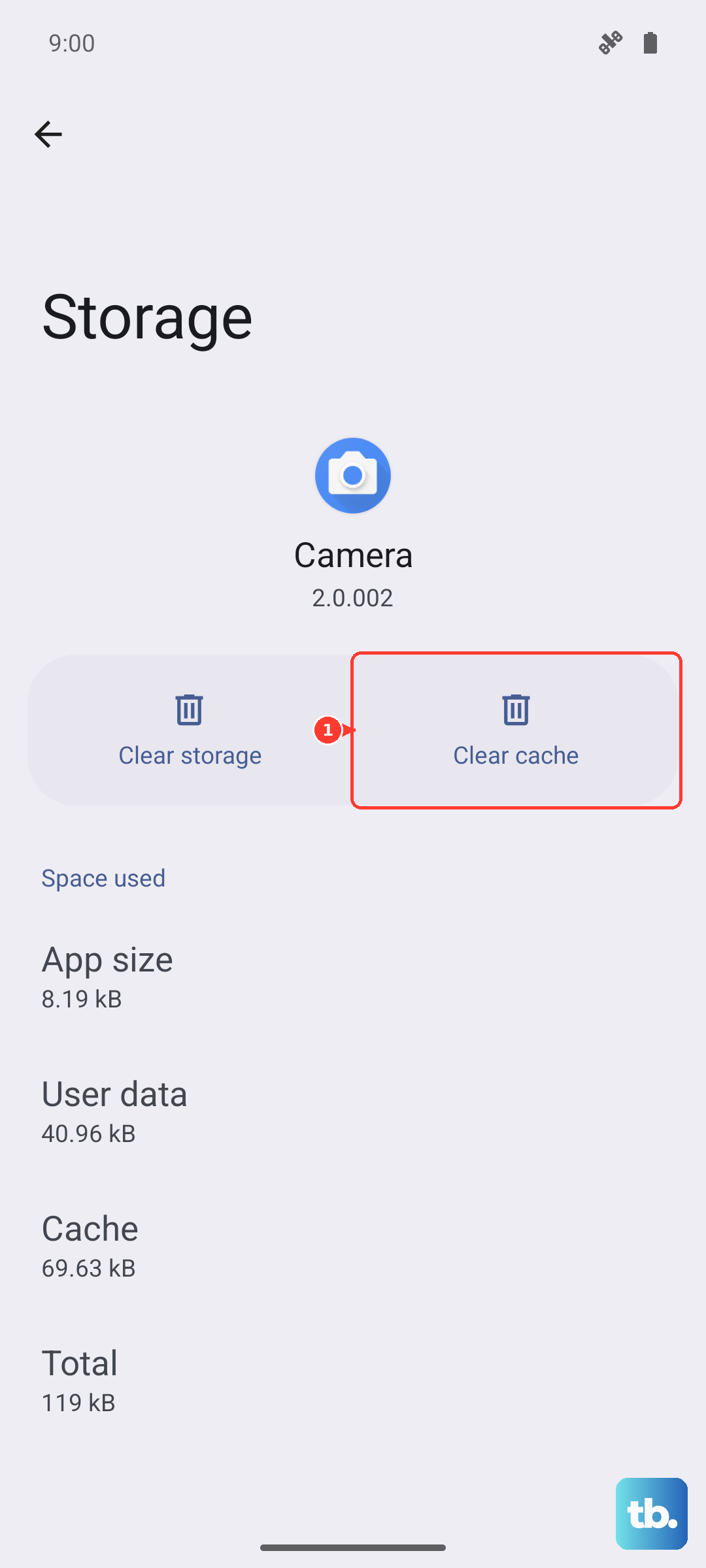
Tap the app icon again to relaunch it fresh. If that specific app keeps freezing repeatedly, check the Galaxy Store or Google Play for an update, or try clearing the app's cache in Settings > Apps.
Clear the Cache Partition
A bloated system cache can make the phone feel sluggish and prone to freezing. Clearing it is a maintenance step that solves a lot of weird, hard-to-pin-down slowdowns. Turn the phone off completely first.
Press and hold both the Volume Up and Power buttons until the Samsung logo appears. When the Android recovery menu pops up, use the volume buttons to navigate to Wipe cache partition and press the Power button to confirm. It takes about two seconds. This won't delete any of your photos, texts, or apps.
Is It a Software Bug?
A bug in One UI 7 could be the culprit behind random lockups. Once you get the phone back on, head to Settings > Software update and tap Download and install. Samsung pushes regular security patches that often include stability fixes.
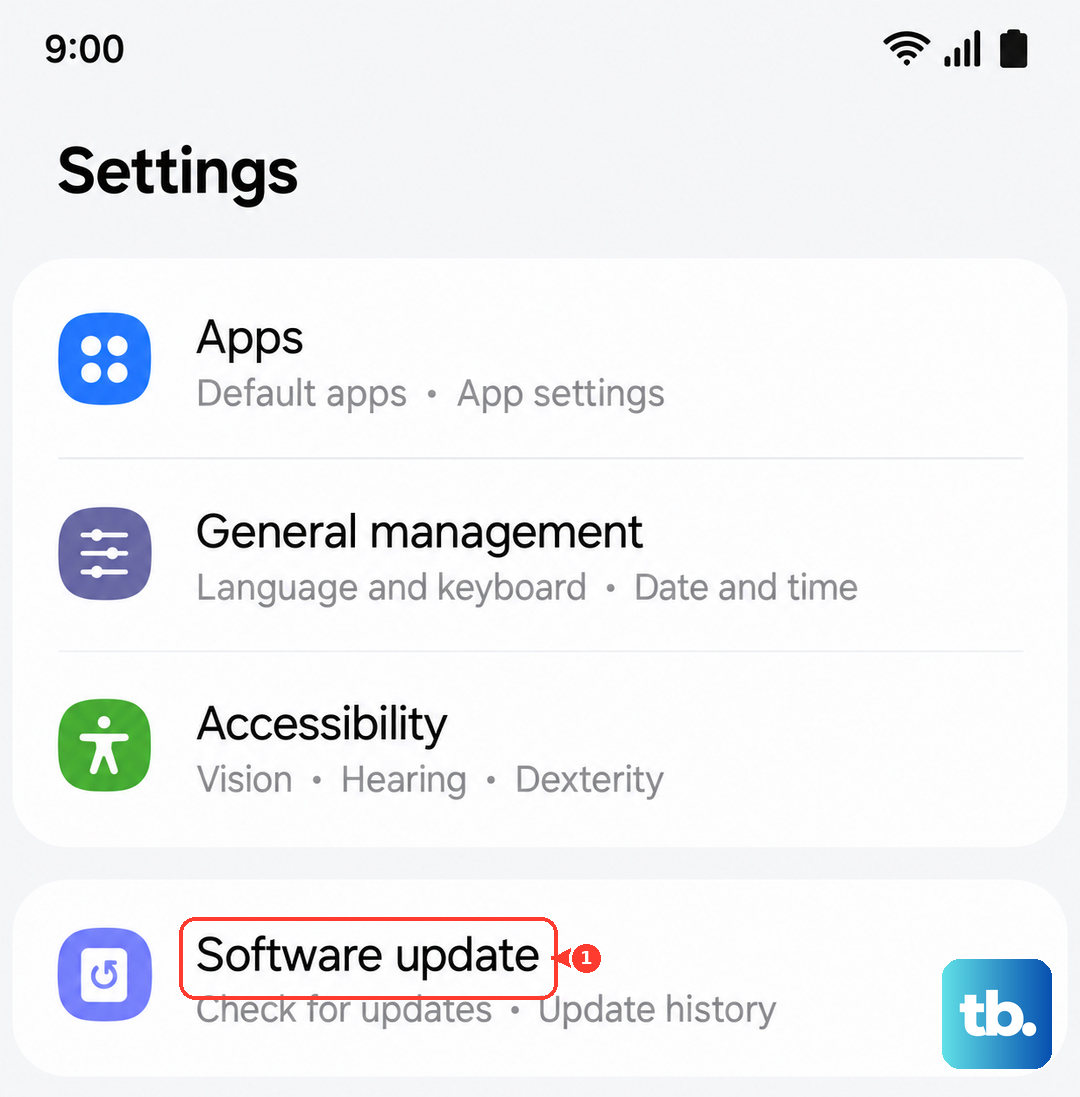
If an update is waiting, install it over Wi-Fi. The phone will restart on its own. Addressing a random freeze bug is frequently the main goal of those incremental patches.
Free Up Storage Space
Android phones need a decent chunk of free storage to manage temporary system files. If you're down to a few gigabytes, the system can start struggling.
Go to Settings > Battery and device care > Storage. If the bar is nearly full, offload some photos to Google Photos, clear the cache on heavy apps like Instagram or TikTok, or delete old downloads. Aim to keep at least 3-4 GB free for smooth operation.
Reset Your Settings
If the phone keeps freezing but you aren't ready for a full factory reset, try resetting the settings first. Go to Settings > General Management > Reset > Reset all settings. You'll lose your saved Wi-Fi passwords and any custom display or sound tweaks.
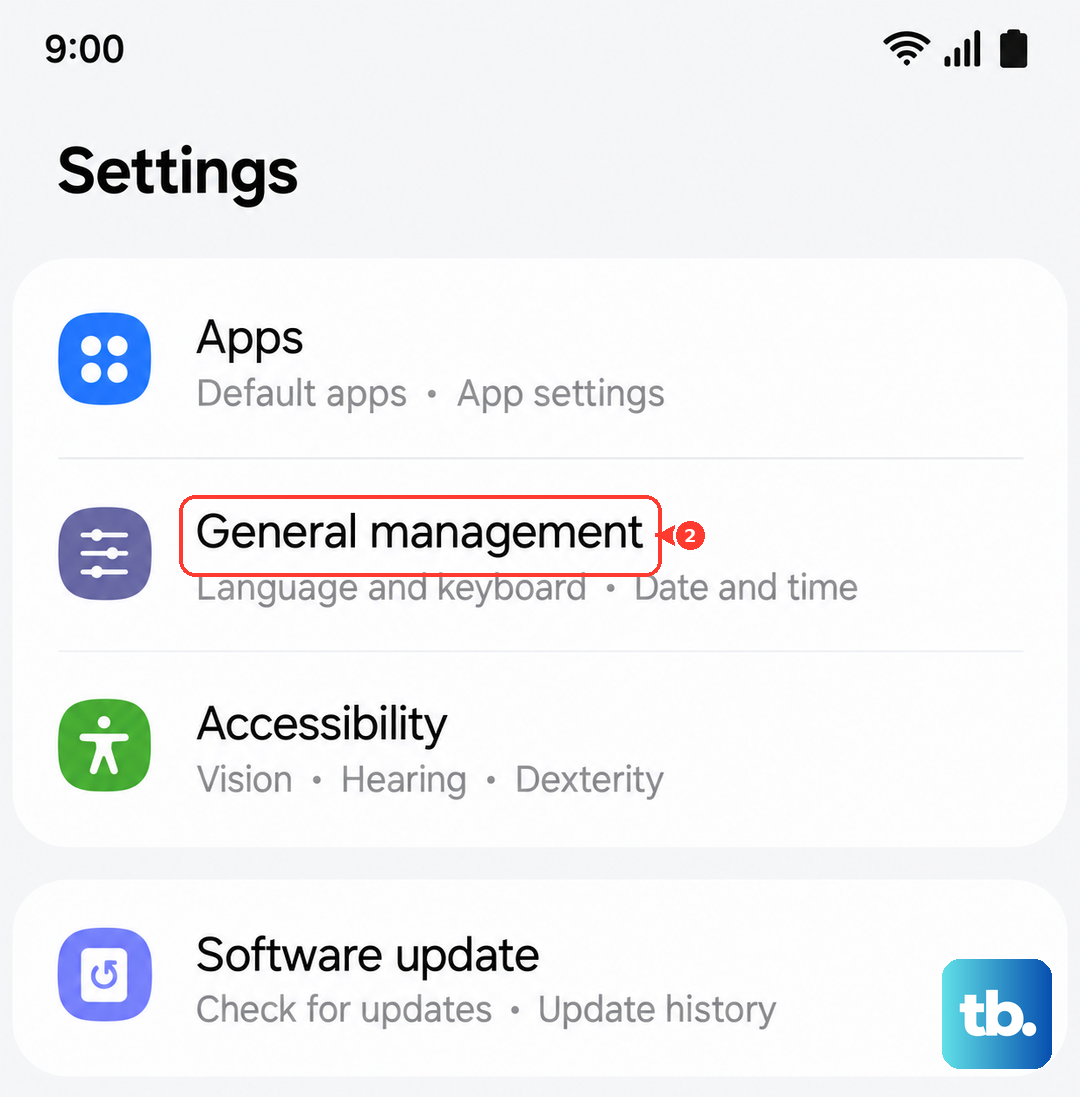
Your apps, photos, and Samsung account will stay intact. I've seen this fix recurring freezes that start showing up after a major update without losing any actual data.
Turn Off Fast Charging
If the freezing happens specifically when the phone is plugged in, the heat from fast charging might be triggering the issue. Open Settings > Battery > Charging and toggle off Fast charging.
The phone will charge slower, roughly 15W instead of 25W, but it runs significantly cooler. For the A26 5G, this one setting change often stops the random vibrate-and-freeze behavior during charging completely.