
The Samsung Galaxy A26 5G supports 25W wired charging, which should get you from zero to about 50% in 30 minutes. If your phone is taking noticeably longer than that, something is slowing things down. Here's what to check.
Use a 25W USB PD 3.0 Charger with PPS
Fast charging on the Galaxy A26 5G requires a compatible USB PD 3.0 charger with PPS (Programmable Power Supply) support. If you're using an older Samsung charger or a generic third-party adapter that doesn't support PPS, the phone will fall back to slower 10W or 15W charging.
Check the specifications printed on your charger. Samsung's 25W Travel Adapter (EP-T2510) works perfectly, as do other brands that explicitly support PD 3.0 with PPS. Anything less won't deliver full speed.
Is Your USB-C Cable Up to Snuff?
A cheap or worn-out cable is one of the most common culprits for slow charging. USB-C cables aren't all created equal, some are designed for data transfer and can't handle 25W of power delivery. If your cable came with a different device, it might be the bottleneck.
Try the cable that shipped with the Galaxy A26 5G, or pick up a certified USB-C cable rated for 25W or higher. Avoid cables that are frayed, bent at the connector, or have loose connections.
The Charging Port Might Be Packed with Pocket Lint
Dust and lint in the USB-C port can prevent a solid connection, which reduces power delivery. It's one of the easiest things to overlook. Grab a wooden toothpick or a soft brush and gently clean inside the port. Don't use anything metal, you don't want to damage the pins.
Compressed air also works if you have it. A clean port makes a noticeable difference in charging speed.
Force Restart Your Galaxy A26 5G
Software glitches can interfere with charging management. A force restart clears temporary bugs without deleting any data. Press and hold the Volume Down and Power buttons simultaneously for about 10-15 seconds until the device restarts.
You'll see the Samsung logo appear as it reboots. This fixes a surprising number of charging quirks.
Clear the Cache Partition
If you're still seeing weird charging behavior, like the estimated time left jumping around or charging stopping randomly, try clearing the system cache. This doesn't erase your data, just temporary system files that may have gotten corrupted.
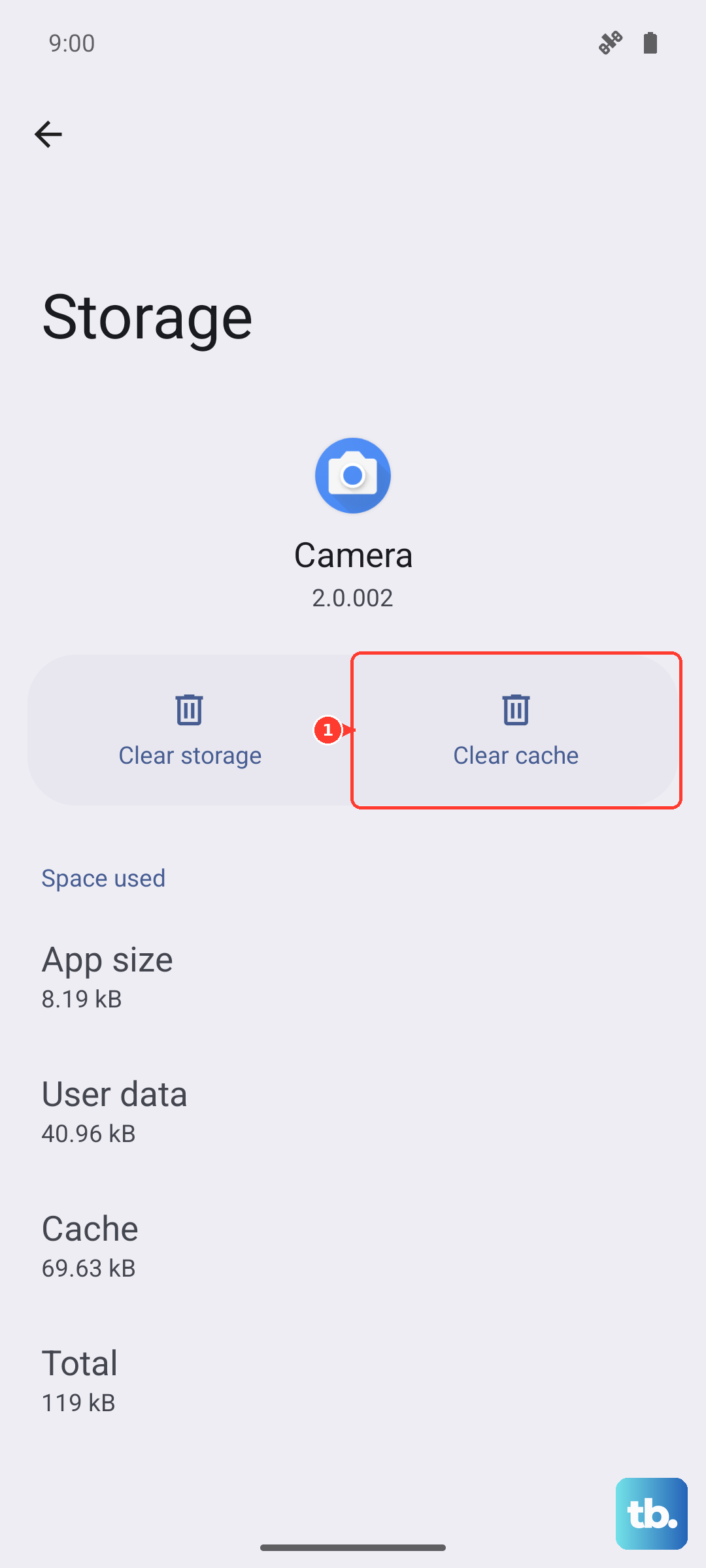
Turn off the phone, then hold the Volume Up and Power buttons together until the Samsung logo shows. Release the Power button but keep holding Volume Up. When the Android recovery menu appears, you will notice there is no Wipe cache partition option anymore — Samsung removed it on newer devices like the Galaxy A26 5G, so restart the phone and clear caches from Settings > Device care > Optimize now or Settings > Apps > [app] > Storage > Clear cache instead. Reboot after it finishes.
Turn Off Fast Charging (Temporarily)
It sounds backwards, but some Galaxy A26 5G users report the device charges better with fast charging disabled. The phone might stop charging or show a temperature warning when using fast charging, especially if there's a software issue.
Go to Settings > Battery > Charging settings and toggle off fast charging. Plug it back in and see if the charging holds steady. If it works, you can leave fast charging off or try turning it back on after a future software update.
Avoid Using the Phone While It Charges
Using your Galaxy A26 5G while it's plugged in generates heat, and the phone reduces charging speed to keep the battery cool. Gaming, streaming video, or using GPS navigation during a charge session will dramatically slow things down.
For the fastest charge, leave the phone face-down on a table. Putting it in Airplane Mode helps even more by reducing background activity.
Take the Case Off
Thick or insulating cases trap heat, which triggers the phone's thermal throttling during 25W charging. If the phone feels warm to the touch while charging, remove the case. A hard, flat surface like a wooden table or desk helps dissipate heat better than a bed or couch.
Check for Overheating
The Galaxy A26 5G will warn you if it's too hot and slow down charging accordingly. Direct sunlight, a hot car dashboard, or charging on a blanket can push temperatures past the safe limit. Move the phone to a cooler spot and wait for it to cool down before plugging it back in.
Update One UI and Android
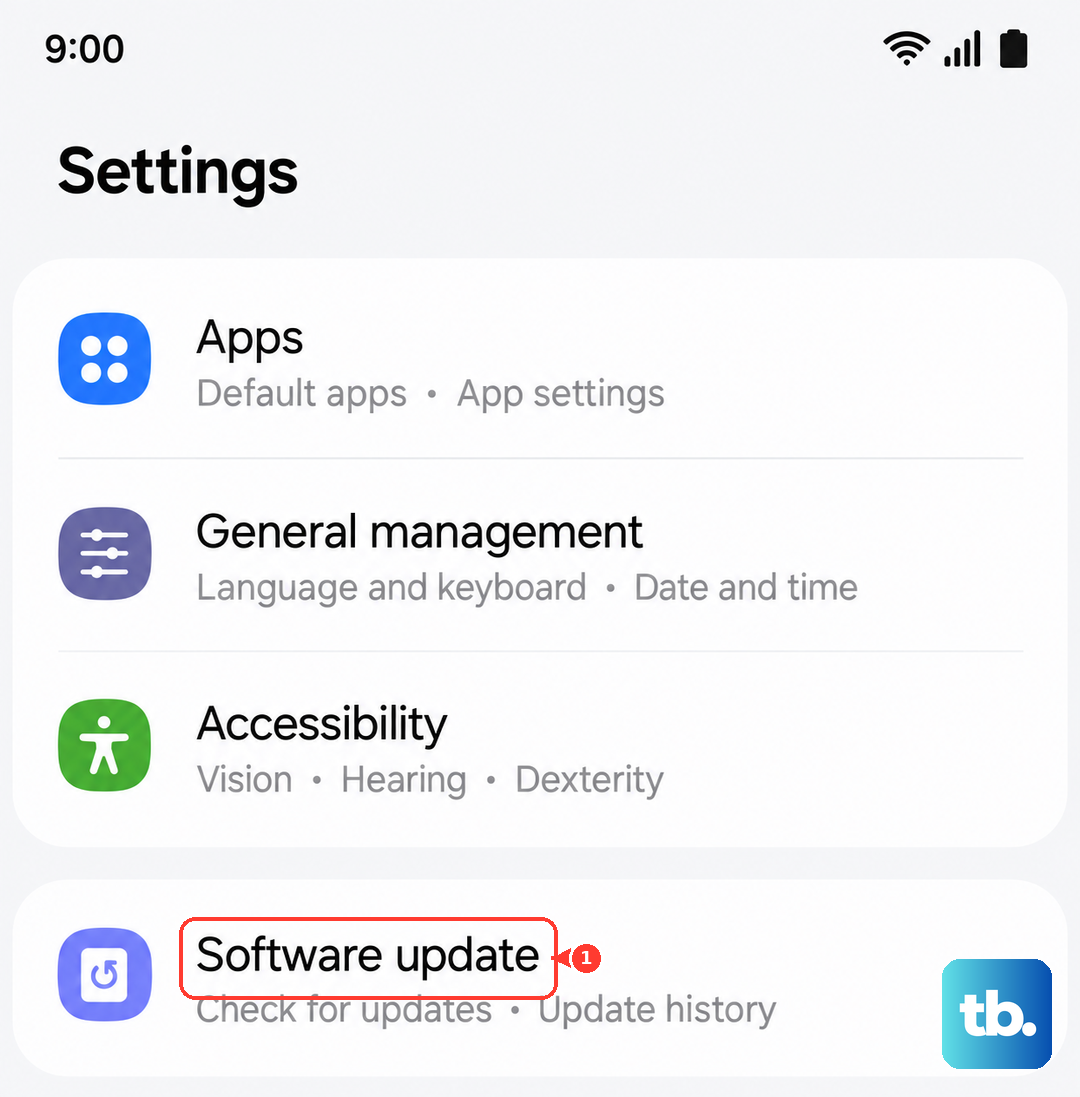
Samsung occasionally releases firmware updates that fix charging behavior and battery management. Go to Settings > Software update > Download and install to check. If there's an update available, install it and test charging afterward.
Test a Different Cable and Charger Combo
Cables fail gradually, sometimes they'll work at low speeds but can't handle 25W. Grab a different USB-C cable and a new adapter, preferably one you know works for fast charging with another device. If the A26 5G charges at full speed, you've found the problem.
Frayed, kinked, or loose cables should be replaced anyway. They're cheap to swap and cause more charging headaches than most people realize.