
Email not working on your Samsung Galaxy A26 5G can be a real headache. Whether you're missing important messages or your outgoing emails are stuck in the outbox, it usually comes down to a handful of common culprits.
Before diving into specific fixes, make sure you're connected to the internet and that your email provider isn't down. You can check services like Gmail, Outlook, or Yahoo on another device to rule out a server outage.
Force Restart Your Phone
A quick force restart often clears up temporary software glitches that can mess with email syncing. On the Galaxy A26 5G, press and hold both the Volume Down and Power buttons for about 10 15 seconds. The phone will restart on its own. Try opening your email app afterward to see if messages start flowing.
Toggle Airplane Mode
Switching Airplane Mode on and off resets your network connections without a full restart. Pull down the notification shade twice to open Quick Settings, then tap the Airplane icon. Wait about 30 seconds, then tap it again to turn it off. This can refresh a sluggish data connection.
Switch Between Wi-Fi and Mobile Data
Sometimes your Wi-Fi network is the bottleneck. Turn off Wi-Fi in Quick Settings and let the phone use mobile data instead. If emails come through, you know it's a Wi-Fi issue. Alternatively, if you're on data, try connecting to a trusted Wi-Fi network. This helps isolate whether the problem is your connection or your email account.
Check Email Sync Settings in the App
Most email apps let you adjust sync frequency. Open your email app, go to its settings (usually a gear icon or three-dot menu), and look for Sync settings or Fetch schedule. Make sure it's set to sync automatically or at a reasonable interval (like every 15 minutes). If it's set to manual, you'll have to pull down to refresh each time.
Enable Auto-Sync for Your Accounts
Android lets you control which accounts sync automatically. Head to Settings > Accounts and backup > Manage accounts. Tap your email account and make sure the toggle for syncing is turned on. If it's off, no new messages will come through.
Clear the Email App Cache
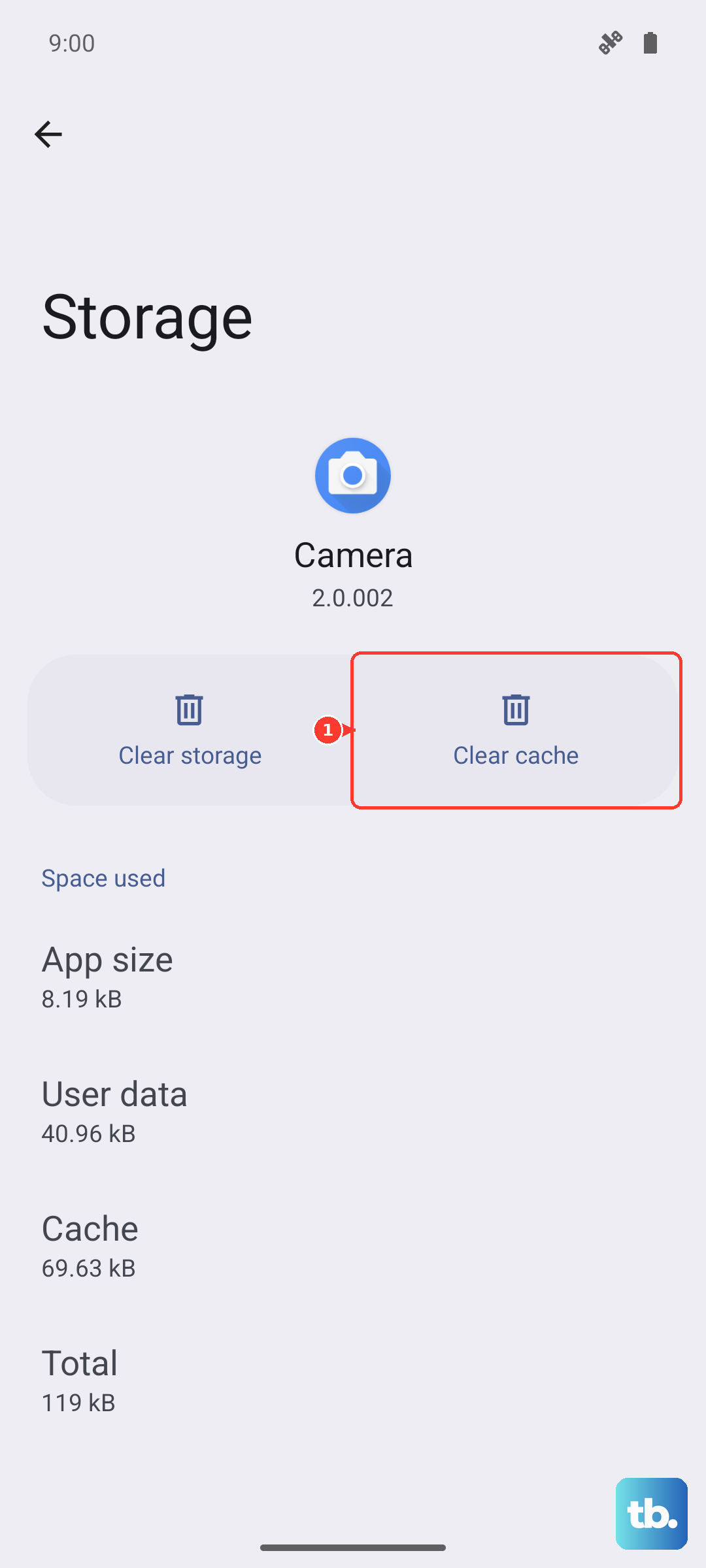
A corrupted cache can cause all kinds of weird behavior. Go to Settings > Apps > find your email app (Samsung Email, Gmail, Outlook, etc.) > Storage > tap Clear cache. Don't worry, this won't delete your account or emails it just removes temporary data. Restart the app and see if that helps.
Verify Your Login Credentials
It's easy to accidentally save an old password after you've changed it. Open a web browser on your computer or another device and log into your email account. If you can't log in, reset your password. Then update the password on your Galaxy A26 5G by going to Settings > Accounts and backup > Manage accounts, selecting your account, and tapping Sync account or Remove account and re-adding it with the new password.
Set Date and Time Automatically
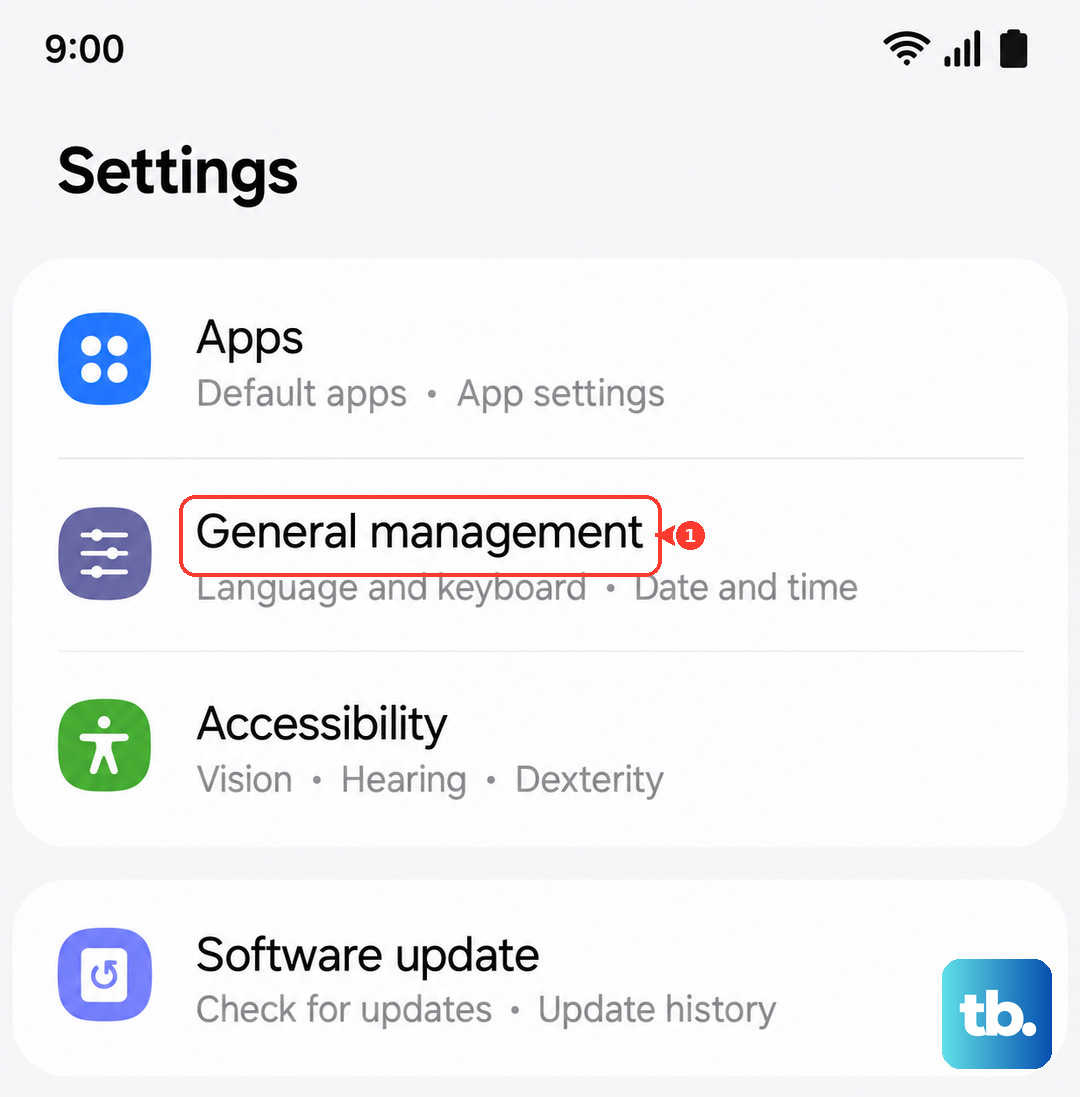
Incorrect date and time settings can break email security checks. Go to Settings > General management > Date and time. Turn on Automatic date and time. If it's already on, toggle it off, wait a few seconds, then turn it back on. This forces the phone to grab the correct time from the network.
Disable Any VPN
VPNs can interfere with email servers, especially if they use a different region. Open Settings > Connections > More connection settings > VPN. If you have a VPN active, toggle it off. Try sending or receiving an email again. If it works, you know the VPN was the problem you may need to adjust its settings or exclude your email traffic.
Allow Background Data for the Email App
If the email app doesn't have permission to use data in the background, it won't sync new messages. Go to Settings > Apps > tap your email app > Mobile data. Make sure Allow background data usage is switched on. Also check that Allow app while data saver is on is enabled if you use Data Saver.
Update the Email App
An outdated app might have bugs that prevent proper email sync. Open the Galaxy Store or Play Store, tap your profile icon, and look for app updates. If your email app has an update, install it. The same goes for the system web view app (Android System WebView), which email apps sometimes depend on.
Delete and Re-Add Your Email Account
This sounds drastic, but it often clears up stubborn settings issues. Go to Settings > Accounts and backup > Manage accounts. Tap the email account you're having trouble with, then tap Remove account. Wait a moment, then go back and tap Add account. Select your email provider, enter your credentials, and let it set up fresh. This wipes out any corrupted settings.
Check Notification Settings for Email
If emails are arriving but you're not getting alerts, the problem is notification settings. Open Settings > Notifications > App notifications. Find your email app and tap it. Make sure Show notifications is on. You can also adjust sound, vibration, and pop-up style. For apps like Gmail, you may also need to check in-app notification settings under the app's own menu.
Reset Network Settings
If nothing else has worked, resetting your network settings can resolve deeper connectivity issues without erasing your data. Go to Settings > General management > Reset > Reset network settings. You'll need to re-enter Wi-Fi passwords afterward, but it won't touch your photos, apps, or accounts. Try email again after the reset completes.