When your Samsung Galaxy A16 won't send photos, it's usually a quick fix. The most common culprit is a weak data connection or a simple setting that needs toggling. I'd start by checking your mobile data or WiFi signal first.
Check Your Mobile Data and Network
If you're trying to send a picture over your cellular network, make sure mobile data is actually turned on. Swipe down from the top of your screen twice to open the full Quick Settings panel and look for the "Mobile data" icon. If it's grayed out, tap it to enable it.
You should also see signal bars or a 4G/5G icon in the status bar. If you don't have a good signal, try moving to a different location. Sending pictures, especially large ones, requires a stable connection.
Verify Your MMS and APN Settings
For standard text messages (SMS/MMS), your carrier needs the correct Access Point Name (APN) settings. These are usually configured automatically, but they can sometimes get messed up.
To check, go to Settings > Connections > Mobile networks > Access Point Names. If the list is empty or looks wrong, you may need to get the correct APN details from your carrier's website and enter them manually.
Toggle Airplane Mode
A quick network refresh can solve a lot of temporary glitches. Swipe down to open your Quick Settings and tap the Airplane Mode icon to turn it on. Wait about 10 seconds, then tap it again to turn it off.
This forces your phone to reconnect to the cellular network from scratch. After it reconnects, try sending the photo again.
Clear the Messaging App's Cache
The app you're using to send photos, like Samsung Messages or Google Messages, stores temporary data that can sometimes cause issues. Clearing this cache is safe and won't delete your conversations.
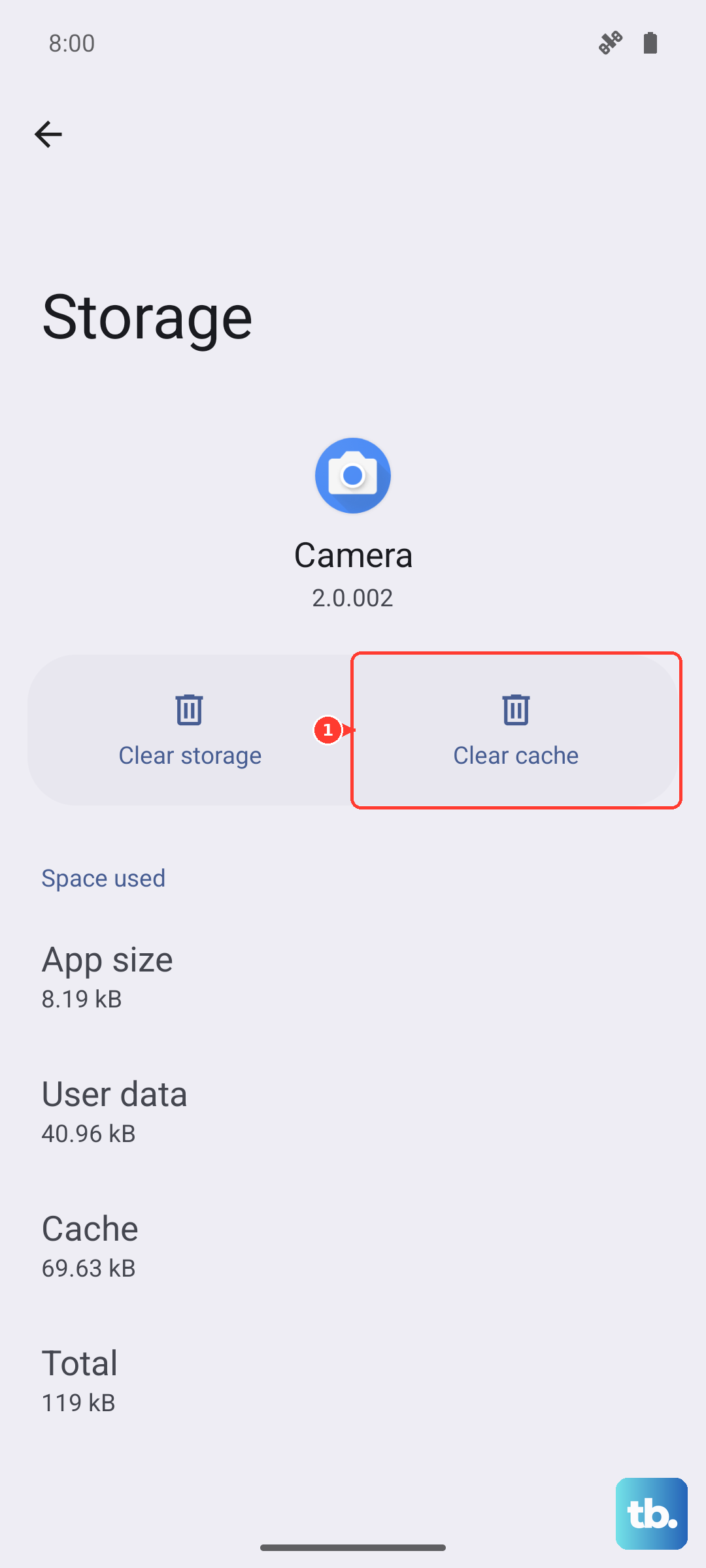
Go to Settings > Apps, then find and select your messaging app. Tap on Storage, and then tap Clear Cache. This is a good general maintenance tip for the A16 to help with occasional lag, too.
Check for App-Specific Data Permissions
Your messaging app needs permission to access your photos, media, and files. If this was accidentally denied, it can't attach pictures to send.
Go to Settings > Apps, select your messaging app, and then tap Permissions. Make sure "Photos and videos" or "Media" permission is set to "Allow."
Try a Different Messaging App
This is a great way to figure out if the problem is with a specific app or with the phone itself. If you normally use Samsung Messages, try downloading Google Messages from the Play Store and see if you can send a photo with it.
If the new app works, the issue is likely with your original app's data. You could try clearing its data (which will erase conversation history) or just switch apps for a while.
Restart Your Galaxy A16
A simple restart clears out temporary software bugs that might be blocking the send function. Just press and hold the Side (power) button until the power menu appears, then tap "Restart."
If the phone is completely unresponsive, you can perform a force restart. Press and hold the Volume Down button and the Power button together for about 10 seconds until you see the Samsung logo.
Disable WiFi and Use Mobile Data (or Vice Versa)
Sometimes, the network you're on is the problem. If you're on WiFi, try turning it off to force the phone to use mobile data. Go to Settings > Connections and toggle WiFi off.
Conversely, if you're on mobile data, try connecting to a strong, stable WiFi network. This can help if your cellular data signal is weak but your internet at home is fine.
Update Your Software and Apps
An outdated system or messaging app can have bugs that affect sending media. First, check for a phone update by going to Settings > Software update > Download and install.
Next, open the Google Play Store, tap your profile icon, and go to Manage apps & device. Tap "Update all" to ensure your messaging app and others have the latest fixes.
Reset Network Settings
If you've tried everything else, resetting network settings can be the final step. This will erase all saved WiFi passwords, Bluetooth pairings, and cellular network settings, returning them to default.
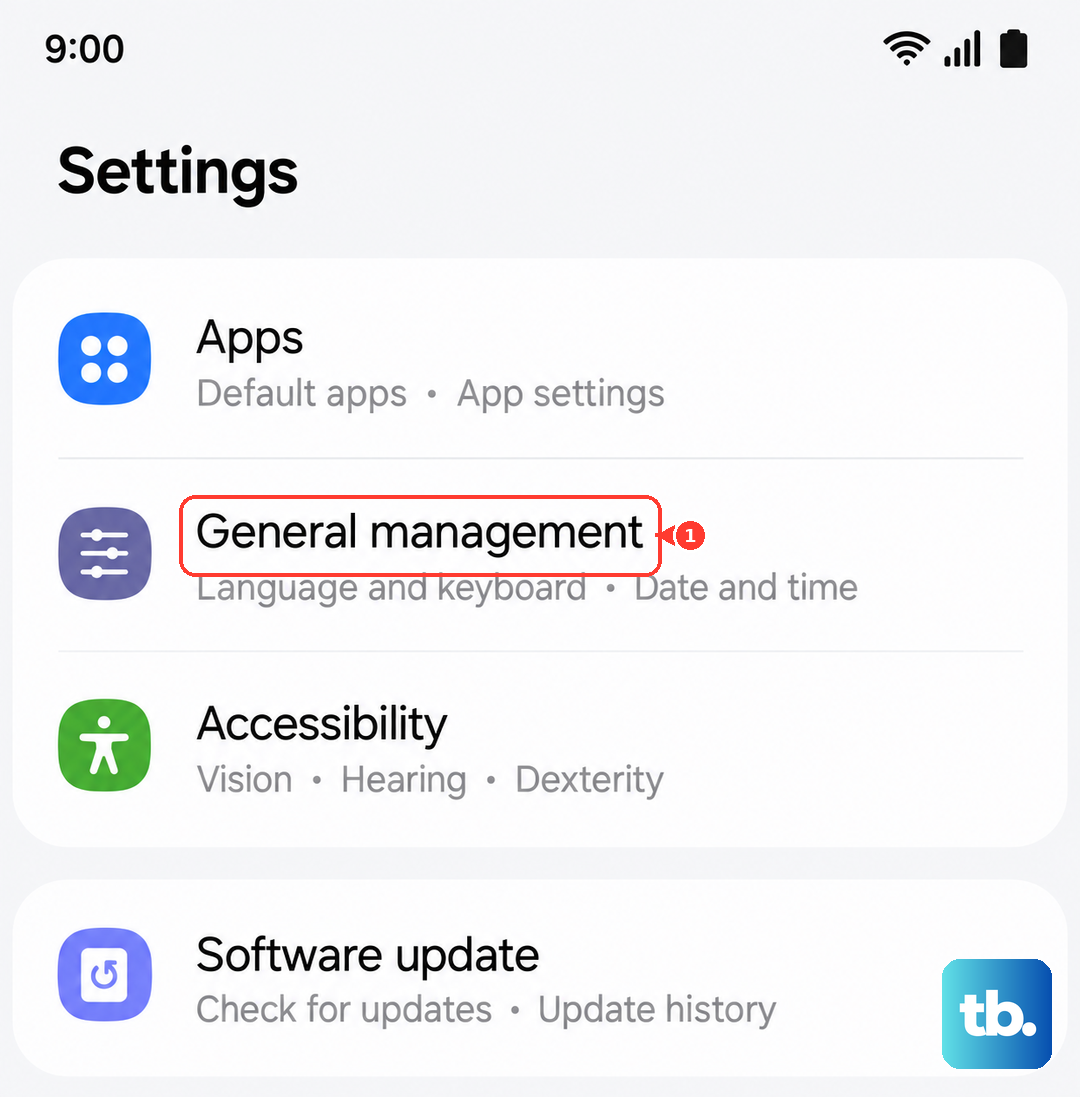
Go to Settings > General management > Reset > Reset network settings. Tap "Reset settings" and confirm. After your phone reboots, you'll need to reconnect to WiFi and re-pair Bluetooth devices, but it often resolves persistent sending issues.