When your Galaxy A16 goes silent, it can feel like you're suddenly cut off from everything. The good news is that most sound issues, whether it's no ringtone, quiet videos, or distorted calls, are caused by simple settings or temporary glitches you can fix yourself.
It is worth confirming the basics with a quick quick sound test. If neither channel plays a tone, you are looking at a hardware or connection problem rather than a settings issue.
Check Your Volume and Sound Mode
This is always the first place to look. The A16 has separate volume sliders for media, ringtone, and notifications, and it's easy for one to get turned down without you noticing. While playing a video or song, press the volume up button on the side of the phone to ensure media volume is high.
Next, swipe down from the top of the screen twice to open the full Quick Settings panel. Look for the sound mode icon, it might say "Sound," "Vibrate," or "Mute." Make sure it's set to "Sound." You can also press and hold this icon to jump straight into the sound settings.
Disconnect Bluetooth and Check for Accessories
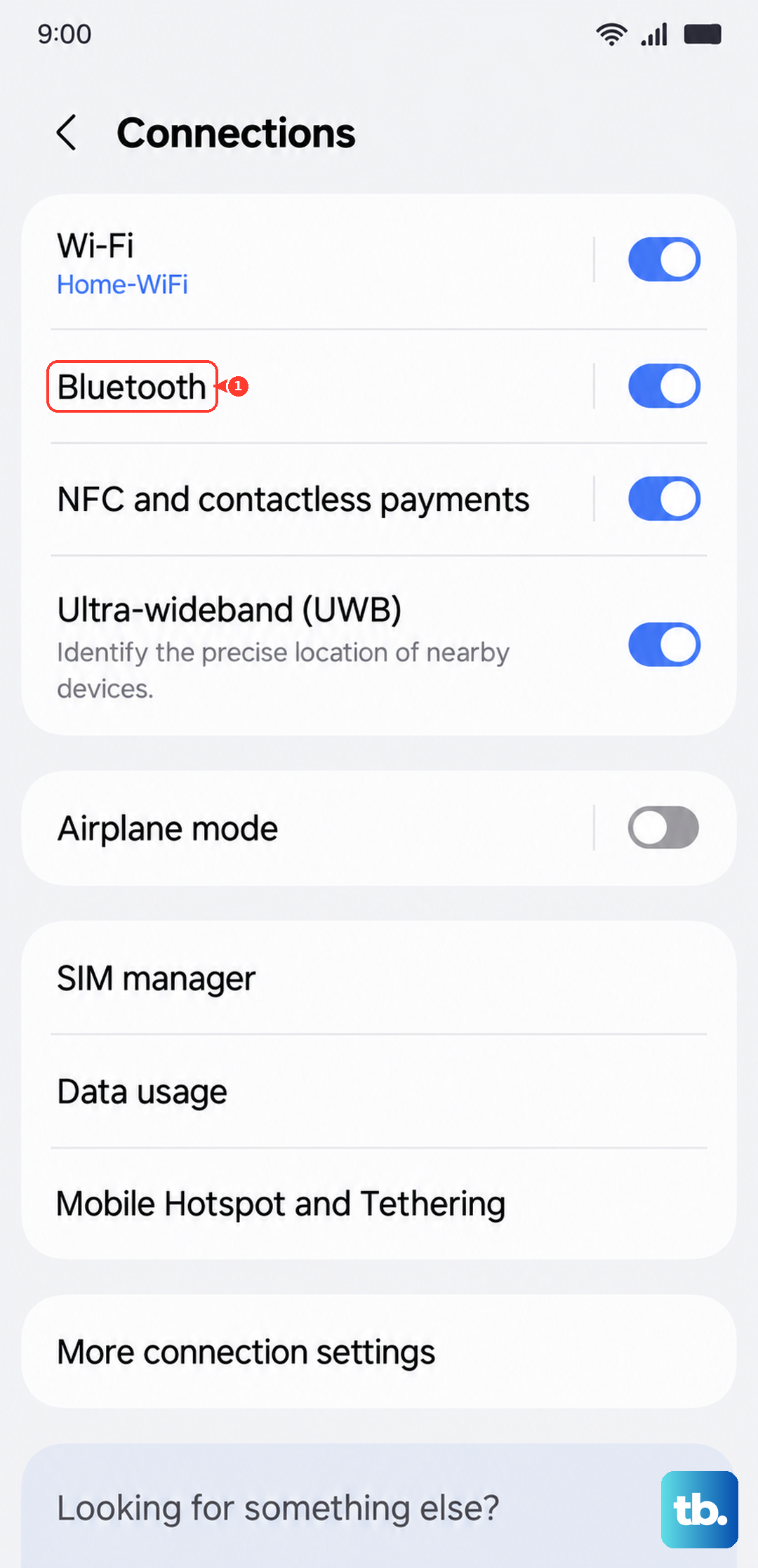
Your phone might be trying to send audio somewhere else. Since the A16 doesn't have a headphone jack, it relies on Bluetooth or its built-in speaker. Go to Settings > Connections > Bluetooth and turn the toggle off. This will immediately force audio back to the phone's speaker.
Also, take a moment to remove your phone case. Some thicker cases can partially cover the bottom speaker grill, muffling the sound significantly. I've seen this make audio seem completely dead when it was just being blocked.
Clean the Speaker Grill
The single bottom-firing speaker on the A16 is a magnet for pocket lint and dust. Grab a small, soft-bristled brush (a clean makeup brush or a new paintbrush works perfectly) and gently brush across the speaker slit. You can also use a dry cotton swab.
Never use a toothpick, paperclip, or compressed air, as you can easily push debris further in or damage the speaker. Just a light, sideways brushing is often enough to clear a blockage.
Review Do Not Disturb and App-Specific Sound
Check if Do Not Disturb is active by swiping down your notification panel. If you see the Do Not Disturb icon, swipe down again, tap the icon to expand its options, and make sure it's turned off. Also, go to Settings > Sounds and vibration > Do Not Disturb and check the rules to see if a schedule is enabled.
Samsung has a feature called Separate app sound that can route audio from one specific app to a different output. To check it, go to Settings > Sounds and vibration > Advanced sound settings > Separate app sound. If it's on for any app, try turning it off to see if your main speaker audio returns.
Perform a Force Restart
A quick force restart clears the phone's temporary memory and can fix a stuck audio process. On the Galaxy A16, press and hold the Volume Down button and the Power button together for about 10 seconds. Keep holding until you see the Samsung logo appear, then let go. The phone will reboot normally.
This is different from a standard restart and often resolves weird glitches that a simple power off doesn't touch. It doesn't delete any of your data.
Check for Software Updates
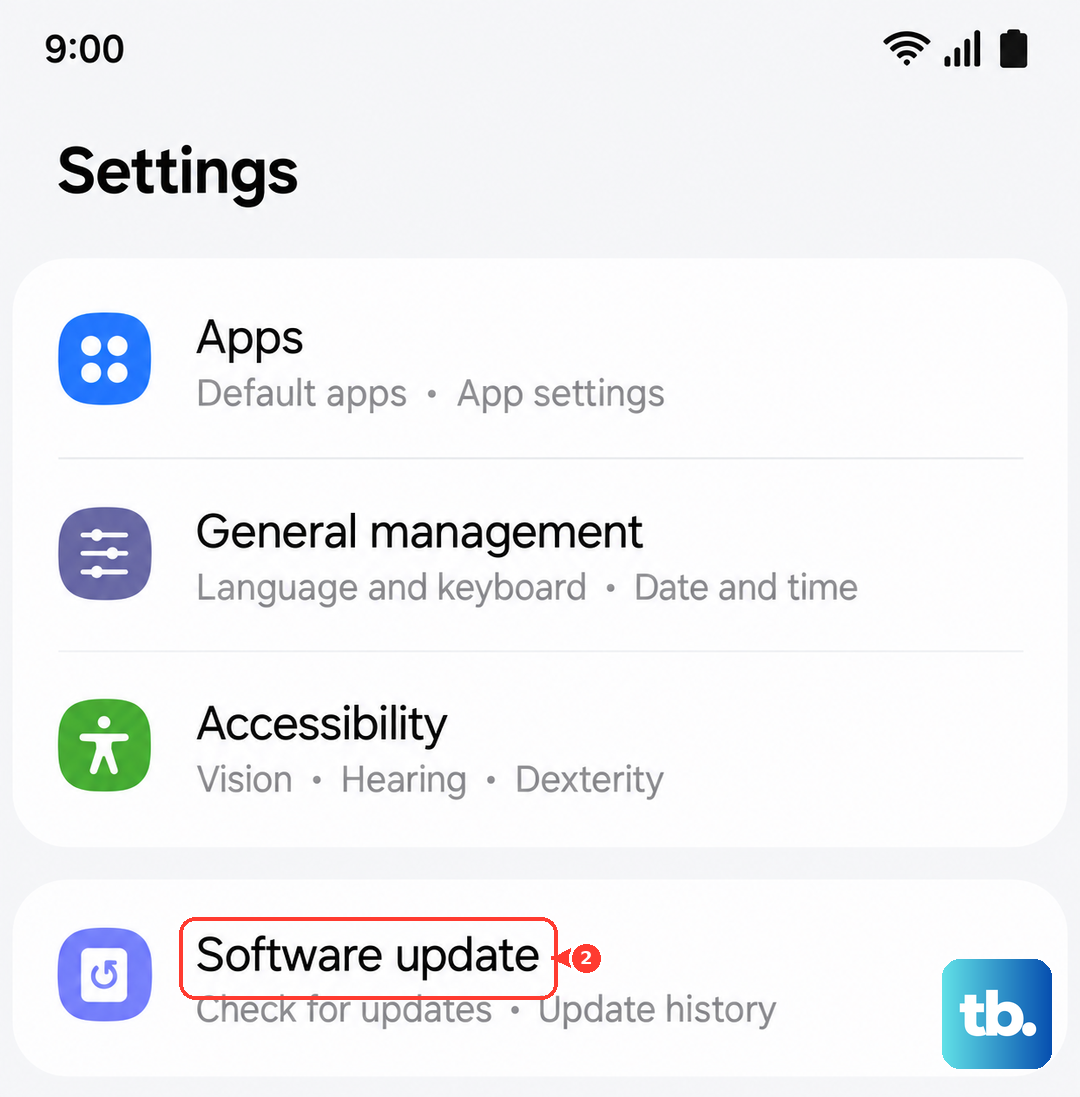
Since the A16 runs Android 14 with One UI 6.1, Samsung periodically releases updates that fix bugs, including audio-related ones. Go to Settings > Software update > Download and install. If an update is available, it's a good idea to install it. Connect to Wi-Fi and make sure your battery is above 50% before starting.
Keeping your phone updated is one of the best ways to maintain performance and avoid issues like lag or sound problems, especially after you've had the phone for a while.
Boot Into Safe Mode
Safe mode temporarily disables all third-party apps you've downloaded. If your sound works perfectly in safe mode, you know a recently installed app is the culprit. To enter safe mode, first turn off your phone completely.
Then, press and hold the Power button until the Samsung logo shows up. As soon as you see the logo, release the Power button and immediately press and hold the Volume Down button. Keep holding it until the phone finishes starting up. You'll see "Safe mode" in the bottom-left corner of the screen.
Test your sound with a YouTube video or by playing a ringtone. To exit, just restart your phone normally.
Clear the System Cache Partition
This clears temporary system files that can become corrupted. It's a great step if the sound issue started after a software update. First, power off your Galaxy A16 completely.
Next, press and hold the Volume Up button and the Power button together. Release both buttons when you see the Android recovery screen. Use the Volume Down button to highlight "Wipe cache partition," then press the Power button to select it. Confirm the action, then select "Reboot system now."
Reset All Settings
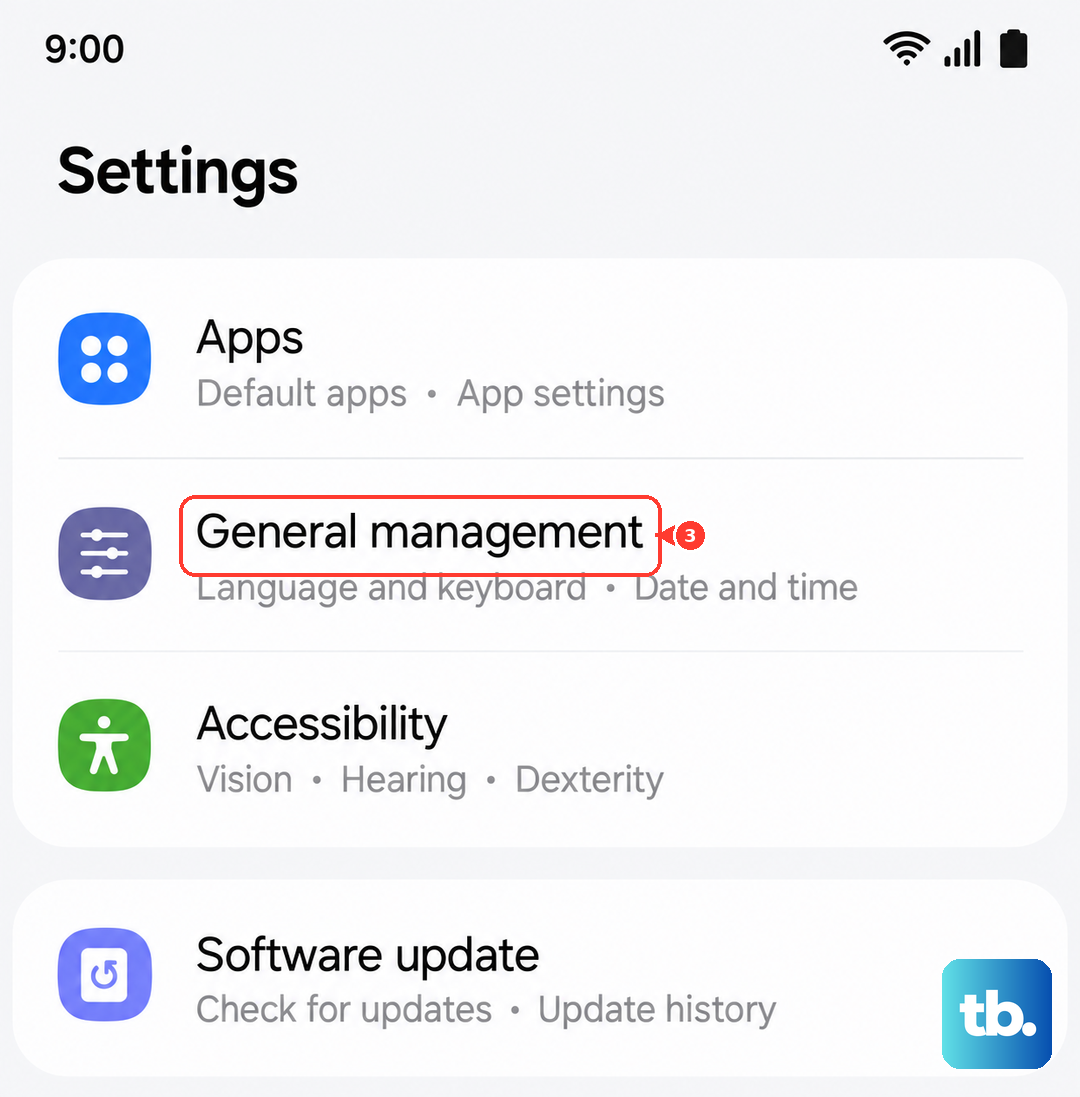
If you're still having trouble and you've ruled out hardware, this resets every system setting on your phone back to factory defaults. Your photos, messages, and apps will remain, but you'll lose all your Wi-Fi passwords, paired Bluetooth devices, and custom preferences.
Go to Settings > General management > Reset > Reset all settings. Read the warning carefully, then tap "Reset settings" and confirm. Your phone will reboot. Afterward, you'll need to reconnect to Wi-Fi and Bluetooth devices, but it often clears up persistent software conflicts causing sound to fail.