When your Samsung Galaxy A16's email stops working, it can leave you feeling disconnected. Whether you're missing important messages or can't send replies, these issues usually have a simple cause. I'd start by checking the basics before moving to more involved fixes.
First, make sure you have a working internet connection, either through Wi-Fi or mobile data. Try opening a web browser to confirm. Next, verify your email service isn't experiencing a widespread outage by checking the provider's status page. Finally, double-check that you're using the correct email address and password.
Restart the Email App
A quick app restart can clear out temporary glitches that stop emails from syncing. Swipe up from the bottom of your screen and hold to enter the recent apps view. Find your email app, whether it's Gmail, Samsung Email, or Outlook, and swipe it up to close it completely. Wait a few seconds, then tap the app icon to reopen it and see if your emails load.
Check Your Sync and Fetch Settings
Your phone's sync settings control how often it checks for new emails. If these are set incorrectly, messages won't arrive automatically. Open the email app you're using and go into its settings. Look for options labeled "Sync," "Fetch new data," or "Check for new messages."
Make sure automatic syncing is turned on. You can usually set it to push (instant delivery) or a fetch interval like every 15 minutes. If you're using the Samsung Email app, you can find these settings by tapping the three-line menu, going to Settings, selecting your account, and then adjusting the Sync settings.
Toggle Airplane Mode
Airplane mode resets all your phone's wireless connections at once, which can clear up network hiccups. Swipe down from the top of your screen twice to open the Quick Settings panel. Tap the airplane icon to enable Airplane mode, wait about 30 seconds, then tap it again to turn it off. Your phone will reconnect to Wi-Fi and mobile data, which often gets email flowing again.
Switch Between Wi-Fi and Mobile Data
Sometimes the problem is with one specific network. If you're on Wi-Fi and emails aren't coming through, try turning Wi-Fi off to force the phone to use mobile data. You can do this from the Quick Settings panel. If emails work on mobile data, the issue might be with your Wi-Fi router or its internet connection.
Conversely, if you're only using mobile data, try connecting to a known good Wi-Fi network. This helps pinpoint where the connectivity problem lies.
Verify Your Account Credentials
An incorrect password or outdated security setting is a common culprit. Try logging into your email account through a web browser on a computer. If you can't sign in there either, you'll need to reset your password through your email provider's website.
Once you have the correct password, you may need to update it in your phone's email app settings. For some accounts, especially work or school emails, you might need an "app password" if two-factor authentication is enabled.
Clear the App's Cache and Data
Over time, an app's cached files can become corrupted. Clearing this cache is a safe first step that won't delete your emails. Go to Settings > Apps, select your email app (e.g., Gmail or Samsung Email), then tap Storage. Choose Clear Cache.
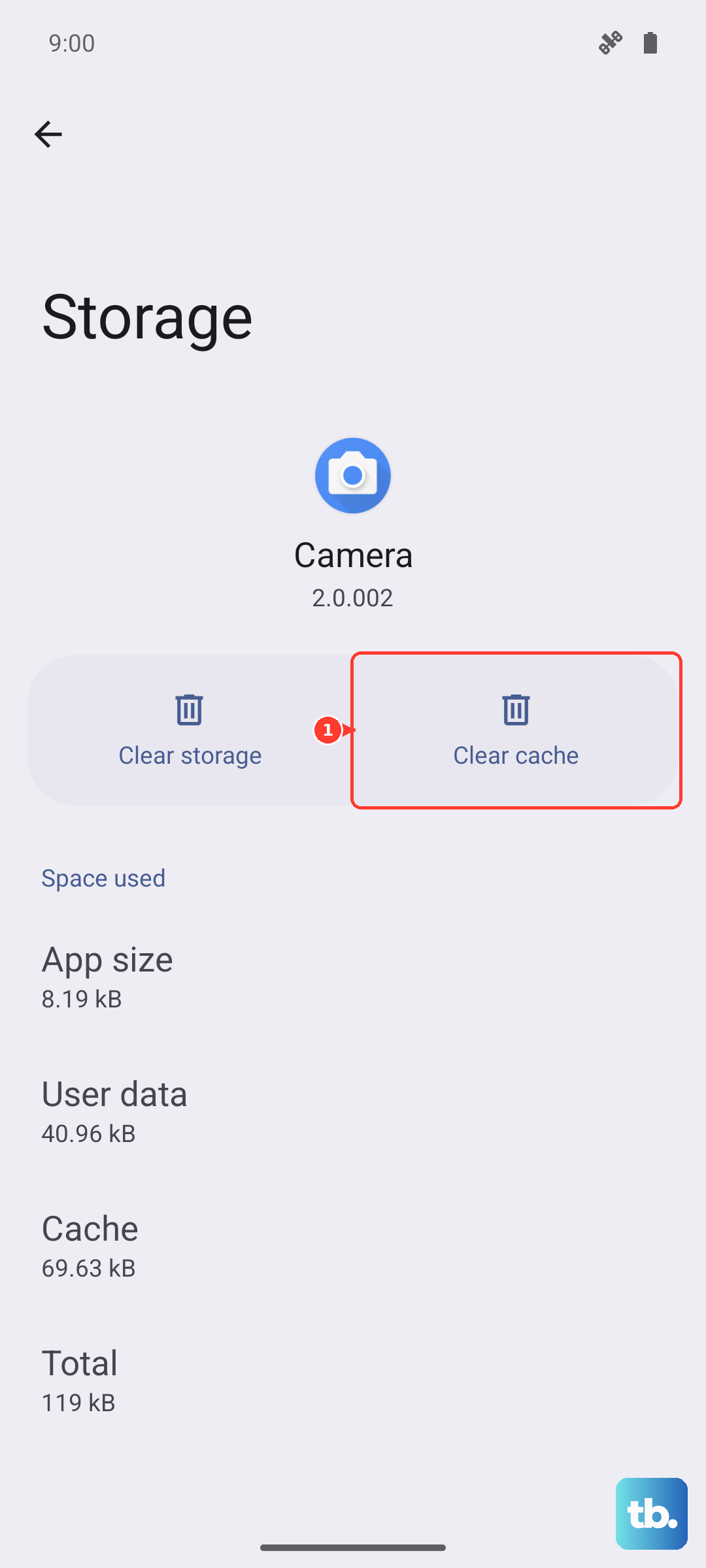
If the problem persists, you can try Clear Data. Be warned, this will remove the app's settings and log you out, so you'll need to set up your account again. Your actual emails stored on the server will be safe.
Check for App and System Updates
Outdated software can cause compatibility issues. Open the Galaxy Store or Google Play Store, tap your profile icon, and go to Manage apps and device to check for updates for your email app. It's also crucial to keep your phone's system software current.
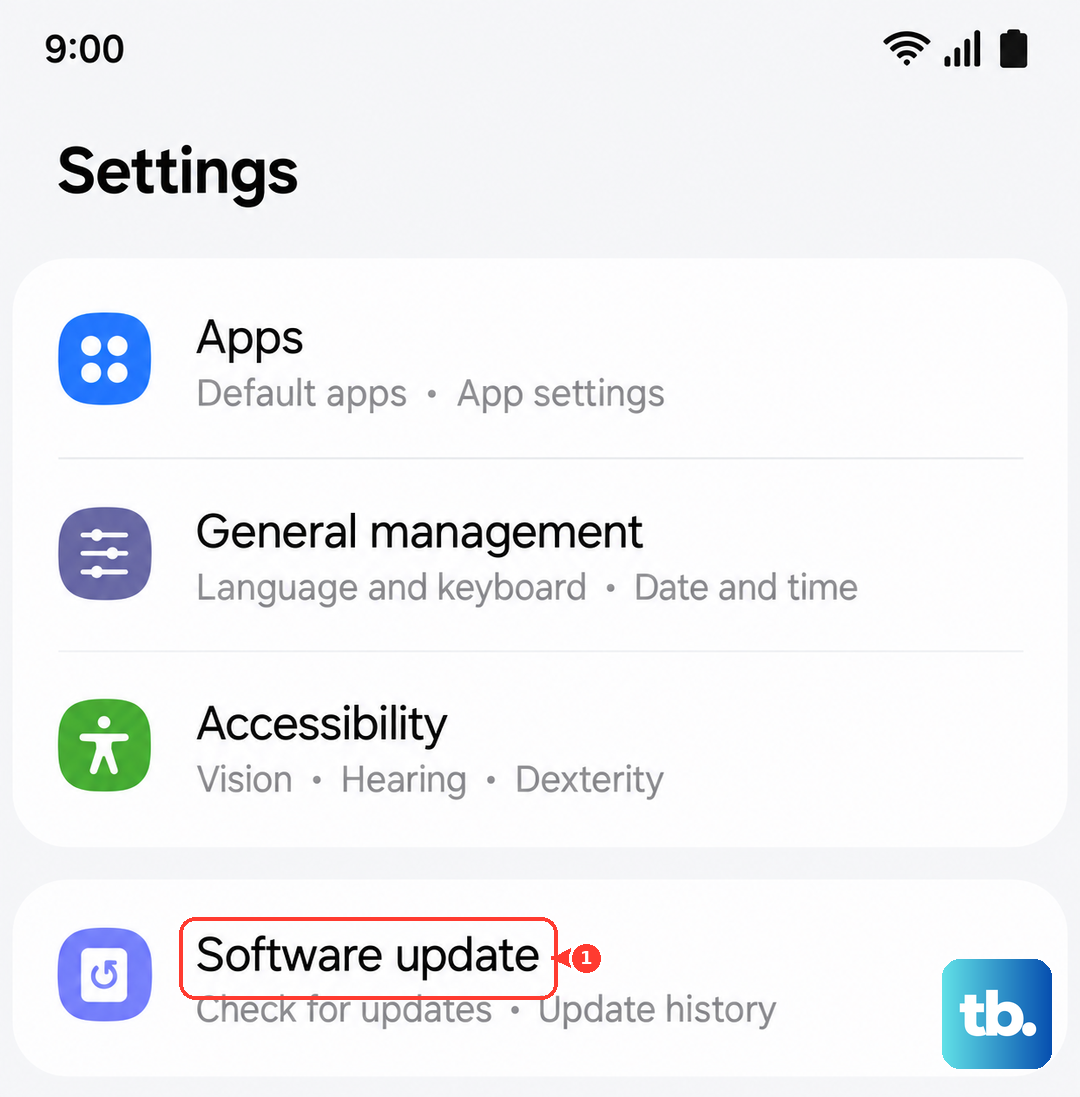
Go to Settings > Software update and tap Download and install. Updates for your Galaxy A16 running Android 14 and One UI 6.1 often include bug fixes that can resolve email and sync problems.
Review Background Data and Battery Settings
Android's battery optimization can sometimes restrict an app's background activity too aggressively. To check this, go to Settings > Apps, select your email app, and tap Battery. Make sure the setting is Unrestricted or Optimized, not Restricted.
Also, ensure background data is allowed. In the same app info screen, go to Mobile data and make sure Allow background data usage is turned on. This lets the app sync even when you're not actively using it.
Remove and Re-add Your Email Account
This is a more thorough fix that refreshes the connection between your phone and the email server. The steps vary slightly by app. In the Samsung Email app, go to Settings > Manage accounts, tap on the problematic account, and select Remove account.
Confirm the removal, then go back to add the account fresh. The app will typically walk you through the setup process automatically. This can resolve deeper configuration errors that other fixes miss.
Disable Any Active VPN
A VPN can sometimes interfere with the connection to your email provider's servers. If you have a VPN app running, open it and disconnect. You can also check in Settings > Connections > More connection settings > VPN to see if a VPN profile is active and disable it from there. Try accessing your email without the VPN to see if that was the issue.
Perform a Force Restart on Your Phone
If the phone is lagging or apps are freezing, a soft reset can help. For the Galaxy A16, press and hold the Volume Down button and the Side/Power button simultaneously for about 10 seconds. Release when you see the Samsung logo. This is different from a normal restart and can clear minor system hiccups.
Check Your Notification Settings
If emails are arriving but you're not getting alerts, the notification settings might be off. Long-press on your email app's icon and tap App info. Go to Notifications and make sure they are enabled for the app overall.
Then, tap on Email notifications or a similar category to ensure sounds, pop-ups, and badge icons are turned on according to your preference. Sometimes an update can reset these permissions.
Ensure Date and Time Are Correct
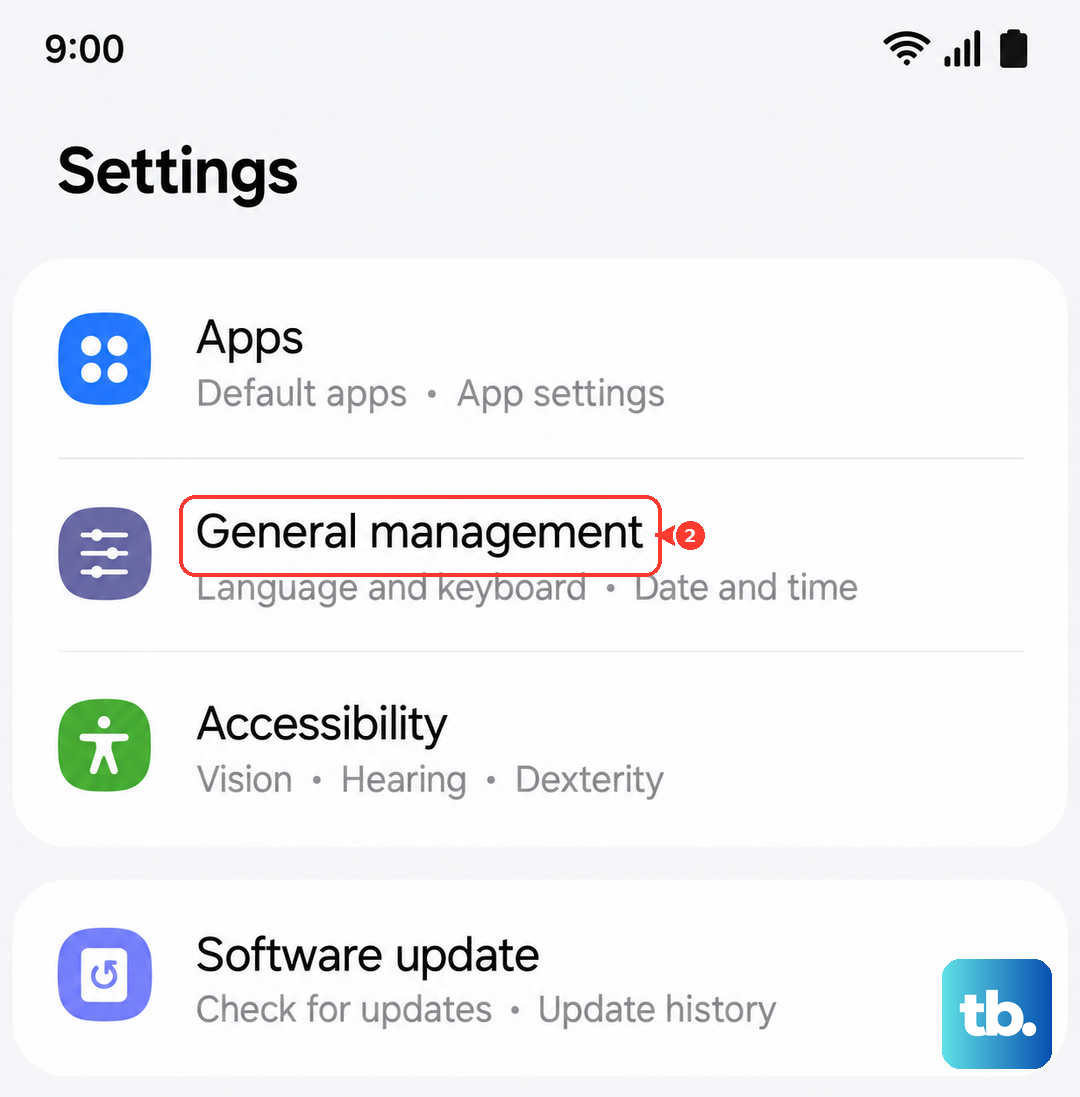
Incorrect date and time settings can disrupt secure connections to email servers. Go to Settings > General management > Date and time. Make sure the Automatic date and time and Automatic time zone options are switched on. This allows your phone to set the time correctly via the network.