

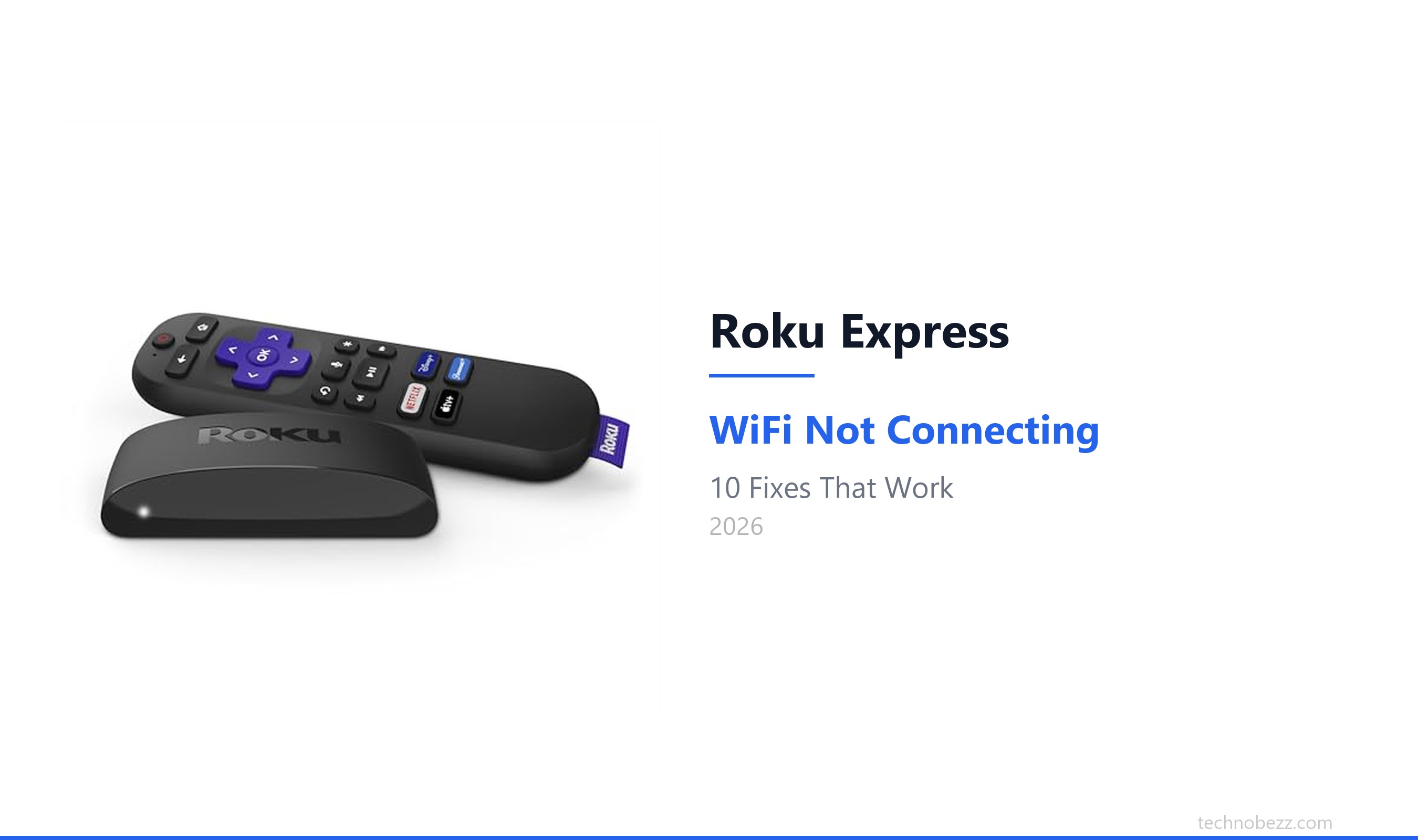
When your Roku Express won't connect to the internet, you're stuck staring at a setup screen or an error message instead of your shows. Whether it can't find your network, fails to connect, or shows a connection with no internet, these steps will get you back to streaming.
Restart Your Roku Express
Unplug the power cable from the back of your Roku Express box, not just from the wall outlet. Wait for about 30 seconds, then plug it back in. This simple reboot clears out any temporary software glitches that are blocking the network connection.
I've found this fixes the issue more often than not, especially if the device was working fine yesterday. Let the Roku boot up completely, which usually takes a minute, and then try connecting again.
Restart Your Router and Modem
Unplug your router and modem from power for a full minute. This gives them time to clear their memory and re-establish connections with your internet service provider. Plug the modem back in first, wait for all its lights to stabilize, then plug the router back in.
Wait another two minutes for your WiFi network to fully come back online. Then, try the connection on your Roku again. If other devices in your home also can't get online, the problem is almost certainly with your router or internet service.
Check Your Network Selection
On the Roku network setup screen, make sure you're selecting the correct network name. If you have both a 2.4GHz and a 5GHz band broadcasting with similar names, try the 2.4GHz one first. The Roku Express has a solid wireless receiver, but 2.4GHz signals travel farther and through walls better.
Double-check that you haven't accidentally selected a neighbor's network. If your network isn't showing up at all, that points to a router or distance issue.
Re-enter Your WiFi Password Carefully
This is a very common hurdle. Use the on-screen keyboard to enter your WiFi password again, paying close attention to capitalization, numbers, and special characters. It's easy to hit a wrong key with the directional pad on the IR remote.
If you're unsure of the password, check it on another device that's already connected, like your phone or laptop. You can usually find it in your phone's WiFi settings under the network name.
Move Your Roku Express or Router
The Roku Express is small, but its location matters. If it's tucked behind a thick metal TV or inside a crowded media cabinet, the WiFi signal can be weakened. Try moving the box to a more open location, even if just temporarily for the setup.
Similarly, if your router is in a distant room, the signal might be too weak. Moving the router closer or elevating it can make a significant difference. Physical obstructions are a frequent cause of connection problems.
Use the Roku Mobile App as a Remote
If you're stuck on a screen and your physical IR remote isn't working well for typing, download the Roku app on your smartphone. Make sure your phone is on the same WiFi network you want the Roku to use.
The app connects to the Roku over the network and acts as a touchscreen remote and keyboard, which is much easier for entering passwords. This can be a lifesaver during the initial setup process.
Check for Wireless Interference
Other electronic devices can interfere with the WiFi signal. If your Roku Express is right next to a cordless phone base, microwave, baby monitor, or even large speakers, try moving it away. Bluetooth devices can sometimes cause issues too.
For the best signal, keep the Roku in a relatively clear space. This helps the little box get the clearest possible connection to your router.
Update Your Roku Software
Sometimes a software bug can break connectivity. If you can get a temporary connection, go to Settings > System > System update and check for updates. The Roku will download and install any available updates, which often include fixes for network problems.
If you can't connect at all to update, you might need to complete a more involved reset to force an update, which we'll cover next.
Perform a Network Connection Reset
From the Roku home screen, press the Home button on your remote five times, then press Up once, then press Rewind twice, and finally press Fast Forward twice. This sequence opens a secret menu.
Select "Network connection reset" from the list. This will clear all saved network information without deleting your channels or preferences, giving you a clean slate to connect from.
Factory Reset Your Roku Express
If all else fails, a factory reset is the final step. You can do this through the menu by going to Settings > System > Advanced system settings > Factory reset.
Alternatively, there's a small physical reset button on the side or back of the Roku Express device. Press and hold this button with a paperclip for about 20 seconds until the status light on the front begins flashing rapidly. This will wipe the device completely, and you'll need to go through the initial setup again, including re-adding all your channels.