
When your Redmi Note 14 Pro won't send pictures, it's usually a quick network or setting that needs adjusting. The photo might just sit there with a "Sending..." label or fail with an error. I'd start by checking your mobile data and the messaging app's permissions.
Check Your Mobile Data and MMS Settings
First, make sure your mobile data is actually turned on. Swipe down from the top of your screen to open the Quick Settings panel and tap the mobile data icon to enable it. If you're trying to send a picture via SMS/MMS (the green bubble), you need an active data connection for it to work, even if you're on Wi-Fi.
Next, verify that MMS is enabled in your messaging app. Open the Messages app, tap the three dots in the top right, go to Settings > Advanced settings. Make sure "Auto-download MMS" is turned on. Also, check inside Settings > SIM card & mobile networks to ensure data is enabled for the SIM you're using to send.
Verify Your Internet Connection
A weak or unstable connection is the most common culprit. If you're on Wi-Fi, try switching to mobile data or vice versa. Sometimes, the phone's processing can get a bit bogged down, and a stronger signal helps push the image through.
For Wi-Fi, try toggling it off and back on from the Quick Settings. If the problem persists, restart your router. For mobile data, check your signal strength. If you only have one or two bars, moving to a different spot can make a big difference.
Force Restart Your Phone
A simple reboot clears out temporary glitches that can hang up the messaging service. Press and hold the power button on the side of your Redmi Note 14 Pro for about 15 seconds, until you feel it vibrate and see the Xiaomi logo appear.
This force restart is different from a normal shutdown. It fully refreshes the system processes, including those for your network and messaging apps. Give it a minute to fully boot up, then try sending the picture again.
Clear the Messaging App's Cache and Data
Corrupted app cache can prevent pictures from sending. Go to your phone's Settings and tap on Apps. Find and select your messaging app (often called "Messages" or "Messaging").
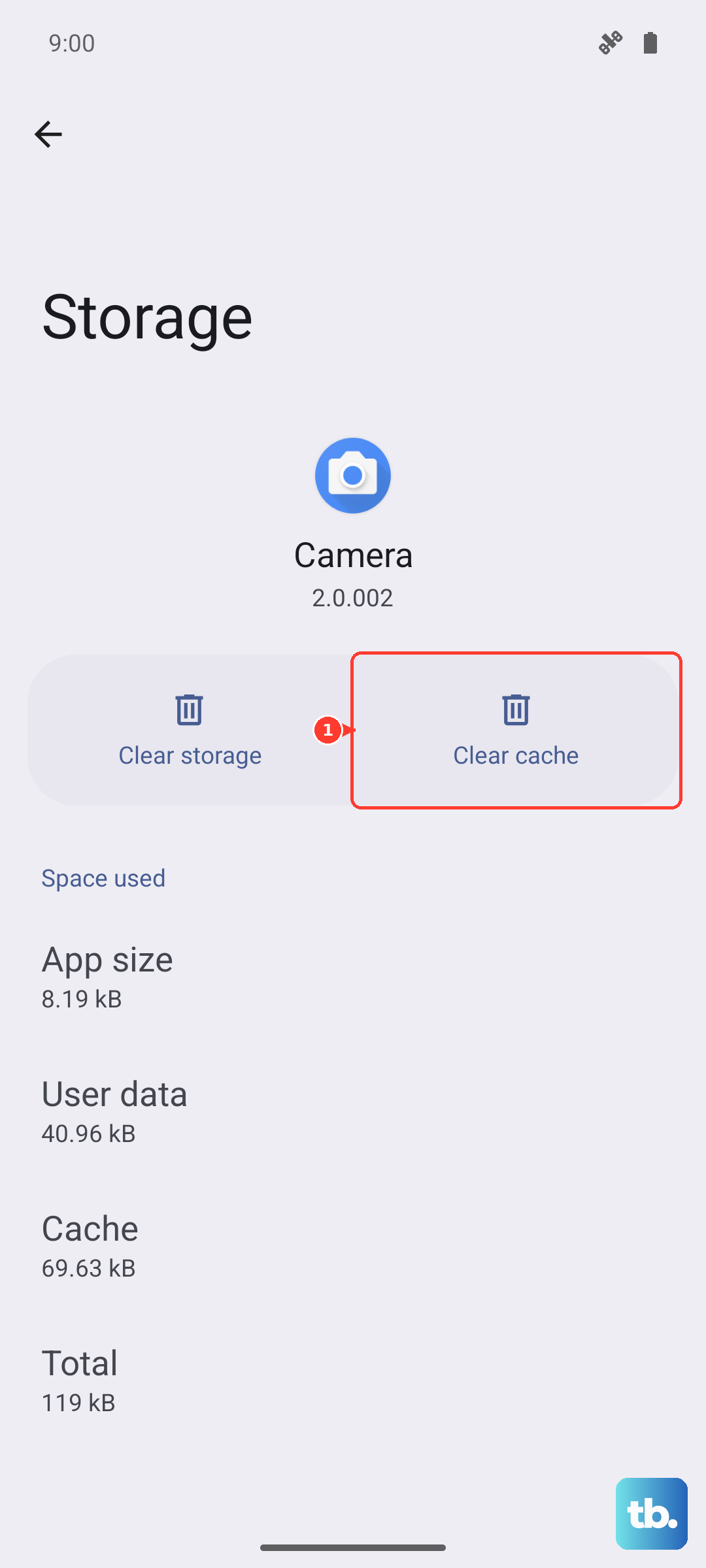
Tap on Storage & cache. First, tap "Clear cache." This is safe and won't delete your messages. If the issue continues, you can tap "Clear storage" or "Clear data." Just be aware this will reset the app to its default state and erase your message history within the app, so only do this if you're okay with that.
Check the File Size and Format
Your carrier has a size limit for MMS messages, usually around 1MB. If the photo is too large, it will fail to send. The 108MP camera on the Redmi Note 14 Pro can create very large files, especially in full resolution.
Try sending a different, smaller picture first to see if size is the issue. You can also reduce the image size before sending. When attaching a photo in your messaging app, look for a compression or resize option. Alternatively, edit the photo in your Gallery app first and save a smaller copy.
Disable Data Saver or Battery Saver Modes
Power-saving features restrict background data, which is exactly what sending an MMS requires. Pull down the notification shade twice and look for icons like a battery with a plus sign or a leaf. If they're highlighted, tap them to turn these modes off.
You can also check in Settings > Battery. If "Power saving" or "Ultra battery saver" is on, switch it off. Then go to Settings > SIM card & mobile networks > Data usage and make sure "Data saver" is disabled.
Update Your Messaging App and Carrier Services
An outdated app can have bugs that break MMS functionality. Open the Google Play Store, tap your profile icon, and go to Manage apps & device > Updates available. See if your messaging app or an app called "Carrier Services" has an update.
Install any available updates. Carrier Services in particular helps manage communication between your phone and your mobile network for services like MMS. Keeping it updated is a good habit for avoiding these kinds of issues.
Reset Your APN Settings
The Access Point Name (APN) tells your phone how to connect to your carrier's multimedia messaging service. Incorrect settings here will stop pictures from sending. Go to Settings > SIM card & mobile networks.
Select the SIM card you're using, then tap Access Point Names. Tap the three dots in the top corner and select "Reset to default." Your phone will refresh the APN settings provided by your carrier. After it resets, restart your phone and test the picture message again.
Check for System Software Updates
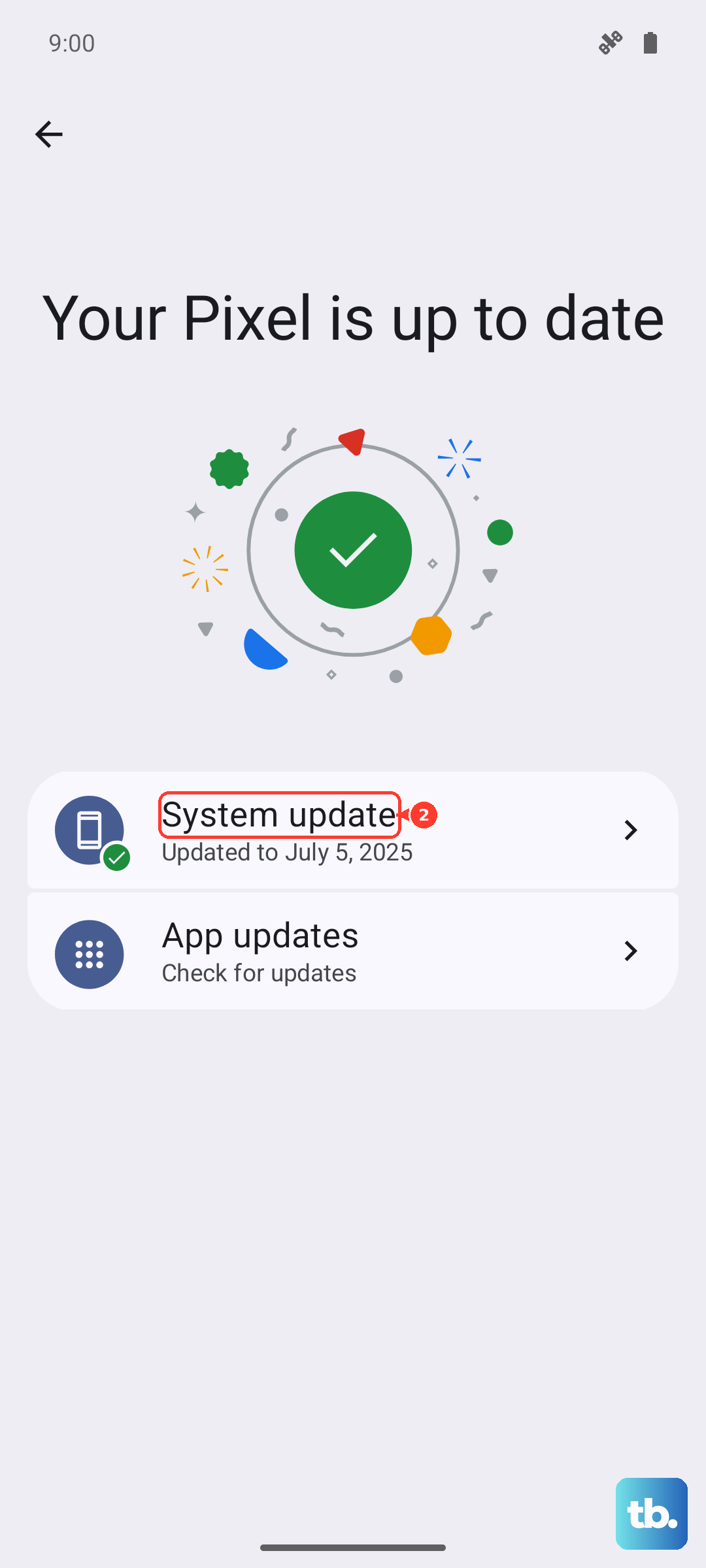
Xiaomi regularly releases HyperOS updates that fix bugs and improve connectivity. Go to Settings > About phone > HyperOS version. Tap the "Check for updates" button.
If an update is available, make sure your phone is connected to Wi-Fi and has at least a 50% charge before installing. System updates often include patches for network-related issues that could be blocking your MMS.
Reset Network Settings as a Last Resort
If you've tried everything else, resetting network settings can clear deep-seated configuration errors. This will erase all Wi-Fi passwords, paired Bluetooth devices, and mobile network settings. Go to Settings > Additional settings > Backup & reset.
Tap on Reset phone, then select Reset network settings. Confirm the action. Your phone will reboot. Afterward, you'll need to reconnect to Wi-Fi networks and re-pair Bluetooth devices, but this often resolves stubborn messaging problems.