
If your Redmi Note 14 Pro is taking forever to load a webpage or buffer a video, it can feel like you're back on a 2G connection. The good news is, this is almost always a software or settings issue you can fix yourself. I'd start with the quick fixes at the top of this list, as they solve the problem for most people.
Toggle Airplane Mode and Restart
This is the fastest way to refresh your phone's connection to both cellular towers and WiFi networks. Swipe down from the top of your screen to open the Quick Settings panel and tap the airplane icon to turn it on. Wait about 10 seconds, then tap it again to turn it off. If that doesn't do the trick, give your phone a full restart by holding the power button for a few seconds and selecting "Restart."
Check Your Network Signal and Switch Bands
First, look at your status bar. If you're on mobile data, you want to see "4G" or "5G" for the fastest speeds. "H+" or "3G" will be much slower. You can force your phone to use the faster networks. Go to Settings > Mobile network > SIM card & mobile data > Preferred network type. Select "5G/4G/3G/2G (auto)" to let it choose the best, or try "4G/3G/2G (auto)" if your 5G signal is weak and unstable.
For WiFi, your router broadcasts on two frequencies: 2.4 GHz (better range, slower speed) and 5 GHz (faster speed, shorter range). Go to Settings > Wi-Fi, tap the gear icon next to your connected network, and look for "Frequency." If it says 2.4 GHz, try forgetting the network and reconnecting while standing closer to your router, which often prompts the phone to join the faster 5 GHz band.
Forget and Reconnect to Your WiFi
Your phone might be holding onto outdated connection data for your home network. To clear it, head to Settings > Wi-Fi. Tap the gear icon next to your network name and select "Forget this network." Confirm, then tap on the network name again from the list and re-enter your password to reconnect fresh. This can immediately resolve speed issues caused by a corrupted network profile.
Enable Data Saver and Restrict Background Data
HyperOS has a great built-in tool to stop apps from eating up your bandwidth in the background. Go to Settings > Mobile network > Data saver and turn it on. This will block most apps from using mobile data when you're not actively using them. For more control, you can go to Settings > Apps > Manage apps, select a specific app like Facebook or Instagram, tap "Mobile data & Wi-Fi," and toggle off "Allow background data usage."
Clear the Cache for Google Play Services and Your Browser
Corrupted temporary files can slow everything down. For system connectivity, clear the cache for Google Play Services. Go to Settings > Apps > Manage apps, tap the three-dot menu and select "Show all apps." Find "Google Play services," tap into it, then tap "Clear cache." Do not tap "Clear data."
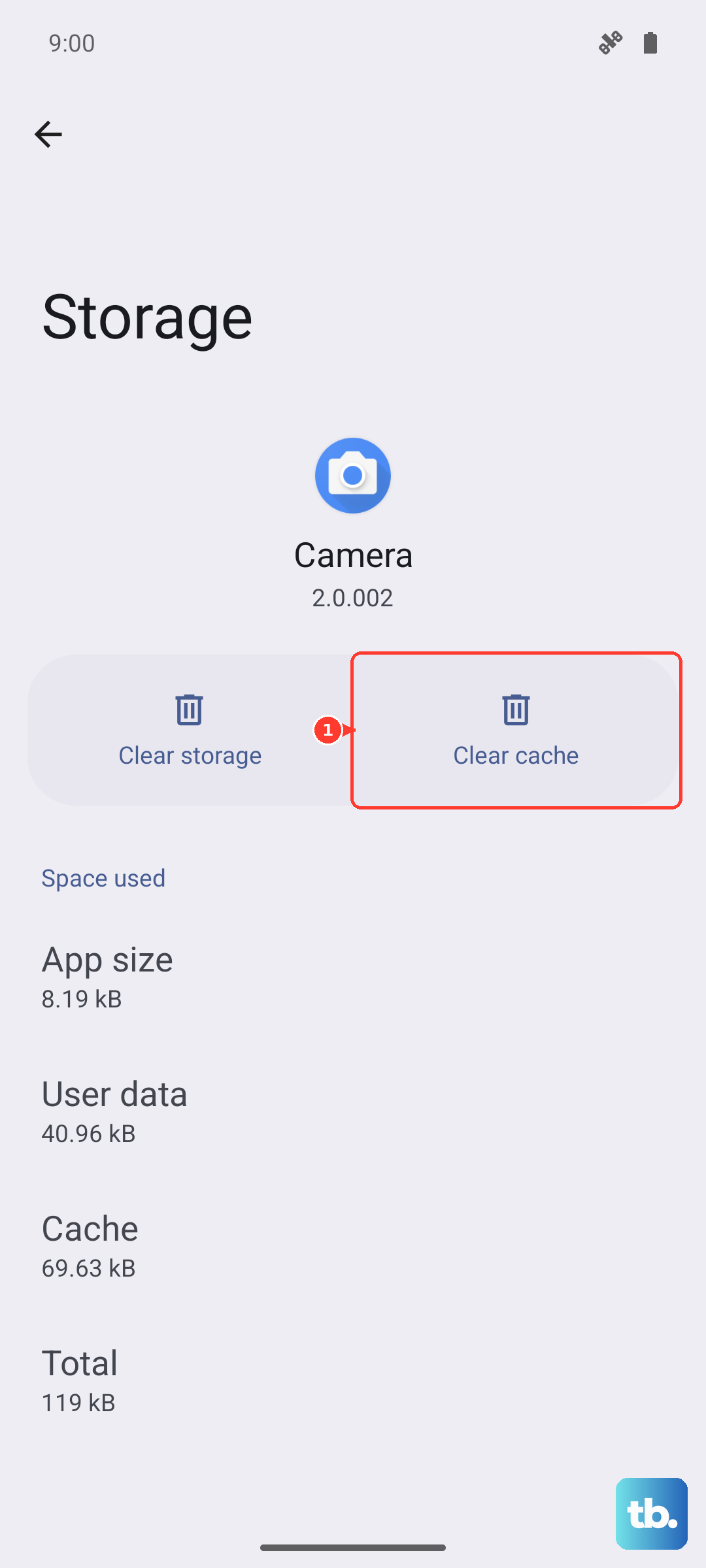
Next, clear your browser's cache. If you use Chrome, open the app, tap the three dots, go to History > Clear browsing data. Under "Time range," select "All time," check "Cached images and files," and tap "Clear data."
Disable Any Active VPN or Proxy
While VPNs are great for privacy, they route your traffic through another server, which often adds significant lag. Check your Quick Settings panel (swipe down twice) to see if a VPN tile is active. You can also go to Settings > Connection & sharing > VPN to see and disconnect any configured VPNs. Similarly, check for a proxy under Settings > Wi-Fi, tap the gear icon next to your network, and ensure "Proxy" is set to "None."
Update Your Phone's Software
Xiaomi regularly releases updates that include performance optimizations and fixes for connectivity bugs. Make sure you're running the latest version of HyperOS. Go to Settings > About phone > MIUI version. If an update is available, tap "Download and install." It's best to do this over a WiFi connection. I've seen updates resolve weird network glitches that nothing else would fix.
Reset Your Wi-Fi, Mobile & Bluetooth Settings
This is a more thorough step that will wipe all your saved networks, Bluetooth pairings, and cellular preferences back to factory defaults. It won't delete your personal files or apps. Go to Settings > About phone > Factory reset. Here, tap "Reset phone" and then select "Reset Wi-Fi, mobile & Bluetooth." Confirm your lock screen password if prompted. After the reset, you'll need to reconnect to your WiFi and re-pair Bluetooth devices, but it often clears deep-seated network configuration errors.
Check for System App Interference
Sometimes, the system apps that manage notifications or security scans can interfere. You can try disabling the "MSA" (Miui System Ads) if it's active. Go to Settings > Passwords & security > Authorization & revocation. Look for an app called "MSA" and revoke its permission. Additionally, consider turning off recommendations in system apps like the Downloads app or Security app by looking for a settings gear icon within those apps and toggling off "Get recommendations" or similar options.
Perform a Network Hardware Test
If you've tried everything and speeds are still slow, it's time to isolate the problem. Test your mobile data and WiFi separately in different locations. If mobile data is slow everywhere, contact your carrier, there might be an outage or an issue with your SIM card. If only your home WiFi is slow, restart your router by unplugging it for 30 seconds. Test the WiFi with another device, like a laptop, to see if the problem is with your Redmi Note 14 Pro or the router itself.