
When your Redmi Note 14 Pro's microphone stops picking up your voice, it can turn simple calls, video chats, and voice notes into a frustrating game of charades. The issue could be a blocked port, a software hiccup, or a permissions problem. Let's start by figuring out exactly which microphone is acting up.
Start by confirming the basics with a free quick mic test. It shows a live level meter and lets you hear a short playback, so you know in seconds whether any signal is coming through.
Test Your Microphones First
Your phone has several microphones. The main one for calls is usually at the bottom near the USB-C port. There's often another up top for noise cancellation, and one on the back for video recording. Open your Voice Recorder app, make a quick recording while speaking normally, and play it back. Is the audio muffled, crackly, or completely silent?
Next, try a phone call with someone you trust. Ask them if they can hear you clearly. If the Voice Recorder works but calls don't, or vice versa, it helps narrow down whether it's an app-specific issue or a broader hardware problem.
Check for Physical Blockages
This is the most common fix I'd start with. Take a close look at the small microphone pinholes, especially the one at the bottom next to the charging port. Lint from your pocket or a case that doesn't align perfectly can easily block sound.
Use a dry, soft-bristled brush (a clean toothbrush works) or a can of compressed air to gently clear any debris. Never use a sharp object like a pin, as you can easily damage the delicate microphone membrane inside. Also, remove your phone case temporarily to test, as some cases can muffle or cover the microphone holes.
Disconnect Bluetooth Accessories
If you have wireless earbuds, a headset, or a smartwatch connected, your phone might be routing all audio through them. Swipe down from the top of your screen to open the Quick Settings panel and tap the Bluetooth icon to turn it off.
Now try your microphone again. This is a frequent culprit, especially if the mic works in some apps but not others. Some audio accessories can get "stuck" as the default input device even after you've disconnected them.
Verify App Permissions
On HyperOS, apps need explicit permission to use your microphone. If you denied this permission accidentally, or if a recent update reset it, the app will act like the mic is broken.
Go to Settings > Apps > Manage apps. Find the app giving you trouble (like WhatsApp, Google Meet, or your dialer) and tap on it. Select Permissions and make sure Microphone is set to "Allow." While you're here, you can also disable unnecessary notifications from system apps to reduce interruptions, a handy tip for the Note 14 Pro.
Close and Reopen Problem Apps
If it's just one app acting up, a simple force stop can clear its temporary cache and reset its connection to the microphone. Go back to Settings > Apps > Manage apps, select the app, and tap Force stop.
Then, reopen the app and try the microphone again. This is a good, quick step before moving on to more system-wide fixes. It's particularly effective if the app was recently updated.
Update Your Software
Xiaomi regularly releases updates that fix bugs, including audio and microphone issues. An outdated system can sometimes cause conflicts with newer apps.
Head to Settings > About phone > HyperOS version. Tap on "Check for updates" and install any available firmware. Make sure your phone is connected to Wi-Fi and has at least a 50% charge, or better yet, plug it into a 45W HyperCharge adapter while it updates.
Boot Into Safe Mode
Safe mode temporarily disables all third-party apps you've downloaded. If your microphone works perfectly in Safe Mode, you know a recently installed app is causing the conflict.
To enter Safe Mode, press and hold the power button until the power menu appears. Then, press and hold the "Power off" option on your screen. A prompt to reboot to Safe Mode will appear; tap "OK." Test your microphone with a basic call or voice recording. To exit, just restart your phone normally.
Clear the Cache for Key Services
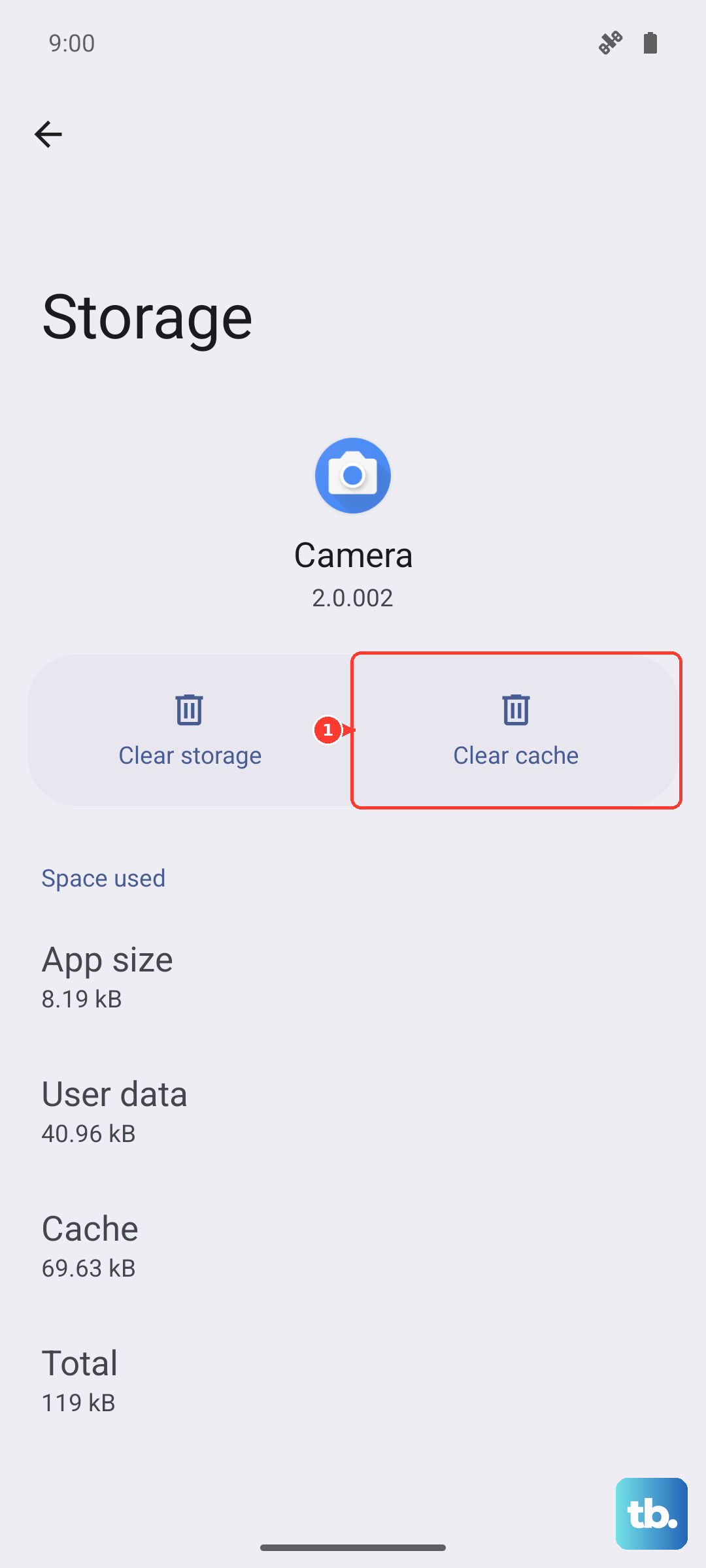
Corrupted cache data in system services can lead to microphone problems. This doesn't delete any personal data. Go to Settings > Apps > Manage apps.
Tap the three-dot menu in the top right and select "Show system apps." Now, find and select "Google Play services" and "Android System WebView." For each one, go to Storage usage and tap Clear cache. Restart your phone afterward.
Reset All Network Settings
This can help if the issue is related to calling or VoIP apps like WhatsApp or Messenger. It resets Wi-Fi, mobile data, and Bluetooth connections. Go to Settings > Connection & sharing > Reset Wi-Fi, mobile networks & Bluetooth.
Tap "Reset settings" and confirm. You'll need to reconnect to your Wi-Fi networks and re-pair Bluetooth devices afterward, but it often clears up strange connectivity-related audio bugs.
Perform a Factory Reset
This is your last resort before considering a hardware repair. A factory reset will erase everything on your phone, so it is absolutely critical to back up your photos, messages, and app data first. Use Xiaomi Cloud or transfer files to a computer.
Once backed up, go to Settings > About phone > Factory reset. Follow the prompts to erase all data. After the phone restores itself, set it up as new without restoring a backup immediately to see if the microphone works on a clean system.