
A Redmi Note 14 Pro with an unresponsive touchscreen can be incredibly frustrating. The display might be on, but your taps and swipes do nothing, or the phone could be completely frozen on an app or the lock screen. In most cases, this is a temporary software glitch that you can resolve yourself.
Force Restart Your Phone
This is almost always the first thing to try. Press and hold the Power button for at least 15 seconds. Keep holding it even if you don't see anything happen right away. You'll eventually feel a vibration or see the Redmi logo appear, signaling the phone is restarting. This process doesn't delete any of your personal data.
Let the Phone Finish Its Task
Sometimes the phone isn't truly frozen, it's just working hard on something in the background. The Dimensity 7300 Ultra processor is capable, but intensive tasks like camera processing in night mode or applying a major system update can make the device seem stuck. If the back of the phone feels warm, give it 5 to 10 minutes to finish before you take any other action.
Plug It Into a Charger
A battery that's completely drained can cause the phone to act erratically or appear dead. Use the USB-C port and connect it to a charger. For the fastest response, I'd recommend using a 45W HyperCharge compatible adapter if you have one. Let it charge for at least 15-20 minutes before trying to turn it on again.
Close the Problematic App
If the touchscreen works everywhere except in one specific app, that app is likely the culprit. Swipe up from the bottom of the screen and hold to bring up the recent apps menu. Find the frozen app and swipe it up to close it completely. You can then relaunch it. If an app consistently freezes, check for updates in the Google Play Store or Galaxy Store.
Check Your Available Storage
When your phone's storage is nearly full, the system has no room to create temporary files it needs to run smoothly, which can lead to freezing. If you can access settings, go to Settings > About phone > Storage. Delete old downloads, clear app caches, or offload photos and videos to free up several gigabytes of space.
Install the Latest Software Update
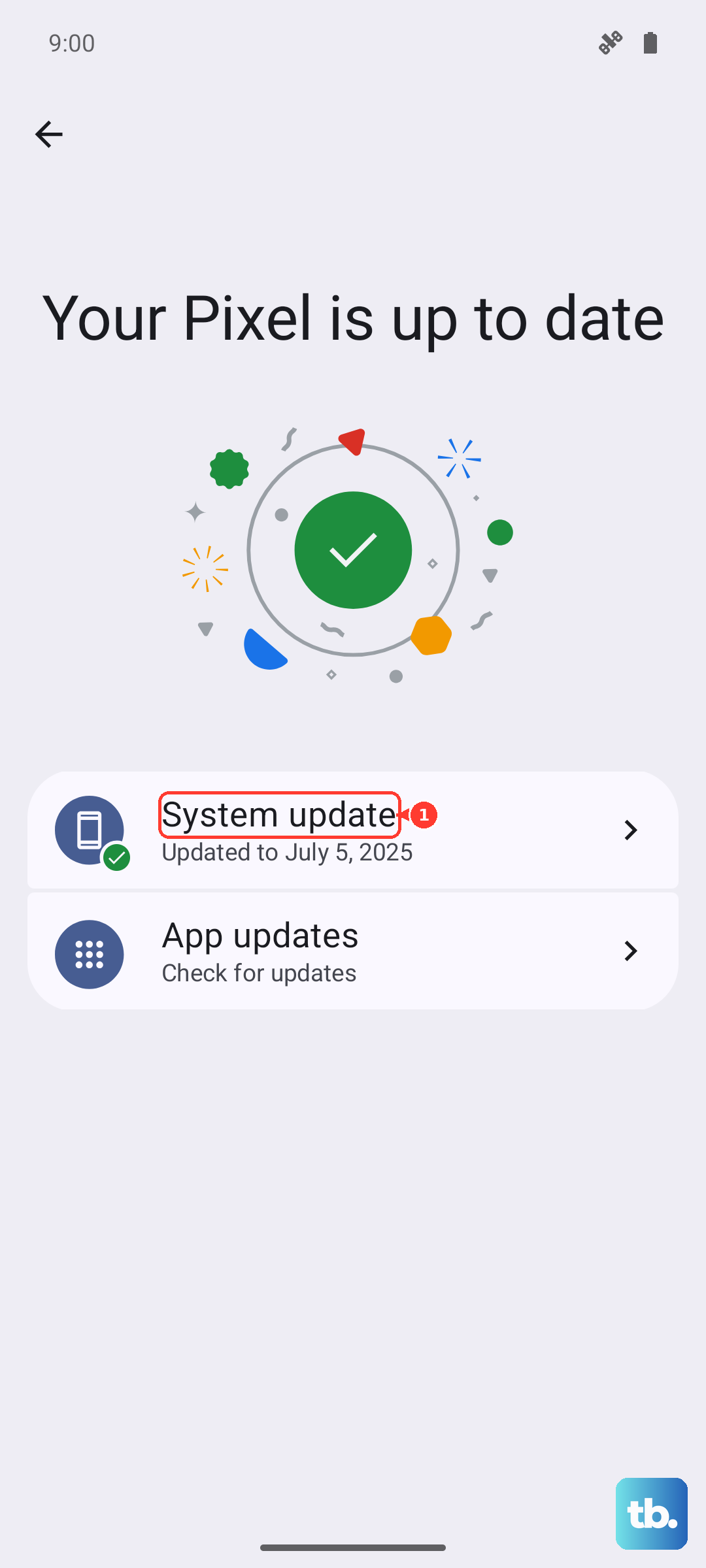
Software bugs in HyperOS or Android can cause touchscreen issues. After a successful restart, navigate to Settings > About phone > HyperOS version and tap on the update button. Make sure your phone is connected to Wi-Fi and has a good battery charge before you start the update process.
Perform a Soft Reset of Settings
If freezing is a recurring problem, a misconfigured system setting might be to blame. You can reset these without losing your photos, apps, or messages. For Xiaomi/Redmi/POCO, go to Settings > About phone > Factory reset > Erase all data; for OnePlus, go to Settings > Additional settings > Back up and reset > Reset phone. Before confirming, look for and select Reset settings or Reset all settings. This will revert your Wi-Fi, Bluetooth, and display settings back to default.
Clean the Screen and Remove Any Protector
While the Gorilla Glass Victus 2 is durable, moisture, grease, or a poorly applied screen protector can interfere with touch sensitivity. Wipe the screen down with a soft, slightly damp cloth. If you're using a tempered glass or plastic screen protector, try carefully removing it temporarily to see if touch response improves.
Boot into Safe Mode
This starts your Redmi Note 14 Pro with all third-party apps disabled. If the touchscreen works perfectly in Safe Mode, then a recently installed app is causing the conflict. To enter Safe Mode, open the power menu by pressing the Power and Volume up buttons together (on Samsung phones, the Side and Volume down buttons) or by tapping the power icon in the quick settings panel, then touch and hold Power off and tap Safe Mode or OK. Then, tap and hold the "Power off" option on your screen until you see a prompt to reboot to Safe Mode.