
When your Redmi Note 14 Pro keeps closing apps, it usually comes down to a few common culprits. The Dimensity 7300 Ultra processor is solid, but it can still get bogged down if too many things are running at once or if an app has a bug. I'd start with the simplest fix first, which often clears things right up.
Hold down the power button for about 15 seconds until you see the phone restart. This force reboot clears out the phone's temporary memory and stops any background processes that might be causing conflicts. It's the quickest way to solve a random software hiccup.
Update Your Apps and System
Outdated apps are a major reason for crashes, especially on newer systems like Android 14 with HyperOS. Open the Google Play Store, tap your profile icon, and go to Manage apps & device. Look under "Updates available" and install everything.
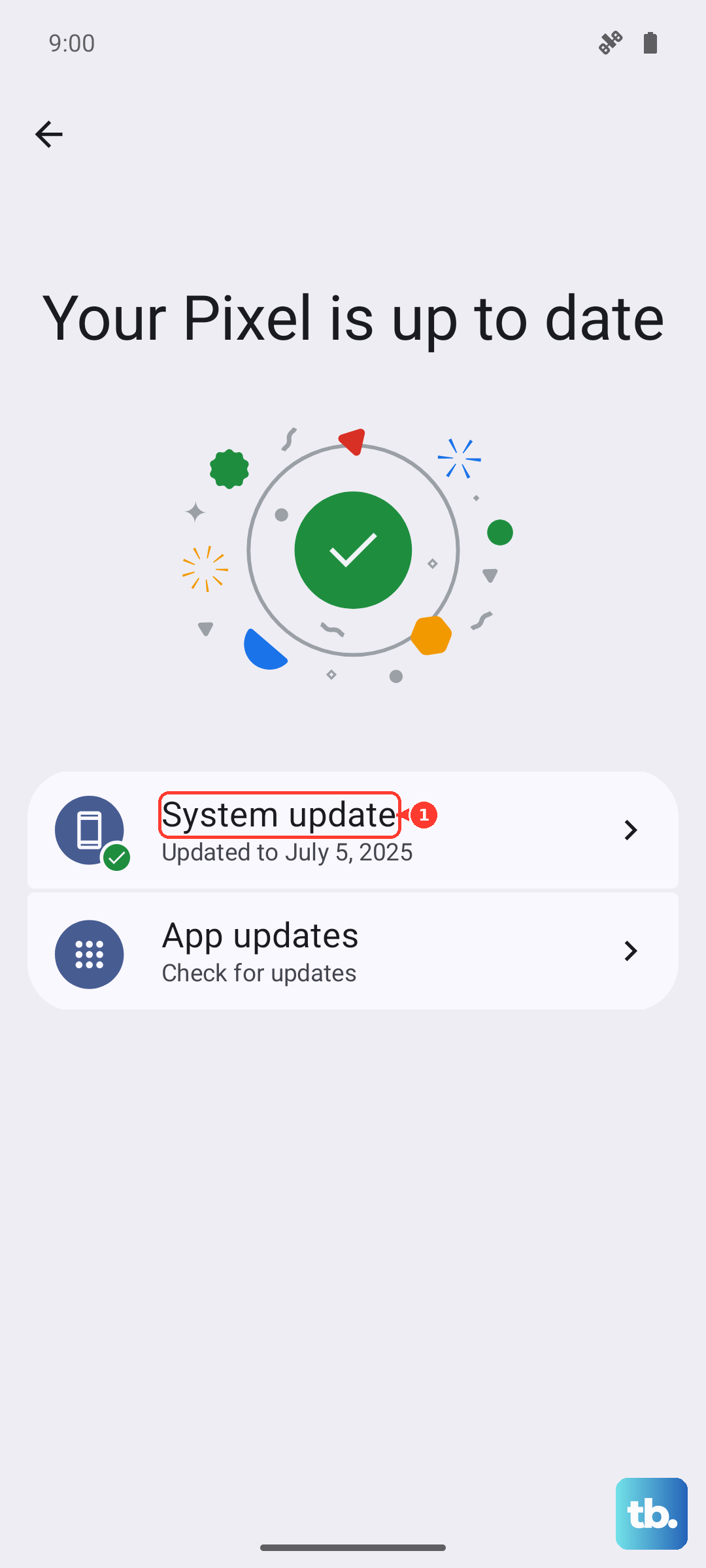
Don't forget to check for a system update, too. Xiaomi pushes fixes for performance and stability through these. Go to Settings > About phone > MIUI version and tap "Check for updates." Installing the latest software can resolve conflicts that cause apps to close.
Free Up RAM and Storage
If you've just switched from a heavy app like the camera, the Note 14 Pro might be closing other apps to free up memory. You can check this by opening the recent apps view and tapping the "Clear all" button at the bottom. For a more permanent fix, look at which apps are set to autostart.
Go to Settings > Apps > Manage apps. Tap the three-dot menu, select "Autostart," and disable it for apps you don't need running in the background. This helps keep your RAM free for the apps you're actually using.
Low storage can also cause instability. The phone needs free space to operate smoothly. Head to Settings > Storage to see what's taking up room. Clear cached data for apps you don't use often and consider offloading photos and videos to cloud storage or a computer.
Clear an App's Cache and Data
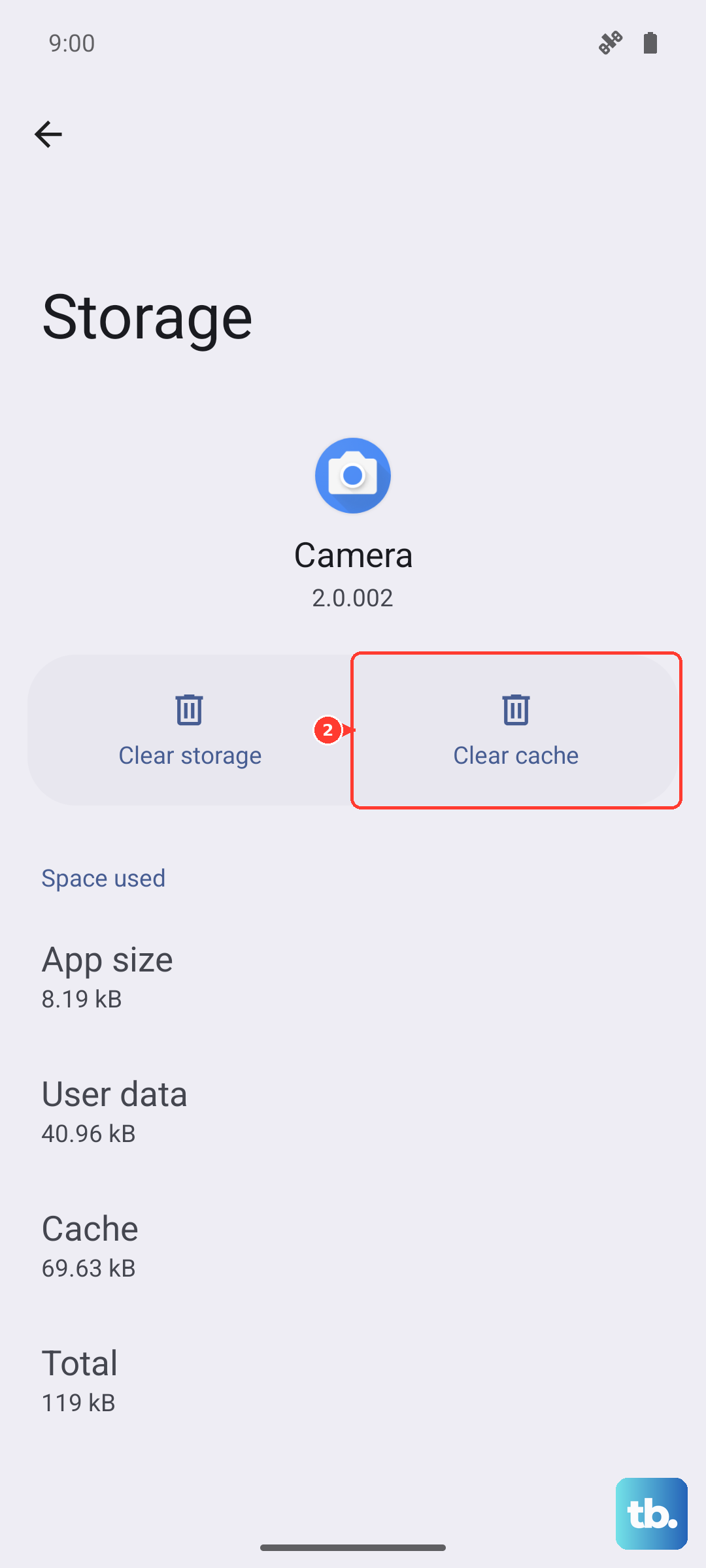
When a specific app, like Instagram or WhatsApp, keeps closing, its stored data might be corrupted. Clearing the cache is safe and won't delete your login info or personal data within the app. Go to Settings > Apps > Manage apps, find the problematic app, and tap on it.
Tap Storage usage and then Clear cache. Try the app again. If it still crashes, you can go back and tap Clear data. Be warned, this will reset the app like it's freshly installed, so you'll need to log back in and may lose some saved preferences.
Check for Conflicting Settings or Apps
HyperOS has some aggressive battery and memory optimization features that can sometimes close apps prematurely. For apps you need running reliably in the background, you can adjust their settings. Go back into the app's info page in Settings > Apps.
Tap on Battery saver and set it to "No restrictions." Also, look for an option called "Auto-start" on the same page and make sure it's enabled for that app. This tells the system not to restrict it.
It's also worth checking if you've recently installed a new app that might be causing a conflict. Try booting the phone in Safe Mode. Press and hold the power button, then long-press the "Power off" option on the screen until you see the Safe Mode prompt. If the crashes stop in Safe Mode, a third-party app is likely the culprit.
Reinstall the Problem App
If one app is consistently the problem, a fresh install can work wonders. Uninstalling removes all its files and settings, giving you a clean slate. Long-press the app icon on your home screen and tap "Uninstall," or remove it through the Google Play Store.
Then, just reinstall it from the Play Store. This ensures you have the latest, clean version of the app that's fully compatible with your phone's current software.
Review HyperOS-Specific Optimizations
Since you're on HyperOS, there are a couple of extra places to look. Some users find that the "Memory extension" feature, which uses storage as extra RAM, can occasionally cause instability. You can check this in Settings > Additional settings > Memory extension and try turning it off to see if app stability improves.
Also, the system's "MIUI Optimizations," while hidden, can affect app behavior. If you're comfortable with developer options, you can toggle this. Go to Settings > About phone and tap "MIUI version" seven times to enable Developer options. Then, go to Additional settings > Developer options, scroll down, and look for "Turn on MIUI optimization" to toggle it.